Uninstall using the Adobe Cleaner Tool
You can use the Adobe Cleaner Tool to completely uninstall Adobe products. Please follow these instructions.
Instructions Windows
Download the Adobe Cleaner Tool from the Adobe website [external]. Then run it as an administrator (right-click on the file -> "Run as administrator"). It is recommended not to run the software directly from the download folder, but to move it first.
A CMD window will open.
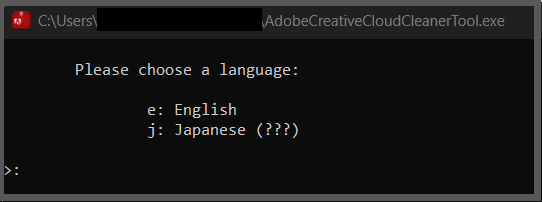
Use "e" to select English as the language and confirm with Enter.
Accept the license terms with "y" and press Enter.
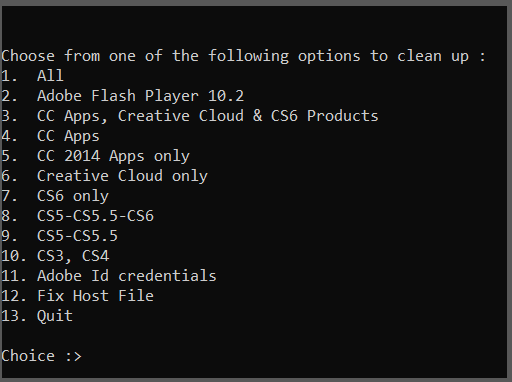
Select "All" by pressing "1" and then press Enter.

Select "Clean All" with the corresponding number and confirm with Enter.
Attention! Depending on the number of Adobe applications installed, this menu may look different. "Clean All" is not necessarily item #2. Please check for yourself which number must be entered.
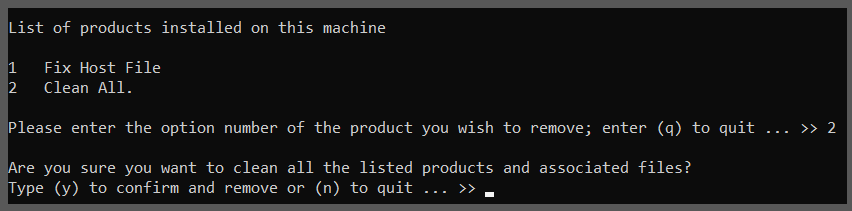
Confirm with "y" and press Enter. All Adobe applications are then removed. Now press any key to close the Cleaner Tool.
Please repeat the previous steps again and restart the PC.
Guide MacOS
Download the Adobe Cleaner Tool from the Adobe website [external].
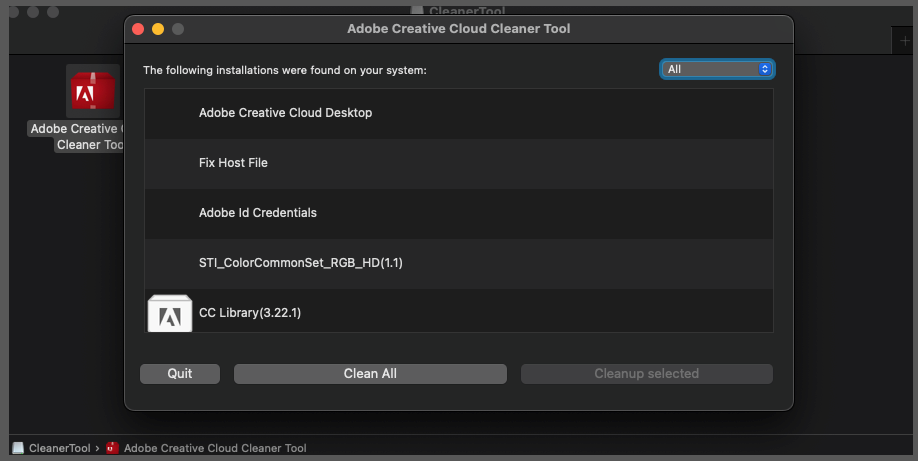
This window will open.
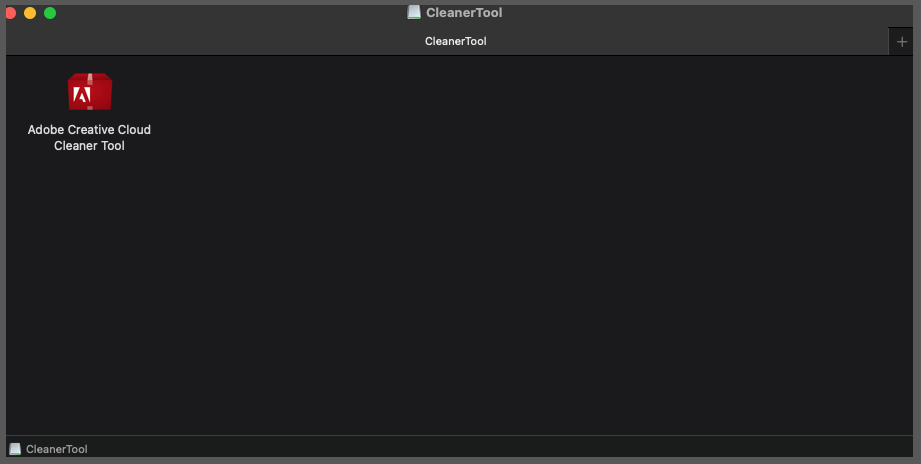
Select the application to start the program. You will need to authenticate yourself with your Apple user ID.
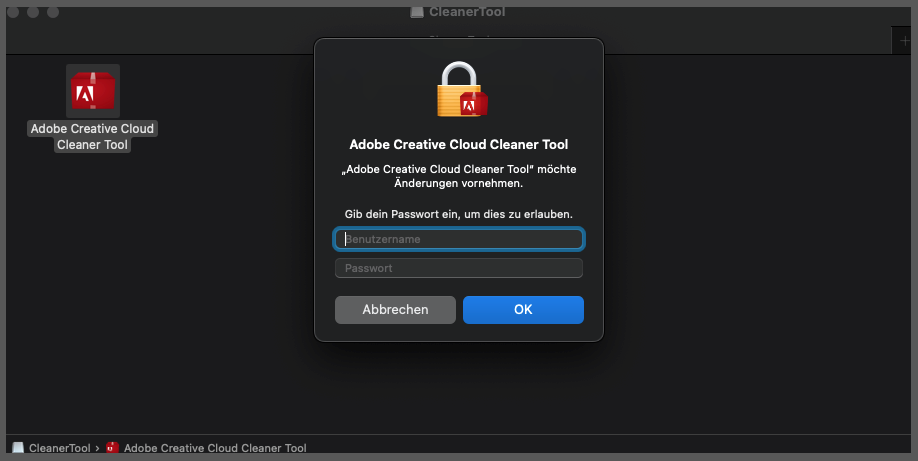
In the next step, accept the license agreement.
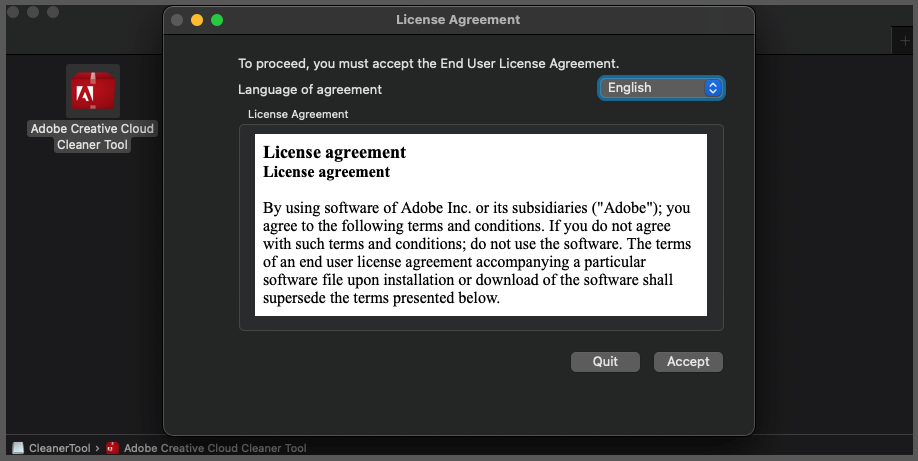
A window opens. Select "Clean All" here. If only "Fix Host File" is displayed in the list, end the process with "Quit".
Then carry out this process again.
Then search for "Adobe" in the Finder and move all files found to the trash and empty it.
Then restart the MAC to permanently remove all Adobe applications and files.