

Start programs interactively
Interactive working in the Linux cluster - overview
Interactive work" refers to the direct operation of a server, e.g. because the program to be executed requires user input at runtime. This can be a program with a graphical user interface such as Matlab, but also program development or a software installation in your own home directory.
The following topics are explained in this chapter:
- Transferring graphical user interfaces from the Linux cluster to your own PC
- First steps in the Linux cluster directly on the its-cs136 node for test purposes without reservation
- Reserving nodes to be able to work interactively on them directly.
Display graphical user interfaces
To be able to transfer a graphical user interface such as Matlab or Abaqus from the Linux cluster to your own computer, the so-called "X11 forwarding" or "X Window" must be used.
Under Linux, you only need to add the option "-Y" (recommended) or alternatively "-X" to the ssh command.
There are several options under Windows:
- If you use the MobaXterm program (recommended) to access the Linux cluster, you can transfer graphical user interfaces without any further settings.
- Alternatively, you can use the programs PuTTY and Xming (X Server for Windows) together. When Xming is started, it displays an "X" in the bottom right-hand corner of the Windows interface. X11 must still be activated in PuTTY. This can be done in the PuTTY menu under Connection/SSH/X11. There, check the box "Enable X11 forwarding" and enter the value "localhost:0" without quotation marks as the "X display location".
Interactive working without reservation
The computer its-cs136.its.uni-kassel.de is available for interactive work (program development, software porting). Access to this computer is from its-cs1 (access to this node is described under Access ) via ssh its-cs136. Direct access from the university network is also possible via ssh uk00123@its-cs136.its.uni-kassel.de.
The its-cs136 node is not connected to the resource management of the Linux cluster and is the only server that can be used directly for work. However, the node offers the same software environment as the Linux cluster for testing and development purposes and has the same programs.
Interactive work on allocated node
It is possible to reserve a computer in the cluster for a specific time. In contrast to using its-cs136, this has the advantage that the allocated (=reserved) resources are then only available to one user and the console can still be used after each command has been processed. If only complex programs are to be executed and this interactive access is not necessary, "normal" batch operation with a submit script is recommended!
There are two ways to reserve a node. In both cases, you must be located on its-cs1:
Variant 1:
Use the salloc command to request the desired resources. Once these resources have been allocated, the srun command can be used to execute commands on the reserved resources instead of on its-cs1 itself. The advantage of this variant is that the resources remain reserved even if you issue several commands. The reservation is only terminated after the shell is closed using Ctrl+D or the reservation time has expired.
In the following example, a node from the "pub23" partition is requested for one hour and then a shell window is started on the assigned node using the srun xterm command:
uk00123@its-cs1:/home/users/000/uk00123> salloc -p pub23 -t 1:00:00 salloc: Granted job allocation 5404733 uk00123@its-cs1:/home/users/000/uk00123> srun xterm |
Variant 2:
In the following example, the previous salloc is omitted. The resources are then allocated by the srun command and the xterm program is started directly.
uk00123@its-cs1:/home/users/000/uk00123> srun -p pub23 -t 1:00:00 xterm salloc: Granted job allocation 5404734 |
If the program started with srun (in this case xterm) is terminated, the reservation is also terminated.
In a shell window of xterm, further applications or scripts can now be started on the assigned node within the requested time. You can use the "hostname" command to ensure that the commands are really executed on the reserved node and not on its-cs1.
Start individual program:
Of course, other applications with a graphical user interface can also be called up, such as Mathematica:
uk00123@its-cs1:/home/users/000/uk00123> srun -p minijobs -t 1:00:00 Mathematica |
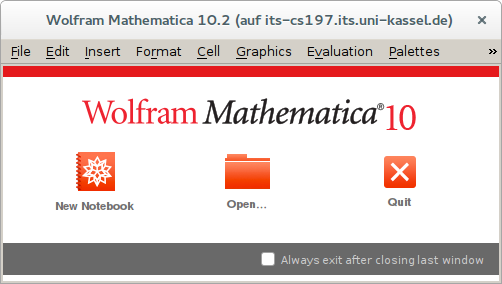
The srun and salloc options specify the resources for interactive operation (required hardware, runtime, partition, etc.). However, this is only possible without waiting time if the requested resources are available and not already occupied. There may be a longer wait until the resources are free. Tip: Use srun to find out beforehand in which partition nodes are already available and request specific nodes from this partition using the -p option.
Allocate several nodes/CPUs at the same time:
It is possible to work with multiple nodes at the same time. To do this, the -N 2 option for two nodes or -n 4 for 4 CPUs can be used with salloc and srun. A command sent with srun is now executed on all reserved resources and outputs appear in random order.
MPI applications do not require the srun command. These are started directly with mpirun after the salloc call. mpirun then automatically accesses the resources that were allocated with salloc .
Examples:
Command | Command description |
|---|---|
salloc -N1 -p exec --exclusive -t 2:00:00 | A computer from the exec partition is required for 2 hours. The use should be exclusive. This means that applications of other users should not be allowed on the requested computer. |
salloc -N1 -p exec --mem=64000 | A computer from the exec partition with at least 64 GB main memory is required. |
salloc -N2 -C Infiniband | 2 computers with Infiniband networking are required |
salloc -N2 -C Infiniband -C 12cores | 2 computers with Infiniband networking and 12 CPU cores each are required |
General syntax for salloc:
Syntax: | salloc [options] [<command> [command args]] |
-C <feature> | specify features of Linux Cluster |
--exclusive | job allocation can not share nodes with other running jobs |
--mem=<MB> | specify real memory required per node |
-N <min[-max]> | min to max of nodes will be allocated to this job. |
-p <partition> | request specific partition for resource allocation |
-t <time> | set limit on total run time of the job allocation |