

Electronic signing of documents
 Image: cirquedesprit - adobestock.com
General information
The qualified electronic signature (QES ) offers the option of using a personal signature for digital documents. The QES has the highest level of security. Asymmetric encryption methods are used and a certificate from a trust provider is required to confirm the identity of the person signing. This ensures that the signature can be assigned to the signatory of the document and is legally valid.
At the University of Kassel, the QES is offered via the d.velop sign service in the d.velop cloud. The trusted provider here is D-Trust GmbH, a Bundesdruckerei company.
The qualified electronic signature (QES) is primarily used in processes where there is a legally prescribed written form requirement. At the University of Kassel, for example, this is the case for contracts.
Access to d.velop sign
Registration
Please note that you need a d.velop cloud account to use d.velop sign for the electronic signature. To set up a d.velop cloud account, please contact dms-support[at]uni-kassel[dot]de.
To get a d.velop cloud account, you must first be added as a user with your e-mail address and your name. You will receive an e-mail with a link and a description of how to create your new account. Please follow the instructions in the e-mail.
Registration
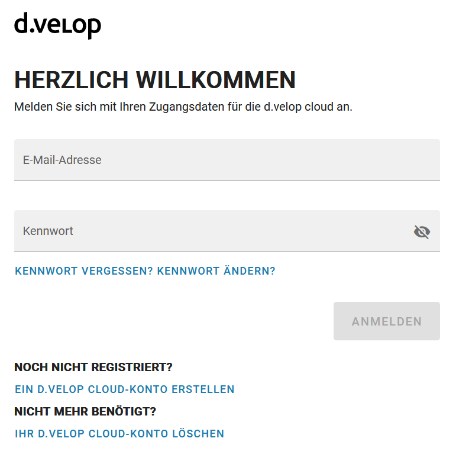
Call up the login to the d.velop cloud at the URL https://universitaet-kassel.d-velop.cloud/.
Please log in under "Username" with your e-mail address and under "Password" with the password you set yourself when activating your account.
Then click on "Log in".
After you have logged in, you should be on your start page. If you already use the DMS of the University of Kassel, this view will look familiar to you. Icons and buttons as well as their functions are largely identical to the DMS software.
For more information on the view settings of the d.velop cloud account, please refer to the instructions on DMS basics (login required)
Start the "Sign" function
To get to the d.velop sign function, please click on the "Sign" button.
The following view opens:
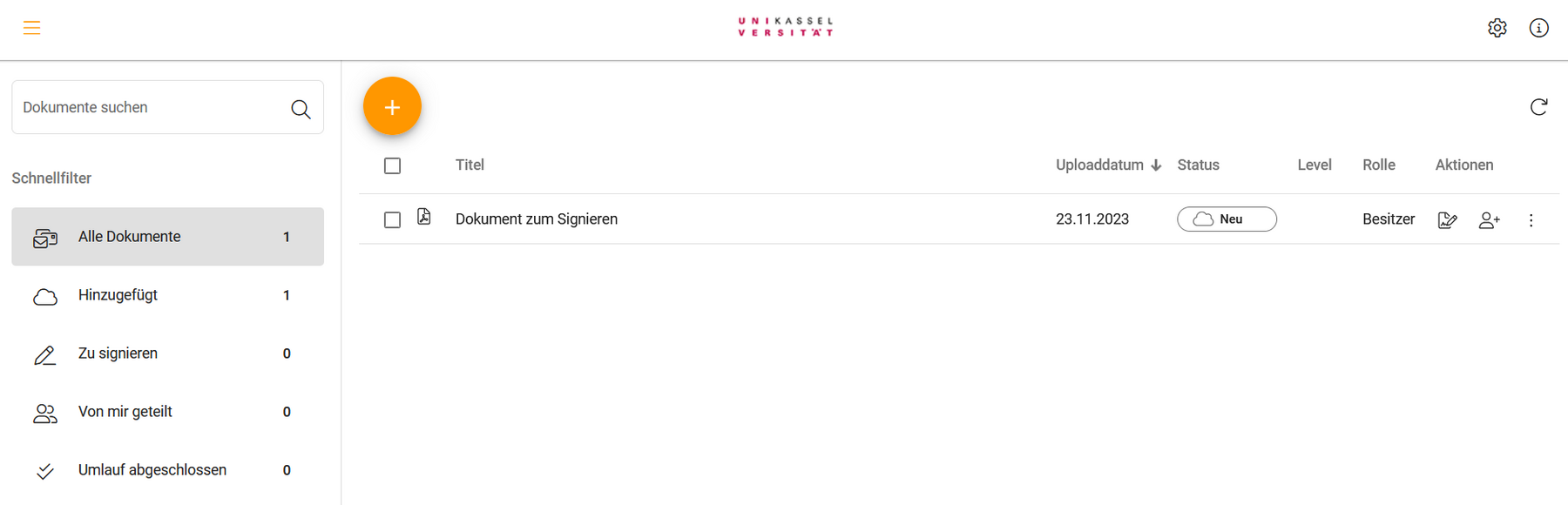
By clicking on the three-bar icon (top left), you can expand or collapse the sidebar as required. You can use the sidebar to search for documents and select from various quick filters.
Signature settings
To access the settings for your signature, please click on the cogwheel symbol in the top right-hand corner.
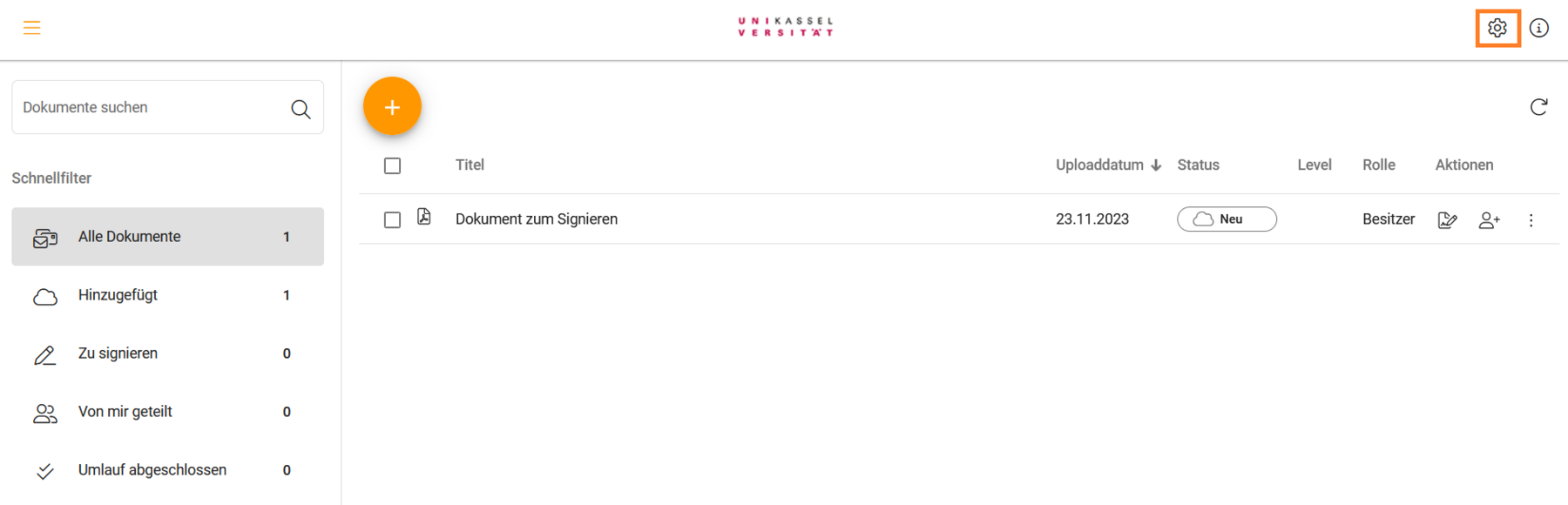

There you can view your available signature types, set up or edit your sign-me account, customize your signature image and change your privacy settings.
set up a sign-me account
The Signing function of the d.velop cloud offers you the possibility to create a qualified electronic signature (QES). sign-me is a service of Bundesdruckerei.
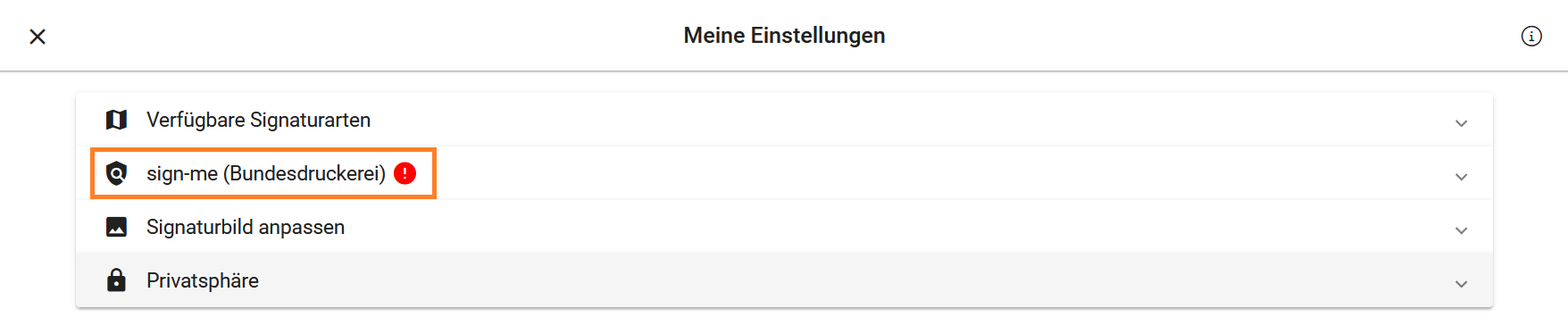
To be able to use this service, you must either set up a sign-me account or have linked it to your d.velop cloud account. If this is not the case, the software will notify you with a message. You can recognize this message by a red exclamation mark next to the gear symbol for the settings.

Once you have clicked on the cogwheel symbol, you are back in the settings. Next, please click on the "sign-me (Bundesdruckerei)" button. This should also be marked with a red exclamation mark.
The button will then unfold and you can either start the registration process with sign-me or link an existing account.
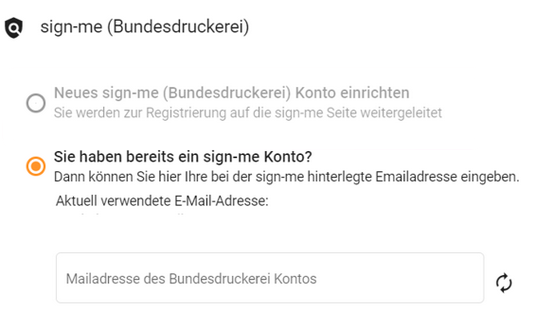
If you would like to create a new sign-me account, please follow the instructions for the registration process. You will need to go through the following steps:
- Enter your personal data (e.g. name and e-mail address)
- Confirmation of the registration message for your sign-me account
- Identification via VideoIdent procedure or with the eID function of your ID card
To successfully complete the process, you will need a device with a camera and a valid ID document (e.g. your ID card). The linked explanatory video explains the process if you get stuck.
Registration and identification are valid for as long as the ID card used, but for at least two years. You can see the identification validity in the sign-me portal under the menu item "Identify". Your signature is legally recognized in the EU once registration has been completed in accordance with the eIDAS Regulation.
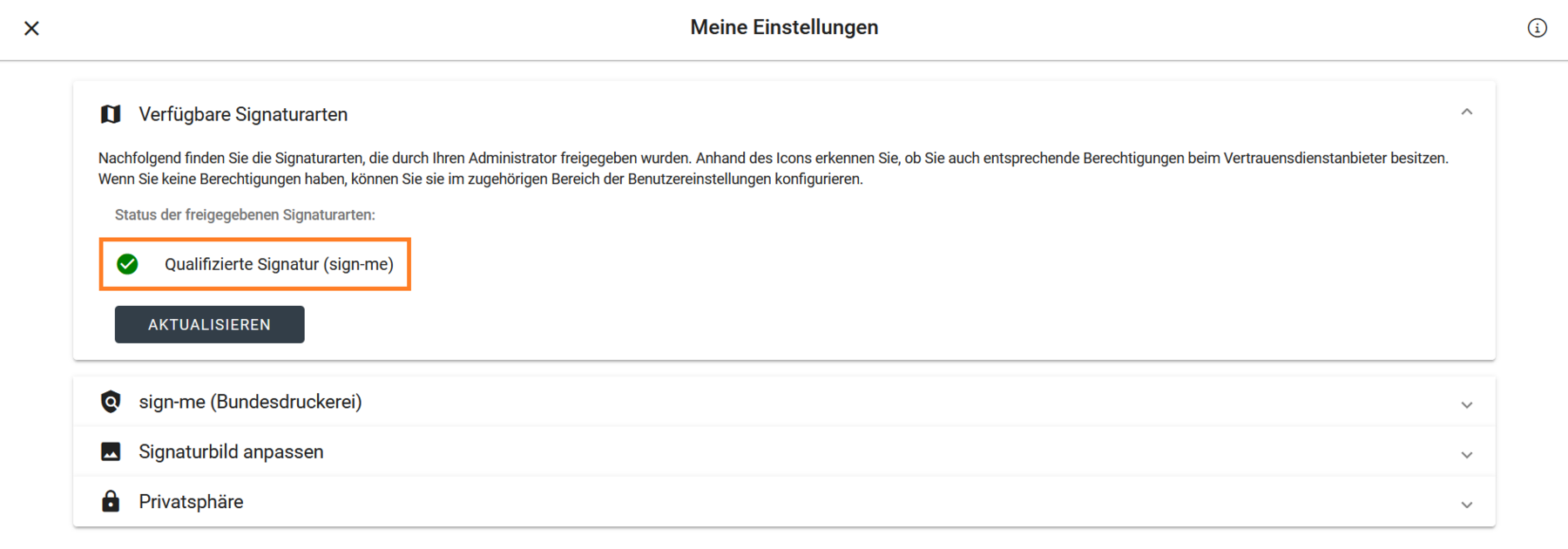
Once you have completed the registration and identification process, the views in your d.velop cloud account will change. You will now see a green tick in the settings indicating that you can use the qualified electronic signature.
Customize signature image
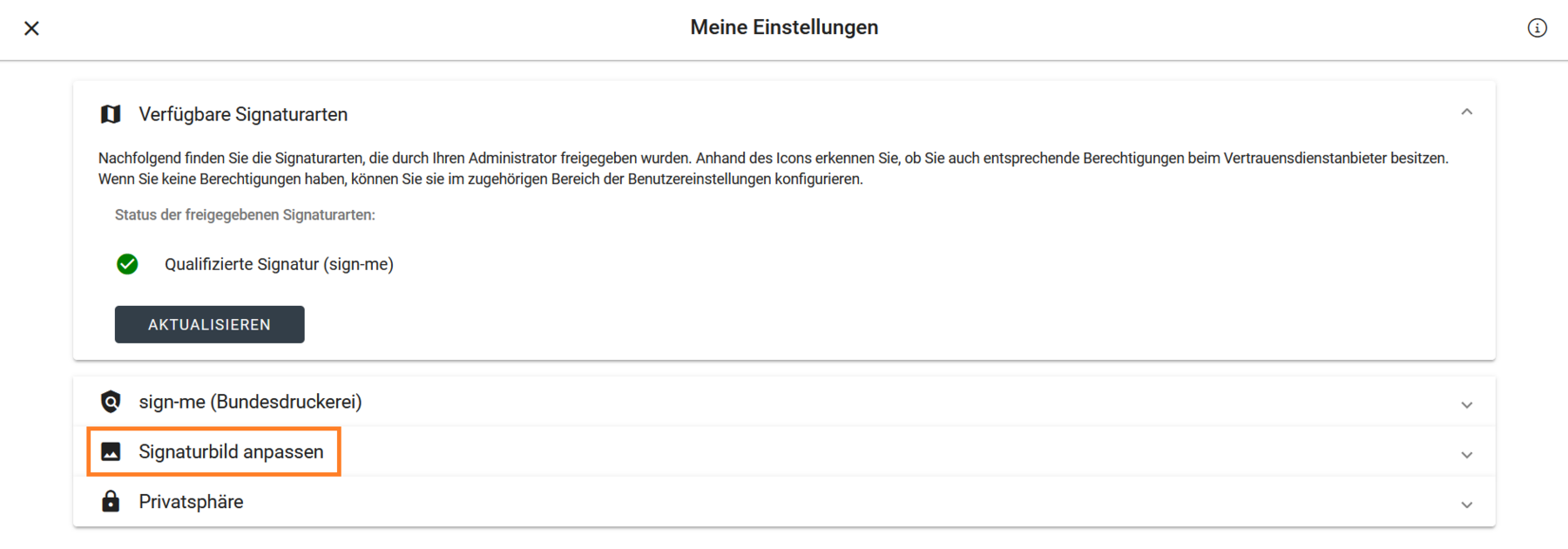
If you click on the "Customize signature image" button, you can customize the appearance of your electronic signature.
You can choose between three options:
- Generate signature
- Upload your own signature image
- Apply a freehand drawing
With the Generate signature option, the software creates a signature from your first name and surname. You can choose from three different fonts. Here you can see an example of a generated signature:

This option allows you to upload an image of your signature, which will be inserted later during the signing process. The formats JPG, JPEG and PNG are possible.

The Apply freehand drawing option allows you to sign during the signing process using the computer mouse or a stylus.

If you want your name and a timestamp to appear under your signature image, you must check the box "Show additional information under the signature image".
After selecting the desired option for your signature image, please click on "Apply settings" to confirm the changes.


Further information on the Qualified Electronic Signature (QES) can be found in the instructions of the same name (registration required).
Go-Link of this page: https://www.uni-kassel.de/go/elektronisches-signieren