

Password reset in self-service
Contents
Students and employees of the University of Kassel have the option of resetting their password themselves using their personal cell phone.
All you have to do is enter your current mobile phone number in the IDM beforehand. If you forget your password, simply follow the instructions step by step. You will then receive a code via SMS on your cell phone, which you can use to reset your password.
Please note that this function cannot be used with a secondary account. You need a currently valid matriculation or personnel number.
How do I enter my mobile phone number in IDM?
Register at
https://www.uni-kassel.de/go/userapp
with the user name and password of your primary account and accept the IT user regulations by ticking the corresponding box.
Then click on the "Forgot telephone number for password" tile.
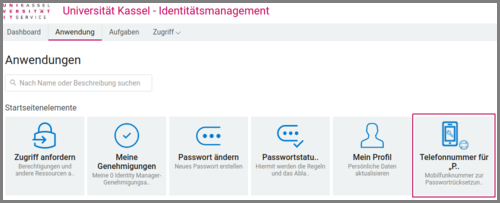
Please note that you can only activate the password reset option via this tile. A mobile phone number, which you may have entered under "My profile", does not support this function.
Only German mobile numbers can be used for the function. The number can be entered in the following formats: 01701234567, 00491701234567, +491701234567. Hyphens, spaces and other special characters are not permitted in the number.
UniAccount-Password-Selfservice-Screen-3

Each time you update your password, you will be asked whether the mobile phone number you have stored is still up to date or whether you would like to store a new mobile phone number. You can skip this request at any time and are not obliged to provide any information.
How do I reset the password?
If you have forgotten your password and have entered a mobile phone number as described in the previous point, please proceed as follows:
Please click on "Forgot password" under the IDM login fields.
UniAccount password self-service image 1b

In the next step, you will be asked to enter your user name.
If you receive an error message after entering this, there is no valid mobile phone number stored for your account.
In this case, please contact our IT helpdesk:
Mönchebergstraße 11, room 1740a
Monday-Thursday 9 am - 6 pm, Friday 9 am - 2 pm
UniAccount-Password-Selfservice-Screen-5

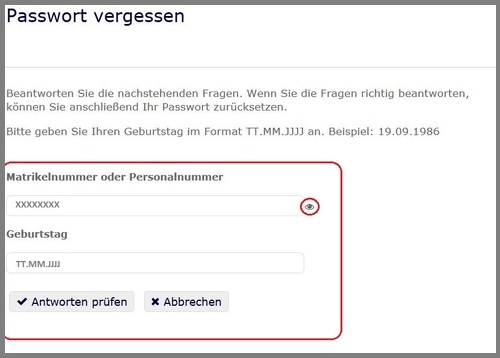
You will then be asked to enter your matriculation or personnel number and your date of birth. Complete this step by clicking on the "Check answers" field.
If you have both a student ID number and a personnel number, please enter one of them in the field provided.
For security reasons, the information you have entered will be hidden, but can be shown at any time by clicking on the eye symbol on the right-hand side of the respective field.
UniAccount-Password-Selfservice-Screen-6
A security code will then be sent to the mobile phone number you have previously entered in IDM. This may take a few minutes.
Enter the code in the field provided (please note that it is case-sensitive) and confirm the process by clicking on "Check code".
UniAccount-Password-Selfservice-Screen-7
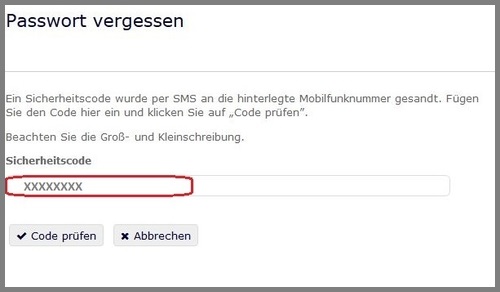
The code is valid for 15 minutes. However, you can restart the process at any time and request a new code.
After entering the code, you will be redirected to the "Change password" page of your profile and can enter a new password. The new password must comply with the known rules and must not be the same as the previous password.
Go-Link of this page:https://www.uni-kassel.de/go/passwort-reset