

Downloading the Zoom apps
The content on this page was translated automatically.
Operating system/application
Windows
To install Zoom for Windows, first open the Download Center [external].
Click on "Download" under "Zoom desktop client".
Windows

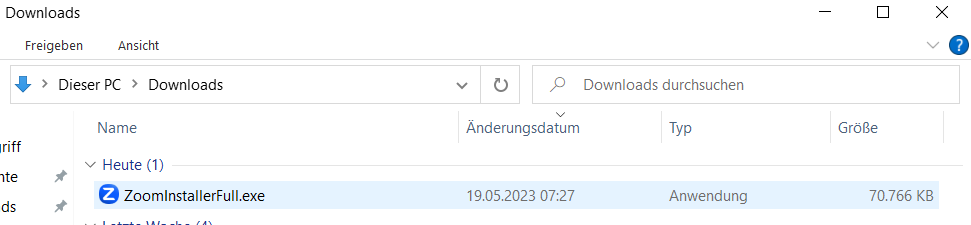
Once the download is complete, you will find the installation program in your download folder.
Open the file and follow the instructions to complete the installation.
The Zoom app is then ready for use.
macOS
To install Zoom on macOS, first open the Download Center [external].
Click on "Download" under "Zoom desktop client".
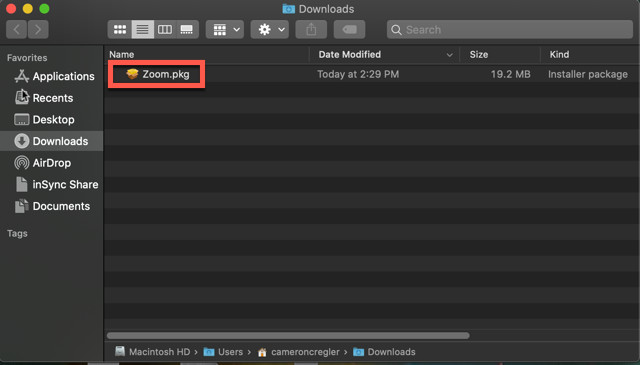
As soon as the installation program has been downloaded, open the file from your download folder.
The installation wizard will guide you through the individual steps.
The Zoom app is then ready to use.
iOS
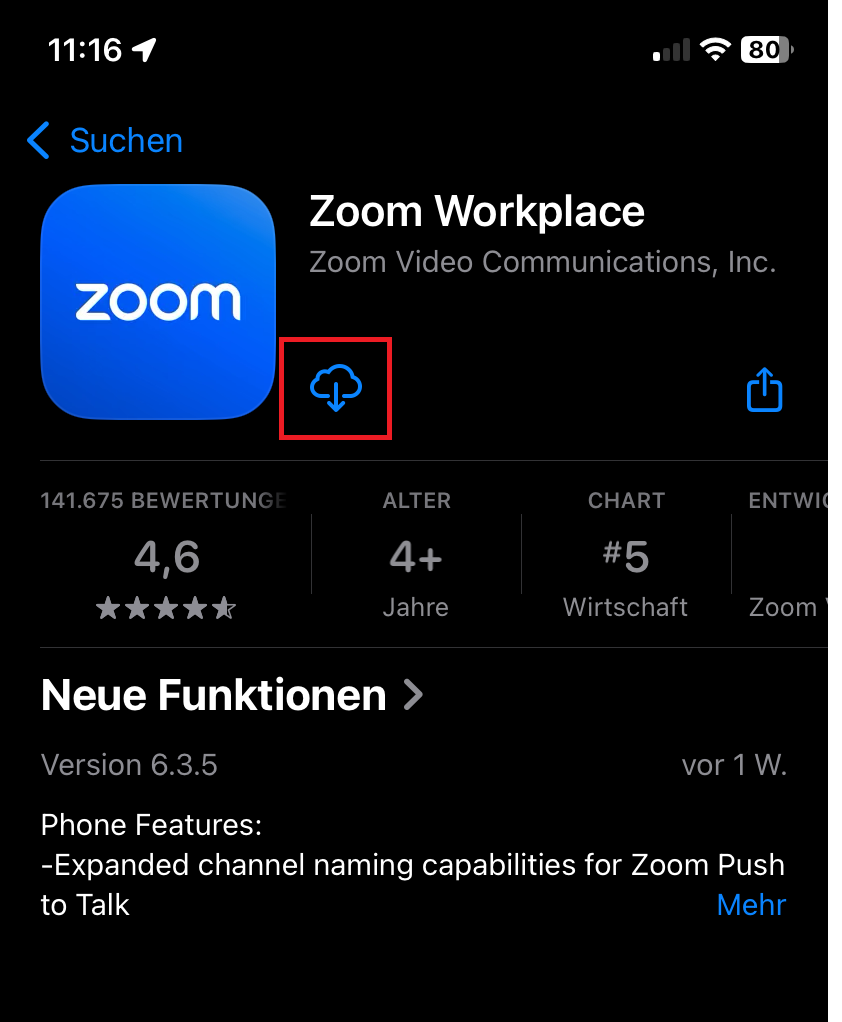
To install on an iOS device, open the App Store and search for "Zoom Workplace".
Click on the cloud icon to download the app.
Once the installation is complete, the app will appear on your home screen. Open it by tapping on the Zoom icon.
Android
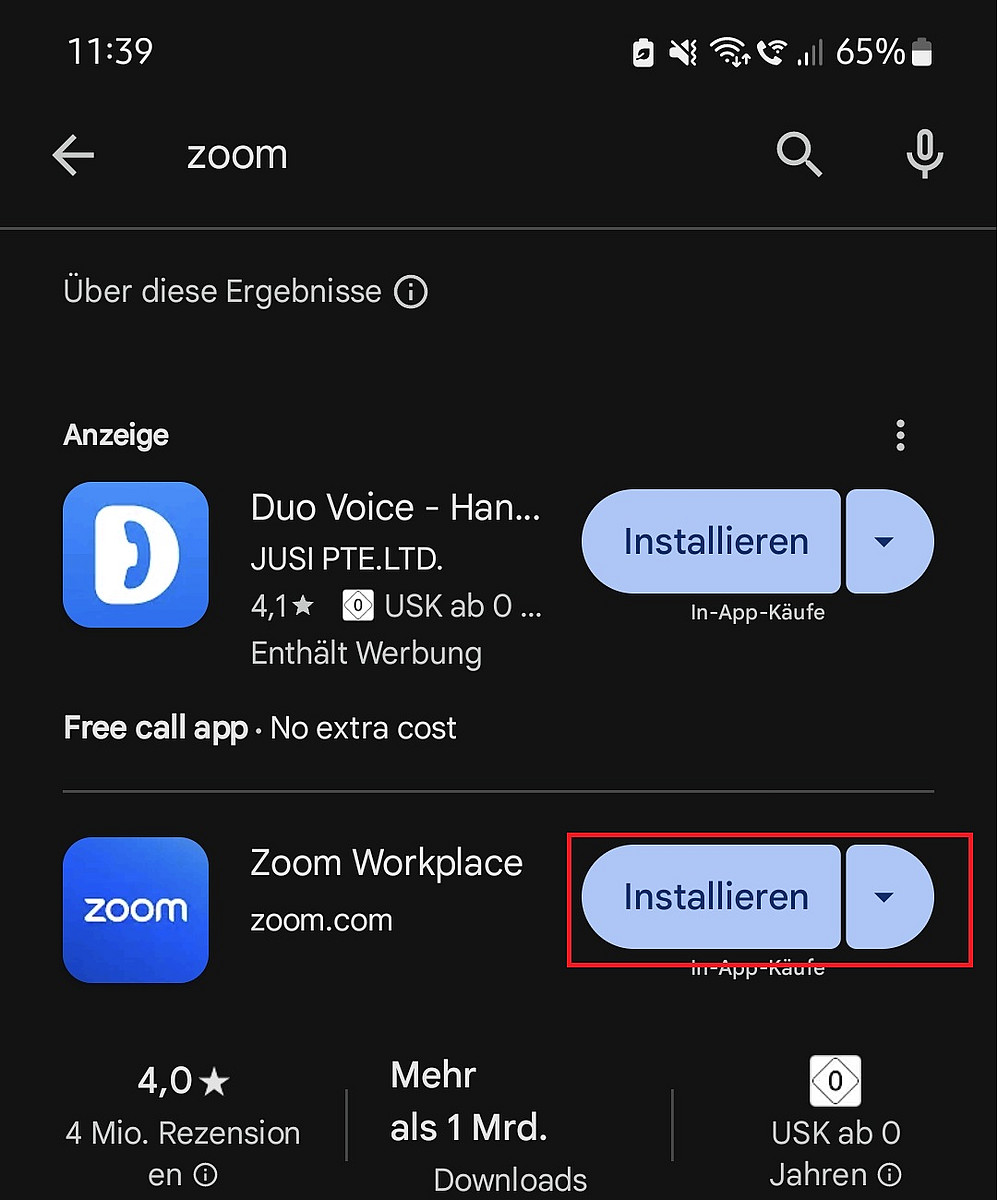
To install Zoom on an Android device, open the Google Play Store and search for "Zoom Workplace".
Tap "Install" and accept the required permissions. Once the installation is complete, you will find the app on your home screen. Open the app by tapping the Zoom icon.
Plugin for Microsoft Outlook
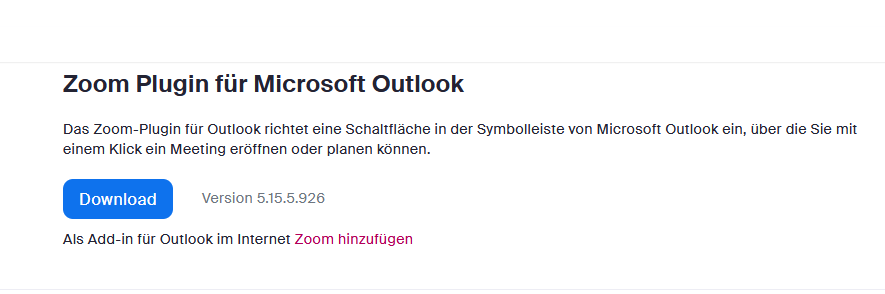
The Zoom plugin for Outlook can be downloaded from the Download Center [external].
Click on "Zoom Plugin for Microsoft Outlook" and start the download.
Once the download is complete, open the MSI file and follow the instructions of the installation wizard. Please note that you must restart Outlook in order to use the plugin.
Go-Link of this page: https://www.uni-kassel.de/go/zoom-app