

Instructions for installing Adobe software on UKCs
These instructions only apply to users who use a UniKasselClient (see How can I tell if I have a UniKasselClient?).
1. display the hidden icons by clicking on the small arrow at the bottom right of the taskbar.
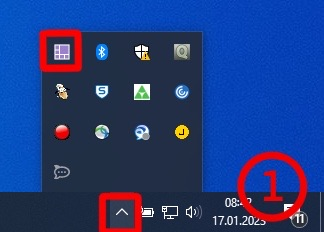
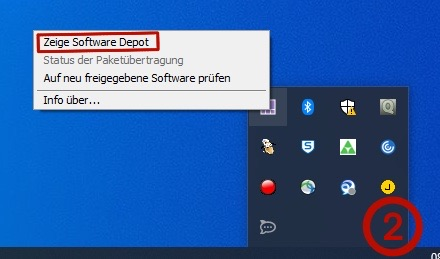
2. click with your right mouse button on the purple Matrix42 symbol. A small menu should now open in which you click on "Show Software Depot" with the left mouse button.
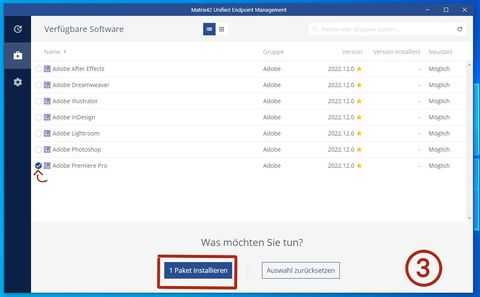
3. a Matrix42 window will then open in which you can select the desired program. As soon as you have selected the desired programs, you can click on "Install package" at the bottom.
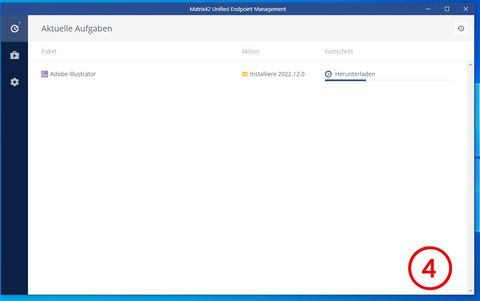
4. you can then see how the selected program is downloaded.
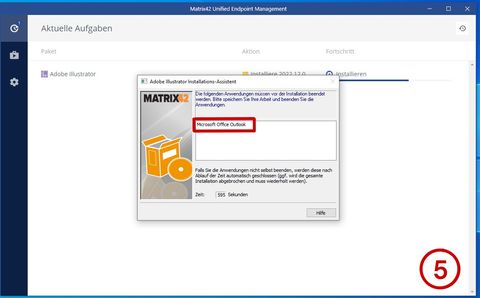
5 If such a window opens, please close the programs specified in the window. In this example, it is Microsoft Office Outlook.
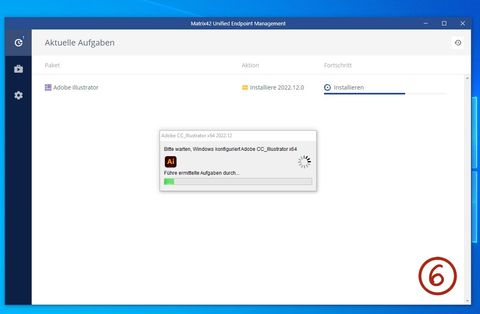
6 Now the installation of the program begins. This may take a moment.
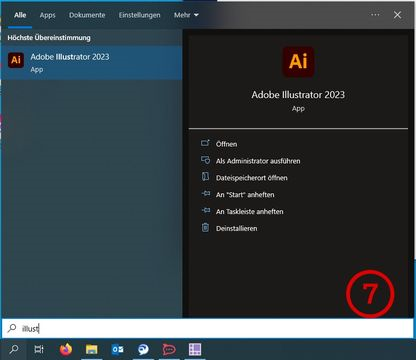
7. the program should now be installed and you can find it in your program selection.
Go-Link of this page: https://www.uni-kassel.de/go/adobe-ukc