

Create meeting & general operation
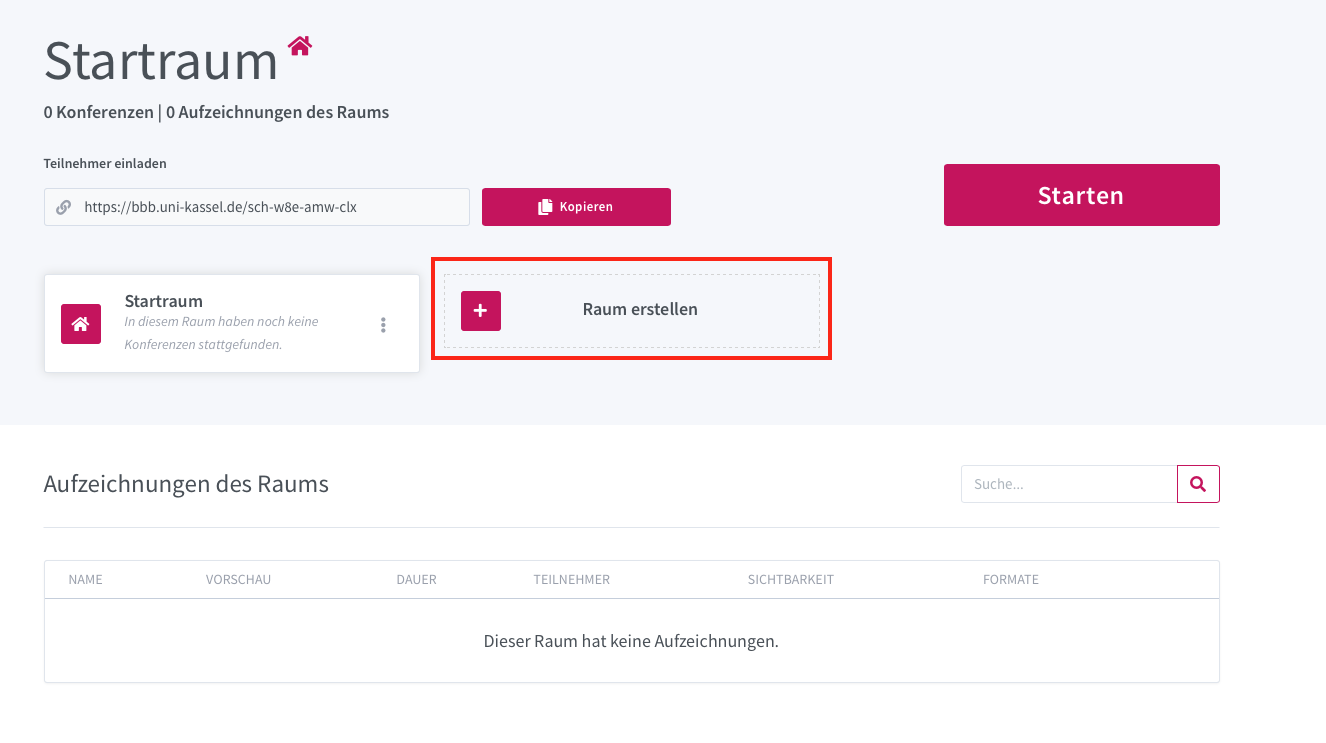
Log in to the BigBlueButton homepage of the University of Kassel.
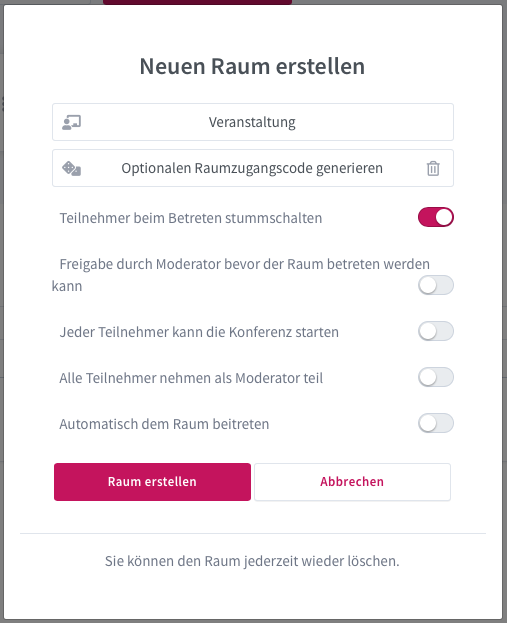
Click on "Create room" and adjust the desired settings.
It is recommended to activate the option "Mute participants when joining".
Note: The term "room" is used synonymously with "meeting".
Once created, you can select the relevant room and save the associated link to the clipboard using the "Copy" button. You can share this link with the participants in various ways, for example via Moodle, email or Mattermost.
To start the meeting, click on "Start". First check that the correct room has been selected.
Allow releases
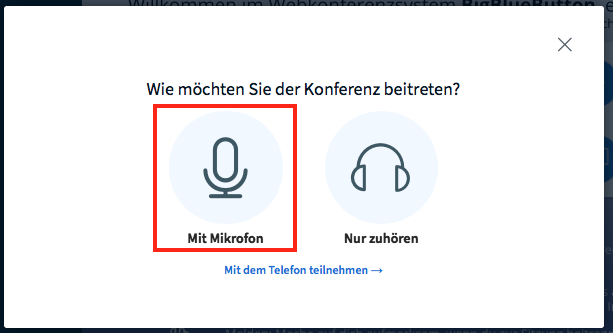
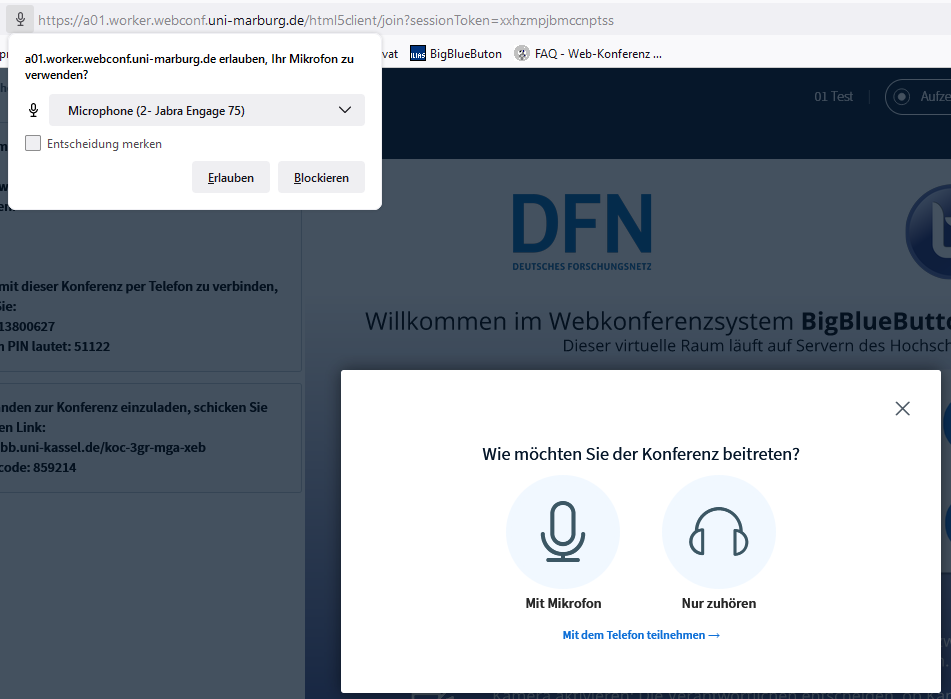
Once the meeting has started, you will be asked whether you would like to participate "With microphone". As a rule, confirm this.
Then allow your microphone to be shared by clicking on "Allow" in the pop-up window. You can save this decision for future meetings by clicking on the corresponding field.
Camera release
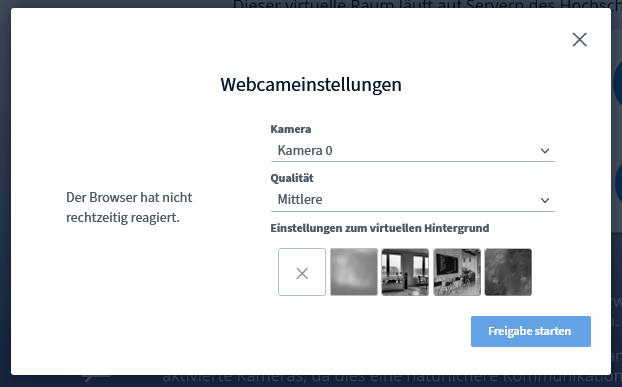
To activate your camera in BigBlueButton, click on the camera icon in the bottom menu bar. A window will then appear in which you can select the desired camera if several devices are available.
Once you have activated the camera, you can choose between different quality levels. A lower quality may be useful if you have a weaker internet connection to ensure stable transmission.
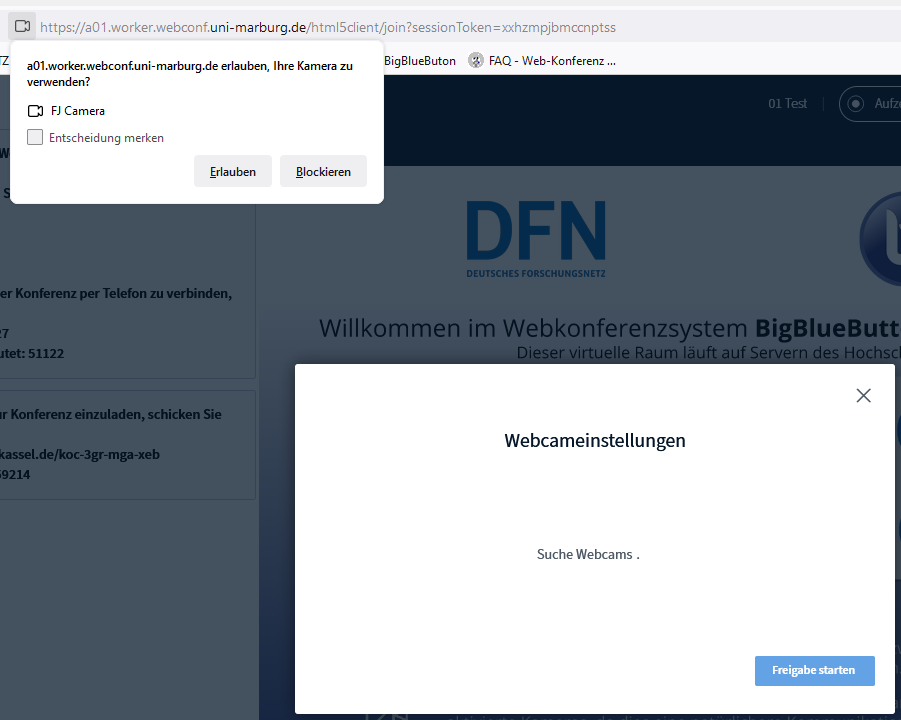
Then allow your camera to be shared by clicking on "Allow" in the pop-up window. You can save this decision for future meetings by clicking on the corresponding field
Screen sharing
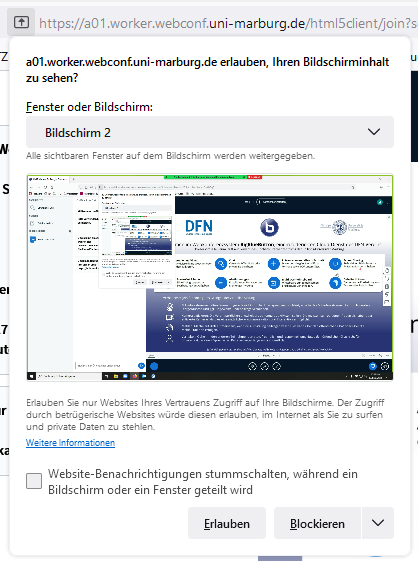
Screen sharing also requires you to share your browser. You can select the relevant window, program or screen from the drop-down menu. After sharing, your screen will be displayed small. If you want a larger display, you can achieve this by clicking on the maximize button in the top right-hand corner.
To end screen sharing, click on the screen button on the bottom menu bar.

Enable screen sharing for participants
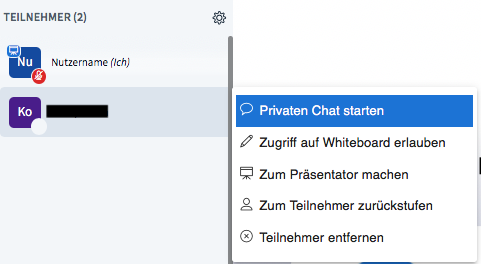
To enable screen sharing for participants, select the relevant person in the list of participants and assign the rights by selecting "Make presenter". BigBlueButton always allows onlyone presenterin the meeting, regardless of whether a person is a moderator or not.
Further settings
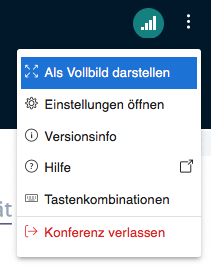
Further settings can be found via the three-dot symbol in the top right-hand corner.
You can also leave a conference there.
Go-Link of this page:www.uni-kassel.de/go/bbb-meeting-erstellen