

Two-factor authentication for VPN
From September 16, 2025, access to the VPN service for staff (including lecturers, assistants and secondary accounts) will only be possible with a second factor; logging in with a password alone will no longer be sufficient. This measure is necessary to increase information security in light of the increasing number of phishing attacks.
New employees will receive an e-mail at the start of their contract informing them by when the second factor for VPN login must be set up. Once the deadline has passed, it is no longer possible to set it up independently. Please contact the IT service desk.
The second factor is
- either by a hardware token
- or through a smartphone app
realized.
All employees can receive a hardware token if required. However, using the app on a work or private smartphone is more sustainable and is perceived as more convenient in practice. No hardware token is required when using a smartphone. You can start using the app right away.
If you do not use a VPN, you still do not need a second factor. Students who are not auxiliary staff are also not affected.
The token requirement registration process is carried out by the Dean's Office or the IT representative of your institution.
Setting up the NetIQ Advanced Authentication App
The required app can only be installed on Android 10 or higher or iOS 10 or higher.
Call up the link < uni-kassel.de/go/2fa > on the smartphone on which the app is to be installed.
On the website, select the option "Klick, um Smartphone-Authenticator für Android/iOS herunterzuladen und zu installieren/click to download and install Smartphone Authenticator for Android/iOS".
You will be redirected to the Play/AppStore. Install the "NetIQ Advanced Authentication" app there.

When you start the app for the first time, you will be asked to set a PIN. Select a PIN of your choice here. If your smartphone is already protected by a PIN or similar, you can then deactivate the PIN request within the app under "Settings -> PIN".
Otherwise, the PIN must be entered each time the app is started.

Once the app has been installed, call up the link <uni-kassel.de/go/2fa> again. Now select "Click to enroll".
The app will now open automatically. Log in here with your UniAccount <ukxxxxxx> and the corresponding password.
If you are not prompted for a password after entering your UniAccount, please contact the IT service desk.
If you receive a message that the link "Click to enroll" is invalid, the second factor must be integrated into the app in a different way. You can find instructions on how to do this in our FAQ.

The Authenticator app is now set up. Under "Registered Authenticators" you will initially see an empty gray tile. After using two-factor authentication for the first time, your user name will be displayed there.

Use of the NetIQ Advanced Authentication App
Log in to the VPN client as usual with your UniAccount <ukxxxxxxxx> and the corresponding password. After you have clicked on "Ok", you will not yet be connected directly.

Instead, confirm the login in the app. If you have activated notifications for the NetIQ app, you can confirm the login via the push notification. Otherwise, open the NetIQ app and confirm the login in the "Authentication requirements" tab.


If authentication via the NetIQ app has not taken place after 60 seconds, the login attempt expires and a new login to the VPN client is required.
Once the login has been confirmed, the VPN connection is automatically established as usual.
Procedure for losing/changing your cell phone
Procedure in case of defect/theft/loss
If your smartphone is defective/stolen/lost, it is necessary to administratively remove the authenticator of the affected device.
Please contact the IT service desk for this. A short video ID procedure via Zoom is required to verify your identity. The authenticator of the old device will then be removed and you will be notified by e-mail as soon as you can set it up on a new device.
Procedure for changing your cell phone
If you want to change your smartphone, you can either use the procedure described under "Defect/theft/loss" or you can transfer the Authenticator to the new device yourself.
To do this, you must log in to two-factor management using the old device and then register the new smartphone.
The NetIQ app must be installed manually from the app/playstore on the new smartphone! If the app has been installed automatically on your new device, please uninstall and reinstall it. Otherwise, an error will occur during automatic installation via the setup wizard.
After you have manually installed the NetIQ app on the new smartphone, proceed as follows:
Log in with a PC/notebook at<https://auth.its.uni-kassel.de/account> with your UniAccount <ukxxxxxx> and password.
Verification via NetIQ app (with the old smartphone) is required for this login.
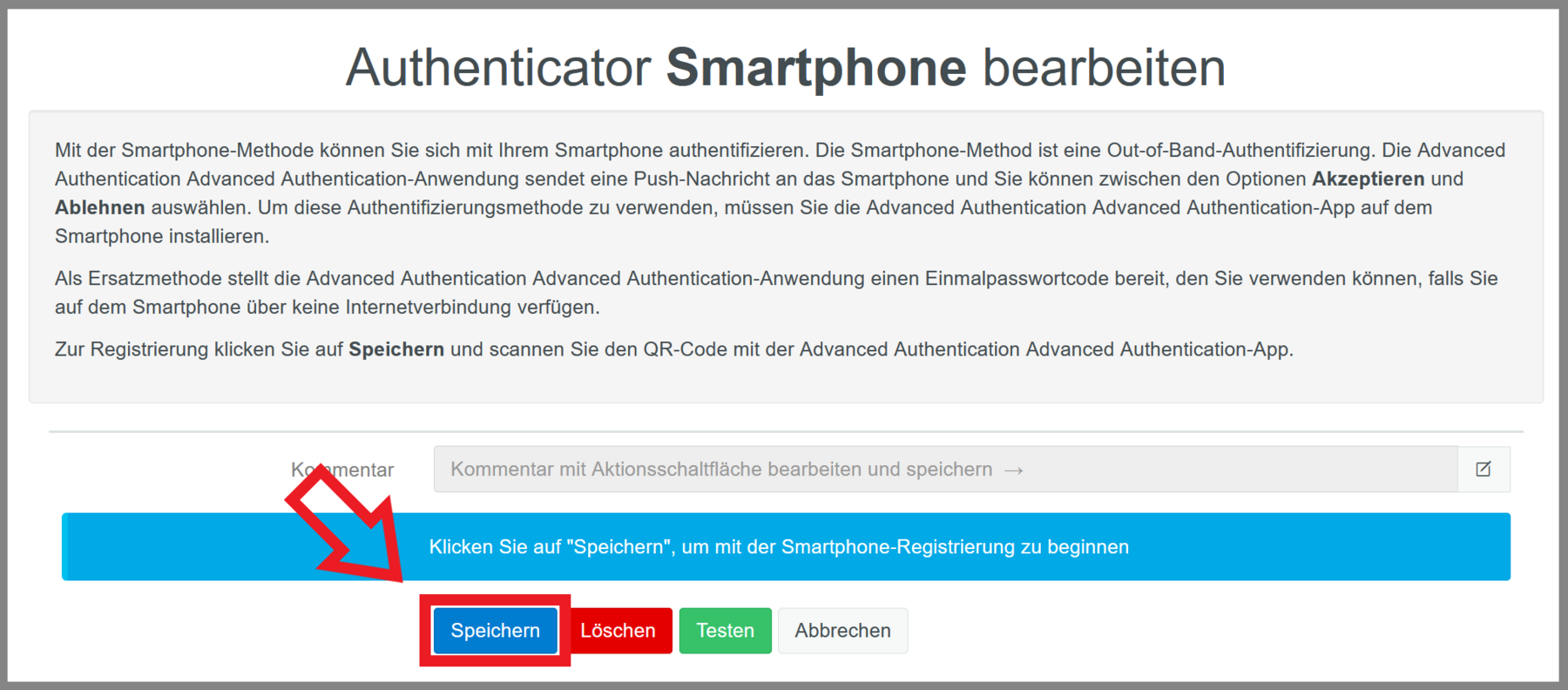
After logging in, click on "Smartphone" in the "Registered authenticators" area.


Then click on "Save".
A QR code will be displayed, which you must scan with the NetIQ app on the new smartphone.
To do this, click on the "+" sign at the bottom right of the NetIQ app.
This completes the setup on the new smartphone.
Setting up the hardware token
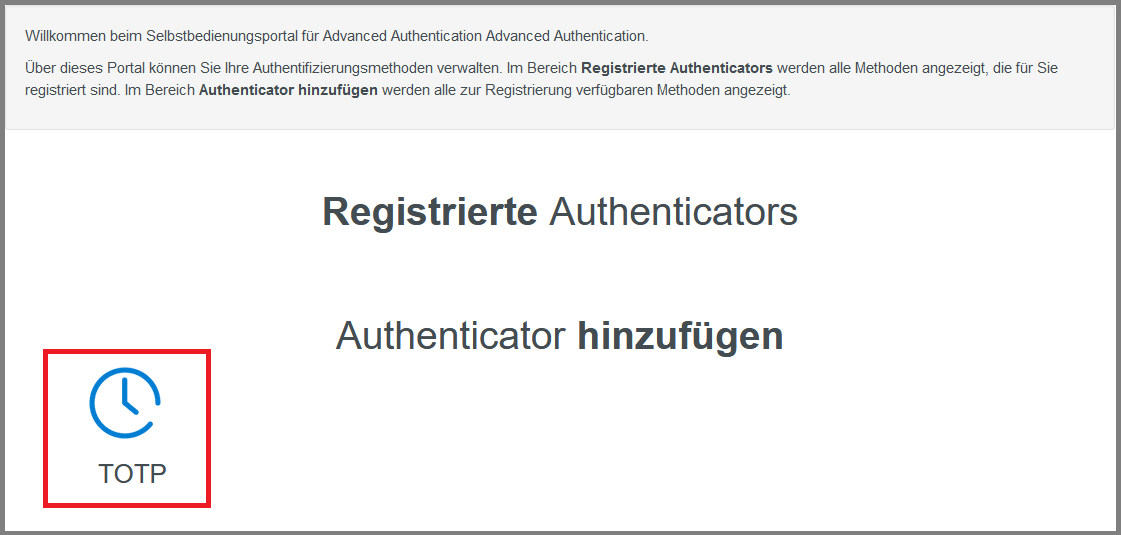
To register the token, go to the website<https://auth.its.uni-kassel.de/account>. Log in with your UniAccount <ukxxxxxx> and the corresponding password.

After logging in, click on the "TOTP" tile.
Please note that this tile is only displayed if you are authorized to use the hardware token.
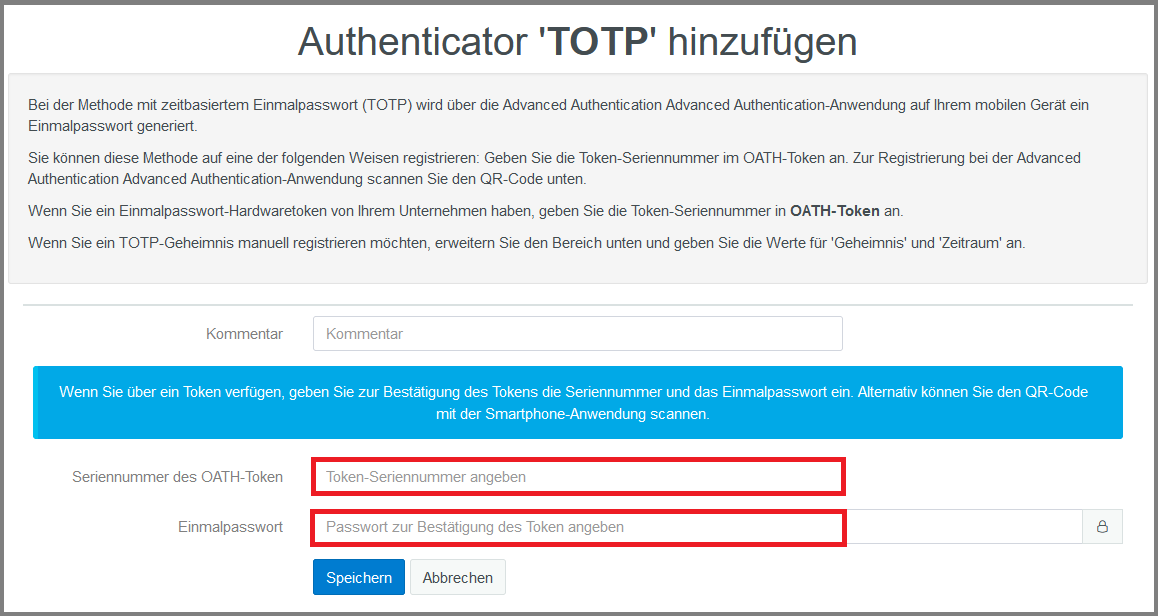
Now enter the serial number of your hardware token. You will find this on the back of the token below the barcode.
Then press the red power button on the front of the token next to the display. You will now be shown a six-digit one-time password. Enter this in the corresponding field on the website.
Now click on "Save".
The hardware token is now registered and can be used for two-factor authentication.
Use of the hardware token
When logging into the VPN client, first enter your UniAccount user ID and password as usual.
Do not click OK yet!
A six-digit PIN is generated by pressing the button on the token. Now enter an "&" sign directly after the password you entered, followed by the PIN (e.g. "YourUniAccountPassword&123456"). Then click on "OK".
You will then be logged in as usual via VPN.
This procedure is necessary every time you log in to the Cisco Secure Client (VPN).

Procedure in the event of loss/defect of the token
If the token is lost or defective, please contact the IT Service Center to receive a replacement. There are no additional costs.
Go-Link of this page: https://www.uni-kassel.de/go/2fa-info