

Object settings
Specific adjustments to an object
This page will explain the basic customization options for objects using the example of a notepad.
Select the desired object so that the customization can be carried out. A bar will appear above the object, which you can use to make settings.

Adjust color
Select a desired color or insert a color code. This changes the color of the entire selected object.

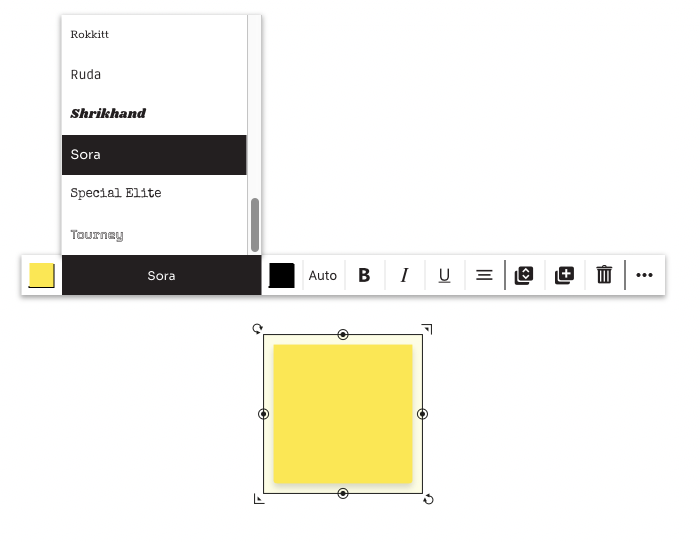
Font
It is also possible to select a different font within the object. It is also possible to display the font in bold, italics or underlined.
Font color
You can also adjust the color of the font within the object for clarity.

Font size
The font size in Collaboard is set to "Auto" by default, which means that the font size automatically adjusts to the available space within the object. If you do not want this, you can also adjust the font size according to your wishes.

Text alignment
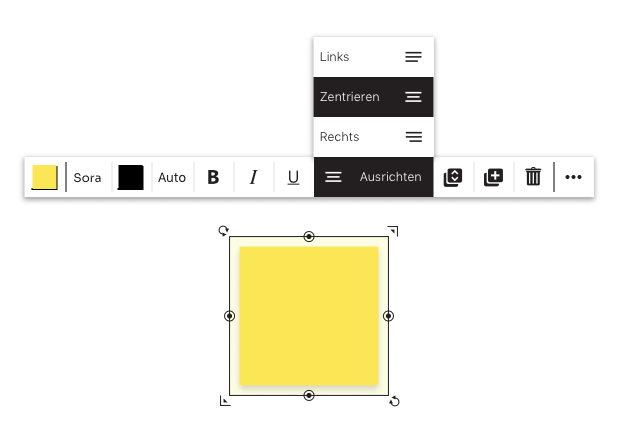
If you want to make the texts within objects more visible, you can do this using the Text alignment function. You can choose between:
- Left: Your text is displayed left-aligned in the object.
- Center: Your text is displayed in the center of the object.
- Right: Your text is displayed right-aligned in the object.
Duplicate
It is also possible to duplicate a selected object. This allows you to easily duplicate objects that have already been customized without having to make the same adjustments to a newly created object.

Delete
If an object is no longer required, you can remove it by clicking on Delete (dustbin symbol).

Advanced options
This allows you to link the created object. You have the option of creating a link to an existing quick link, to another object or to an external URL.
Quick links allow you to create a link to a specific location on your whiteboard. This makes it easier for you to navigate your board. Quick links are displayed on the right-hand side of Collaboard.
You can use this function to copy the link of the selected object and paste it elsewhere.
You can lock and unlock objects. Locked objects can no longer be changed. If you want to change a locked object at a later date, you must first unlock it. To do this, click on "Select" in the left-hand sidebar in the project interface and activate "Select locked object". You can now select and unlock the desired locked object. You should then deactivate the "Select locked object" function again.
This allows you to export the selected object or objects.
