Navigation in Outlook 2016
The content on this page was translated automatically.
Contents
Display of the start page
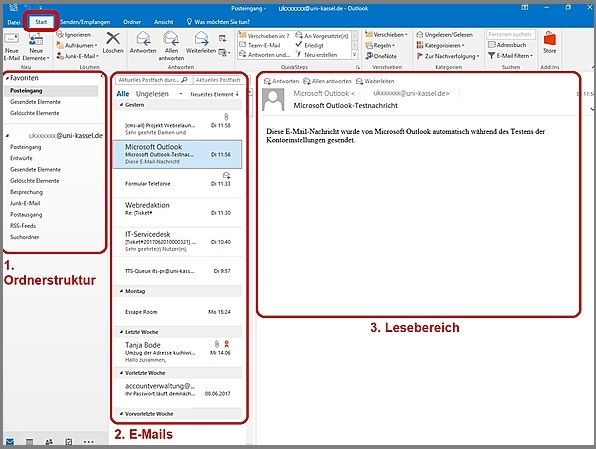
As soon as you open Outlook 2016, you will find yourself in the "Inbox" under the "Start" tab. The overview is divided into three areas:
- Folder structure
- Emails
- Reading pane
Menu ribbon
The ribbon contains functions such as
"New, Delete, Reply, Quicksteps, Move, Categories, Search"
can be found. Depending on the action you perform, the ribbon adapts accordingly. The size of the screen also has an influence on the display of the ribbon, i.e. the display becomes more complex and higher-level functions are displayed.

Customize emails individually
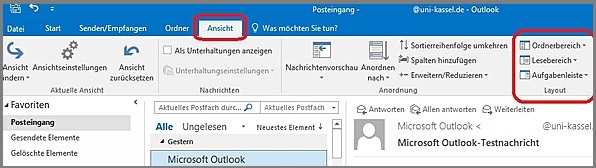
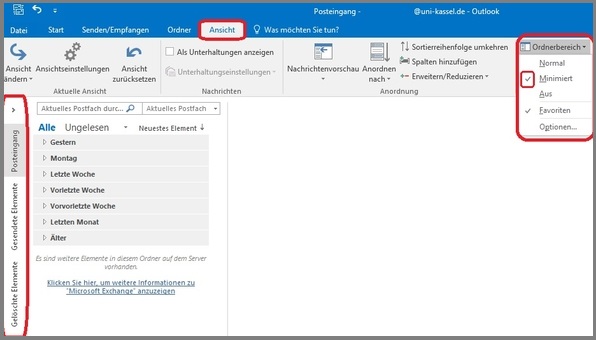
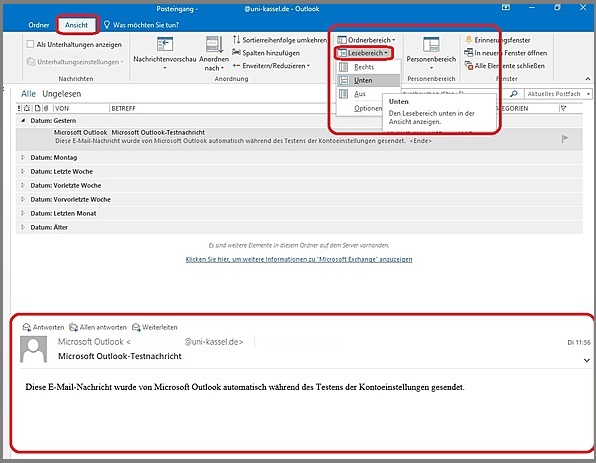
You can customize the arrangement of the folder area and reading pane to suit your needs. You can find this function under the "View" tab and then under "Layout".
Customize folder area
Under the "Layout" tab, you will find "Folder area". Click on it to open a drop-down menu. The default setting is always "Normal".
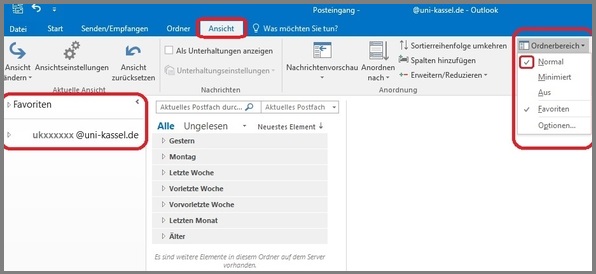
If you want the folder area to be minimized or hidden, click on "Minimized" or "Off".
Customize reading pane
In the reading pane, you can choose between the "right" view (default), "below the emails" or "hide".
Create and use QuickSteps
There is a window called "QuickSteps" in the start bar.
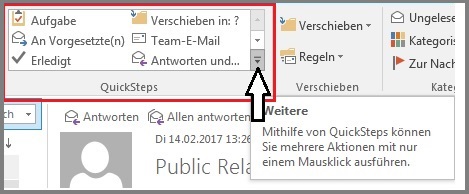
There you will find a range of functions combined in one window. You can customize this window to your needs by adding icons or functions that you use more frequently or removing functions from the QuickSteps view that you rarely or never use.
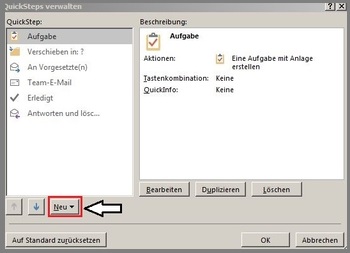
If you want to add a QuickStep, please select "Create new" in the QuickSteps window.
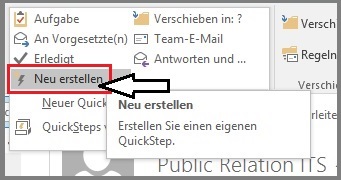
A dialog box will then open in which you can add new functions.
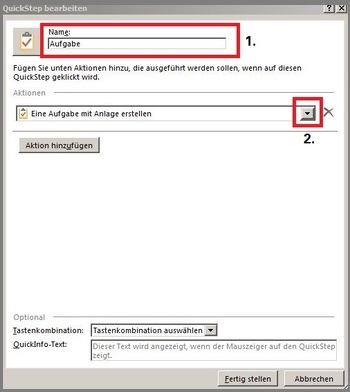
Alternatively, you can also go to "Manage QuickSteps...".
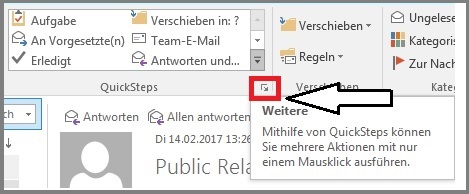
In the dialog box that opens, you can either add functions, edit existing functions or delete them from the QuickSteps view.