

Manage tasks
The content on this page was translated automatically.
Contents
Create and edit task (Windows)
If you want to create a new task, you can use various methods:
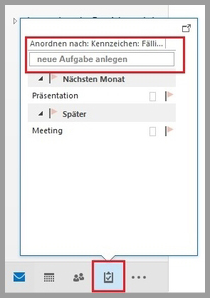
You can move the mouse pointer over the task icon in the menu at the bottom left without clicking on the icon. A window will then appear in which the most recent tasks are displayed and an input field in which new tasks can be created.
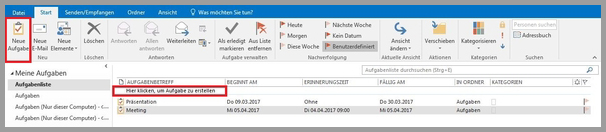
You will find another option in the view of your Tasks module. In the middle column there is an input field in which you can create a new task with the associated start and end date, categories and reminder. The entry is saved automatically.
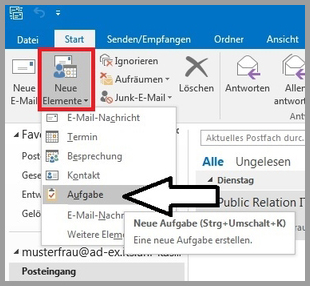
If you are in another function, e.g. e-mail or calendar, you can still create a task by using the "New items" function, which is located under the "Start" tab.
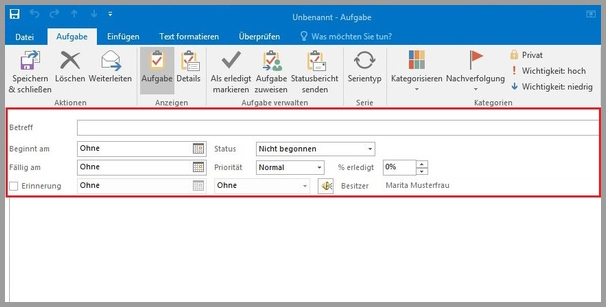
A menu window then opens in which you can make various settings for a new task.
Create and edit task (web access)
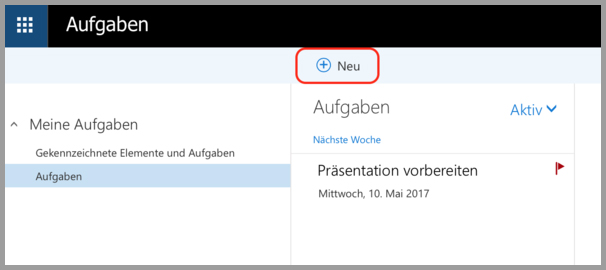
Click on the button with the 9 rectangles in the upper black area and then select "Tasks".
To add a new task, click on the "New" button in the top menu bar.
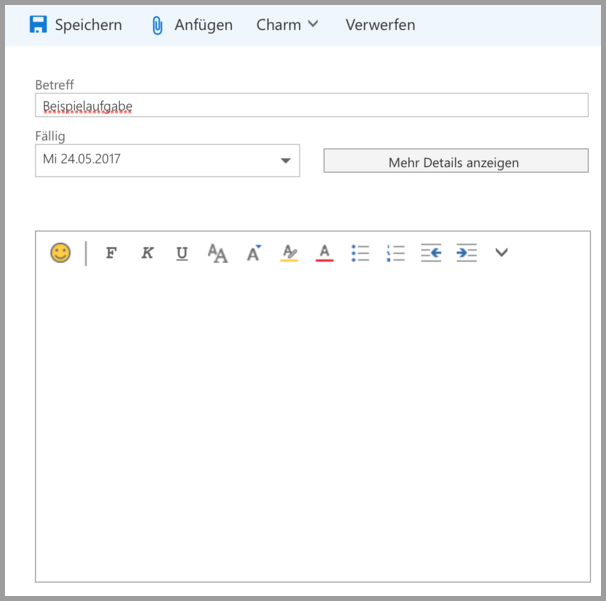
Then enter a title for your task in the "Subject" field. Under "Due" you can specify a possible due date for your task.
You can enter more detailed information about your task in the large text field. If you would like to add files from your computer to your task, you can do this by clicking on the "Attach" button in the top menu bar.
You can use the "Charm" button to categorize your tasks using symbols.
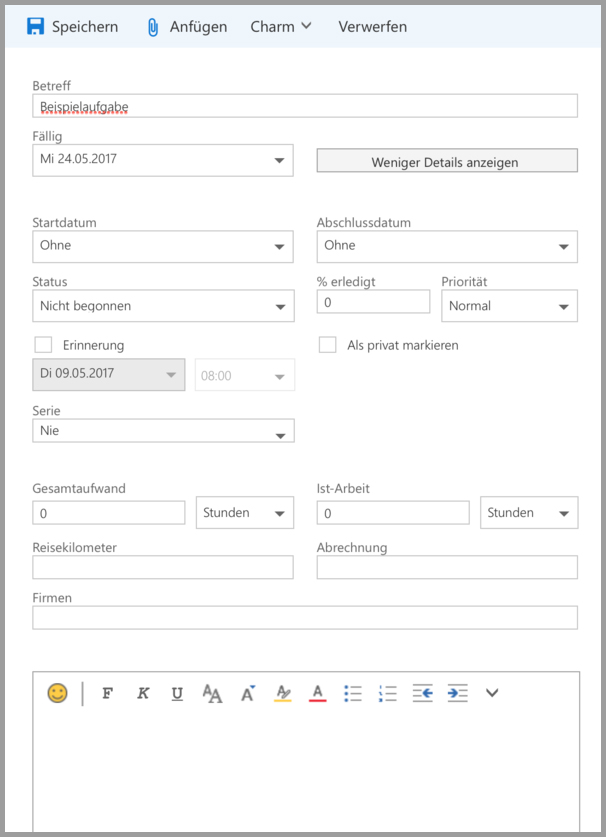
The "Show more details" button hides a number of other setting options, such as
Start/completion date: Here you can specify a processing period for your tasks.
Status: Here you can select, for example, whether your task has been completed or whether you still have to wait for another task.
% completed: Enter the processing status of your task here.
Priority: Different priorities allow you to manage your tasks more effectively as you can see which tasks are most important in your task list.
Reminder: If you would like to be reminded to complete a task, you can set a time here.
Series: If you have a task that needs to be completed at regular intervals, you can specify this here.
Total effort: For your time planning, you can enter a workload for your task here.
Create and edit series
If you want to display a task repeatedly, you can do this using the "Create series" function.
If you are in the dialog box for creating a task or double-click on an existing task, you will see the "Series type" function in the middle of the menu bar.
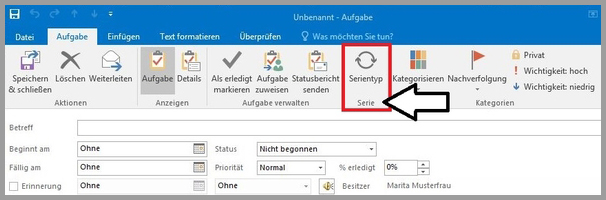
Click on it to open another dialog box in which you can make the desired settings.
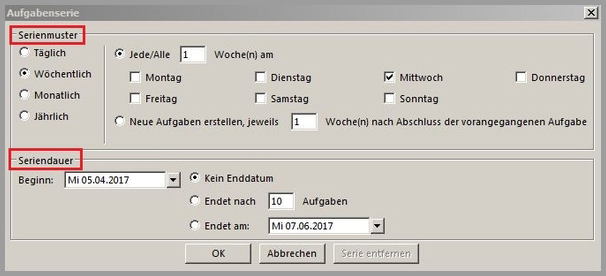
You can then edit or remove the series in the same dialog box.
Create task folder
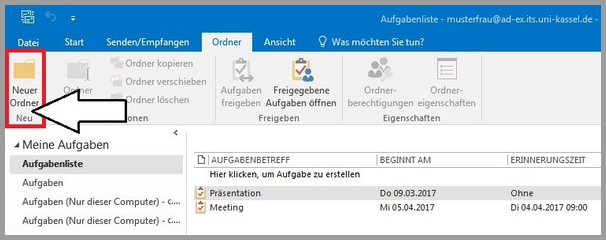
You can create a new folder for your tasks under "Folder" in your task module.
Generate task from appointment
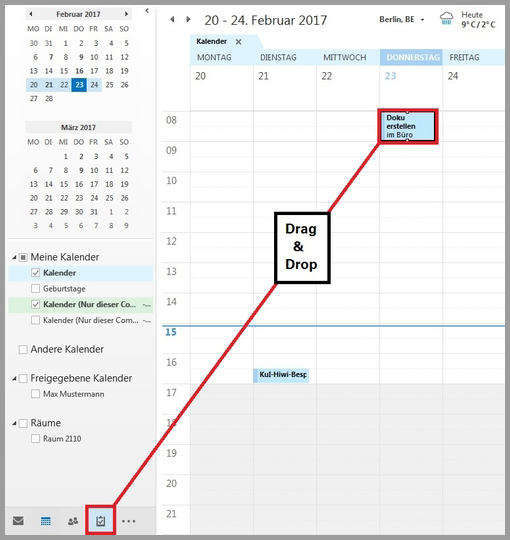
If you are in your calendar module, you can generate a task from an appointment by clicking on the desired appointment, holding down the mouse button and dragging the item over the task icon in the lower left menu bar and then releasing it.
The dialog box for a task then opens, in which the title of the appointment and other details are already entered. You can still adjust these if necessary.
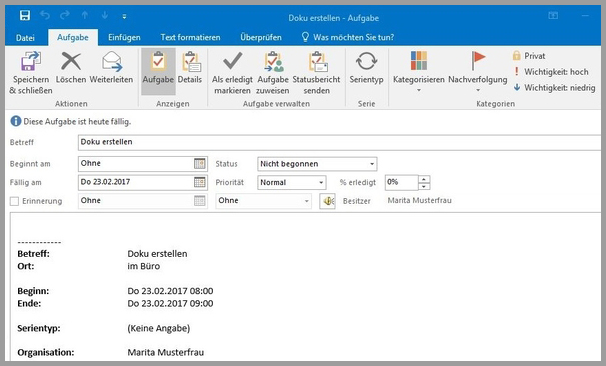
End the process with "Save & close".