User interface
The content on this page was translated automatically.
Contents

Customize calendar view (Windows)
In the Calendar module, in the "Go to" tab, you can display your calendar view in different ways. You have the following options:
- "Today" to go back to the current date in the calendar without having to click through the entire calendar.
- Display "Next 7 days", starting with the current day.

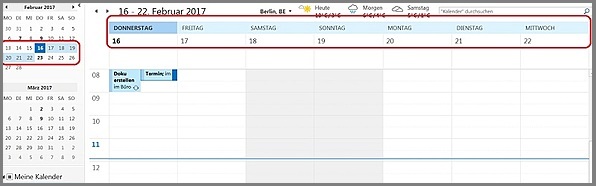
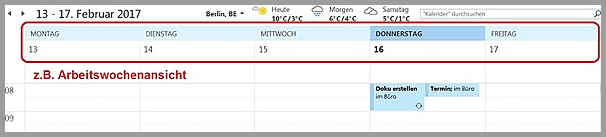
In the "Arrange" calendar ribbon, you can change the display of the calendar, e.g.
- day view
- Working week, see image below
- Week
- Month and
- planning overview

Customize calendar view (web access)
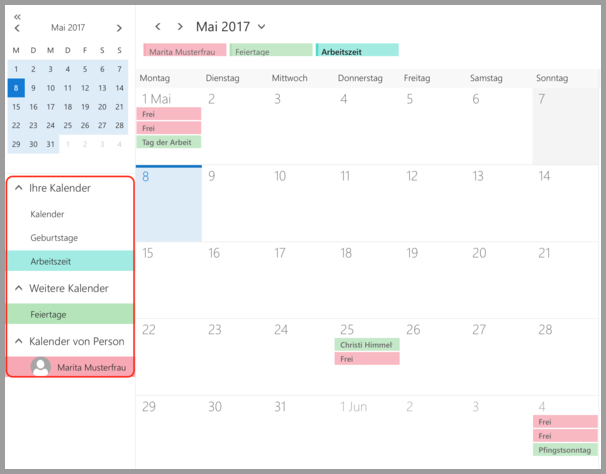
You have the option of selecting which of your calendars should be displayed at the same time by clicking on the desired calendar in the left-hand sidebar. Calendars that are displayed are highlighted in color in the sidebar. If you want to hide a calendar, click on it again.
To get a more detailed view of your appointments, you can also select a weekly or daily view instead of the standard monthly view.
To do this, click on the desired button on the right above the calendar view. With the "Today" button, you can quickly jump back to the current day if you have scrolled through several pages.
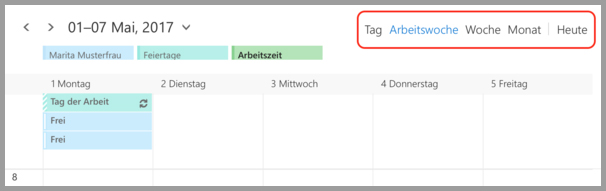
Display options
You can use the "Calendar display" option to further customize the display to your needs. Click on the cogwheel button in the black menu bar and select "Calendar display".
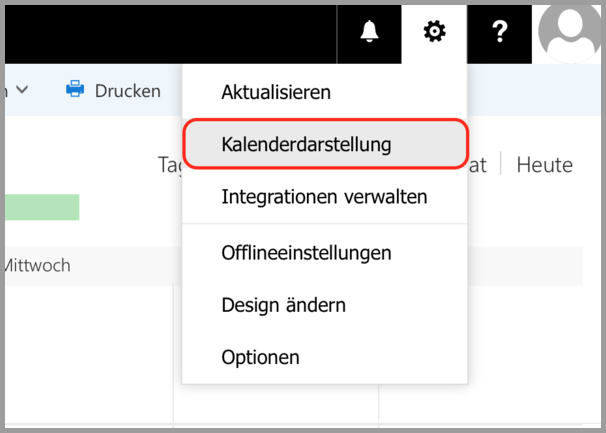
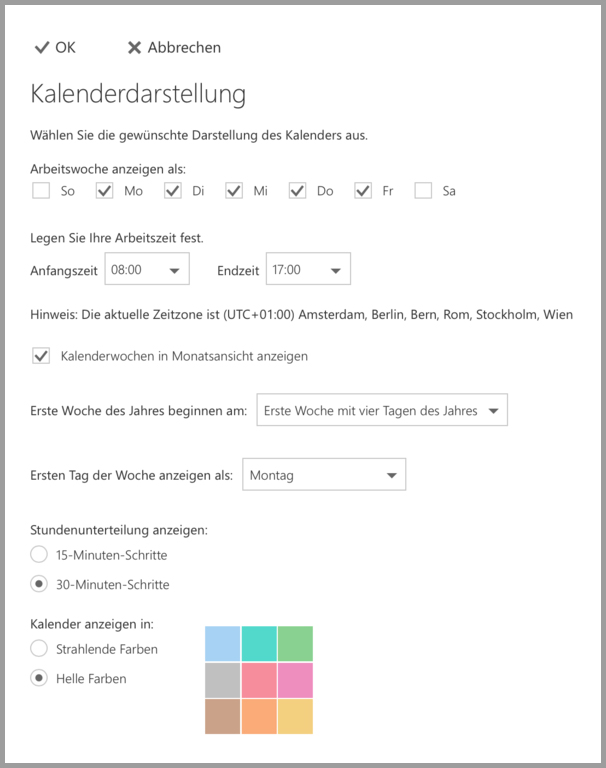
You now have various setting options here:
- Show working week as: Here you can select how many days your working week has, in the calendar view "Working week" only these days are then displayed and e.g. the weekend is hidden.
- Working hours: Here you can specify the earliest start time and latest end time of your working hours, these are highlighted in color in the week and day view.
- Show calendar weeks in monthly view: This option shows calendar weeks in the mini calendar in the sidebar and in the month view.
- Start first week of the year on: Here you can select which week should be counted as the first in the new year.
- Show first day of the week as: This option changes which day is displayed on the far left of the calendar views Week and Month.
- Show hours subdivision: If you would like a finer division of hours in your week and day view, you can also set 15 minutes here instead of 30 minutes.
- Show calendar in: You can choose between two intensity levels for the calendar colors.
Set working hours
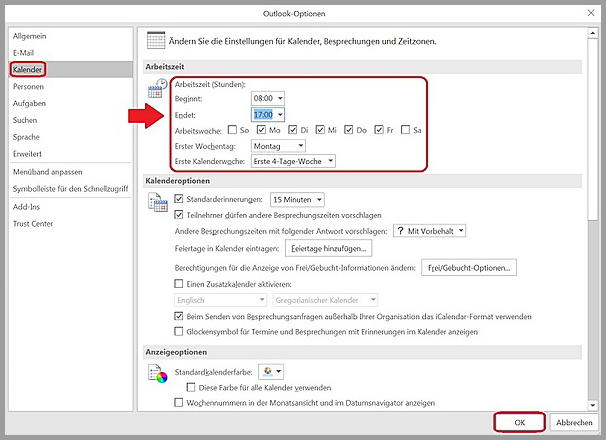
You can set your working hours and please proceed as follows. Go to the "File" tab and select "Options". You can set your working hours under the "Calendar" menu item. Finish the process with "OK".