

User interface
The content on this page was translated automatically.
Switch to the Notes module
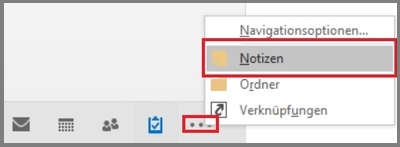
To access the Notes module, click on the menu icon in the navigation bar and select "Notes".
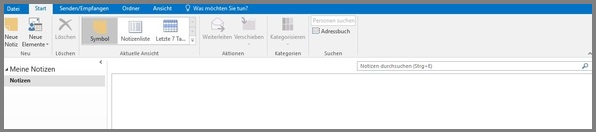
The notes window
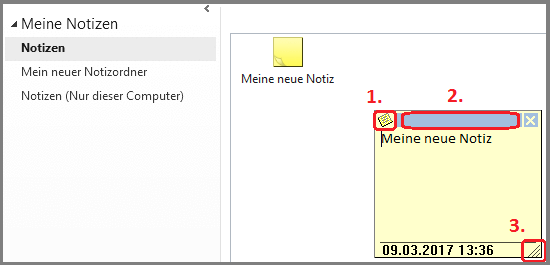
You can type your text in the note window. You can move, enlarge and reduce it and have many more options via the context menu.
Context menu
In the context menu you have various selection options, such as
- "Delete"
- "Copy"
- "Cut"
- "Paste" of note contents
- "Forward" of notes
- "Categorize" (for more information, see"Organizing notes using color categories")
Move
Click and hold the mouse in this area to move the note window.
Zoom in/out
Click and hold the mouse in this corner to enlarge or reduce the size of the window.
Saving
Outlook 2016 saves notes automatically as you type. If you want to save your notes to a location outside Outlook, go to the context menu and select "Save as" or simply drag and drop your note to the location of your choice.