

User interface
The content on this page was translated automatically.
Contents

User interface
In the user interface that is now open, you will see familiar elements such as the folder area. To the right of this is the actual people area, the view of which can be changed by clicking on "Current view" under the "Start" tab.

Contact data interface
The form for new contacts offers numerous options for detailed user entries:
Save as
You can select how the contact will be displayed later, i.e. whether the name or the company name should be displayed, for example. This is important if you want to search for the contact from the address book, so it is advisable to decide on a format and keep it.
If the contact provides several e-mail addresses, you can add more in this drop-down menu.
Below this, you also have the option of defining whether there are specific addresses:
- "Display as" represents the main email address
- "Website address" is the link to the contact's website
- "Chat address" can be used for Skype contacts, for example (not currently offered by the University of Kassel)
Telephone numbers
Here, too, you have the option of subdividing the type of telephone number.
Tip: First select the function and then enter the number, the number will be removed again when you change the function.
Addresses
It is of course also possible to define the function of addresses.
Business card
As soon as you start filling out the form, the data is entered on a business card, which can be further personalized with a double-click.
Manage contacts (web access)
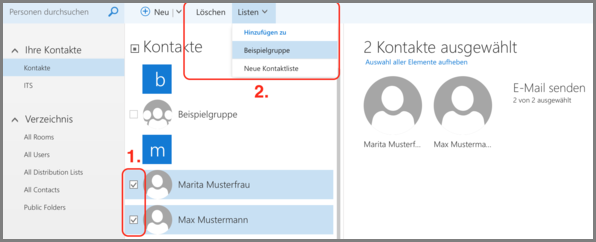
If you want to add contacts to a list later or delete contacts, select them in the list view by placing a tick in front of the contact, then you can select the desired action in the top menu bar.
Display types of lists of persons
Outlook also offers various view options for viewing people, which you can find in the Start tab under Current view.
You have the following predefined selection options:
People
Provides a list on one side and a detailed view on the other.
Business card
Displays the business cards of the contacts.
Map
Shows the most important information in a list.
Phone
Lists all information related to telephony.
List
Generally shows all information for all contacts in a list.
