

Online archive
Microsoft Exchange provides an online archive for outsourcing emails. This procedure only serves to reduce the size of the mailbox and is not to be considered an archive or digital file in terms of legally compliant archiving.
The online archive is stored entirely on the server; there is no local copy on the workstation PC. Therefore, there must always be a network connection when using the online archive.
The advantages of the online archive are
- Better performance on the client
- Leaner folder structure
- Better overview by moving completed tasks and projects to the online archive
Access to this archive is only possible via the webmailer OWA https://mail.uni-kassel.de or via Outlook (Windows or Mac).
The archive cannot be accessed with mail clients that use the IMAP protocol or with mobile devices that are connected to the Exchange server via ActiveSync. The archive can also only be accessed from mobile devices with a larger screen (e.g. tablets) via the OWA webmailer, as the full view is displayed on these devices and not the mobile view.
Contents
Access via web
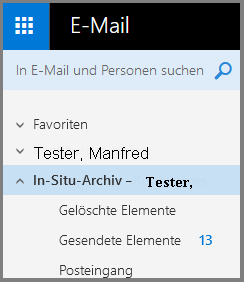
Once your online archive has been created, it may take up to a day before it is visible. In the OWA webmailer, you will find the archive under the name "In-Situ Archive".
Move emails manually
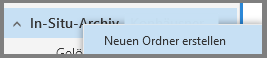
To create new folders in the archive, right-click on "In-Situ Archive" and select "Create new folder". You can then move one or more selected emails to the newly created folder using drag & drop. Please note that it is not possible to move an entire folder.
Automatic moving by policy
By default, no emails are automatically moved to the archive.
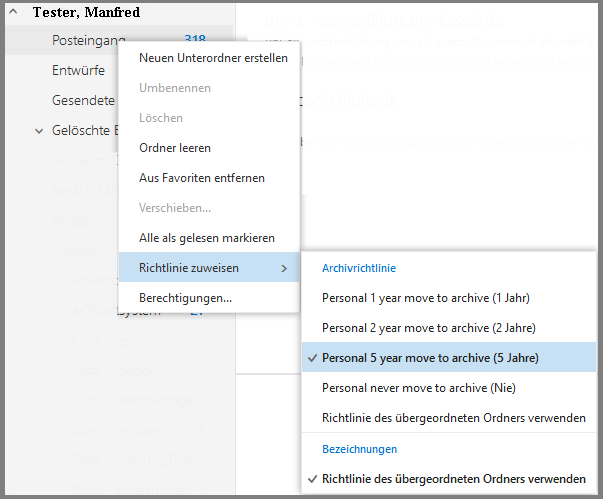
However, you can specify which archive policy should be applied for each folder. To do this, right-click on the desired folder, for example "Inbox", and select "Assign policy". You can then select the desired archive policy.
The emails are automatically moved in accordance with the selected policy on the Exchange server the following night.
Access via Outlook for Windows
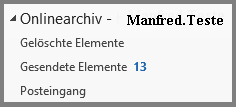
After an online archive has been created for you, it may take up to a day for the archive to become visible. In Outlook for Windows, you will find it under the name "Online archive".
Move emails manually
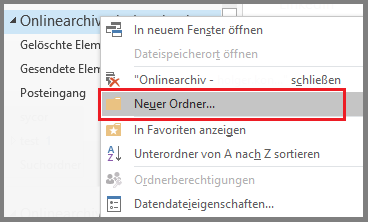
You can create new folders by right-clicking on "Online archive" and then selecting "New folder".
You can now move one or more selected emails to the newly created folder using drag & drop.
Automatic moving by policy
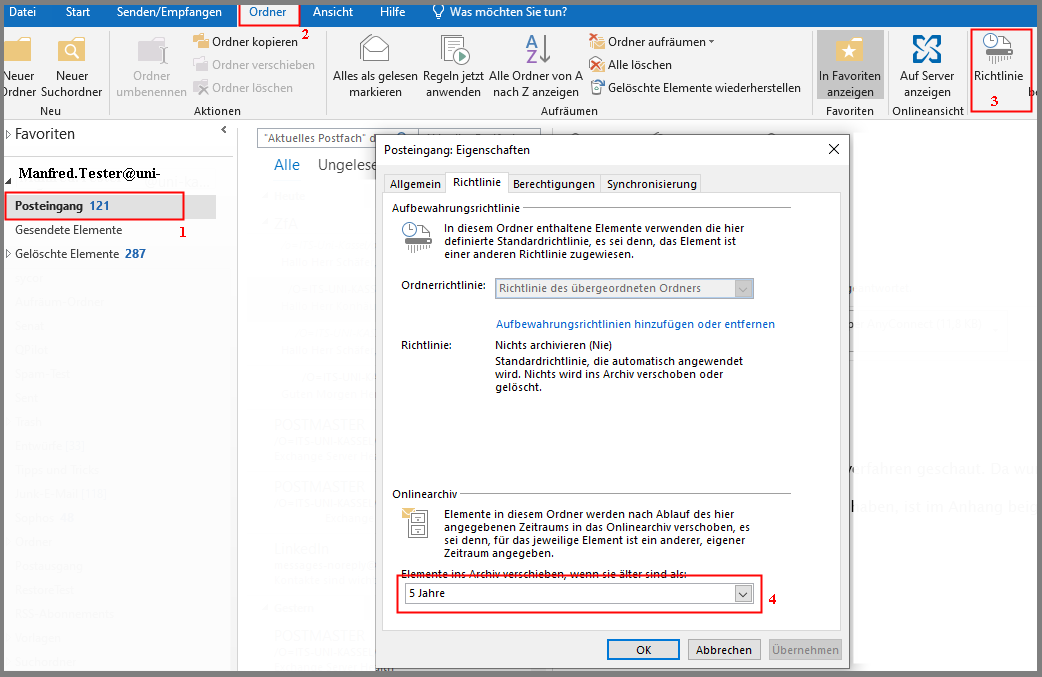
You can define a specific archive policy for each folder. To do this, click on the desired folder, e.g. "Inbox". In the menu bar, select "Folder" and then "Policy". In the properties window, you can select the desired time period in the "Online archive" section.
The emails are automatically moved on the Exchange server the following night in accordance with the selected policy.
Access via Outlook for Mac
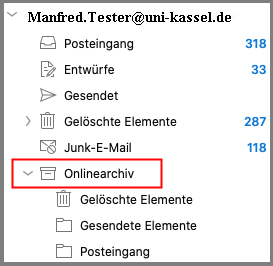
After an online archive has been created for you, it may take up to a day before the archive is visible. It can be found in Outlook for Mac as "Online archive". Please note that the online archive is in the middle of the folder structure.
Move emails manually
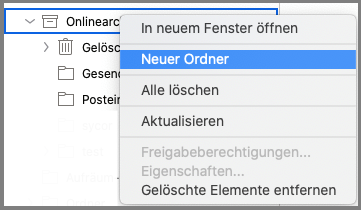
You can create new folders in the online archive by right-clicking on "Online archive" and then selecting "New folder".
You can then move one or more selected emails to the newly created folder using drag & drop. Please note that it is not possible to move an entire folder.
Automatic moving by policy
Unfortunately, you cannot set the archiving policy in Outlook for Mac. You must do this via the webmailer OWA [external].
Go-Link of this page:https://www.uni-kassel.de/go/onlinearchiv