Exam administration
The content on this page was translated automatically.
Contents
You can register and deregister for examinations (not to be confused with courses) in the examination administration system and view an overview of registered and completed examinations. When registering and deregistering, the registration and deregistration deadlines set by the department must be observed.
Registration and deregistration for examination administration
To register and deregister for examinations, please proceed as follows:
Log in to eCampus with your UniAccount and click on the Home tab on the left-hand side of the screen. Then navigate via the burger menu (three horizontal lines) via My functions via Exam administration to register and deregister for exams.
If not all content is displayed or the process takes an extremely long time, it may be necessary to clear the browser cache. This can usually be done via the security settings of your browser. Alternatively, you can hold down the CTRL key and press the F5 key to reload the page without the cache.
All content should now be displayed and you should be able to carry out the process without any problems.
If this does not help either, please try the browser's "private mode" or use a different browser.
Register for exams
Under My functions, select Exam administration.

To register or deregister for examinations within the relevant deadline, click on "Register and deregister services".

To confirm the login information - check the "I accept..." box.

Select the relevant exam for which you would like to register.

Confirm registration with "Yes".

Confirmation: It is very important to pay attention to the Operation and Status columns, as the successful login is logged here.

From here you can jump directly to the overview of registered services.

Cancel exams
First, use the "Register and deregister services" button to select the exam you wish to deregister.

Confirm logout with "Yes".

Check confirmation. You can also go directly to the overview of registered services, where the canceled registration is no longer displayed.

Information about registered services
To get an overview of the registered examinations, click on "Info about registered examinations" in the examination administration.

Overview of the registered examinations.

Overview of services
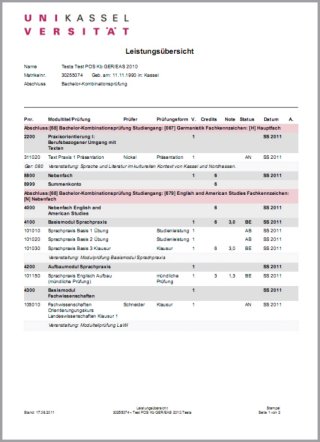
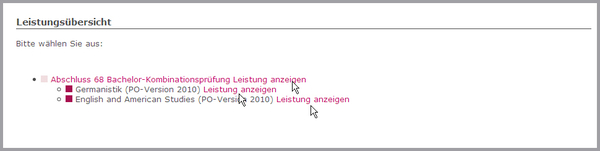
Click on "Performance overview" in the examination administration.

If there are several compartments, you can display the overview of the individual compartments or the entire overview (first arrow).
If you click on the "PDF" button, a PDF of the registered and passed/failed achievements is created, which you can save locally on your PC.