

Accessing Matrix - first steps
General information
All users of the University of Kassel are able to use their UniAcount to communicate with members of their own and other universities, universities and institutes as well as other Matrix users (e.g. academic partners) via chat in compliance with the relevant statutory and legal provisions on data protection and IT security.
The service is used via a client, with a variety of different programs to choose from.
The best-known client is Element (formerly Riot). In addition to the desktop application and the mobile versions for Android and iOS, the GWDG also operates a web version (https://matrix.uni-kassel.de) of Element for us.
You can download the Element desktop application directly at the following link: https://element.io/download
Note: We recommend using Element as a desktop application or mobile client or the web application provided by the GWDG.
First Matrix login via the browser
Call <https://matrix.uni-kassel.de> via your browser and click on "Log in".
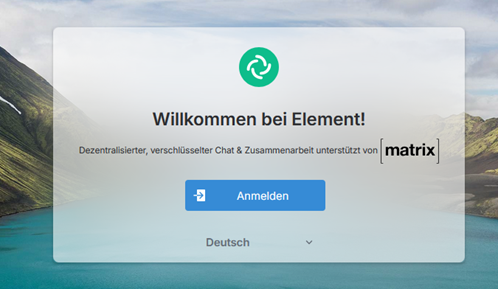
The home server is already preconfigured on the following page. Click on "Continue" here.

Now click on "Federated login", then select "University of Kassel" and click on "Next". Now log in with your primary UniAccount.


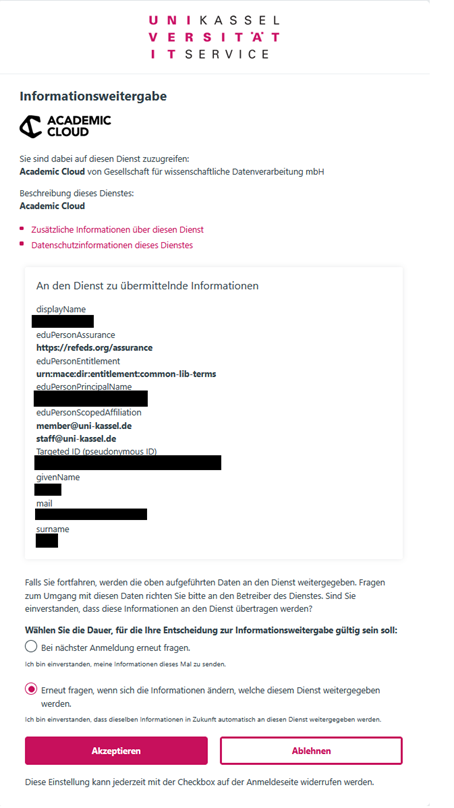
In the next step, you confirm that the service may process your data.
Your account data (display name & e-mail address) will be transferred from the user administration, it is not possible to change it at this point.
To continue, it is necessary for the browser to save local data on your PC. Please allow access by clicking on "Continue".

You are now logged in to Matrix.
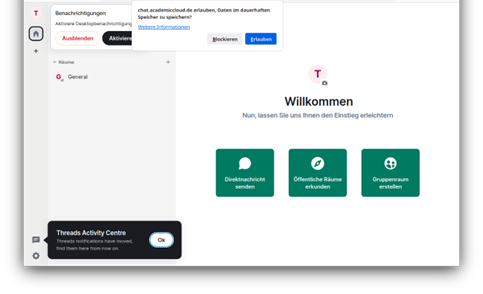
You may be asked to set up the key backup or make other important settings after the first login. We recommend that you take the time to follow the instructions. You can find information on the settings for the recovery key in our instructions on this page.
Tip: We strongly recommend that you set up the key backup. Otherwise, encrypted chats will no longer be readable if all key copies are lost.
Recovery key
General information
The recovery key is your emergency key for encrypted chats.
It allows you to access your messages and saved keys if you forget your password, lose a device or need to log in to a new device.
Note: Keep the recovery key in a safe place. Preferably on your home drive or in a password manager. Without this key, encrypted messages can be irretrievably lost.
Recovery key setup
First click on your "Name abbreviation" icon at the top left.
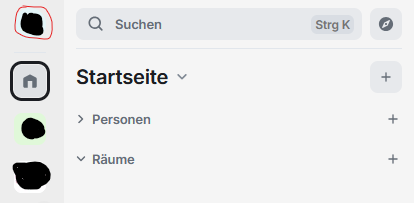
Click on "All settings" in the following overview.
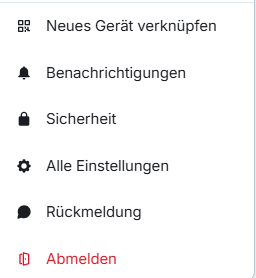
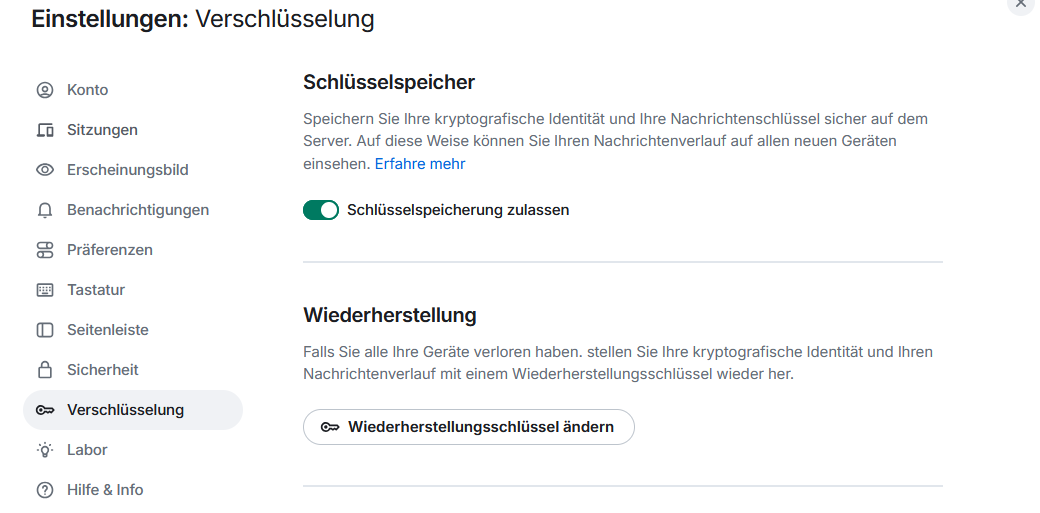
Now call up the "Encryption" item. There, click on "Set up recovery" under "Recovery".
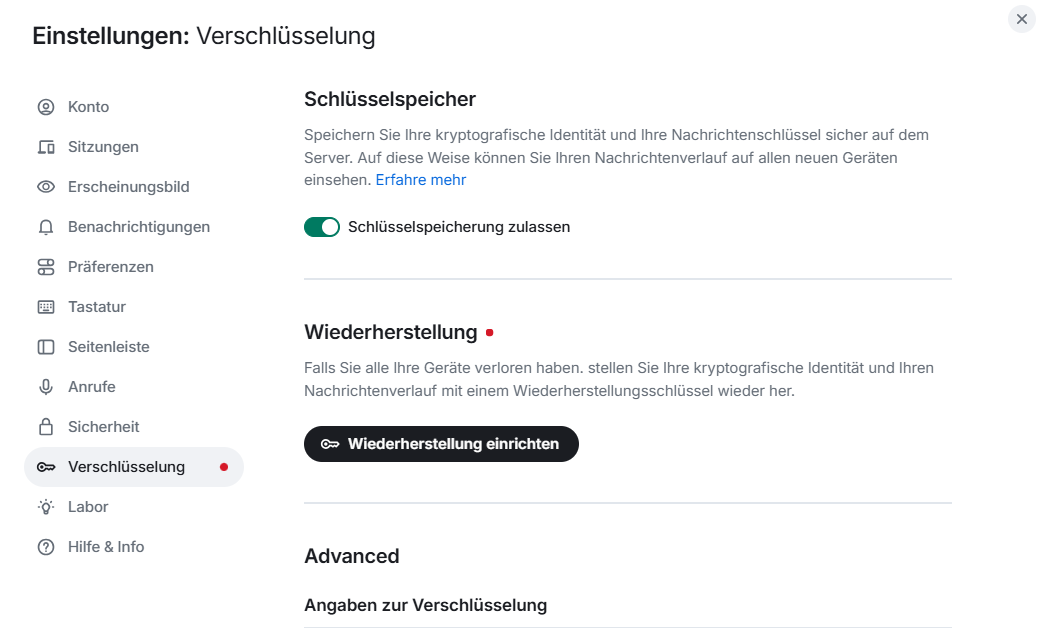
Confirm with "Continue".
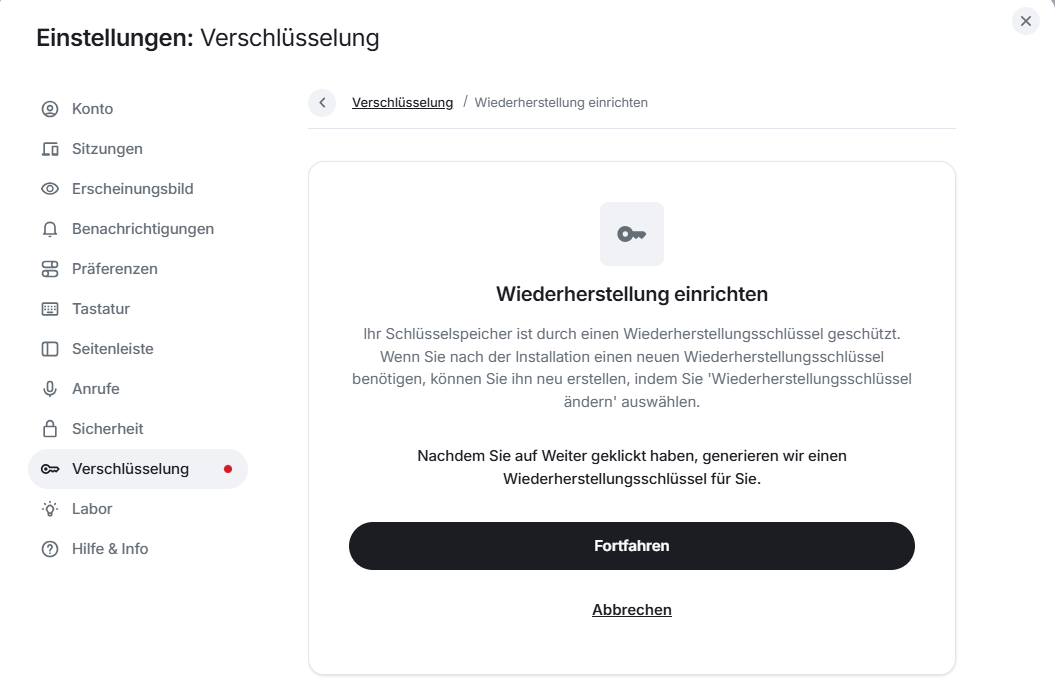
You will now be shown your "recovery key".
- Save this securely (your home drive or password manager)
- Copy the key, as it is necessary to confirm it again in the next step
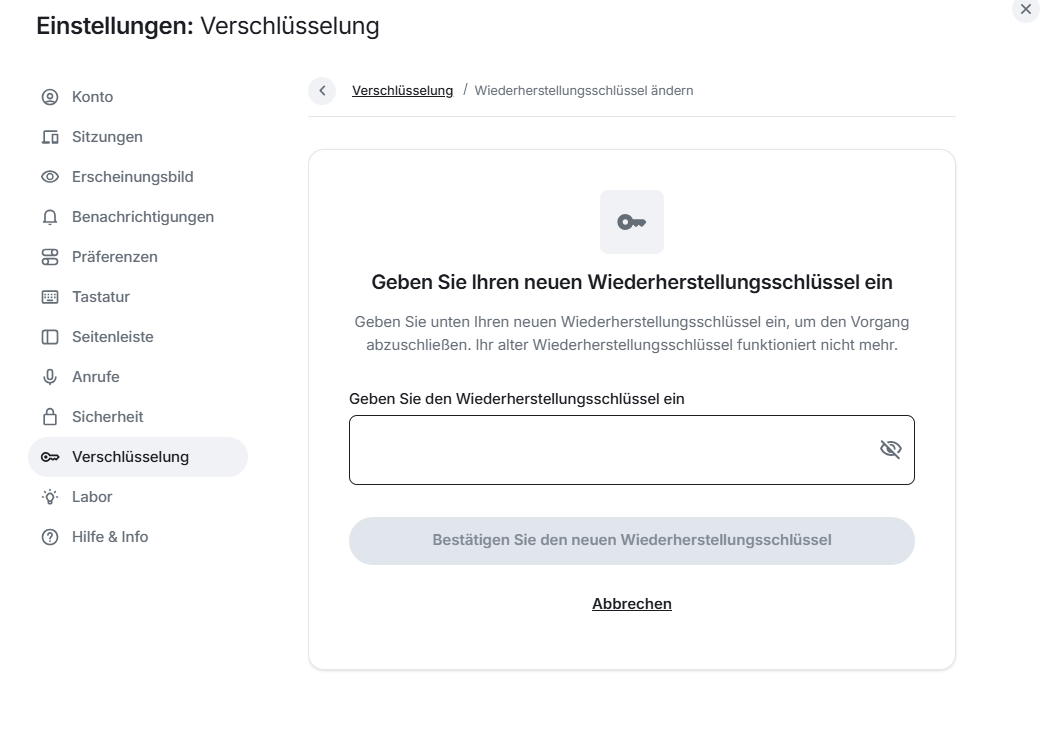
The recovery key is now set up.
Access via desktop client or mobile clients
When using the mobile apps for Android and iOS as well as the desktop installation, please ensure that you log in via https://matrix.uni-kassel.de.
If you create a new account on a different home server, you will not have access to your previous data.
The following instructions describe how to log in to Matrix in the desktop client element.

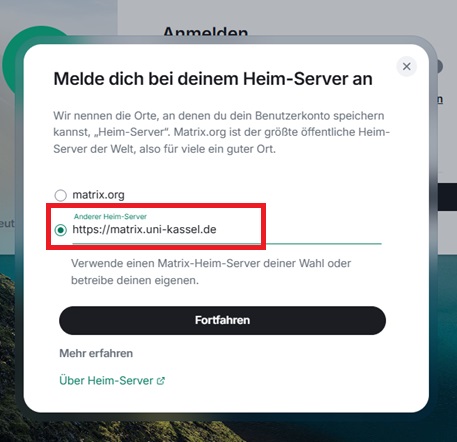
First click on "Log in" and then on "Edit".

Enter as home server https://matrix.uni-kassel.de as the home server.
Confirm your entry by clicking on "Continue" and then click on "Continue" again. You will now be redirected to the browser.
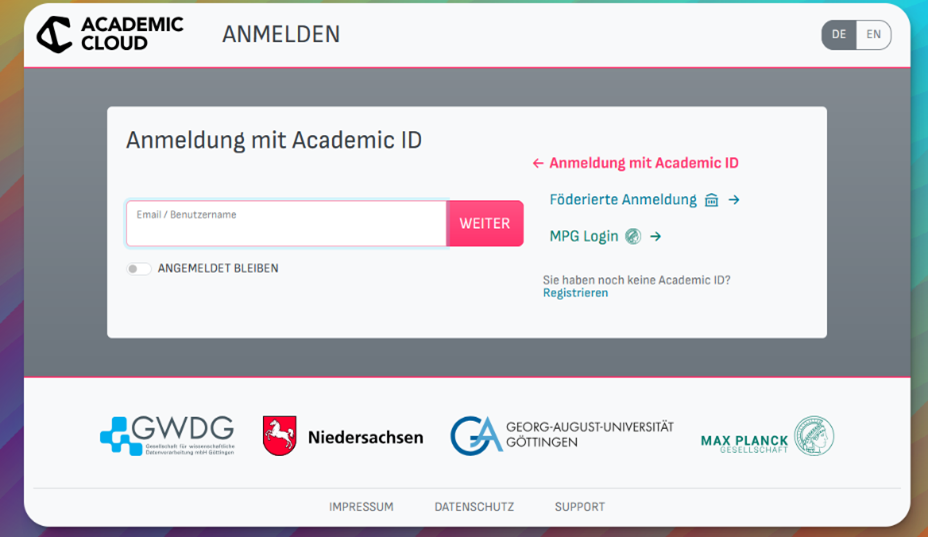
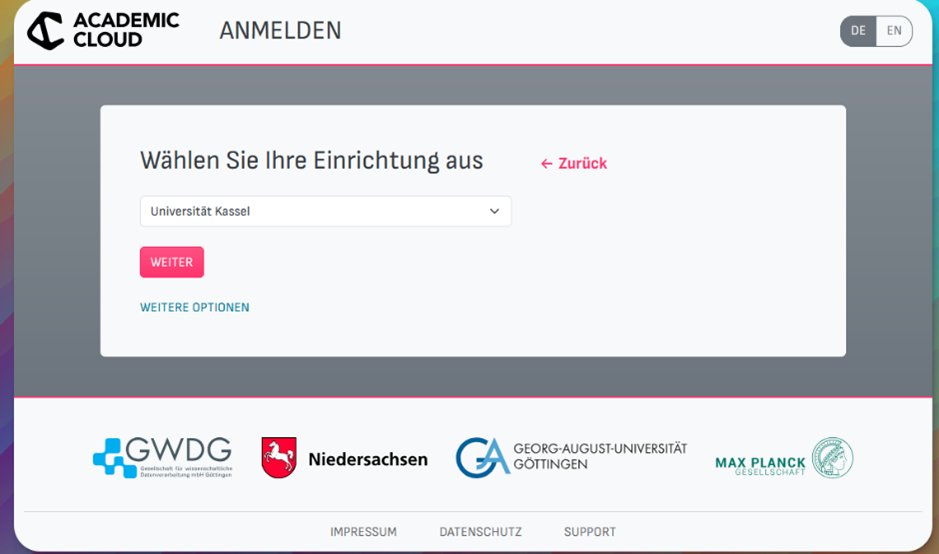
Click on "Federated login", then select "University of Kassel" and click on "Next". Now log in with your primary UniAccount.
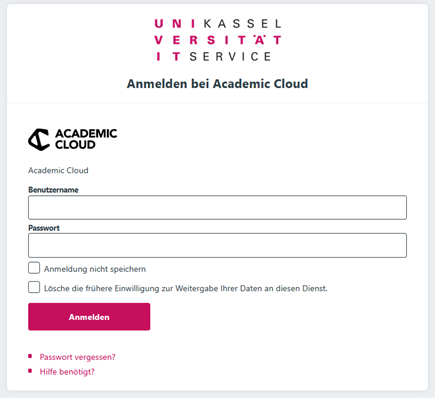
To continue, it is necessary for the browser to save local data on your PC. Please allow access by clicking on "Continue".

You are now logged in to Matrix.
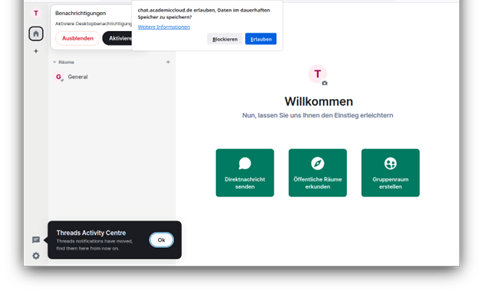
You may be asked to set up the key backup or make other important settings after the first login. We recommend that you take the time to follow the instructions. You can find information on the settings for the recovery key in our instructions above.
Tip: We strongly recommend that you set up the key backup. Otherwise, encrypted chats will no longer be readable if all key copies are lost.
Add new devices
If you want to log in to other devices with your account, the following message appears.
You have the option of using an already set up device for verification or alternatively using the recovery key for verification.

Note: If you do not have another device on which you are already logged in or the recovery key, you will not be able to access your previous data.
Verify with another device
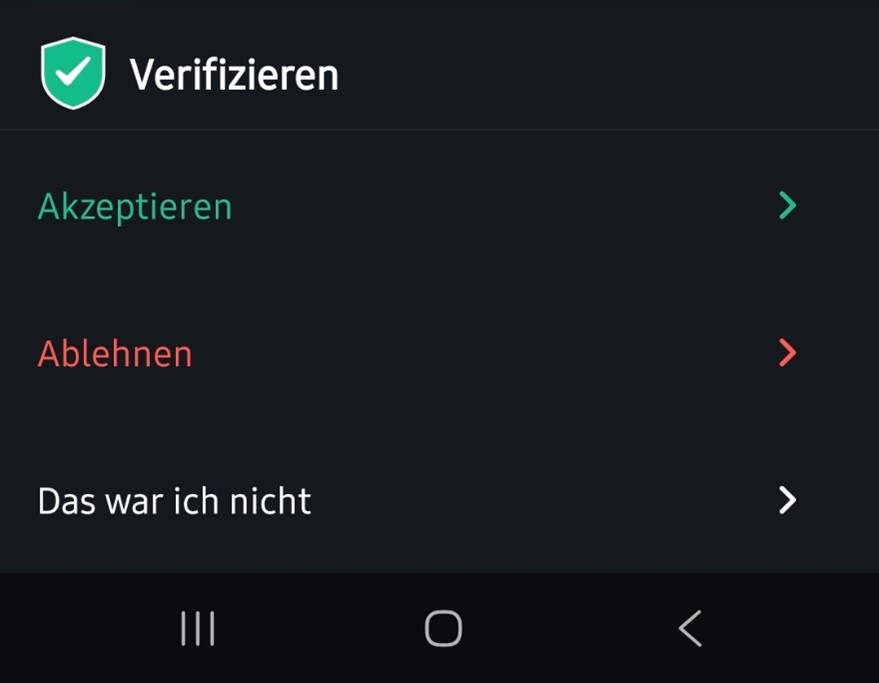
Click on "Verify with another device". Open the Element app or client on the other device. You will receive a corresponding request:
Click on "Accept". Then scan the corresponding QR code. The device is now verified.
Verify with recovery key
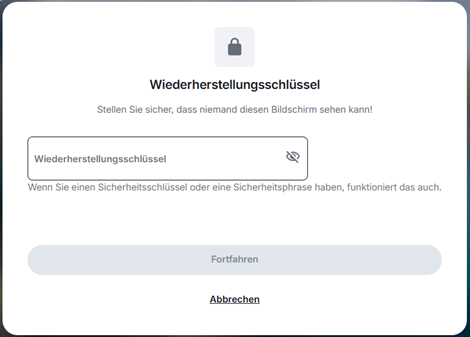
Click on "Verify with recovery key".
Enter the recovery key and click on "Continue".
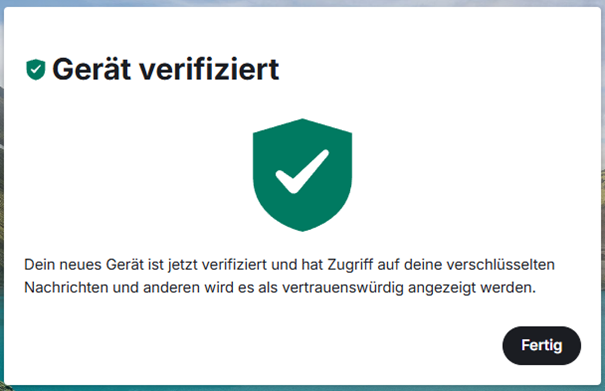
Your device is now verified. Click on "Done".
Set up Matrix in Thunderbird
Before you start with the setup in Thunderbird, please log in to the Matrix WebClient at https://matrix.uni-kassel.de .
Set up Matrix in Thunderbird
Open Thunderbird.
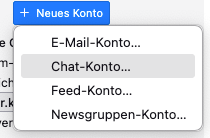
Select Accounts → New account → Chat account
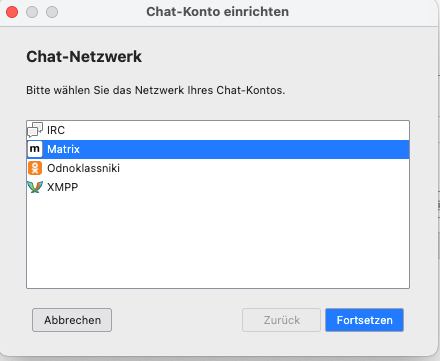
Select Matrix as the account type and click on "Continue".
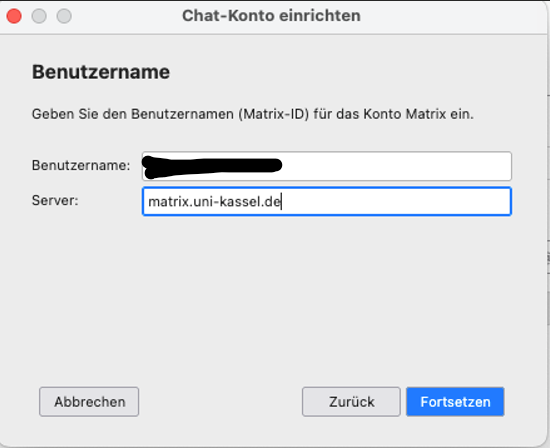
Now enter your first name and surname in the format firstname.surname (not your UniAccount!) under "Username" and enter <matrix.uni-kassel.de> as the "Server".
Now please click on "Continue".
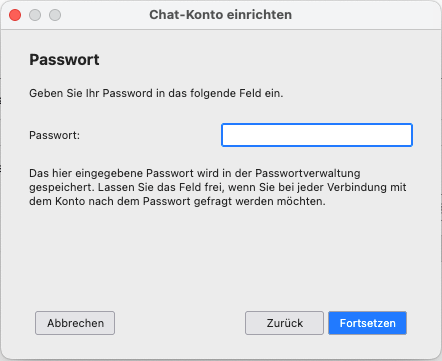
Leave the "Password" field empty and click on "Continue".
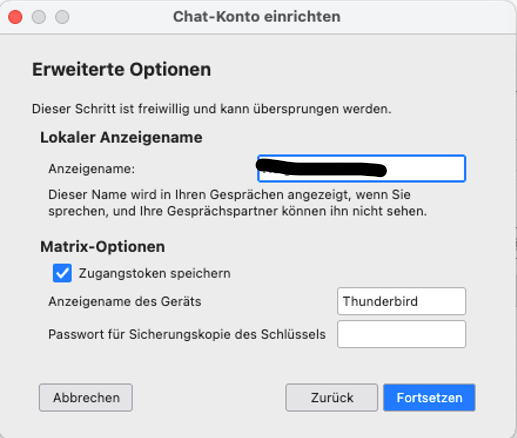
Set display name
Select your display name here and click on "Continue".
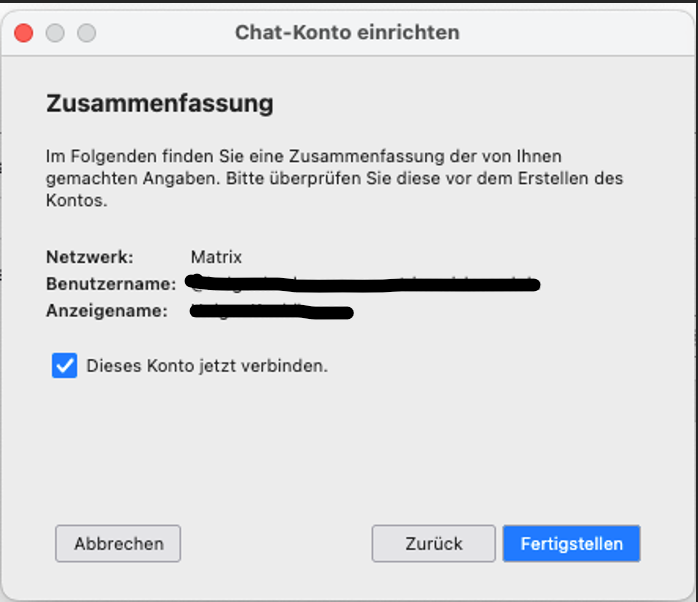
Now click on "Finish".
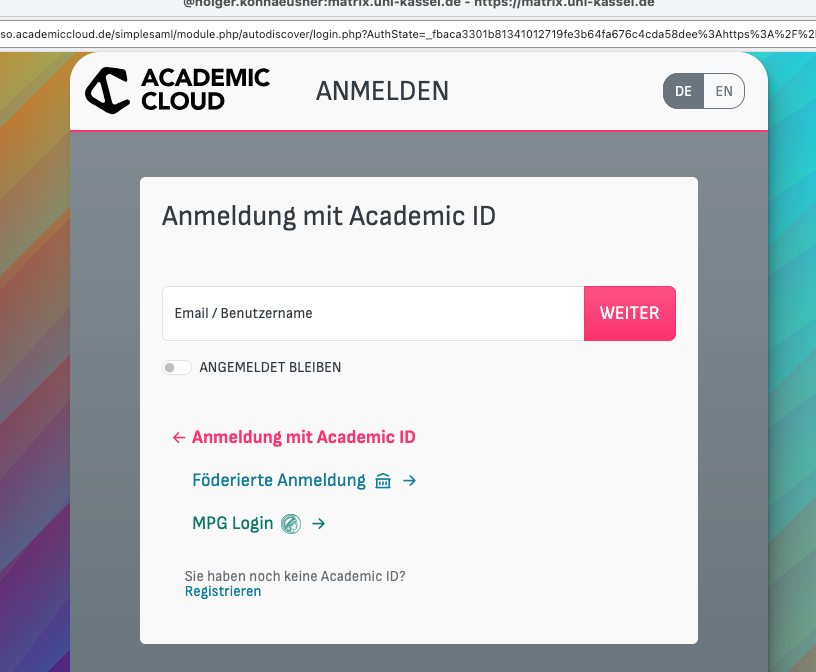
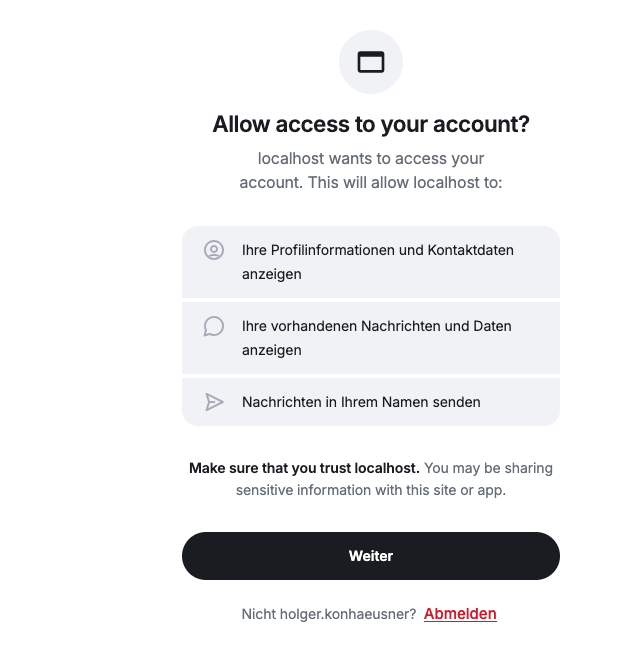
A browser window should open. Click on "Federated login" and log in with your primary UniAccount and password.
Click on "Next".
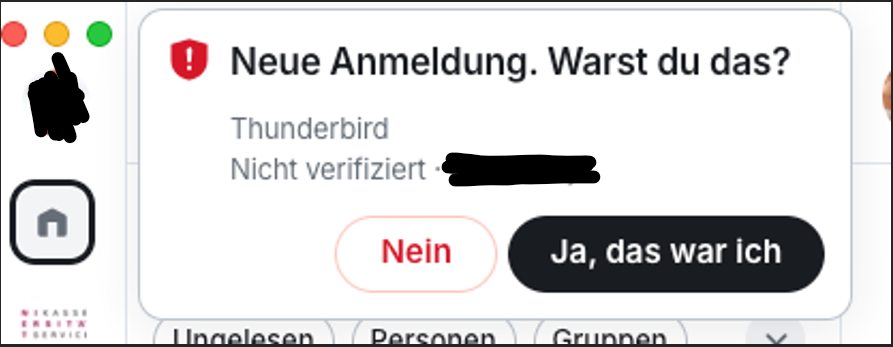
Open the Matrix client and verify your login with "Yes, that was me".
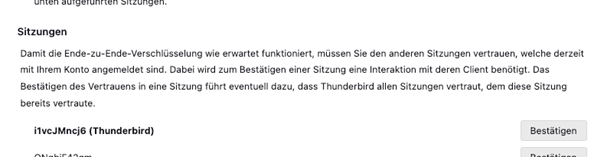
Now please set up the encryption in Thunderbird. To do this, open the "Account settings" and click on "Encryption" and then on "Confirm".
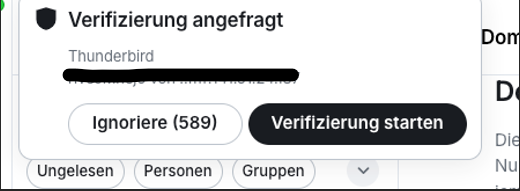
Thunderbird prompts you to carry out the verification via another Matrix client. Now click on "Start verification".
The setup of Matrix in Thunderbird is now complete.
Further instructions/information [external]
- Why Matrix? (opens in a new window)
- Important settings (opens in a new window)
- Matrix clients (opens in a new window)
- News (opens in a new window)
- Rooms (opens in a new window)
- Notifications (opens in a new window)
- Spaces (opens in a new window)
- Encryption (opens in a new window)
- Frequently asked questions (opens in a new window)
- Further development (opens in a new window)
Go-Link of this page: https://www.uni-kassel.de/go/matrix-ersteschritte