

Applying for a Microsoft campus license
IMPORTANT NOTE: If you decide to install the latest version of Windows on your personal device free of charge as part of the campus contract, please remember that your permission and ability to use it will expire on the date of de-registration/the end of the contract period. As you will no longer have a correspondingly authorized university account (at the university and with Microsoft), you will no longer be able to log in to the device and access your data without further ado. As the installation is provided with bitlocker encryption [external] as standard for security reasons, you will no longer be able to access the encrypted data, even indirectly, unless you have backed up your bitlocker key in advance [external]. The ITS cannot help if you have not saved the key and the Microsoft account no longer exists. Even Microsoft will not be able to help you in such a case, as all data will be completely deleted once the usage rights have expired.
You are therefore at risk of losing your data if you do not comply with this recommendation!
Applying for a Microsoft campus license
A Microsoft account with a university e-mail address is required to use the campus license. This is automatically created for you when you accept the license terms and activate the use in the identity management. Please follow these instructions.
Register at
https://uni-kassel.de/go/userapp
with the user name and password of your primary account and accept the IT user regulations by ticking the appropriate box.
After logging in, click on "Request access".

In the "Services" tab, select the "Manage access to Microsoft" option.
A new window will open. Check the box here to agree to the license terms and activate the use of MS Office 365.
Then click on "Send".

If nothing happens after clicking on "Manage access to Microsoft", your web browser is probably blocking the pop-up window that should actually open. Please make sure that your web browser allows the opening of pop-up windows for userapp.its.uni-kassel.de.
In Mozilla Firefox, for example, you will see a message and an option to allow the pop-up window directly below the address bar.
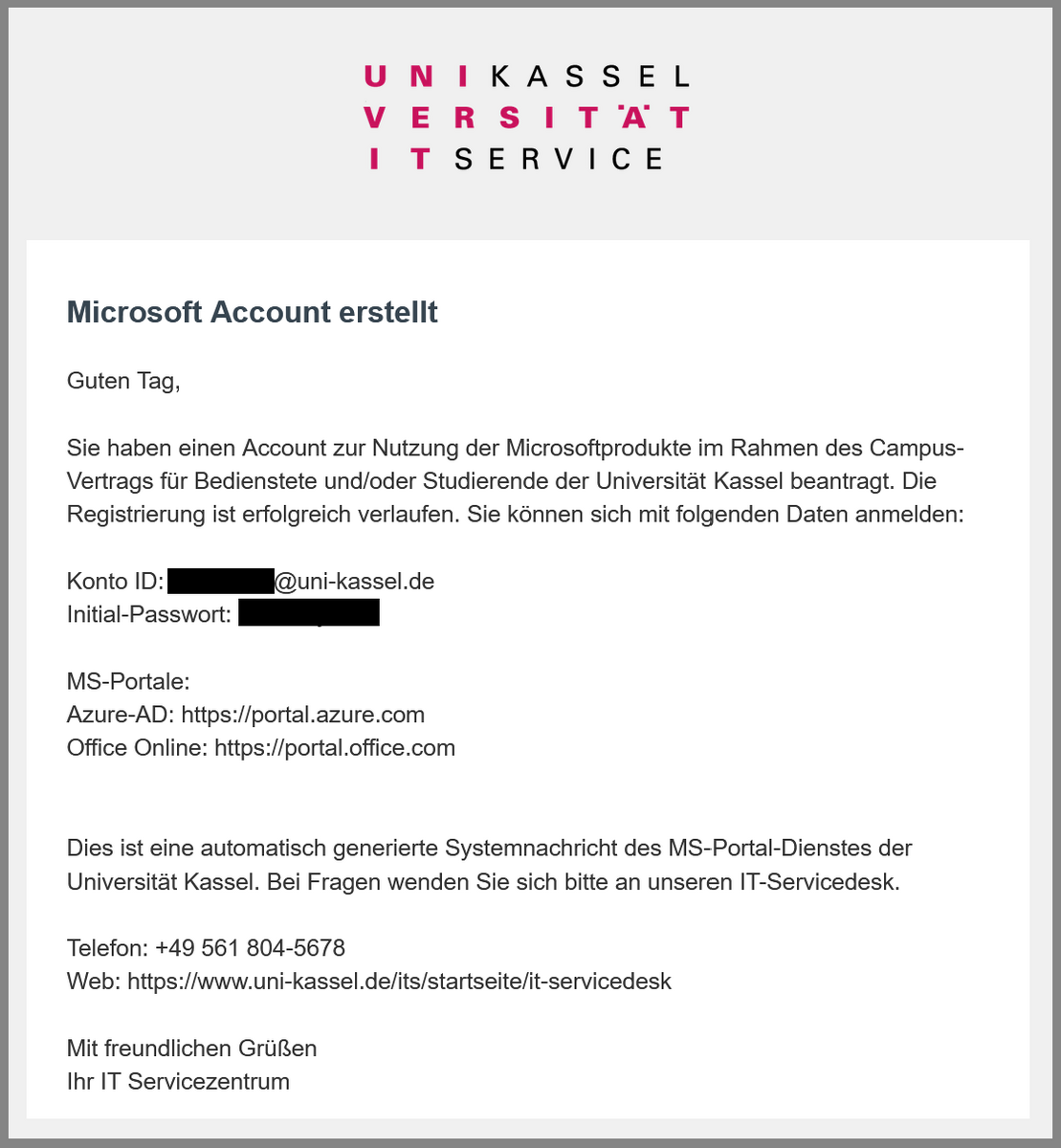
The application is now complete. You will receive an e-mail to your primary account mailbox after approx. two hours. You will be shown the user name and start password for your new Microsoft account. The user name corresponds to the e-mail address you have set as your preferred e-mail address for your account.
The initial password must now be changed. To do this, log in to < portal.office.com > with the login details from the email. You will then be asked to enter a new password.

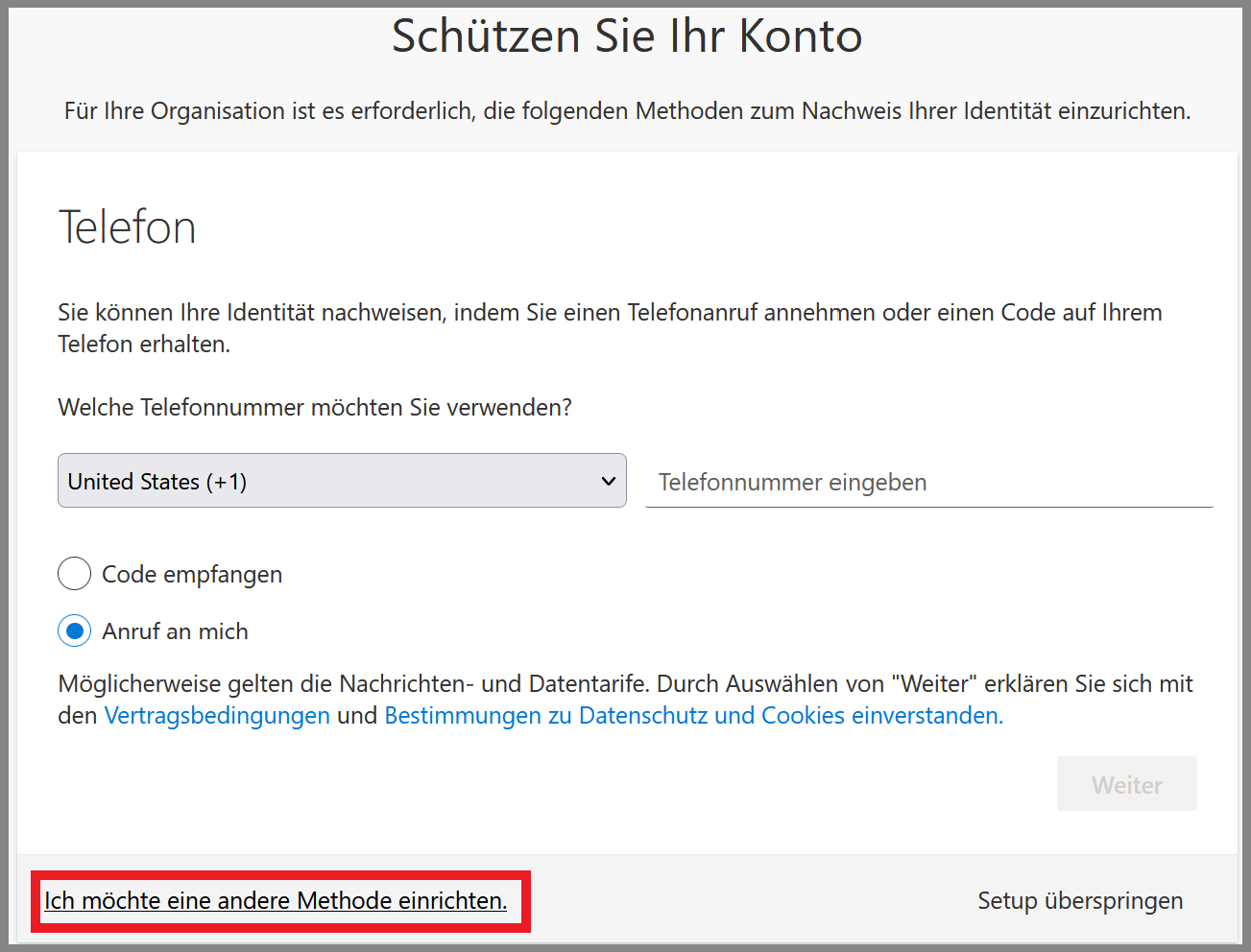
In the next step, please enter either a personal e-mail address or mobile phone number. You can use this to reset your password if necessary.
You can use the "I would like to set up another method" option to choose whether you want to enter an e-mail address or telephone number.

Go-Link of this page: https://www.uni-kassel.de/go/microsoft-freischaltung