MFA with the Microsoft Authenticator app for Microsoft365
Contents
To increase the security of your Microsoft account at the University of Kassel, we recommend that you activate multi-factor authentication (MFA) at
. This means that
you have to go through an additional security step when logging in to your Microsoft account
.
MFA instructions with the Microsoft Authenticator app
Open the website https://www.microsoft365.com/ in your browser.
Click on "Login" in the upper right corner and log in with your primary university e-mail address.
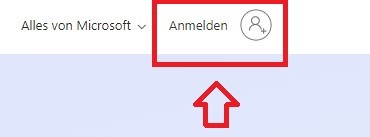
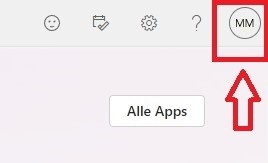
Once you have successfully registered, click on the round logo with your initials or your picture, if you have already added one, in the top right-hand corner.
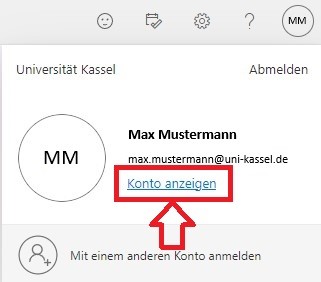
Click on "Show account".
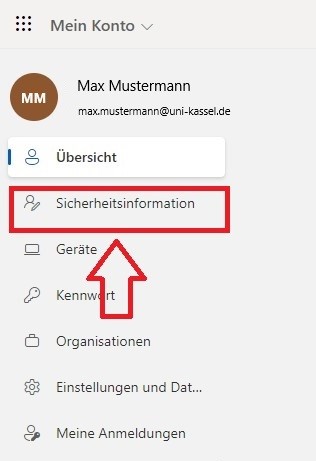
Select "Security information" in the left-hand menu.
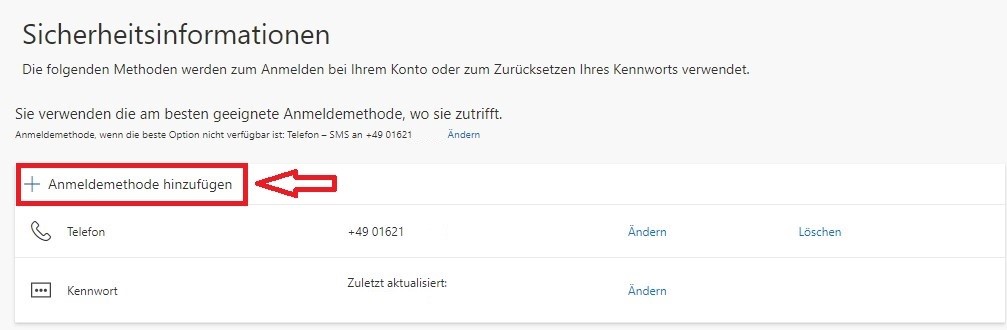
Click on "+ Add login method".
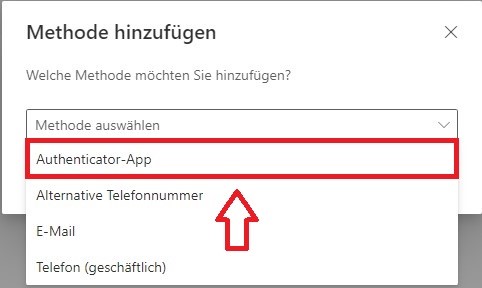
Select "Authenticator app" in the following window.
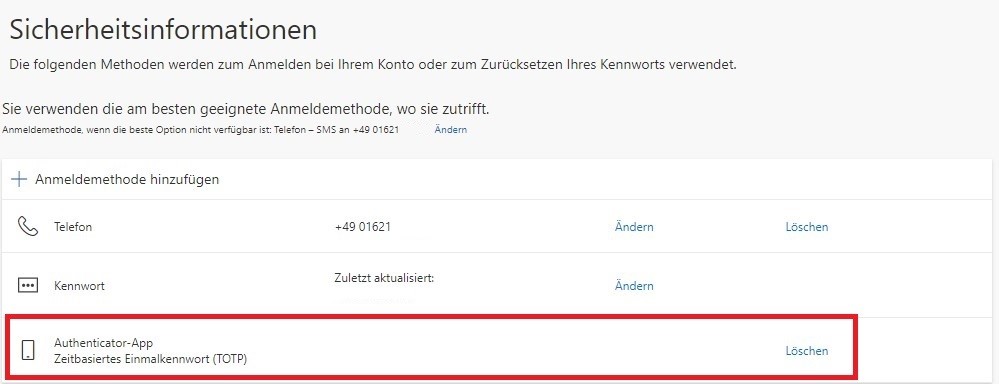
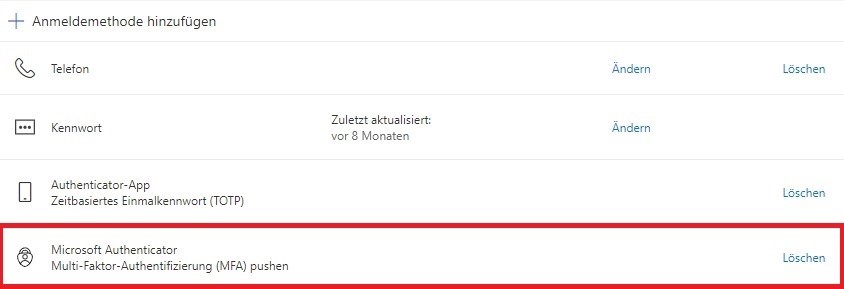
You can then add further login methods (see graphic).
Download the Microsoft Authenticator app to your smartphone below. If you have already done this, please click on "Next".
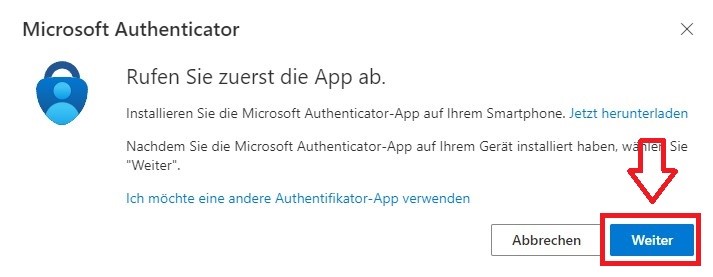
Click on "Next
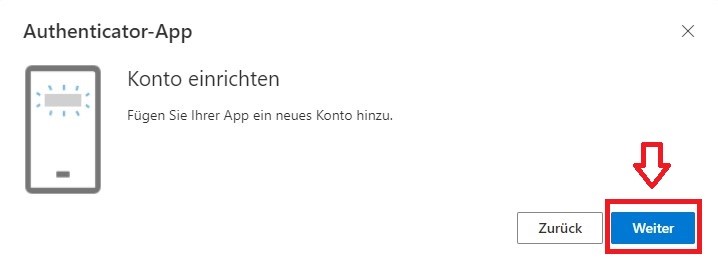
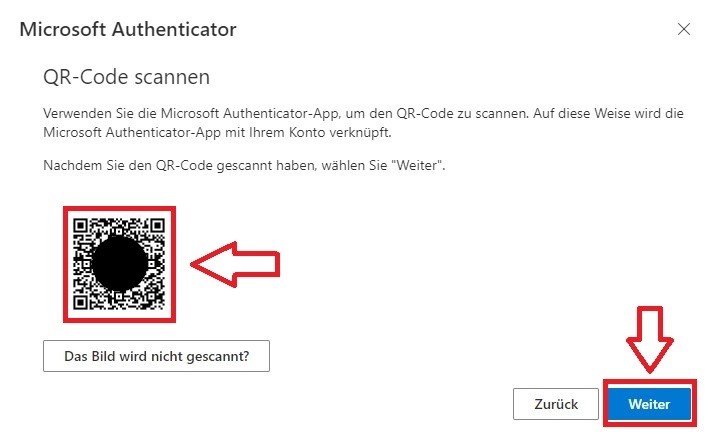
Scan the QR code with the Microsoft Authenticator app. Check whether an entry with your university e-mail address has been added in Microsoft Authenticator and then click on "Next".
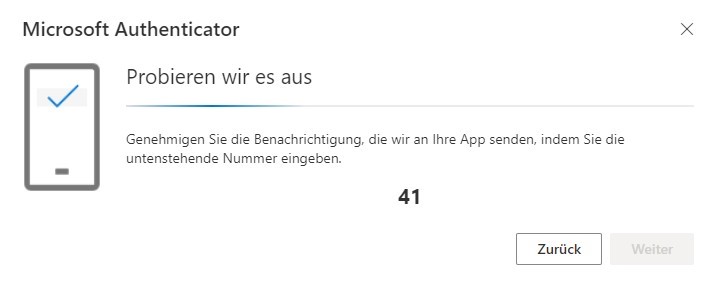
A number will then be displayed and you will receive a message with a new window on your smartphone or in your Microsoft Authenticator.
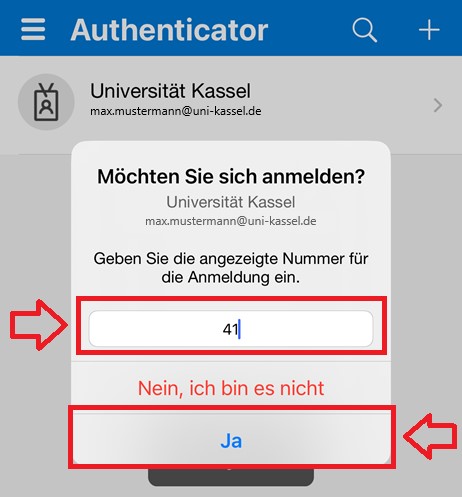
Enter the number displayed in your Microsoft Authenticator app and then click "Yes".
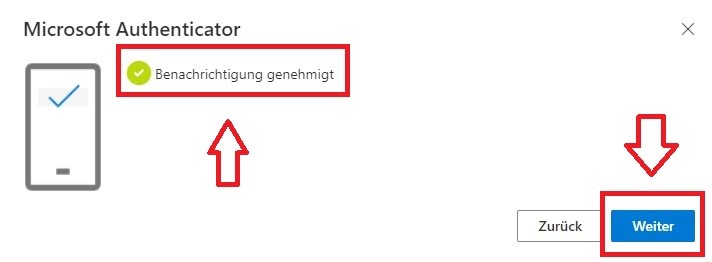
As confirmation, you will see that the notification has been approved.
Click on "Next" to complete the setup.
Finally, you should see the "Microsoft Authenticator " login method you just added listed.
MFA with alternative authenticator app for Microsoft365
To increase the security of your Microsoft account at the University of Kassel, we recommend activating multi-factor authentication (MFA). This means that you have to go through an additional security step when logging in to your Microsoft account.
MFA instructions with alternative authenticator app
Open the website https://www.microsoft365.com/ in your browser.
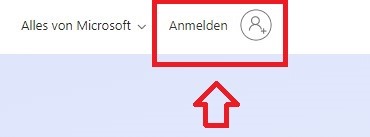
Click on "Login" in the upper right corner and log in with your primary university e-mail address.
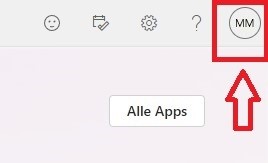
Once you have successfully registered, click on the round logo with your initials or your picture, if you have already added one, in the top right-hand corner.
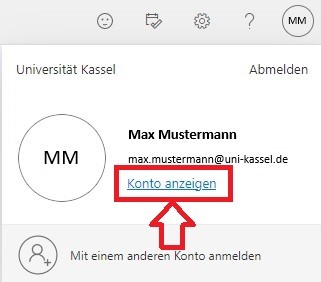
Click on "Show account".
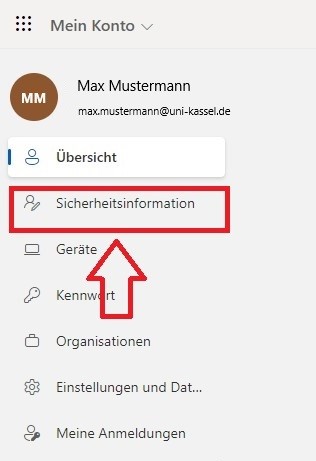
Select "Security information" in the left-hand menu.
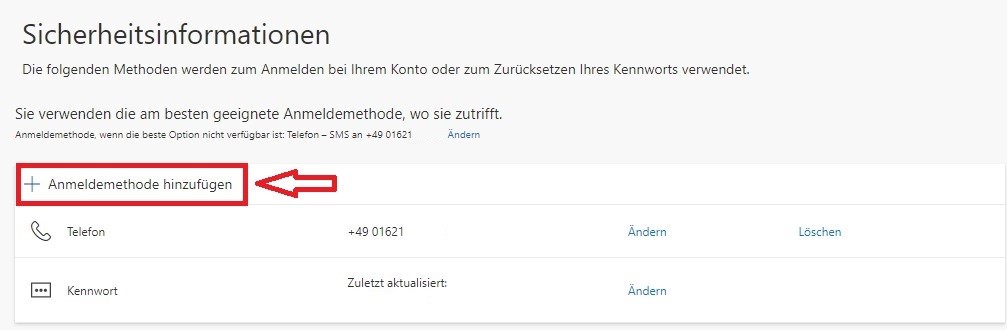
Click on "+ Add login method".
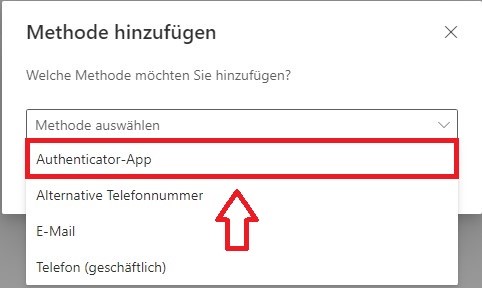
Select "Authenticator app" in the following window.
You can then add further login methods (see graphic).
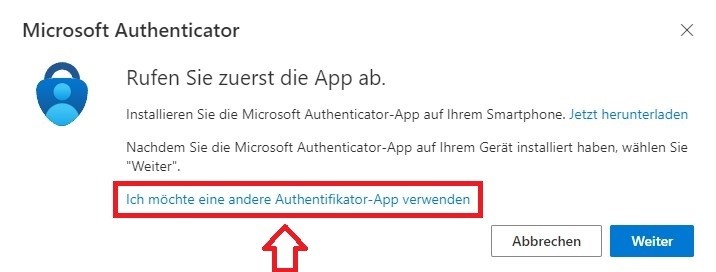
Click on "I would like to use a different authenticator app".
(e.g. use the authenticator from Google or Bitwarden)
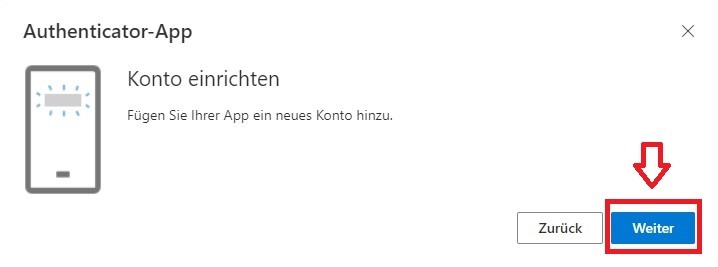
Click on "Next" below
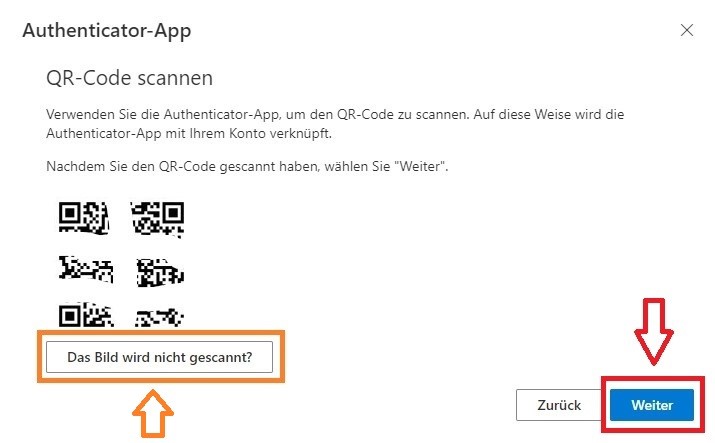
Scan the QR code with your Authenticator app and then click on "Next". If you are using Bitwarden on your desktop, for example, you can click on "The image is not scanned?" (highlighted in orange) to display your secret key.
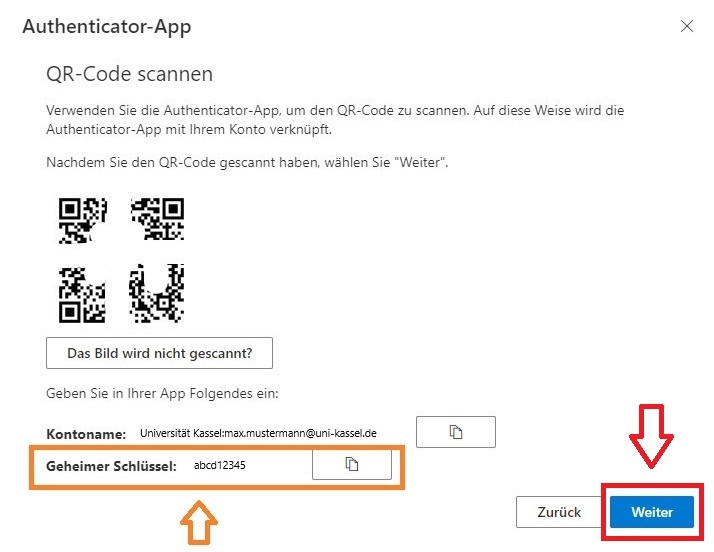
If you have not scanned the QR code, please copy your secret key (marked in orange) and paste it into your Authenticator application and then click on "Next".
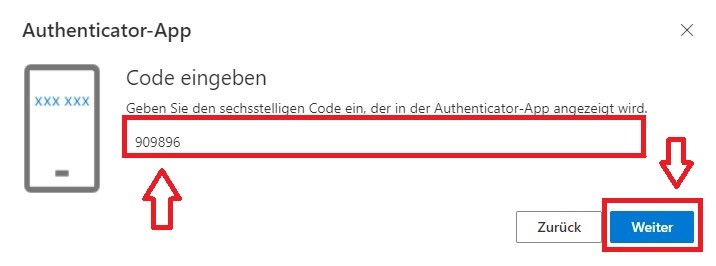
Enter the six-digit numerical code from your Authenticator application and then click on "Next".
Finally, you should see the "Authenticator app" login method you just added listed.