

Operating instructions
Contents
The most important information about the next.hessenbox can be found here in the quick guide.
Manage folders and files
With next.hessenbox, you can easily manage folders and files. You can create new folders, rename existing folders or delete them.
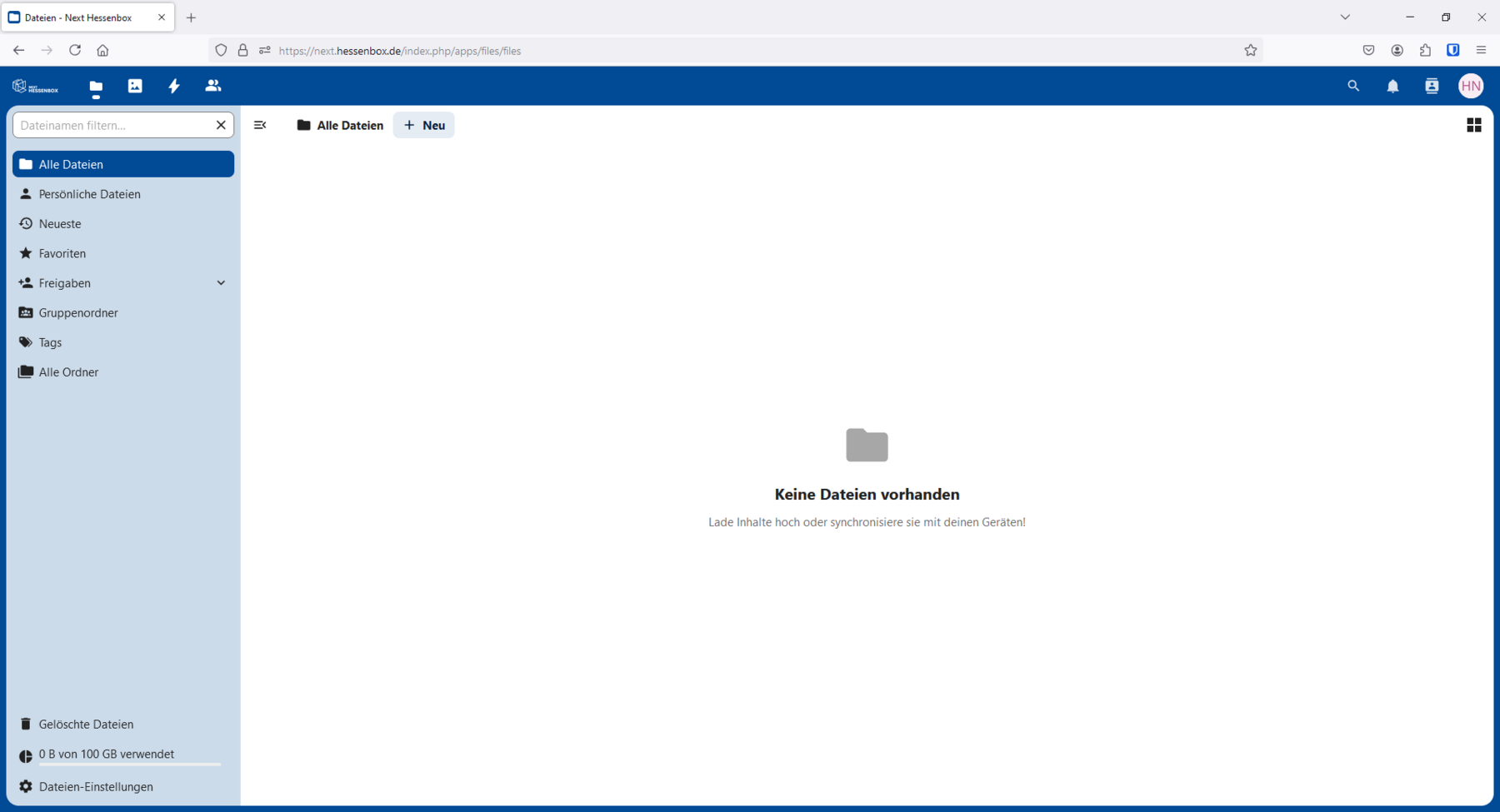
Click on the "+ New" button. Here you can select whether you want to create a new folder, a new file or another element.
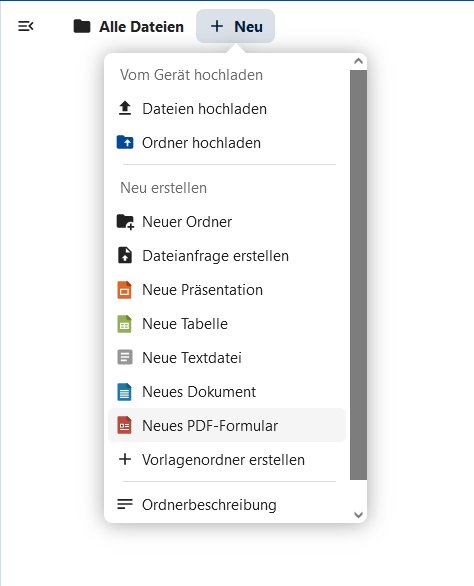
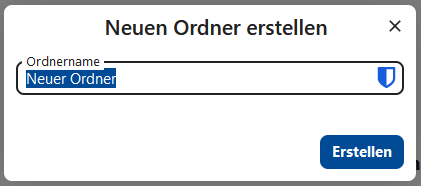
Click on "New folder" to open the following window:
Enter the desired name of the folder here and confirm this by clicking on the Create button.
You can now create another folder or file in this folder by pressing the "+ New" button or upload your own folders or files.
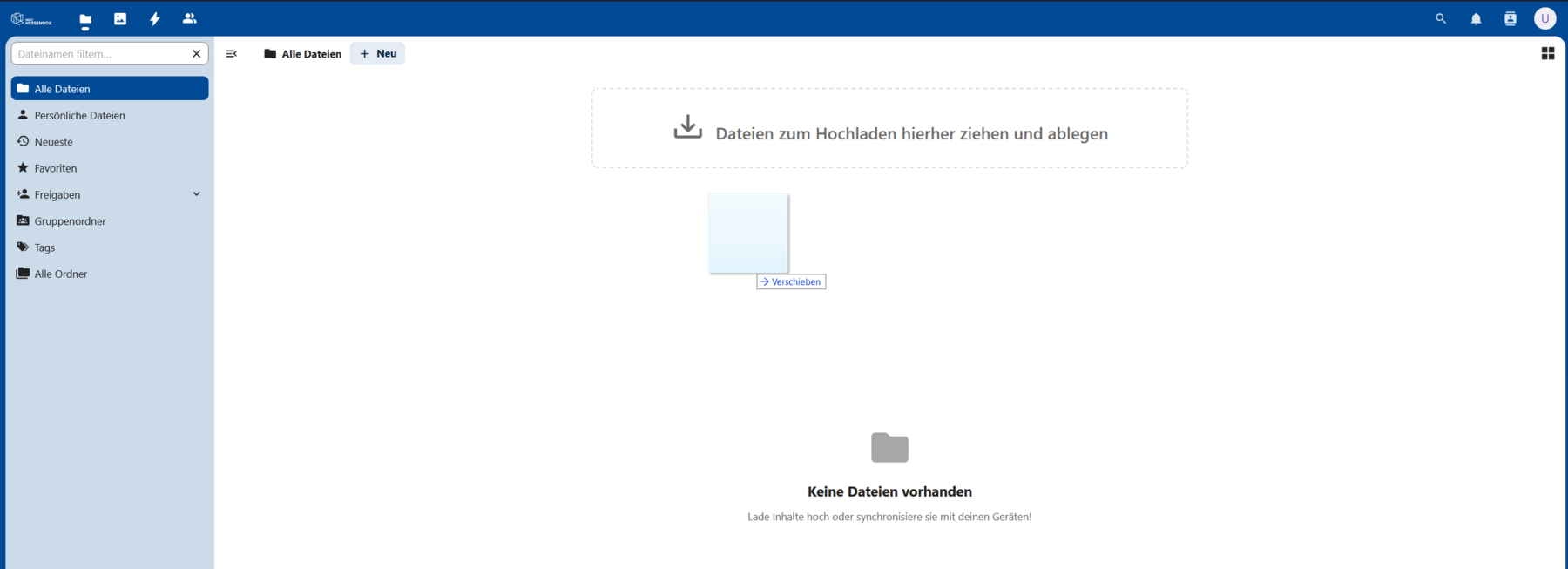
You also have the option of dragging and dropping your files or folders into the selected field to upload them directly.
For both folders and files, you can change the name in the three-dot menu by clicking...
- of the pencil icon to change the name,
- the copy icon to copy files and folders to other directories,
- the download arrow to download the files/folder,
- the trash icon to delete the folder/folders/files,
- or make other changes.

Editing files
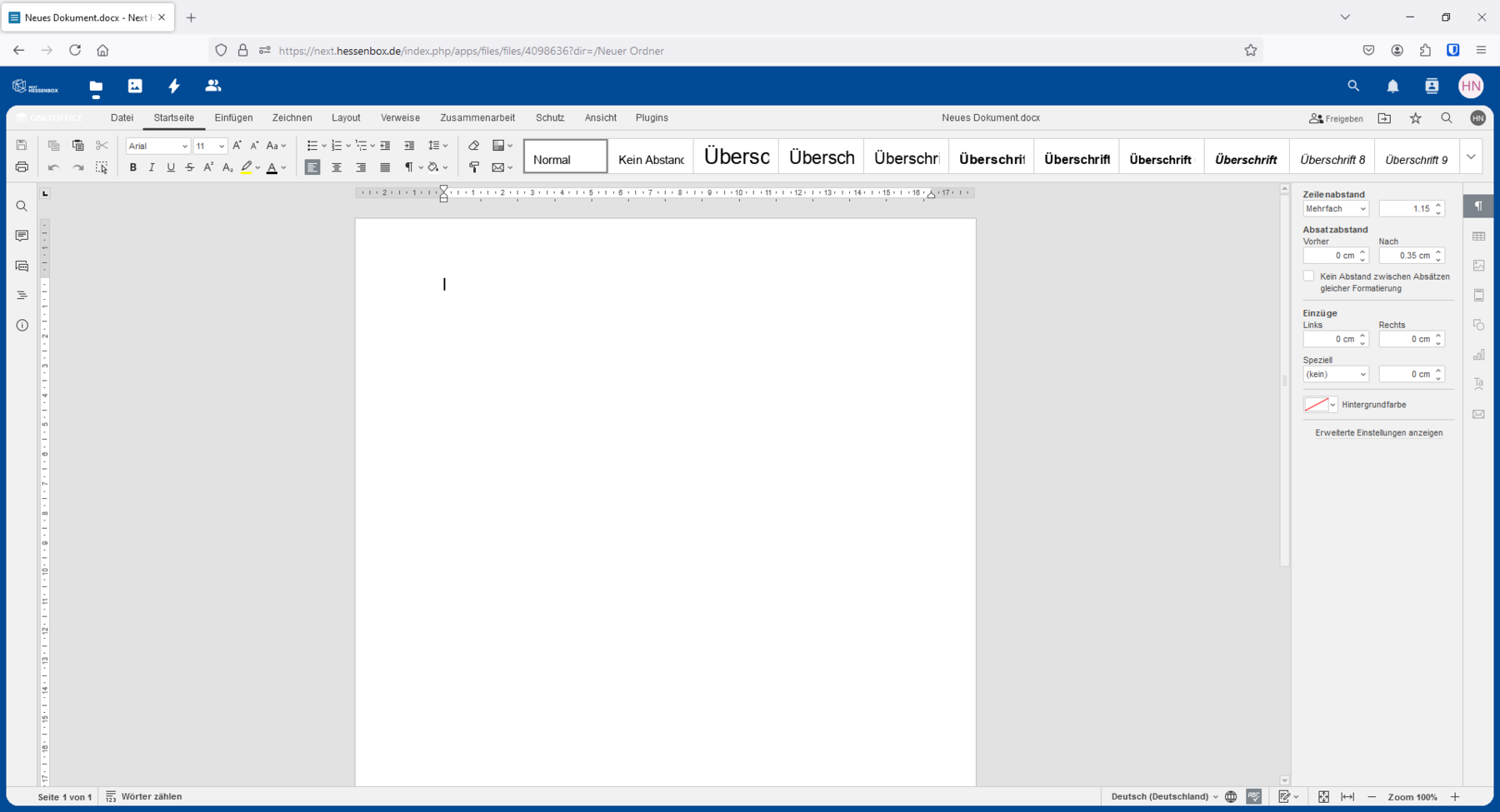
ONLYOFFICE is launched when you create or open text documents, spreadsheets and presentations. Here you can edit your file in a similar way to Office.
Share folders with other people
Other users, including people without a UniAccount, can be "invited" to a folder. This means that they have access to the entire folder (at the top level) and to all subdirectories and files in it. The owner of the folder decides whether the user has read-only or write access.
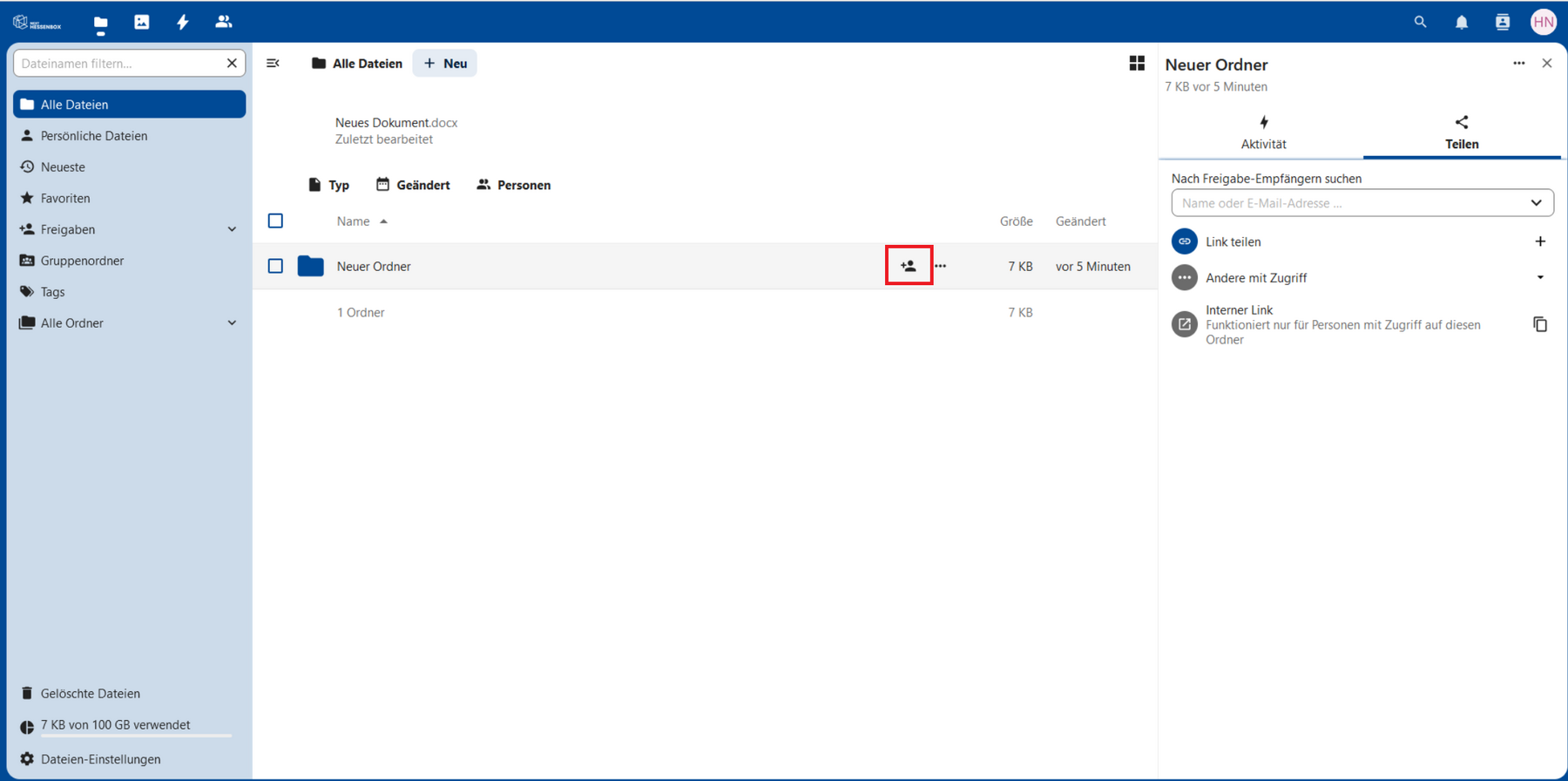
To invite a person to a folder, click on the share symbol at the end of the line of the folder/file, whereupon the share window opens on the right:
Share folder with a person with a UniAccount:
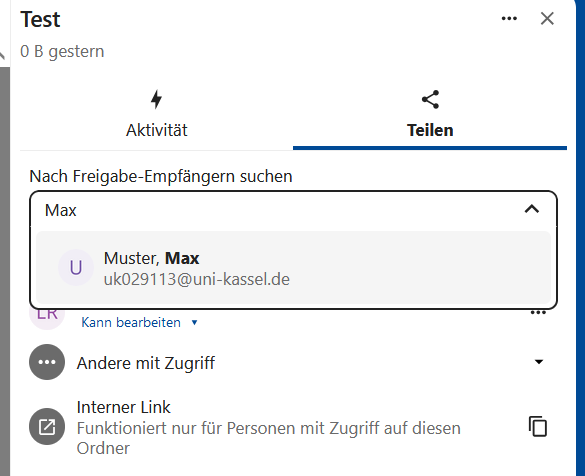
In the new window that appears, enter the e-mail address or the name of the person to whom you want to grant access.
If the person has already logged in to next.hessenbox, the corresponding entry will appear.
You can then set the appropriate authorization and save the release.
If the corresponding account is not displayed, this person has not yet registered in the next.hessenbox, which is why sharing is not possible.
Share folder with a person from another university
In the new window, enter the e-mail address or the full account name of the person you wish to grant access to. Please note that autocomplete is not available here. It is also necessary that the person has already logged in to next.hessenbox in order to gain access.
Share folder with a person without a UniAccount:
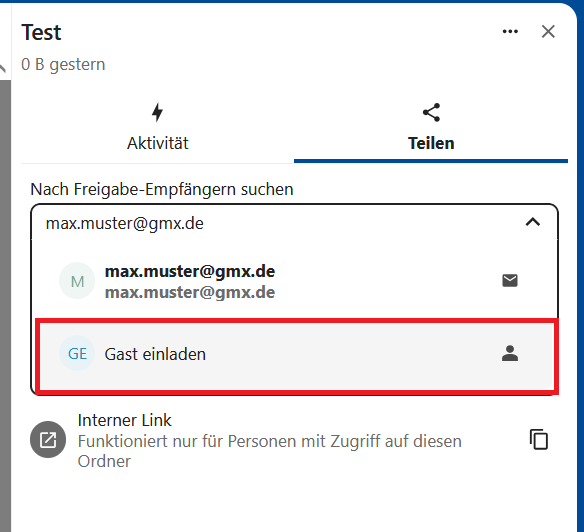
In the new window that appears, enter the e-mail address of the person to whom you want to grant access. You then have the option of inviting this person as a guest.
The invited person will receive an e-mail with which they can create an account. Further information on this can be found under Access for external persons (without UniAccount).
You can then set the appropriate authorization and save the approval.
Share folders and files via links
It is also possible to create a link to a folder or file and share it with others. This function makes it possible to generate a download link for a specific file or directory and send it to other people. The recipients can then download the file(s) and save them locally. An expiration date can be set for the link.
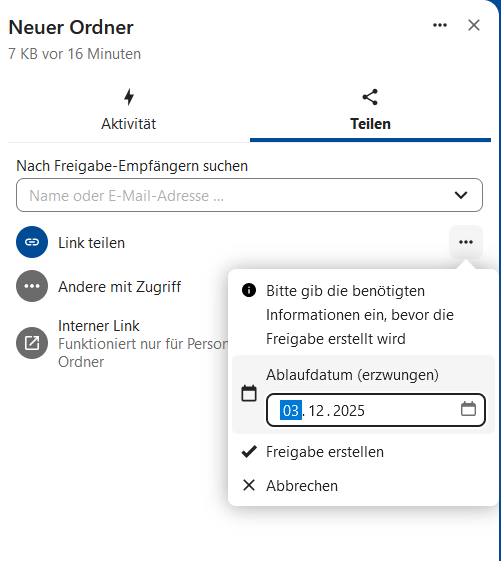
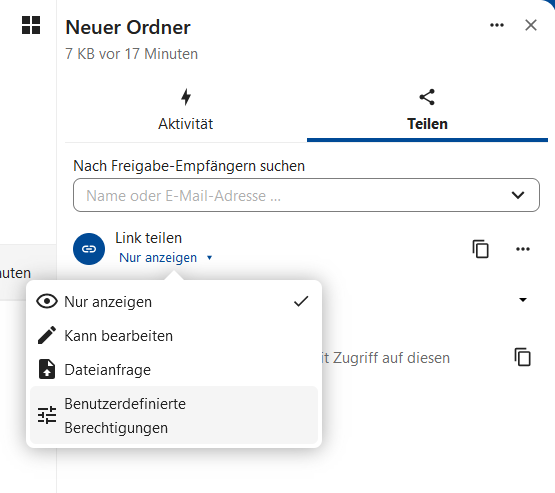
Once you have created the link, you can specify which authorizations the recipients receive. You also have the option of protecting the link with a password.
It is also possible to create multiple links for the same folder or file, whereby each link can have different expiration dates or permissions.
Go-link of this page:https://www.uni-kassel.de/go/nexthessenbox-anleitung