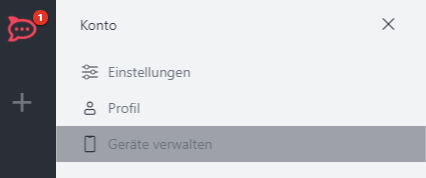
Account settings
Navigation to account settings
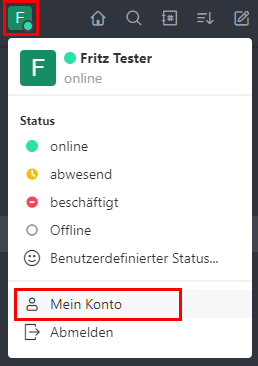
In the account settings, you can customize your profile and notifications and manage your devices. To do this, click on your profile picture and select "My account".
Then go to "Settings" to make adjustments.

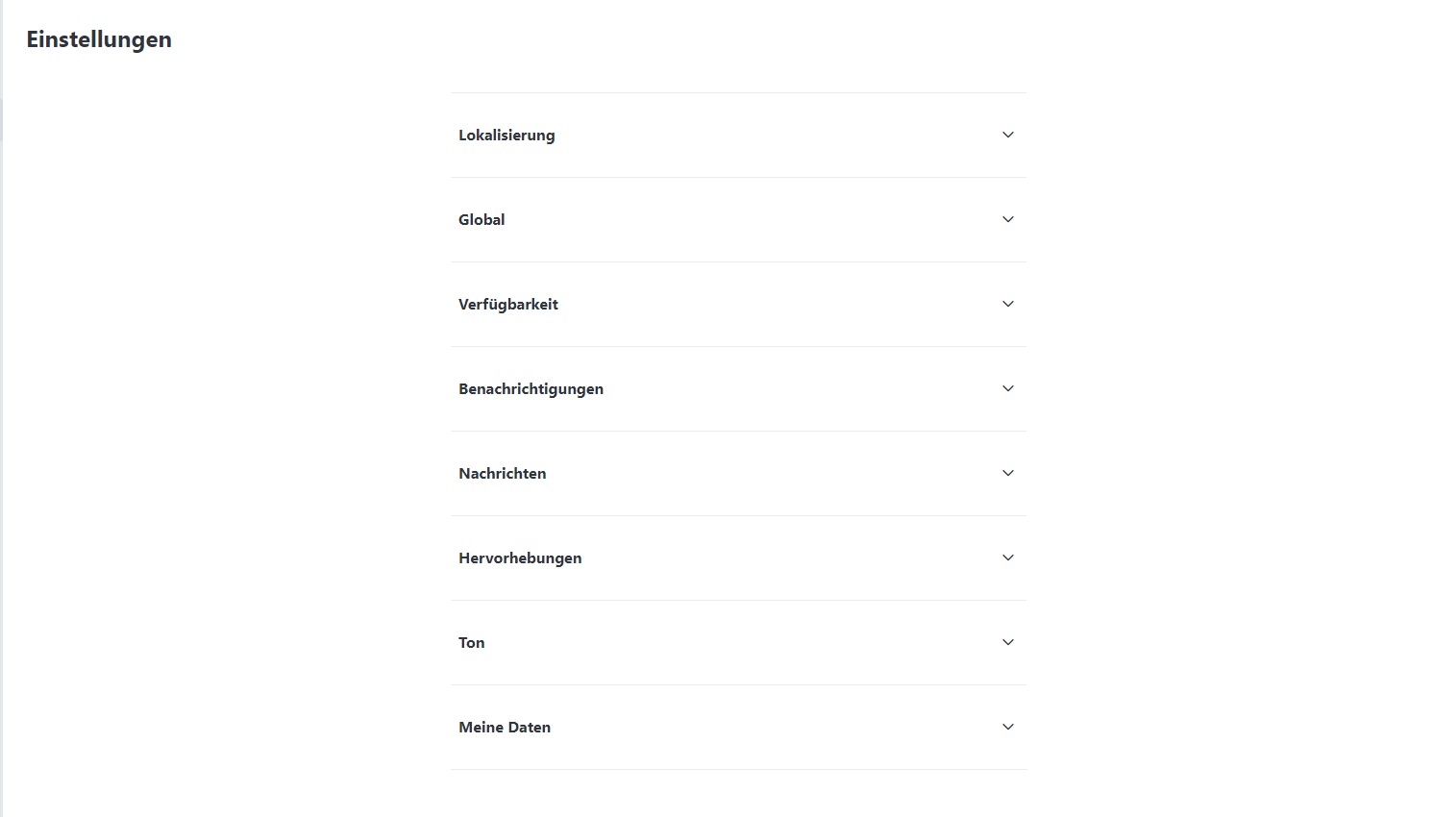
You are now in the overview of the various settings. These are explained individually below.
Localization
Set the desired language here. The default setting is "German".

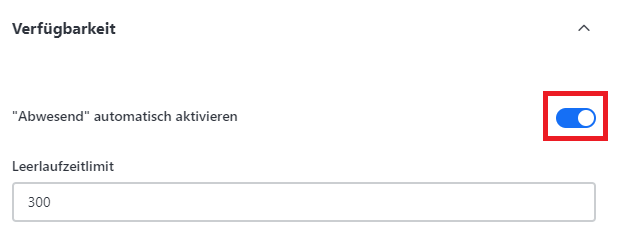
Availability
The "Activate out of office automatically" setting automatically sets your status to "Out of office" after an idle time. You can deactivate this by moving the slider to the left or by setting a desired idle time (in seconds) after which your absence will be displayed.
Notifications
Here you have the option of specifying exactly how and for which messages you receive notifications:
- Desktop notifications: Incoming messages appear in the taskbar on the PC. You can choose between: All messages, Mentions only or No notifications.
- Push notifications: Specify which messages you would like to receive push notifications for: All messages, Mentions or Nothing.
- Offline email notifications: If you are offline, mentions can be sent by email to your address stored in the system.

News
Here you can define various display options for messages:
- Taskbar icon: Activates a notification in the taskbar icon for unread messages.

- Thread messages: Specify whether thread messages are displayed directly in the room (options: Always or Never).

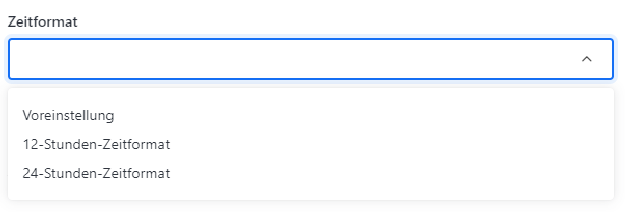
- Time format: Select the preferred time format (12 or 24-hour format).
- Emojis and conversion: Activate emojis and the automatic conversion of ASCII characters into emojis, e.g. ;-) becomes a smiley.


- Automatic loading of images: Images are loaded without an additional preview, which can minimize data consumption (known as "Data Saver").

- User profiles and role tags: Show or hide user names or profile pictures in channels and decide whether role tags are visible.



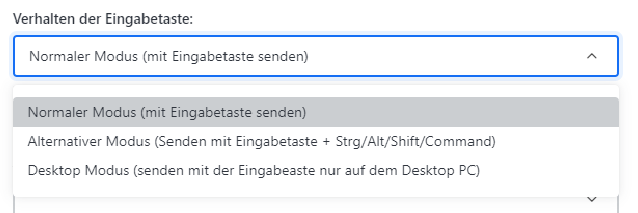
- Enter key for sending messages: Specify how the Enter key is used for sending:
- Normal mode (send with Enter)
- Alternative mode (send with Enter + Ctrl/Alt/Shift/CMD)
- Desktop mode (only sends with Enter on the desktop)
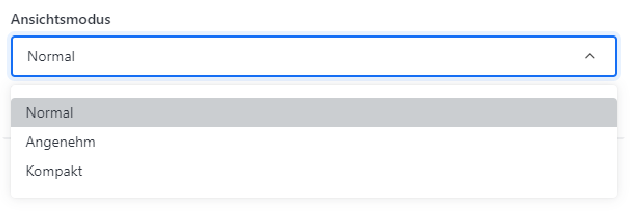
- Message spacing: Select the spacing between messages:
- Normal: The standard spacing between messages
- Pleasant: More space between messages (less on the screen)
- Compact: Less space between messages (more on the screen)
Highlighting
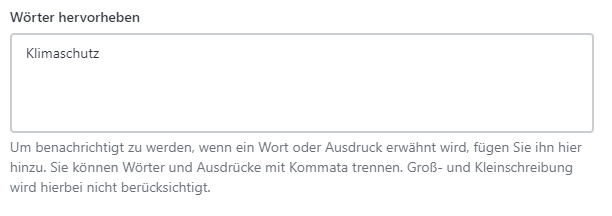
In Rocketchat, you can highlight certain words to be notified when they appear in a chat. These words are highlighted in color. You can separate multiple words with commas (case insensitive).
Sound
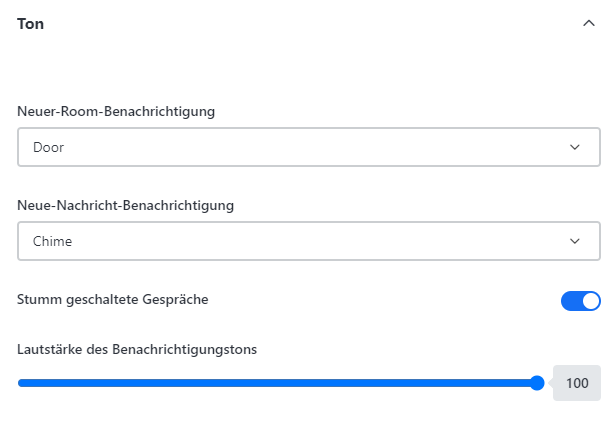
Here you can adjust the sound and volume for notifications or set the sound to "Mute" completely.
Profile
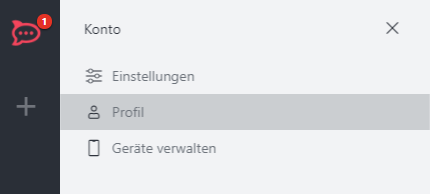
Click on "Profile" instead of "Settings" to manage your profile settings
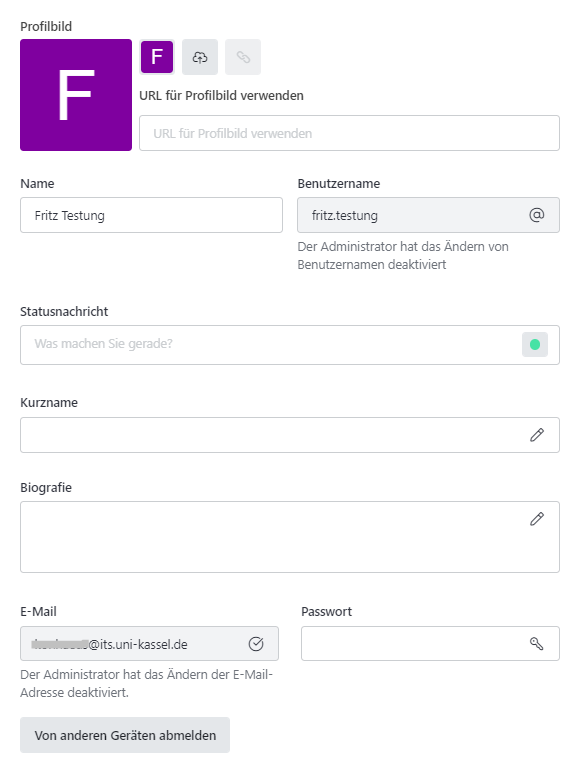
Here you can upload a profile picture and make settings such as short name, status message and biography. Please note that the name, user name, password and email are usually fixed and cannot be changed independently as these details are taken from your UniAccount.
Change profile picture
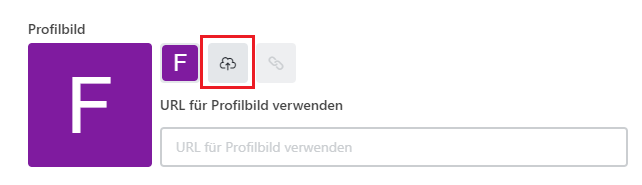
Click on the "Upload" button to upload your own profile picture and then select the storage location of the desired picture.
Then click on "Open" and the new image will be inserted.
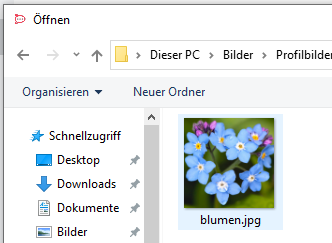
Alternatively, you can also select an image URL to use a profile picture.
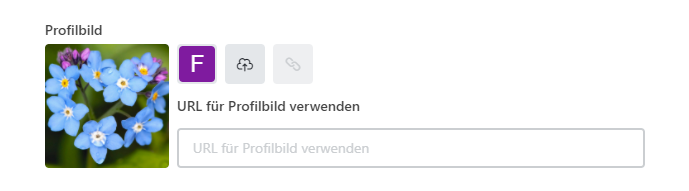
Further profile settings
Short name
Select a freely selectable short name by typing the desired name in the field.

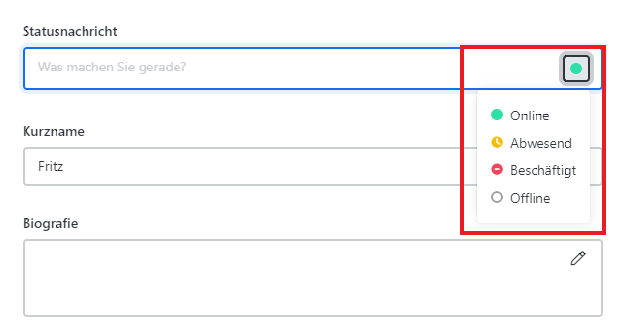
Status message
Under "Status message", you can define a status message that other chat participants can see.

Biography
Enter personal information here that is visible to others.

Manage devices
Under "Manage devices", you can see which end devices you are currently connected to. If you want to log out of a device, simply click on "Log out".