

Subscribe to notifications
Set up notifications
To set up notifications for a document library, proceed as follows:
- Click on "Documents" in the page navigation on the left.
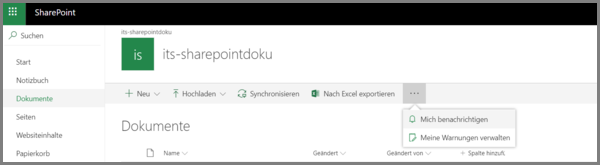
- Click on the three-dot icon in the middle bar and select "Notify me" in the submenu that opens.
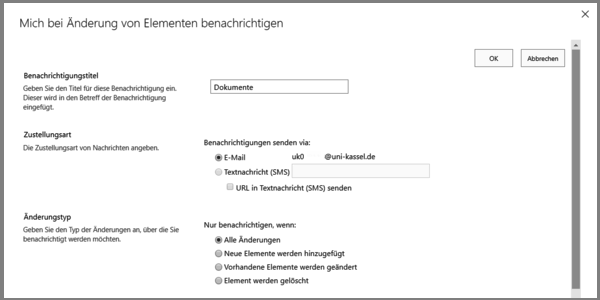
A screen opens with the title "Notify me of changes to elements". Here you can:
- Customize the notification title.
- Under Send notifications to, select the users who should receive the notifications. You should agree this in advance as a team.
- Specify the delivery type (e.g. by e-mail to the UniAccount; this is recommended).
- Specify the change type. You can choose the type of change for which notifications are sent.
- CustomizeSend notifications for these changes. You can define certain criteria for when you are notified of changes.
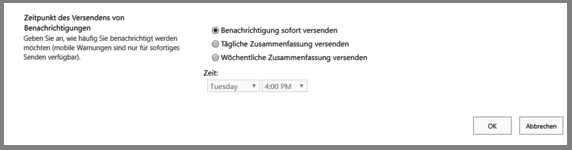
- Set the time at which notifications are sent. You can choose whether you receive the notifications immediately, as a daily or weekly summary. The summary (daily or weekly) is useful in order to be able to work effectively despite many changes. It is also best to discuss this with your team.
Once you have made your settings, click on "OK". You will then receive a confirmation e-mail with the details of your notification settings.
Customize notifications afterwards
If you want to change or delete notifications, proceed as follows:
- Click on "Documents" in the page navigation on the left.
- Then click on the three-dot symbol in the middle bar and select "Manage my notifications" in the submenu that opens.
You will be redirected to an overview page of your notifications. Here you can now select, edit or delete notifications that have already been set up.