

Secondary accounts
Contents
Function of a secondary account
The secondary accounts are intended for your work organization (e.g. an additional e-mail account) or for delegating tasks (student assistant). For this purpose, you can grant the secondary account group memberships derived from those of the primary account (e.g. access to network drives, group mailboxes, license software).
These extended authorizations are not intended for use by guests.
A secondary account can only be assigned to persons who already have a primary account at the university. Only employees and student assistants with a registered personnel number can be assigned a secondary account.
According to the user regulations, it is also not permitted to pass on user names and passwords for secondary accounts.
How do I apply for a secondary account?
Only employees of the University of Kassel can apply for a secondary account. Students and external users are not permitted to do so for security reasons.
Register at
https://www.uni-kassel.de/go/userapp
with the user name and password of your primary account and accept the IT user regulations by ticking the appropriate box.
After logging in, click on "Request access".

In the "Secondary accounts" tab, select the "Request secondary account" option.
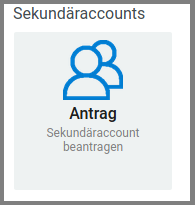
If nothing happens after this action, your web browser is probably blocking the pop-up window that was supposed to open. Please make sure that your web browser allows the opening of pop-up windows for userapp.uni-kassel.de.
In Mozilla Firefox, for example, you will see a message and an option to allow the pop-up window directly below the address bar.
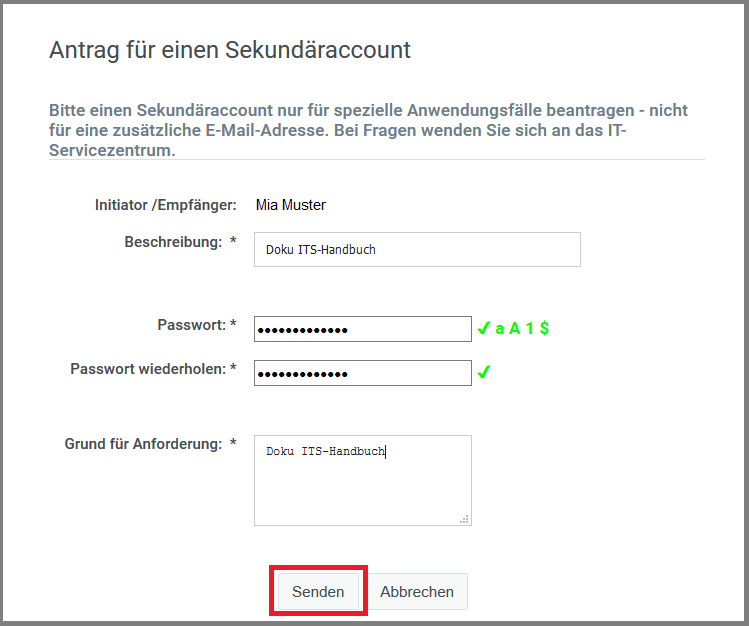
Enter the reason for the request and a brief description of the intended use, as well as a password for the account.
Then click on "Send"
After sending the application for the secondary account, the successful application will be confirmed.
You will be notified by e-mail as soon as the application has been processed and the secondary account has been created for you.
Extend secondary account / assign to another user
If a secondary account is assigned to another person, it can be used for a maximum of 180 days at a time. After that, the account must be reassigned, otherwise it will no longer be possible to log in. The person to whom the account is assigned at that time will be informed several times by e-mail before the deadline expires.
If you assign the secondary account to yourself, the assignment is unlimited until a new assignment is made.
To extend a self-used secondary account or assign it to another person, please contact
https://www.uni-kassel.de/go/userapp
with your primary account and password. Then navigate via "Request access" to "Assign secondary account".
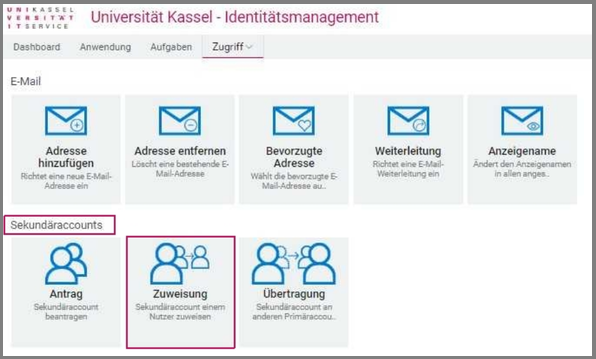
If nothing happens after this action, your web browser is probably blocking the pop-up window that was supposed to open. Please make sure that your web browser allows the opening of pop-up windows for userapp.uni-kassel.de.
In Mozilla Firefox, for example, you will see a message and an option to allow the pop-up window directly below the address bar.
A new window will open. Click on the desired secondary account and use the calendar to select an expiration date (maximum 180 days in the future).
Under "Secondary account users", you can use the magnifying glass icon to search for the person to whom the account is to be assigned by first/last name or user ID.
Please note that secondary accounts can only be assigned to employees or student assistants with a registered personnel number.

In the "Note for user" field, you can describe to the person in a few words why the assignment is being made.
The person to whom the account has been assigned/transferred only needs to accept the assignment/transfer. Only then can the account be used.
If you assign the secondary account to yourself, you will be asked to enter a password for the secondary account. You can then complete the assignment as usual. It is then not necessary to accept the secondary account yourself. The secondary account has no expiration date in this way and remains assigned to your primary account until a new assignment is made.
Transfer secondary account (change of ownership)
A secondary account can also be permanently transferred to another person. In this case, the current owner transfers all authorizations for the secondary account to another person.
This person can then manage the secondary account and assign it to themselves/others.
After the transfer, the account must be reassigned in order to be functional.
To transfer a secondary account, please register at
https://www.uni-kassel.de/go/userapp
with your primary account and password. Then navigate to "Transfer secondary account" via "Request access".
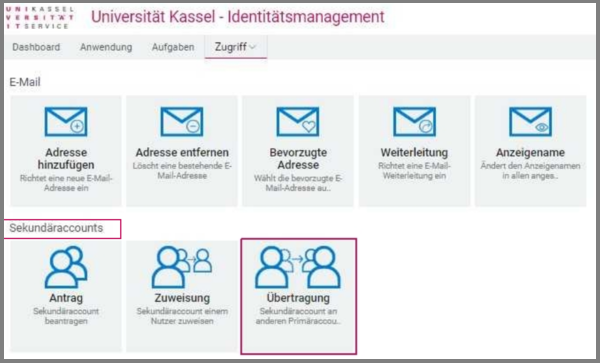
If nothing happens after this action, your web browser is probably blocking the pop-up window that was supposed to open. Please make sure that your web browser allows the opening of pop-up windows for userapp.uni-kassel.de.
In Mozilla Firefox, for example, you will see a message and an option to allow the pop-up window directly below the address bar.
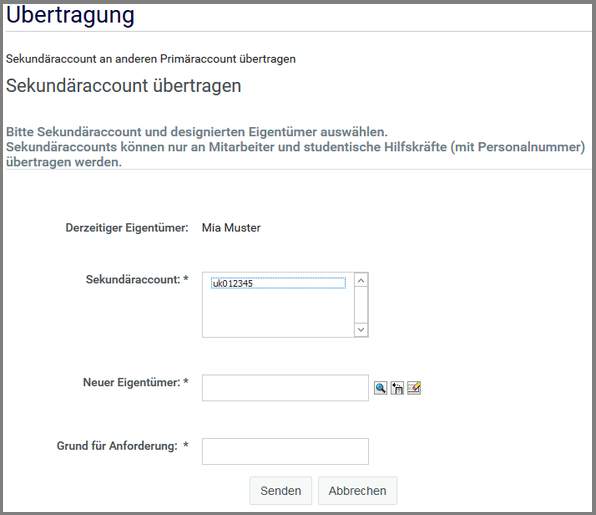
A new window will open. Click on the desired secondary account.
Under "New owner", you can use the magnifying glass icon to search for the person who is to receive the account by first/last name or user ID.
Secondary accounts can only be transferred to other employees.
In the "Reason for request" field, briefly explain the reason for the account transfer.
Accept assignment/transfer
Before an assigned/transferred secondary account can be used, the process must be accepted.
The person to whom the account was assigned/transferred is informed of the process by email and can then edit the process in Identity Management.
To accept an assignment or an account transfer, please log in at
https://www.uni-kassel.de/go/userapp
with your primary account and password.
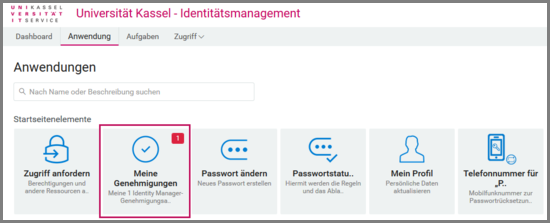
After logging in, click on "Tasks" at the top of the tab. Pending tasks will be displayed there.
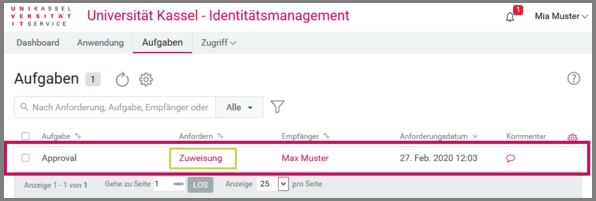
Do not check the "Approval" box, but click on the red text in the "Request" area.
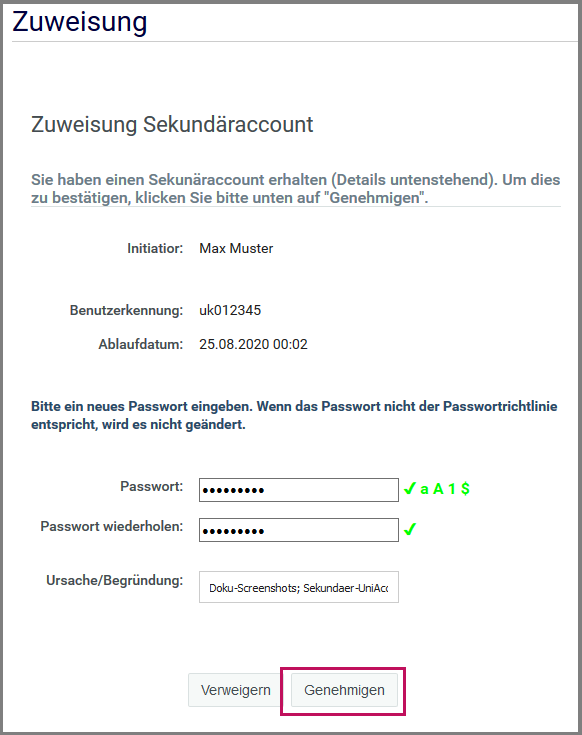
A new window will open. Set a password for the secondary account here and then confirm the process with "Approve".
The secondary account can now be used.
Go-Link of this page:https://www.uni-kassel.de/go/sekundäraccount