Join a Zoom meeting
The content on this page was translated automatically.
Join with
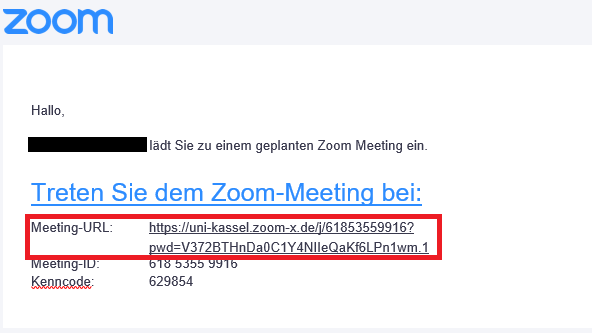
Invitation link
If you have an invitation link, click on it shortly before the meeting starts. This will open a page in your web browser and, if the Zoom app is installed on your device, it will start automatically.
When prompted, allow Zoom access to the microphone and camera by clicking on "Confirm".
You do not usually need to sign in to join the meeting, so you only need to enter a display name when prompted. However, if you are already logged in to Zoom and have personalized your display name in identity management, this will be applied automatically.
Finally, join the meeting.
Meeting ID (Zoom client)
As an alternative to the invitation link, you can also join a meeting using the so-called meeting ID.

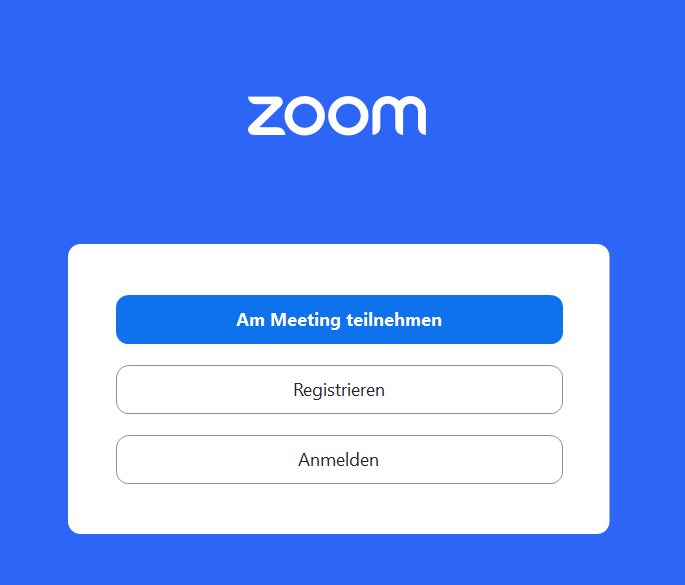
Open the Zoom app on your device. Click on "Join the meeting".
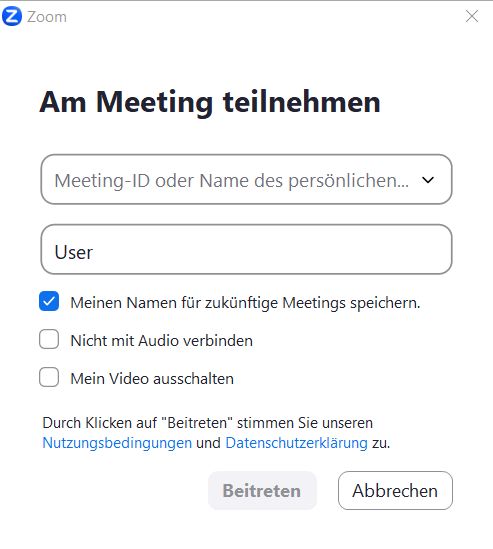
Enter the meeting ID in the "Meeting ID" field.
You can enter your desired name under "User". Here you have the option of saving the name for future meetings.
You can also check the boxes here to switch off your computer audio and video when you join the meeting. You can adjust these settings during the meeting.
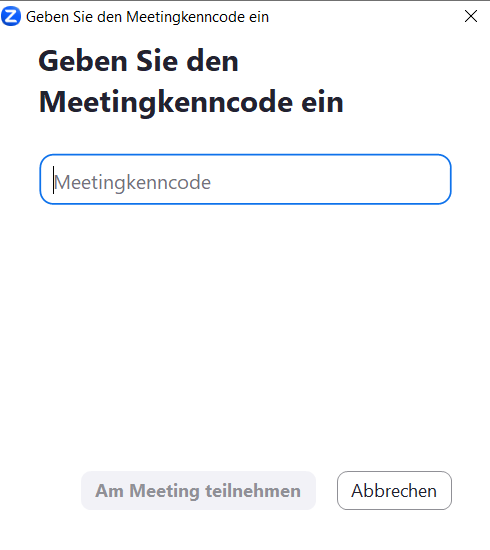
Finally, enter the identification code for the meeting and click on "Join meeting".