Operation in the meeting
The content on this page was translated automatically.
Functions
Switching the microphone on/off
You can switch your microphone on and off during the meeting.
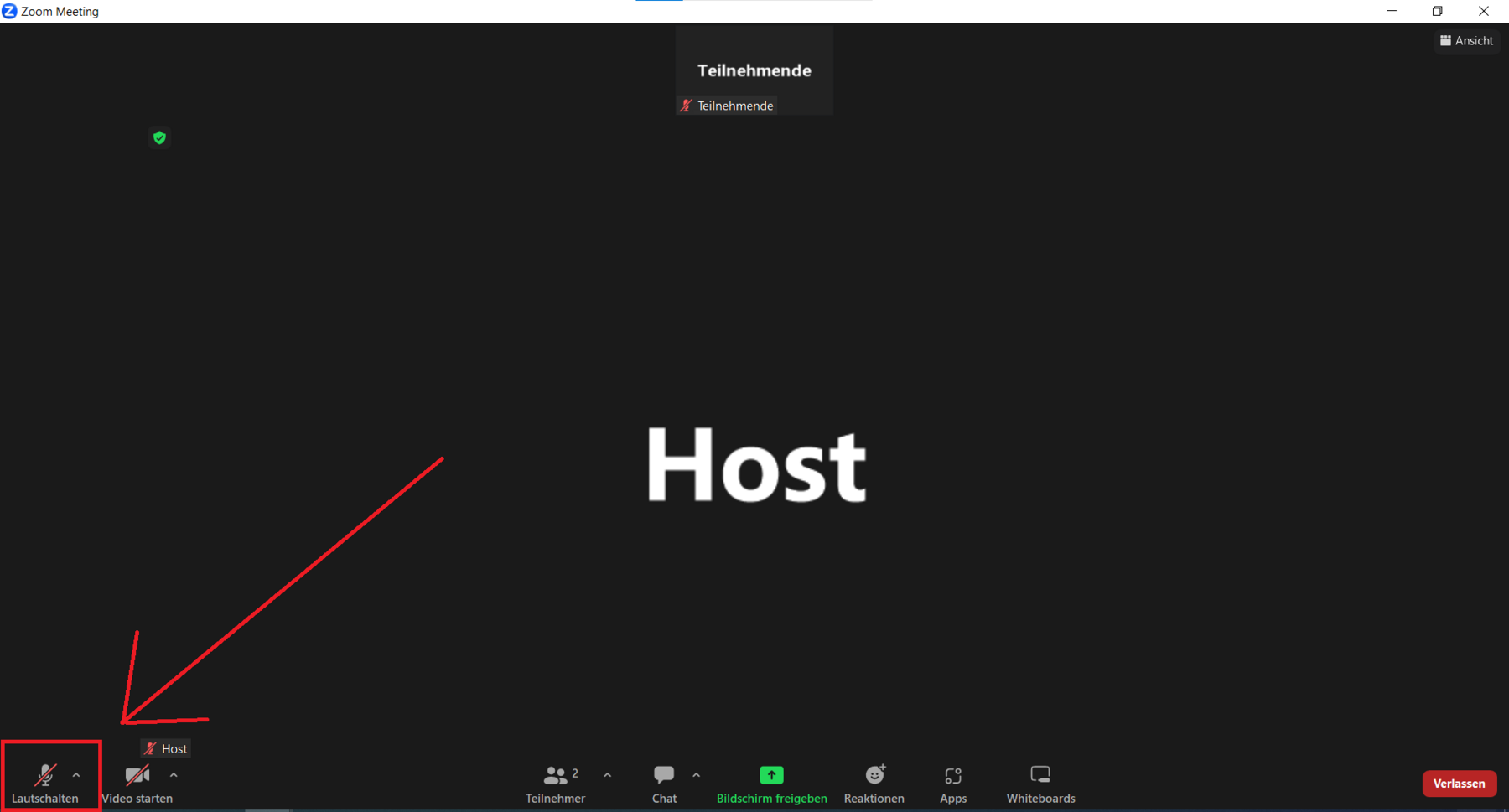
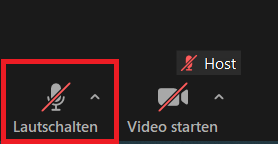
To do this, click once on the microphone symbol in the bottom left-hand corner. If the microphone is crossed out, your microphone is off. If it is not crossed out, your microphone is on.
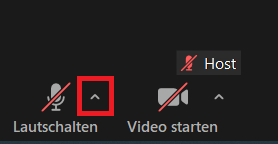
Further options for operating and setting the microphone can be found by clicking on the small arrow next to the microphone symbol.
Switching the camera on/off
You can switch your camera on and off during the meeting.
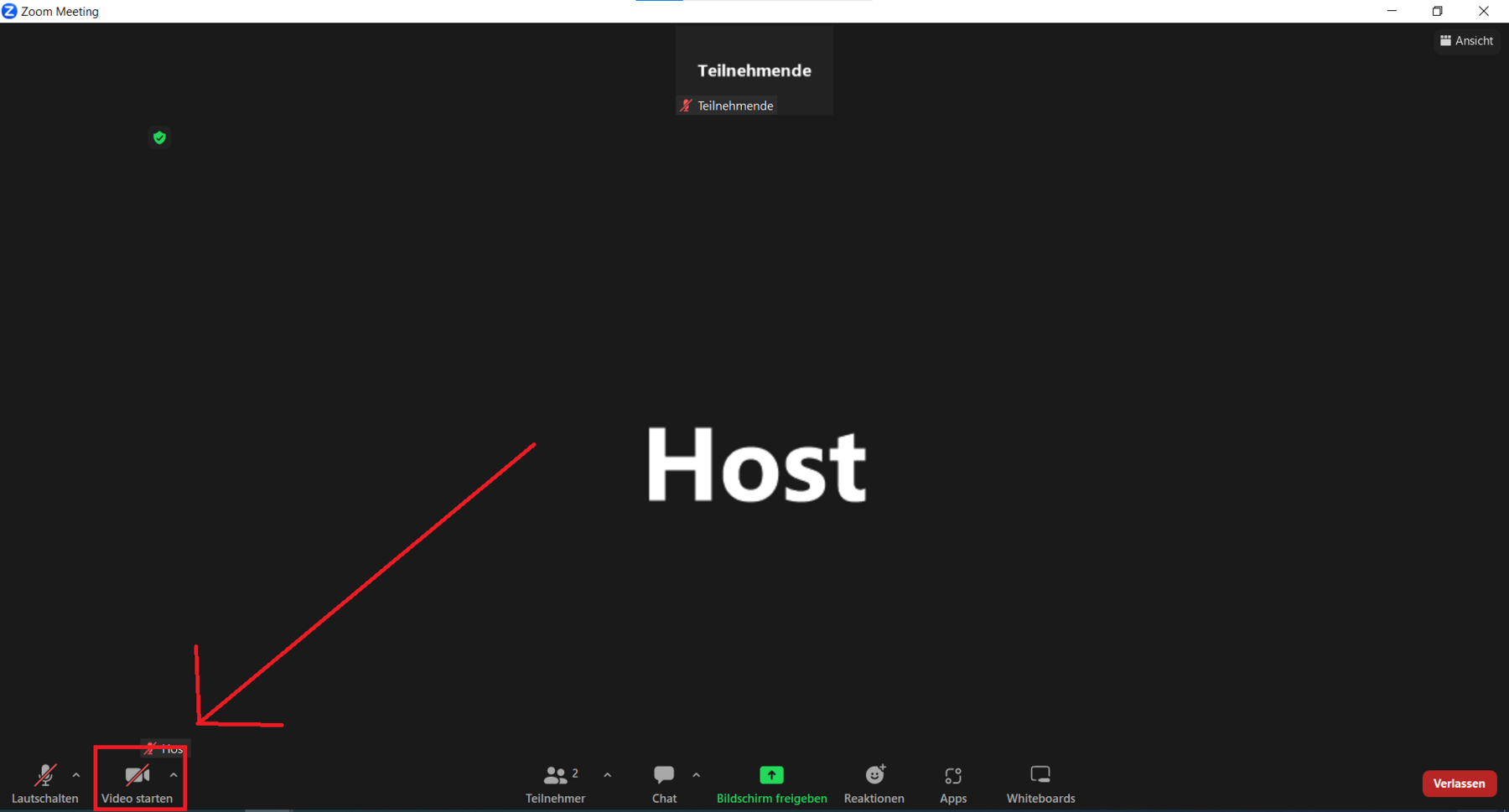
To do this, click once on the camera symbol in the bottom left-hand corner. If the camera is crossed out, your camera is off. If it is not crossed out, your camera is on.
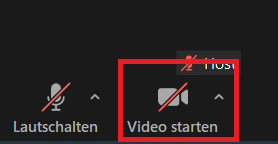
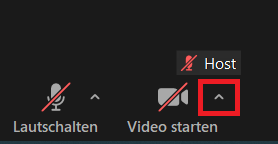
Further options for operating and setting the camera can be found by clicking on the small arrow next to the camera symbol.
Raise hand
During the meeting, you can draw attention to yourself with a digital raised hand.
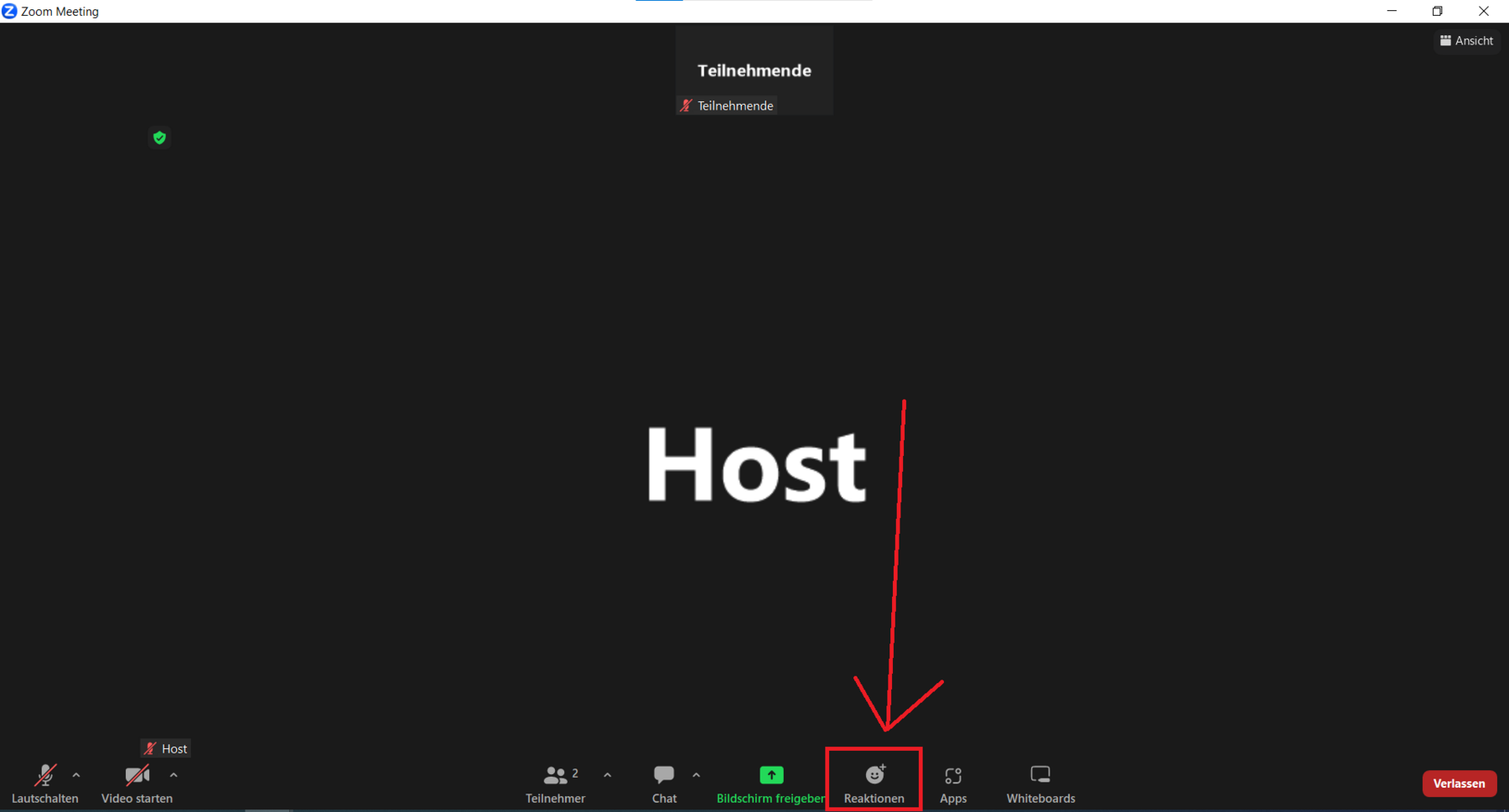
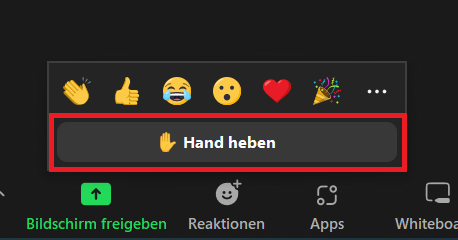
To do this, click on Reactions at the bottom center. This will open a small menu field with digital reactions that you can use during the meeting.
To raise your hand, click on Raise hand.
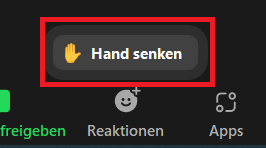
To lower the hand again, click on Lower hand.
The other reactions will disappear automatically after a while. However, you must lower the hand manually for it to disappear.
Chat
During the meeting, you can communicate with other participants in the chat. To do this, click on Chat at the bottom center.

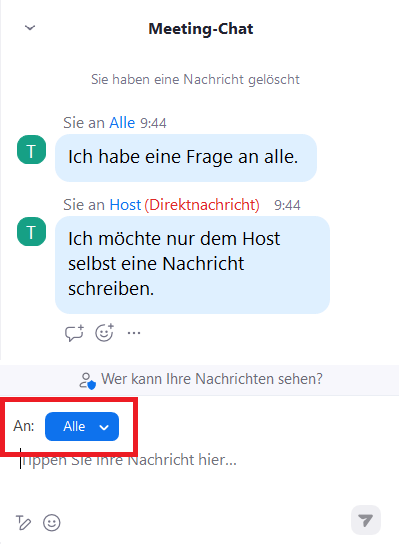
A chat window will now open. At the top you can see the messages that have already been written, at the bottom you can write a message yourself.
You can write a message to all participants, but you can also write to individual people. To do this, change your target group below under "To:".