

Disable Internet Protocol IPv6 (Windows)
The content on this page was translated automatically.
If you use the Cisco Secure VPN client and websites outside the university network are not accessible, the IPv6 internet protocol must be deactivated in the network settings.
Please proceed as follows:
Go to the settings (cogwheel) via the Windows icon in your start bar.

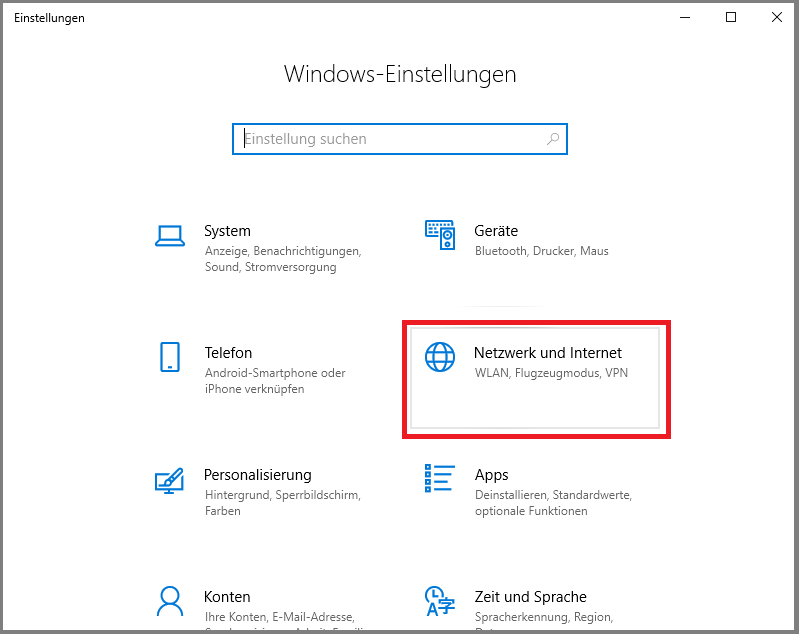
Alternatively, you can also access the network settings by right-clicking on the WLAN / LAN icon in your start bar.


Then select "Change adapter options" under "Change network settings".
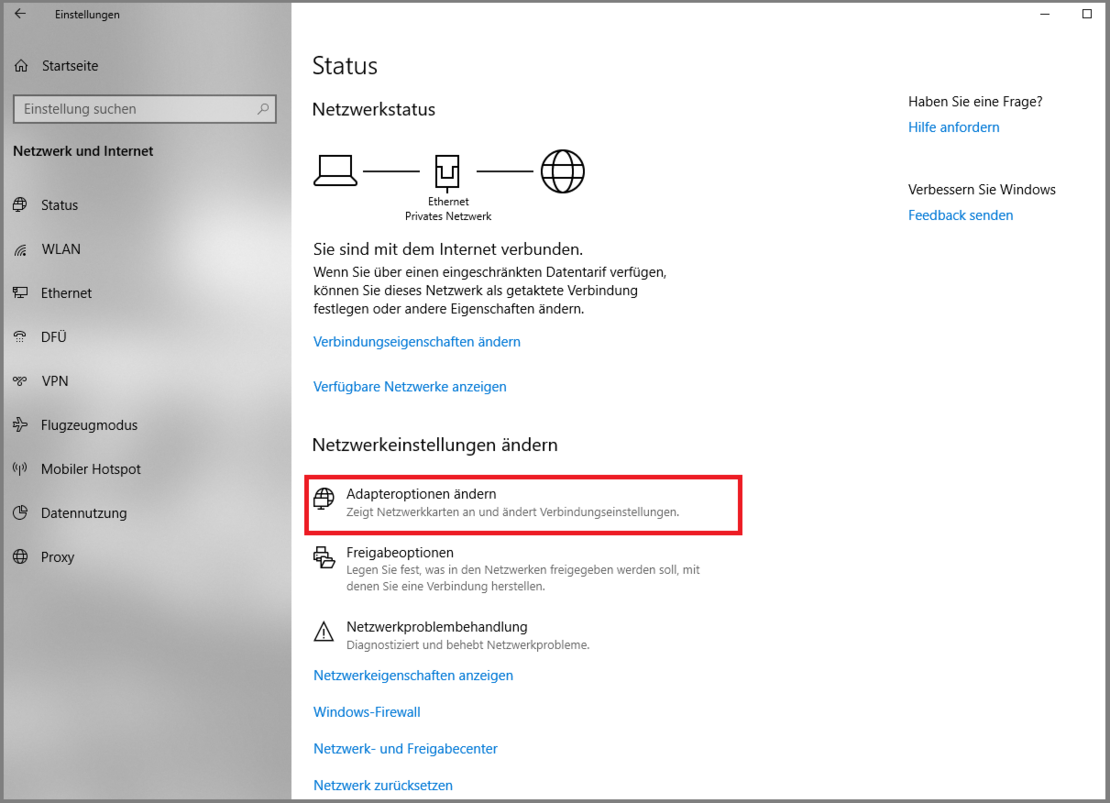
Select the adapter you are using to connect to the Internet by right-clicking on it. You can see from the icon in your start bar at the bottom right whether you are in WLAN mode or connected via an Ethernet cable (the screenshot shows an example for Ethernet). Then click on "Properties" in the menu.
You must be in the administrator role on your device for this process!


In the menu that then opens, you will find the item "Internet Protocol, Version 6 (TCP/IPv6)" in the "Network" tab. Remove the tick by simply clicking on it.
Finish the process with "OK".

If necessary, the procedure for the AnyConnect connection must be repeated in the adapter settings.
Go-Link of this page:https://www.uni-kassel.de/go/ipv6deaktivieren