

VPN under Android
The content on this page was translated automatically.
Installing the VPN app
Install the Cisco Secure Client AnyConnect via the Google Play Store by following the link, searching for "Cisco Secure Client AnyConnect" in the Play Store or scanning the QR code.

Install the app and then click on open.

Setting up the VPN connection
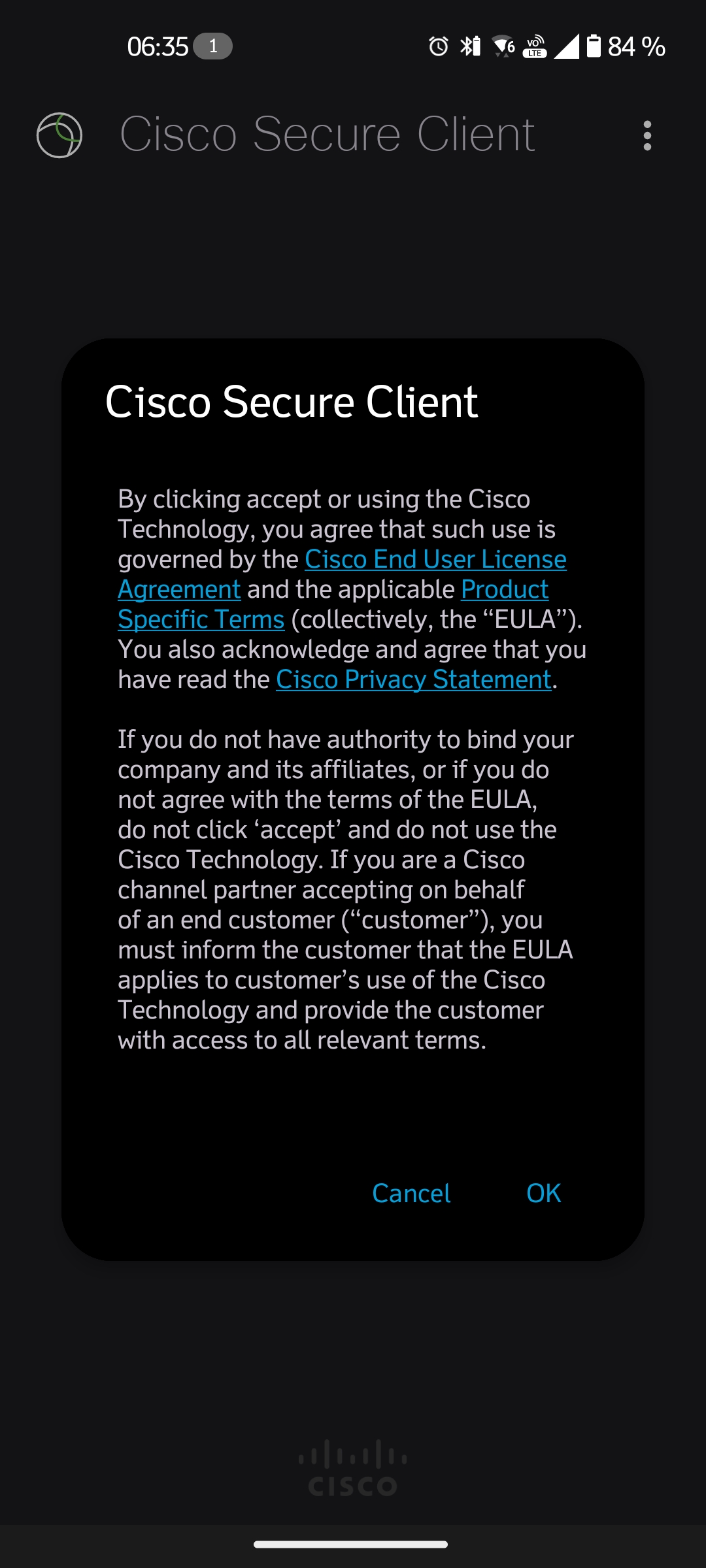
To use the app, it is necessary to agree to the Cisco End User License Agreement:
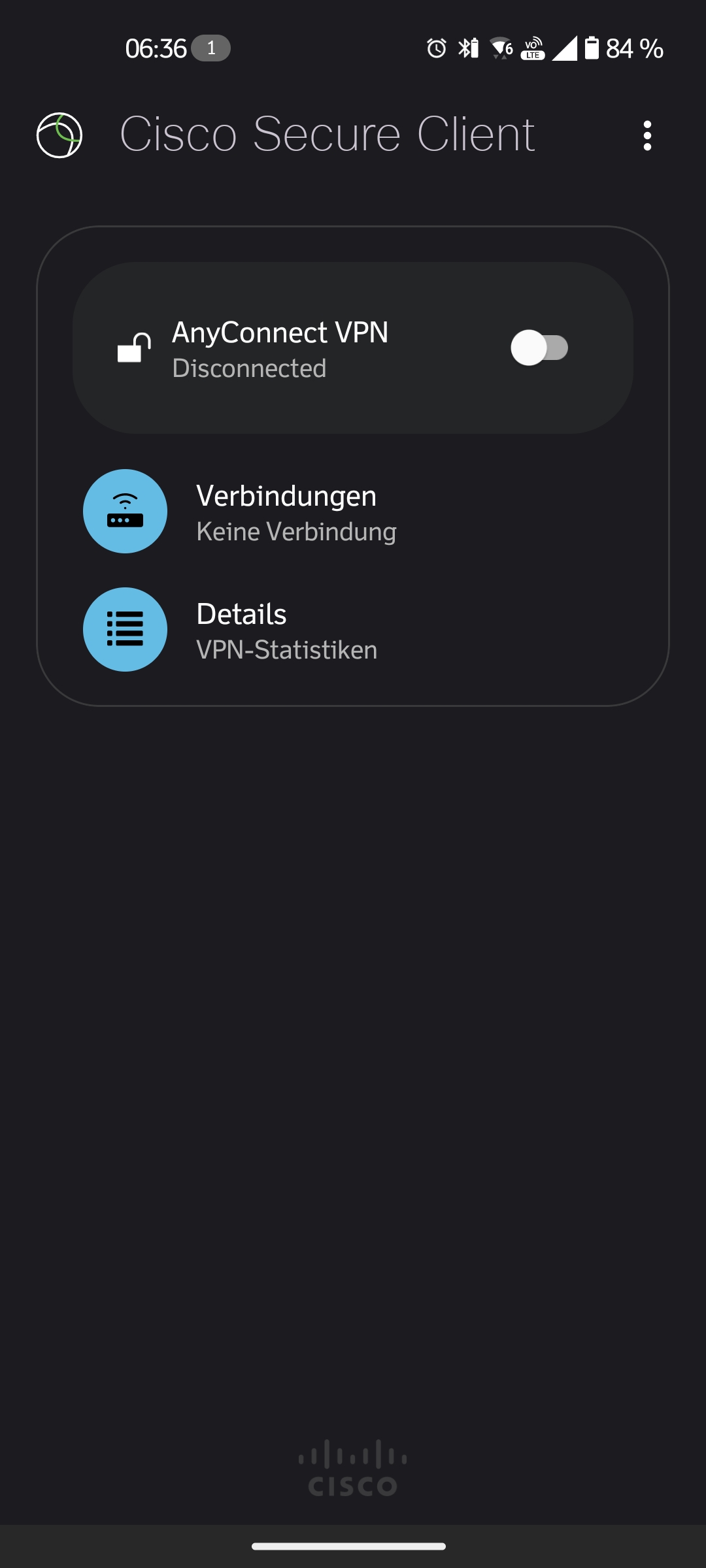
Then set up the VPN connection of the University of Kassel. To do this, click on "Connections":
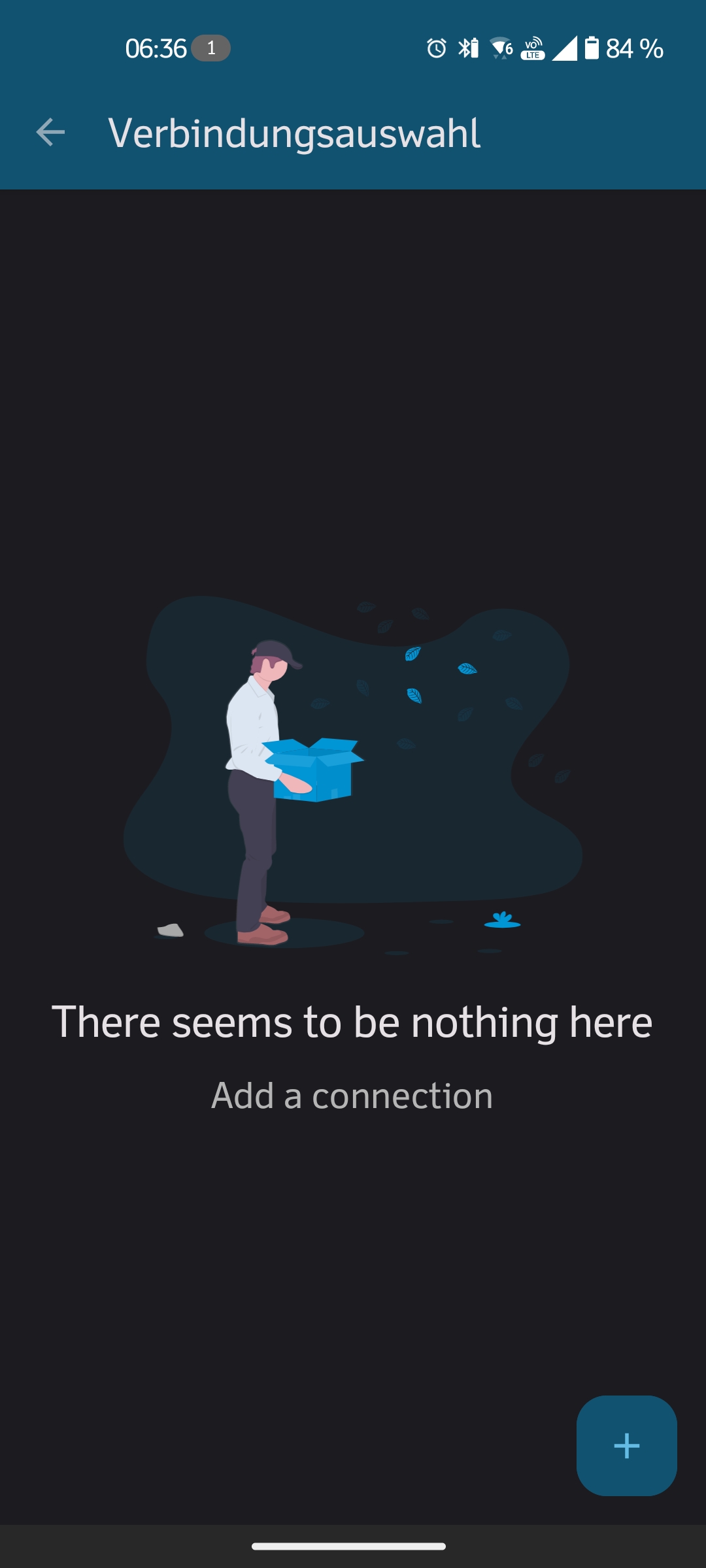
Set up a new connection by clicking on the [+] at the bottom right:
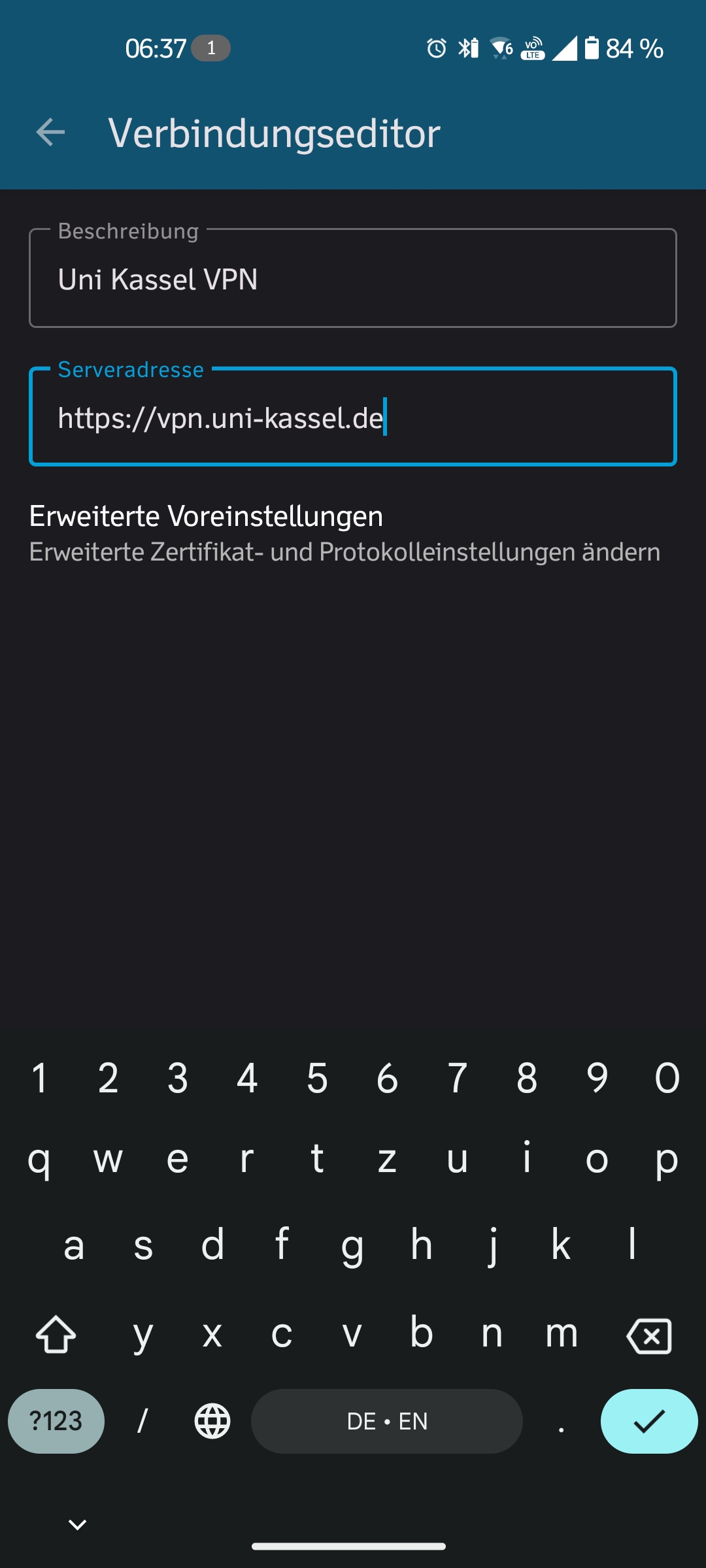
First enter a description for the VPN connection (e.g. "Uni Kassel VPN"). The connection will later be listed under this description in the app.
Now enter the server address for the Uni Kassel VPN:
Then confirm your entry.
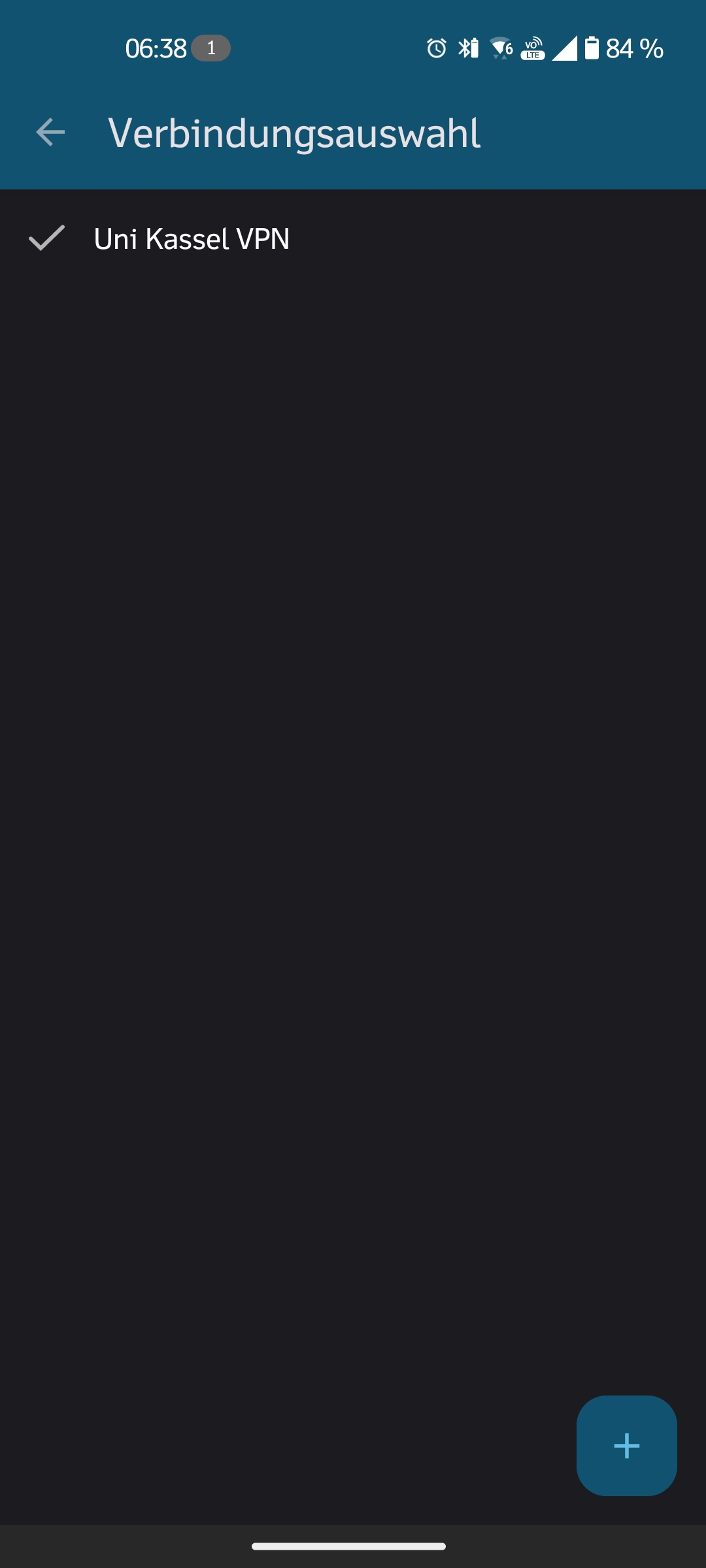
The connection you have just set up should now be listed under Connection selection.
Connecting to the VPN
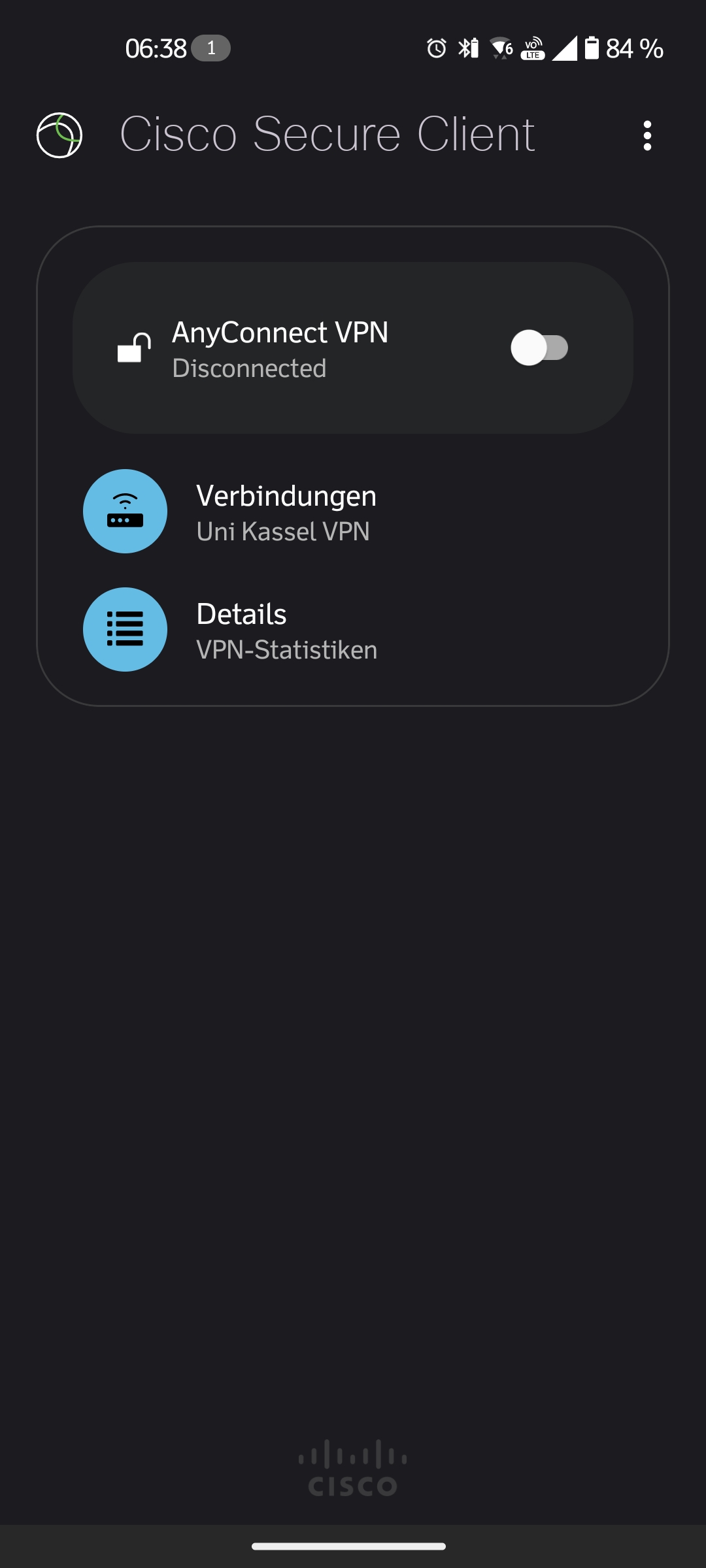
Select the VPN of the University of Kassel under "Connections" and click on the "Any Connect VPN - Disconnected" button (slide switch):
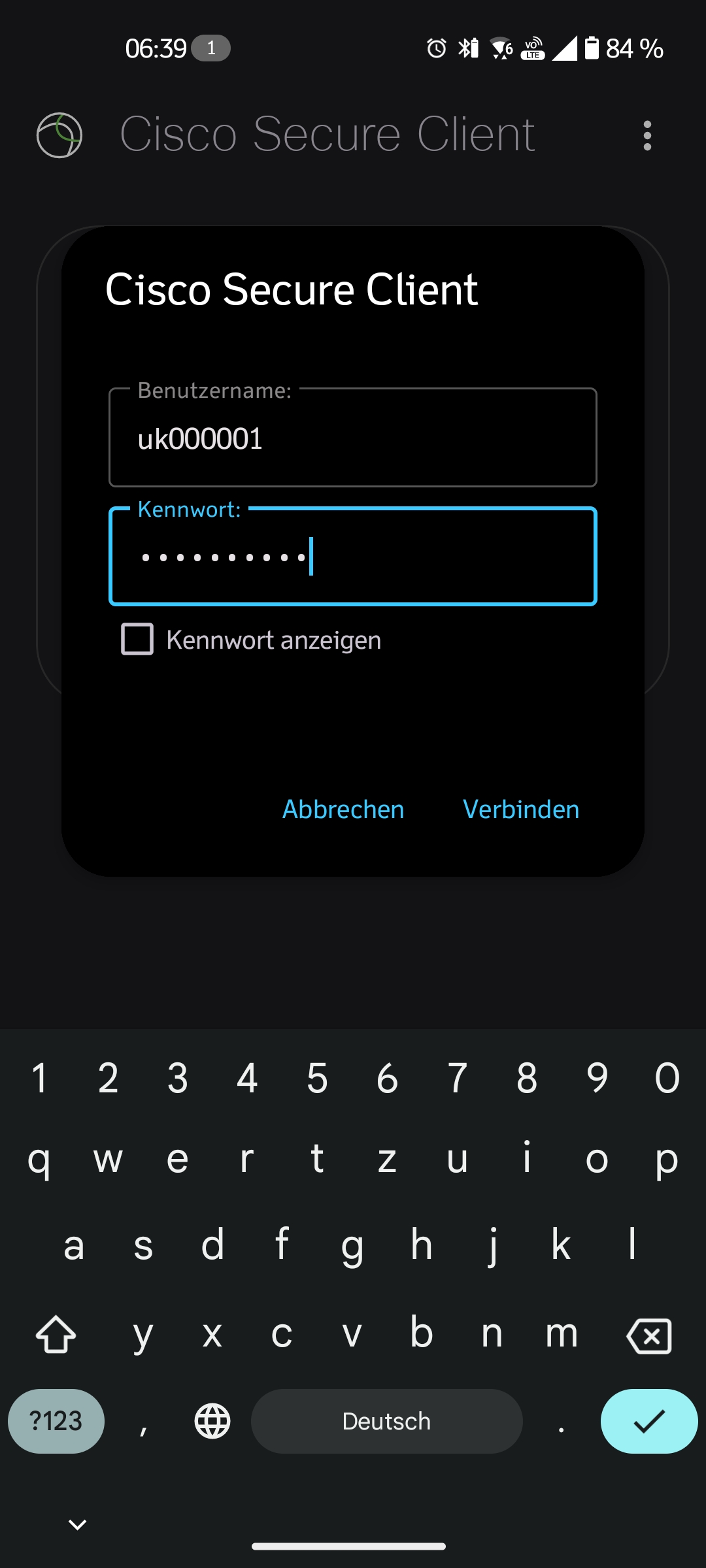
Register with your UniAccount and the corresponding password. Then click on "Connect":
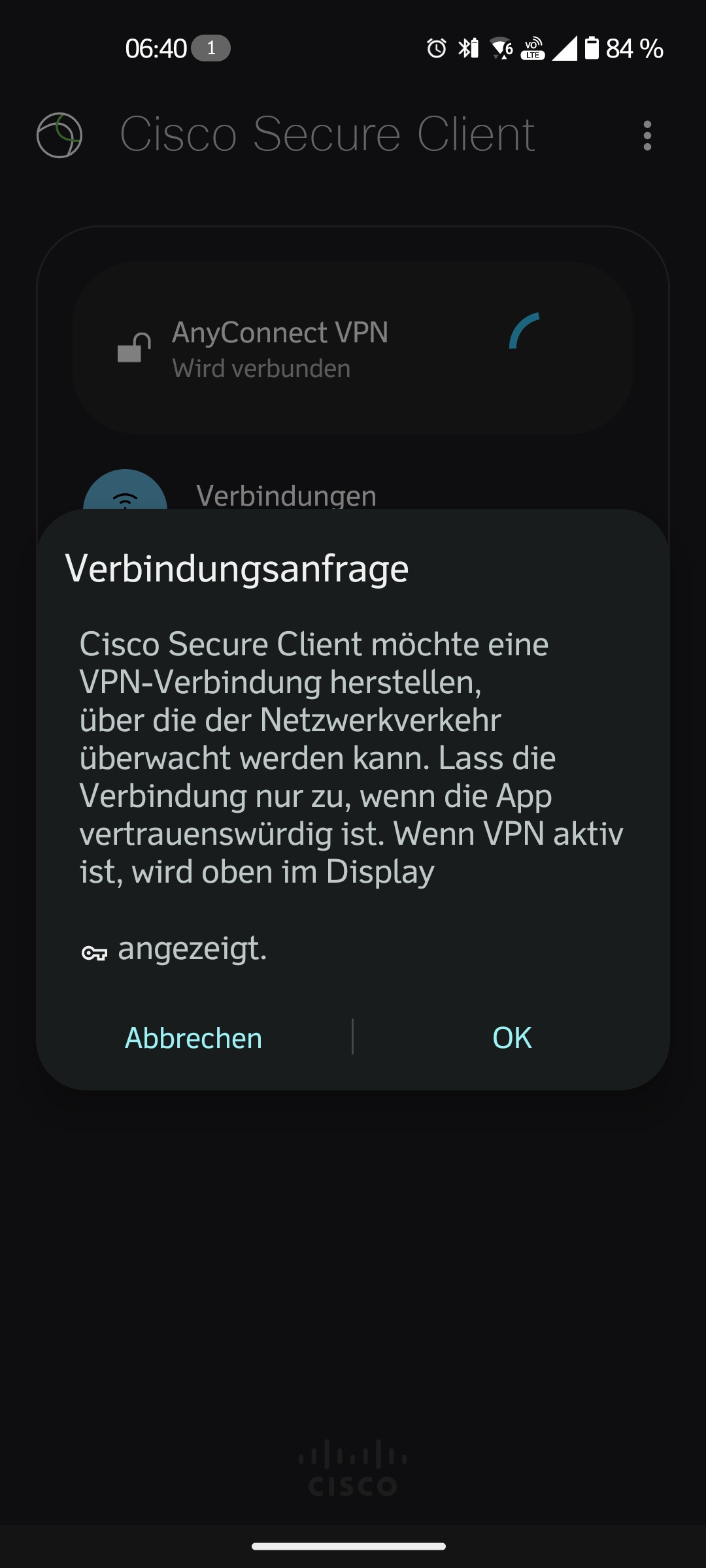
Then confirm the connection request:
To disconnect, press the "AnyConnect VPN - Connected" button again (slide switch).
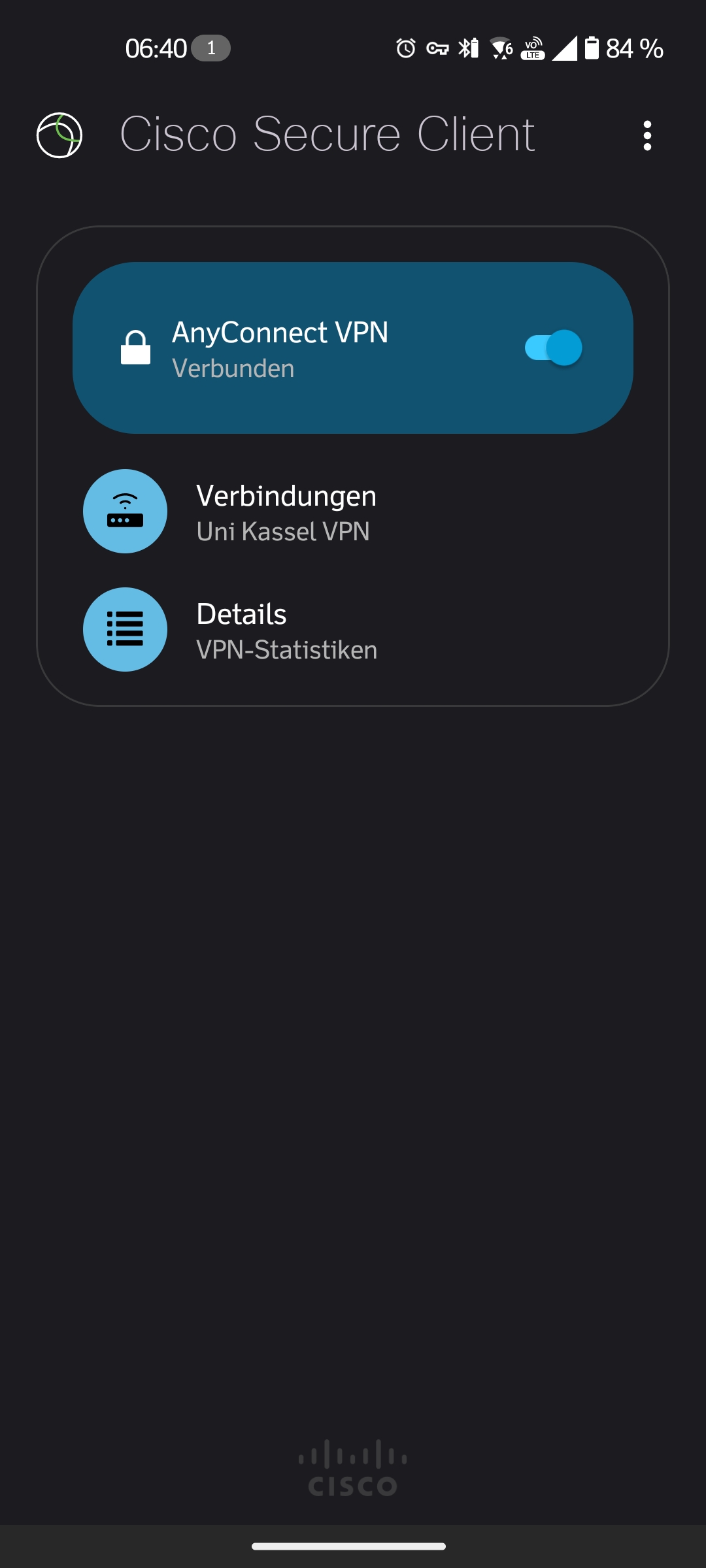
You are now connected to the VPN of the University of Kassel.
Go-Link for this page: https://uni-kassel.de/go/vpn-unter-android