

Azure Dev Tools
General information
The Azure Dev Tools platform offers various Microsoft software applications for download.
Software that you receive as part of your Azure Dev Tools for teaching subscription may only be used for teaching and research purposes. You may not use it to run the department's infrastructure.
You have the option to use your university email address to set up Azure Dev Tools, provided you have already created an account for the Microsoft Campus package.
Please follow the instructions for applying for and setting up a Microsoft account before you log in to Azure Dev Tools.
You can only log in via the university with a Microsoft account created via the campus license.
After you have created your Uni Kassel Microsoft account, you can log in via https://azureforeducation.microsoft.com/devtools [external] with your university e-mail address and the corresponding Microsoft account password.
Prerequisite for software download
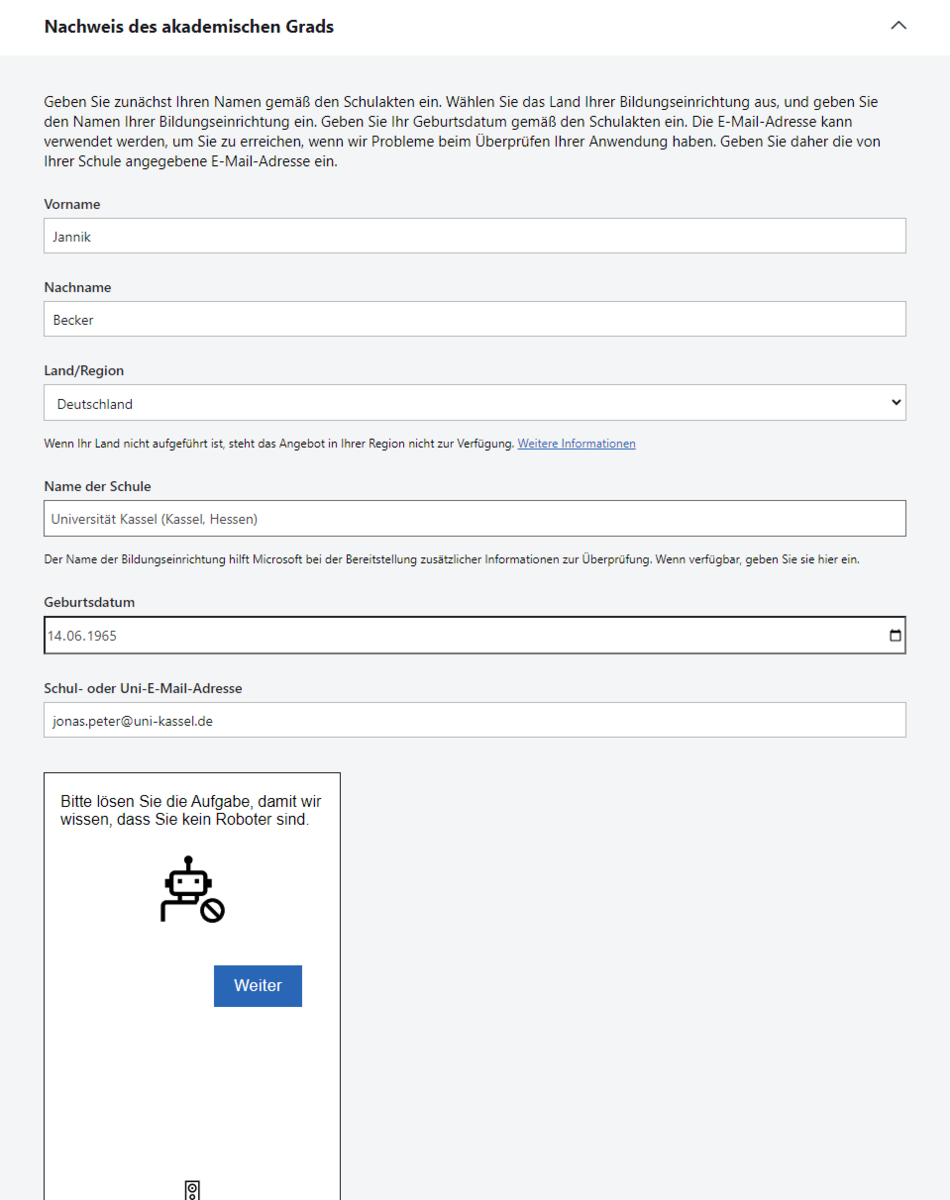
Next, it is important to provide proof of the academic degree. To do this, fill out the form with your first and last name, date of birth and the name of the school (University of Kassel (Kassel, Hessen))
Afterwards, please solve the puzzle.
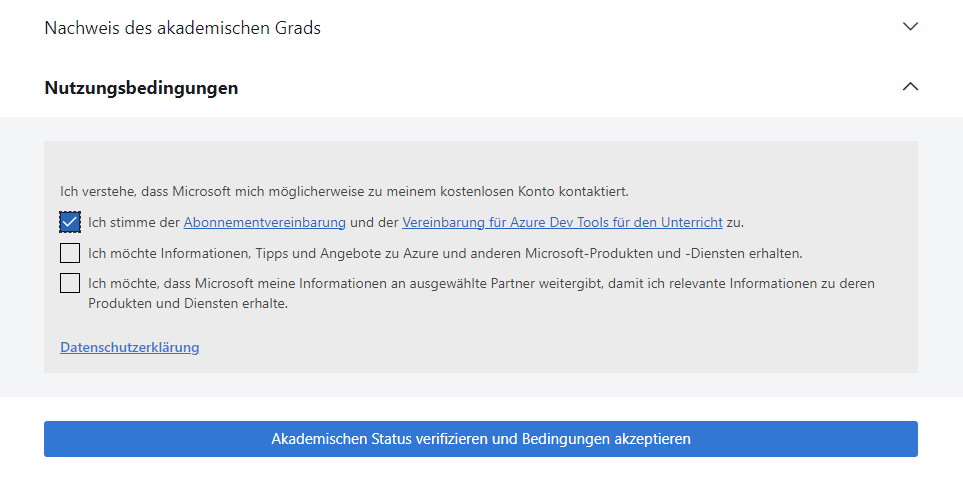
You will then be asked for the terms of use. Unless you want to share your data with Microsoft and also receive recommendations from Microsoft, only check the box at the top.
Software download
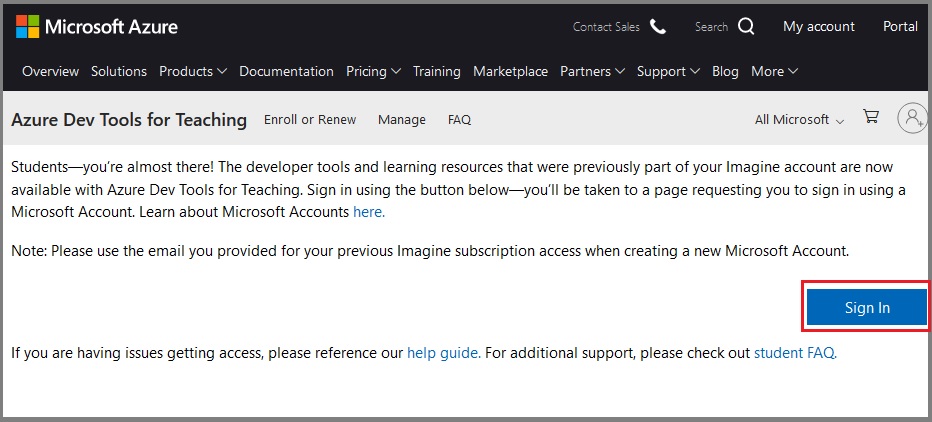
Go to the link https://azureforeducation.microsoft.com/devtools and click on "Sign In".
Log in with the university e-mail address that you use for the Microsoft account (this may already be provided for selection) and the password that you have assigned for the Microsoft account.
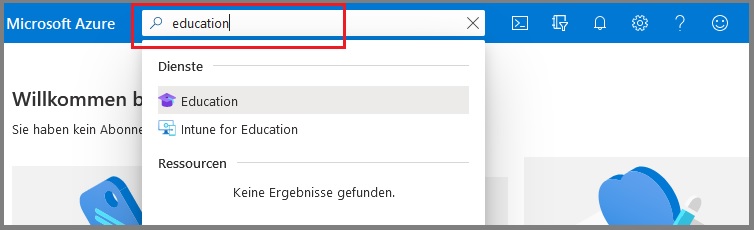
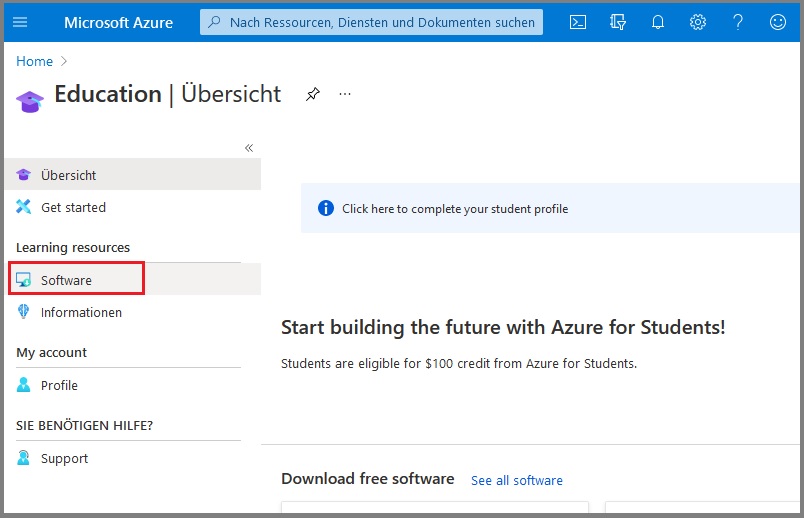
Then enter "education" in the search window and confirm your entry by pressing the "Enter" key.
Then select the "Software" button in the left-hand menu.
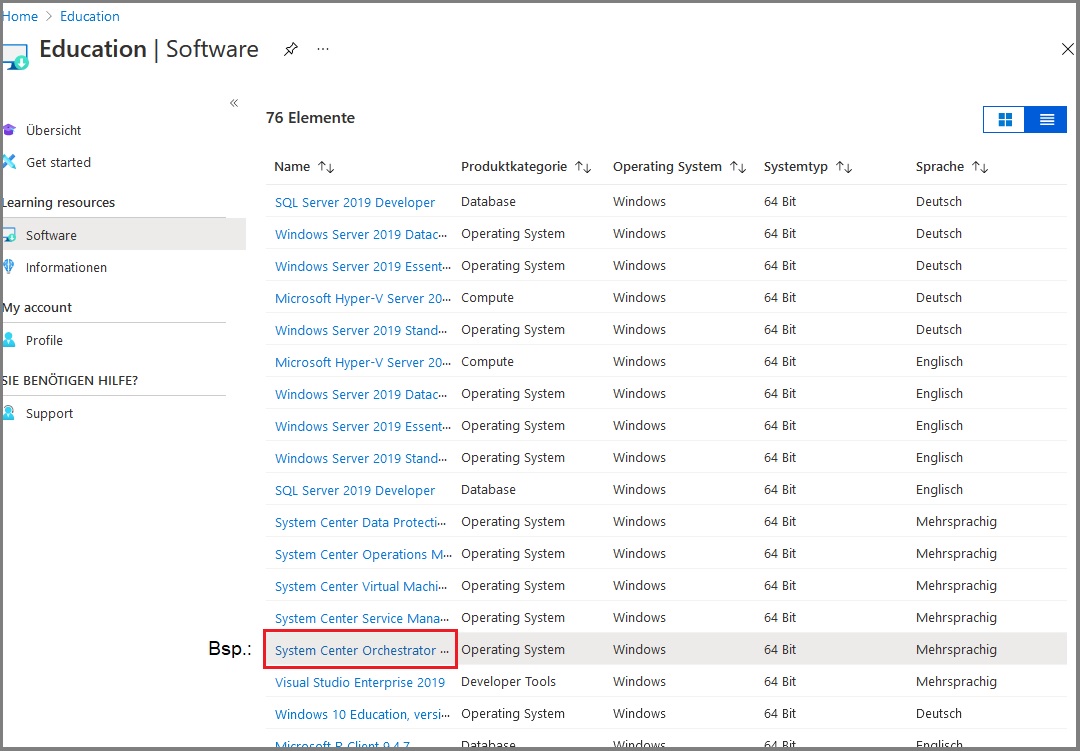
You can now select which software you would like to download from the list by clicking on the title highlighted in blue.
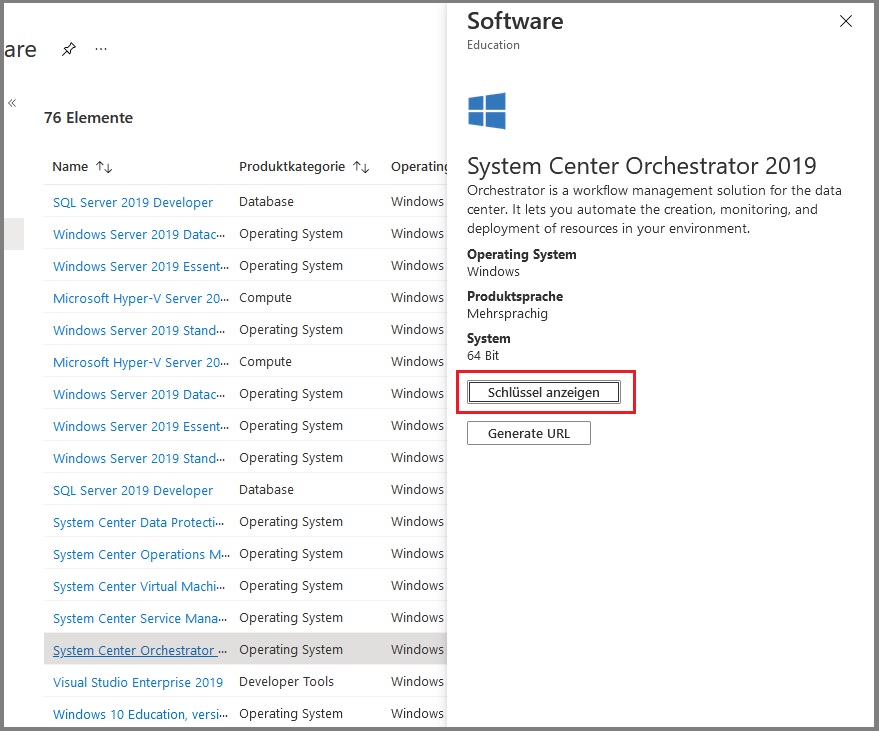
You can use the "Show key" button to copy a code that you may need to enter again later when downloading.
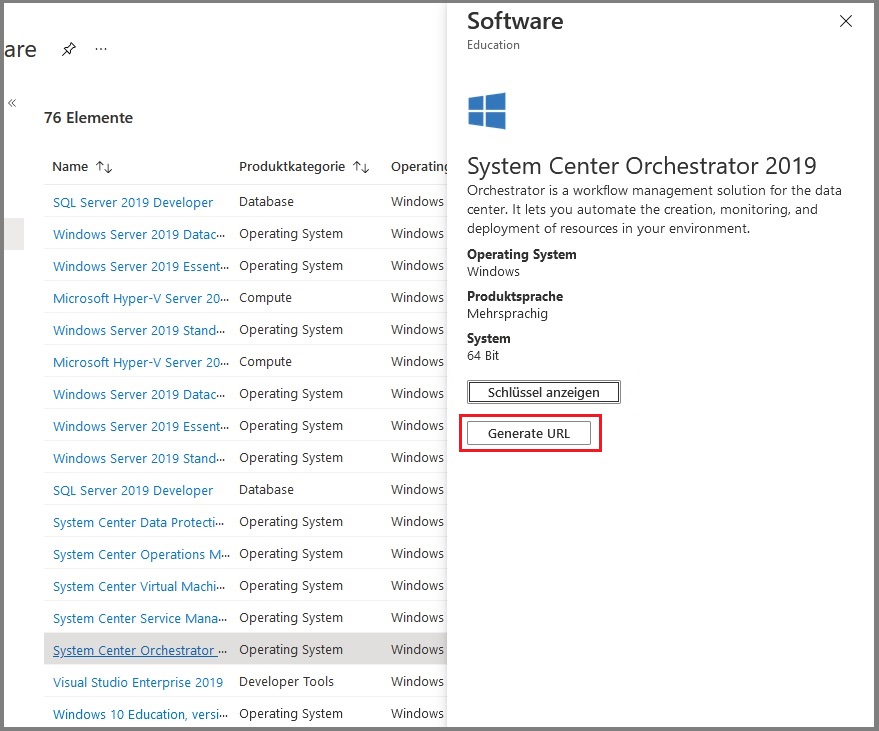
You can then use "Generate URL" to copy the address to the clipboard and then open a new window to download the software.
Go-Link of this page: https://www.uni-kassel.de/go/azuredevtools