

Integrating a shared network drive
The content on this page was translated automatically.
Prerequisites
Please note that an active VPN connection is required for access from outside the university network.
Procedure Windows
First click on the Explorer icon (folder icon) in the lower taskbar. A window will open in which you should click on "Computer". If "Computer" is not displayed, please click on "This PC" on the left-hand side. You are now in the work area of your computer. In the menu bar, you will find the option "Connect network drive" in the fourth position. Please click on it.

Another window will now open. Please proceed as follows:
- Under "Drive", select a letter that has not yet been used (e.g. "Y:").
- Enter the path under "Folder": \\smb.uni-kassel.de\NamedesNetzlaufwerk.
- Check the box "Connect with other credentials" if you want to use the shared network drive permanently.
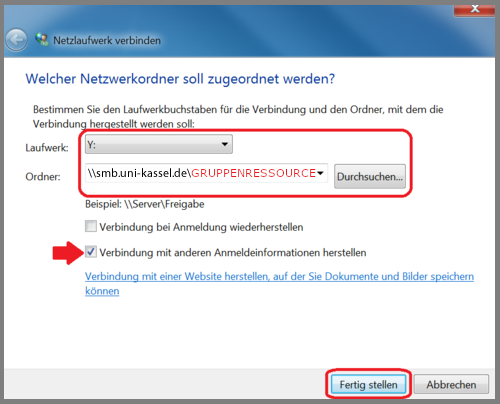
Only check the box in the last step if you are using a private device. If you are using a UKC computer, the "Connect to other login credentials" checkbox is not ticked as the login data is not synchronized continuously. The system also automatically logs on to the newly connected group drive with the saved profile, even if there may be no access rights.
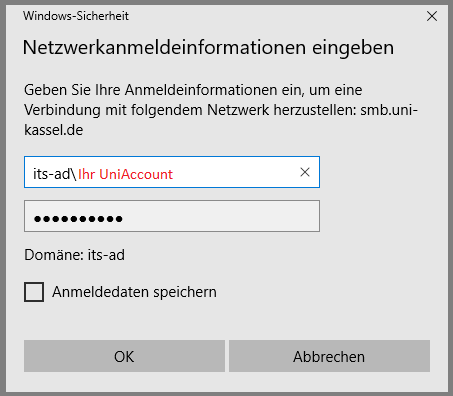
A login dialog will then open. Please enter the following information:
- Username: its-ad\<ukxxxxxx>
- Password: your UniAccount password
Then click on "OK" and then on "Finish". The group drive now appears under "My Computer" as a connected drive.
Procedure Mac
Open a Finder window (the macOS file manager) and select the "Go to" option in the menu bar and then "Connect to server ...".

Next, enter the server address and the directory name followed by the name of the shared network drive "smb://smb.uni-kassel.de/NamedesNetzlaufwerk" in the new dialog that opens under "Server address".
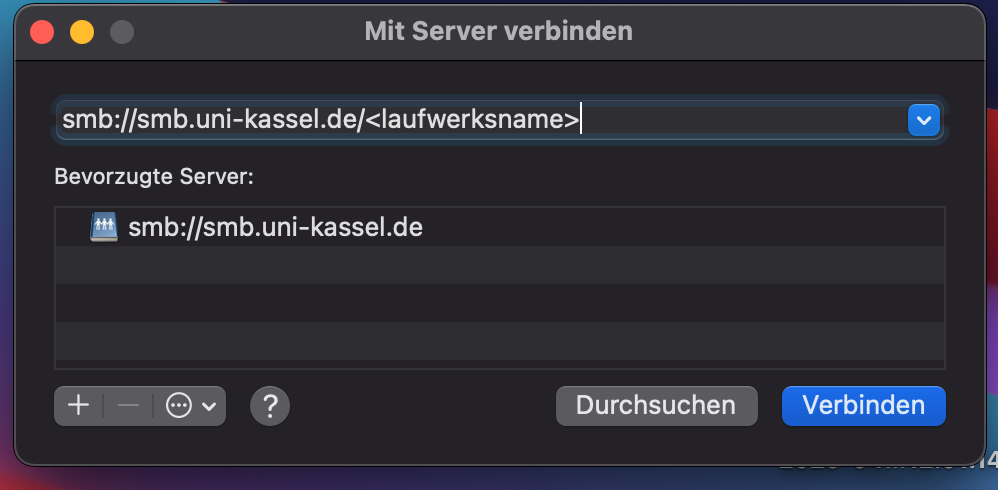
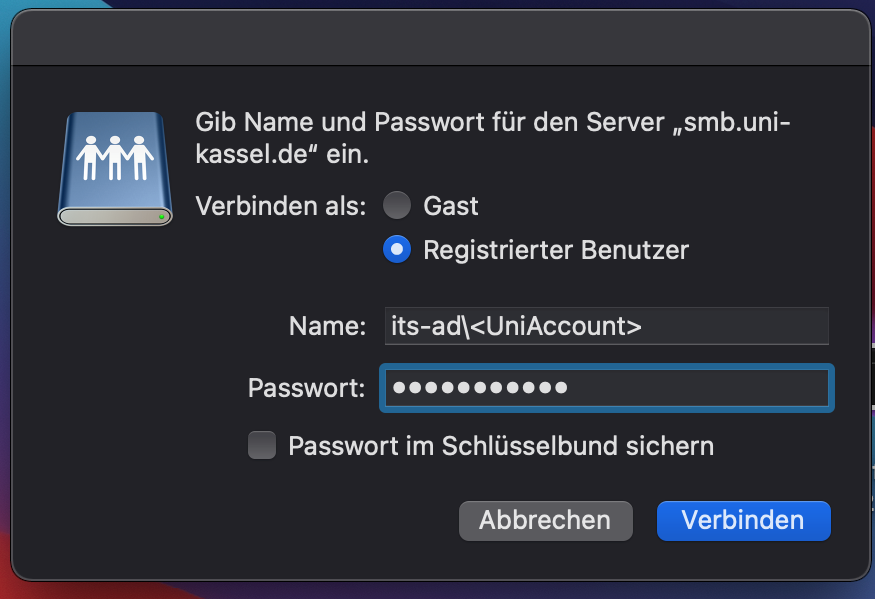
After you have clicked on "Connect", you will be asked for your user name and password. Please enter the following information in the login dialog:
- Username: its-ad\ukxxxxxx
- Password: Your UniAccount password
Then click on "Connect" again.
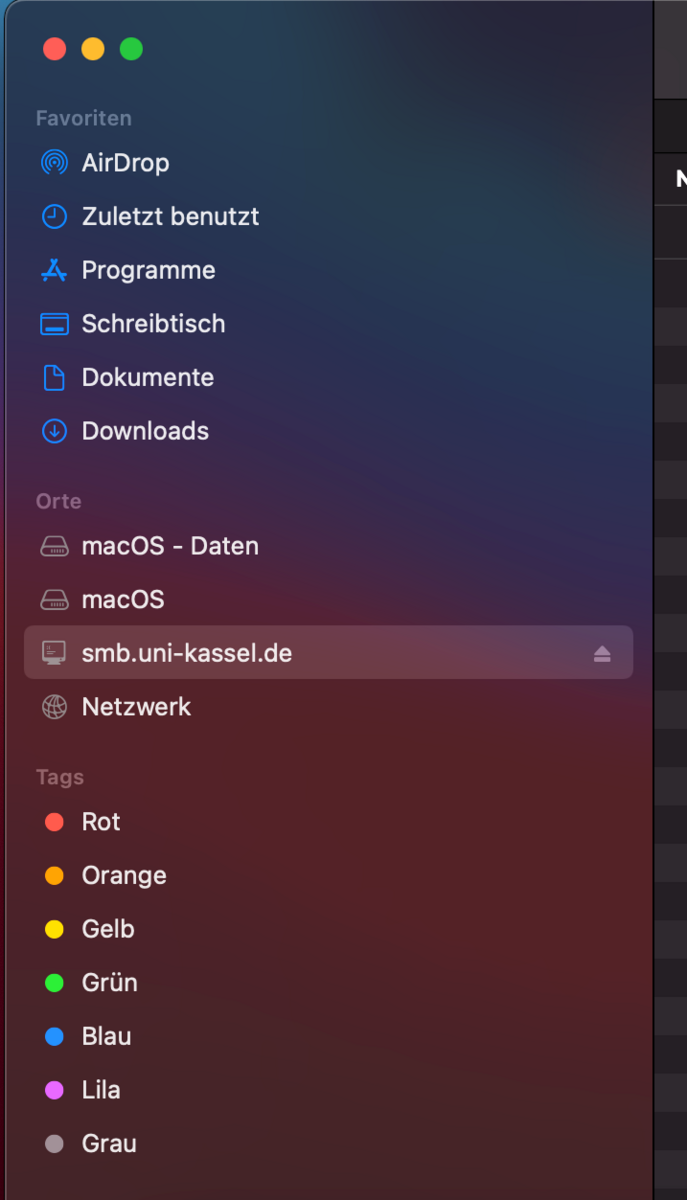
Your shared network drive now appears in the Finder under "Shares".
Procedure Linux
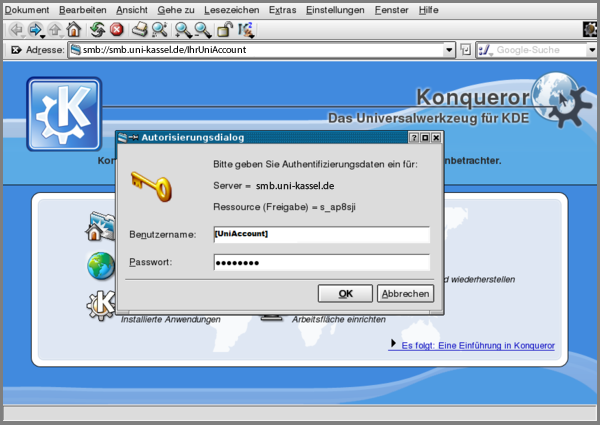
First, please open Konqueror, the KDE file manager. Enter the server address and the directory name followed by the name of your shared network drive <ukxxxxxxxx> in the address bar as follows: smb://smb.uni-kassel.de/NamedesNetzlaufwerk.
You will then be asked for a user name and password, use your UniAccount <ukxxxxxx>. You may also need to enter the domain "its-ad\ukxxxxxxxx" and the corresponding password.
Go-Link of this page:https://www.uni-kassel.de/go/netzlaufwerk-einbinden