

Requesting a shared network drive
The content on this page was translated automatically.
Request a shared network drive
Apply for the shared network drive via Identity Management (IDM). Go to the identity managementand log in with your UniAccount <ukxxxxxx> and the corresponding password. It is necessary to give your consent to the IT user regulations by ticking the appropriate box.

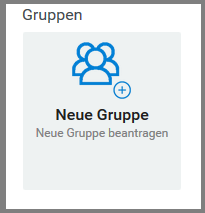
Click on the "Request access" tile on the IDM start page. In the next step, scroll down to the "Group" category and select the "Request group" menu item.
A new window will open to request a shared network drive. Please complete the form as follows:
- Reason for request: Enter the reason for requesting the shared network drive, e.g. "Shared network drive for IT service desk area".
- Group name: Choose a short, simple name in lower case, e.g. "it-servicedesk". The name should clearly and comprehensibly reflect the function of the shared network drive.
- Description: Add a precise description, e.g: "\\smb.uni-kassel.de\netzlaufwerksname" / "shared network drive to centrally store files for the IT service desk".
- Members: Specify the members who should have access to the shared network drive, e.g. "ukxxxxxx first name, last name".
- IMPORTANT: Use the magnifying glass icon to search for and add members. A small window will open in which you can enter the corresponding name.
- Cost center: Enter the corresponding cost center.
- IMPORTANT: The cost center is used for billing resources that may be incurred when using the shared network drive, e.g. for increased storage capacity or special administrative tasks. As a rule, there are no direct costs, unless special requirements such as additional storage space are necessary.
- Estimated storage size: Enter the estimated storage size for the shared network drive. A realistic estimate will help with the optimal allocation of resources.
- Send: Review your information and click "Submit" in the final step to complete the request.

You have 10 TB of storage available via the group drives. For each additional TB beyond the free 10 TB, a one-time fee of €250 will be charged.
Group request for an SVN repository
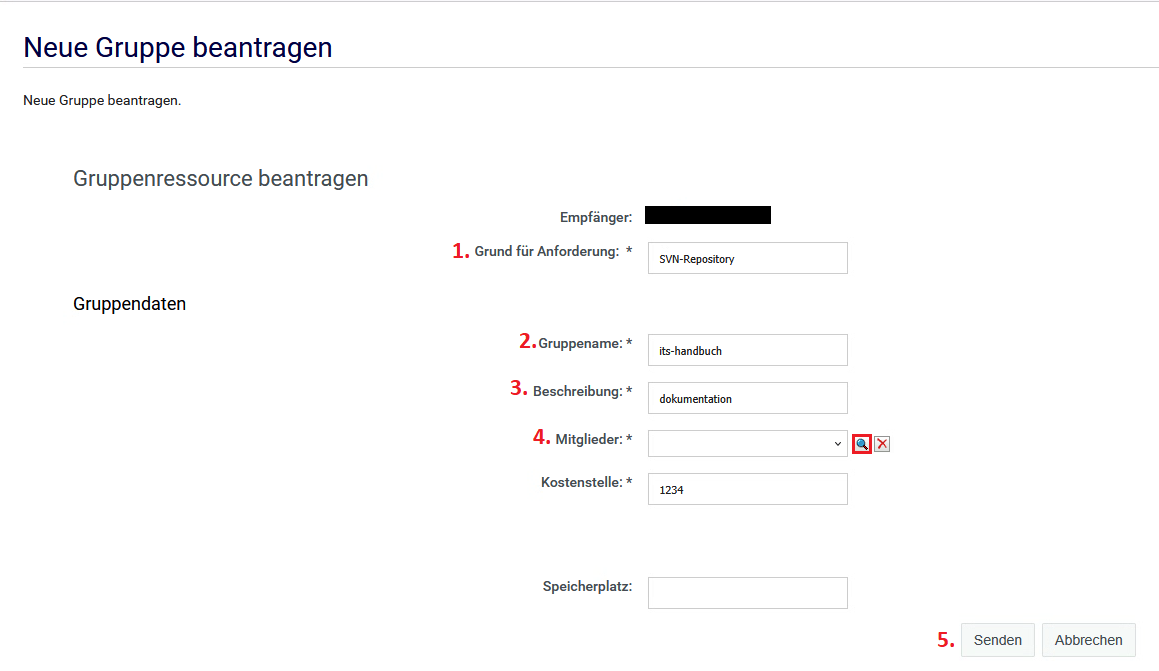
If you would like to request an SVN repository, please complete the form as follows:
- Reason for request: Enter the reason for the request, e.g. <SVN repository>.
- Group name: Choose a short, simple name in lower case, e.g. <its-manual>.
- Description: Add a short description, e.g. <documentation>.
- Members: Enter the members, e.g. <ukxxxxxx first name, last name>.
- IMPORTANT: Select the members using the magnifying glass symbol. A small window opens in which you can enter the corresponding name.
- Send: Confirm your entries by clicking on "Send".
You will receive an e-mail notification when the application has been processed.
Requesting new folders in network drives
If you want to create a new folder within an existing network drive, complete the form as follows:
1. reason for request: enter the reason for requesting the new folder in the existing network drive, such as <new folder for existing network drive>.
2. group name: Enter the name of the folder here according to the following scheme: "Name of network drive - desired folder name".
For example, requesting the desired folder named "Administration" in the network drive "its-1" would look like this: "its1-administration".
3. description: Enter the full path of the new folder in the existing network drive according to the following scheme: "\\smb.uni-kassel.de\network drive name\new folder name/addition"
For the above example, this would be "\\smb.uni-kassel.de\its1\Administration / addition"
Depending on the institution, the server name may vary, e.g. "\\smb-verw.its.uni-kassel.de" for employees from the administration.
4. cost center: Enter the corresponding cost center
5. storage space: Only specify if additional storage is required in the existing network drive, e.g. for backing up larger files in the new folder. Otherwise, leave the field blank.
6. send: Confirm your entries by clicking on "Send".
