

Home drive
Contents
A personal home drive is automatically provided with every UniAccount. This drive provides a central and secure storage location for your documents, which is hosted by ITS.
Advantages of the home drive.
- You can integrate the home directory on any PC/laptop and therefore access your documents in your home office or at another workstation
- A backup is created every night. If you accidentally delete a file, it is therefore possible to restore it.
The home directory has a standard storage space of 10 GB. If you need more storage space as an Employee or Hiwi, please contact the IT Service Desk.
Please note that access only works via the university network (LAN or VPN connection).
integrate under Windows
First open the "Explorer" (folder icon in the lower taskbar).
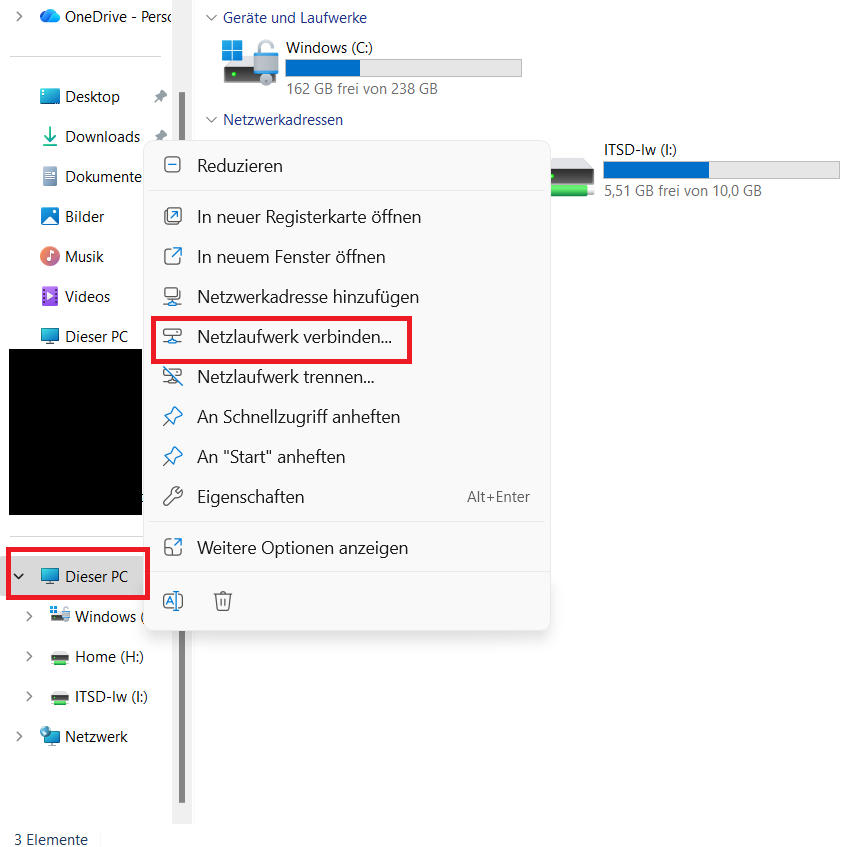
Right-click on "This PC" in the left-hand menu bar.
Then click on "Connect network drive" in the drop-down menu
A new window opens.
Select a free drive letter (e.g. "Y") and enter \\smb.uni-kassel.de\homes as the folder path.
Alternatively, you can also enter \\smb.uni-kassel.de\IhrUniAccount (e.g. \\smb.uni-kassel.de\uk012345).
When connecting for the first time, check the box at
"Connect with other credentials"
This option is only required the first time so that you can enter your university account and save the login data.
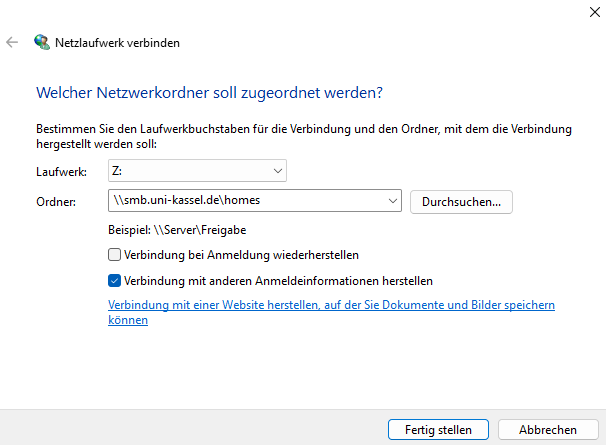
If you are using a UKC computer, leave the box unchecked - the system will log in automatically.
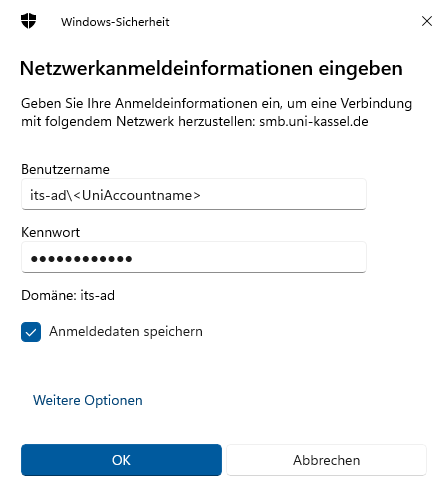
A login window will now appear.
Enter < its-ad\ > followed by your UniAccount in the "User name" field. Then enter your password.
Activate "Save login data" so that you do not have to log in again in the future.
Then complete the process by clicking on "OK".
Behavior with subsequent connections
If you reconnect the drive later (e.g. after a restart or after you have disconnected it):
- Do not check the box "Connect with different credentials" this time!
Windows will then automatically use the previously saved credentials. - If the connection fails or you have not saved your login data, repeat the connection with the box ticked and the "Save login data" option activated.
Password change behavior
If you have changed your university password, you must update the saved login data in Windows.
The easiest way to do this is as follows:
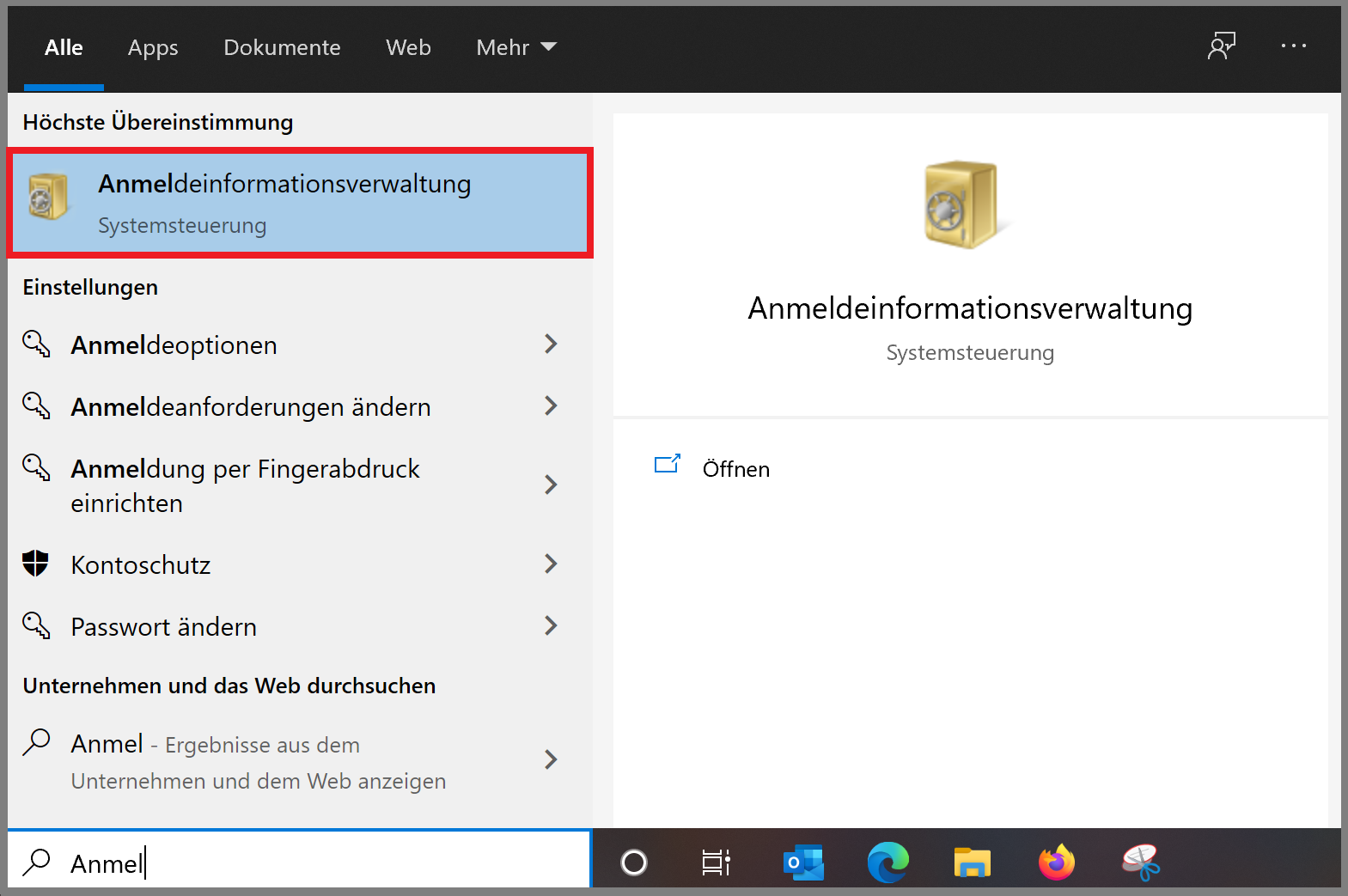
- Open the Control Panel → User Accounts → Login Information Management.
- Search for the entry for smb.uni-kassel.de.
- Delete the saved entry with the old password.
- Then re-establish the connection to the network drive by ticking
"Establish connection with other login information" and save the new password.
If the old password is not removed, Windows will continue to try to log in with this outdated data - which can lead to the university account being blocked.

integrate under Mac
First open a Finder window (the macOS file manager).
Select the "Goto" option in the menu bar and then "Connect to server"
Open a Finder window (the macOS file manager) and select the "Go to" option in the menu bar and then "Connect to server ..."

A new window opens.
Under "Server address", enter the server address and the directory name followed by the drive name.
< smb://smb.uni-kassel.de/<drive name>.
Then click on connect.
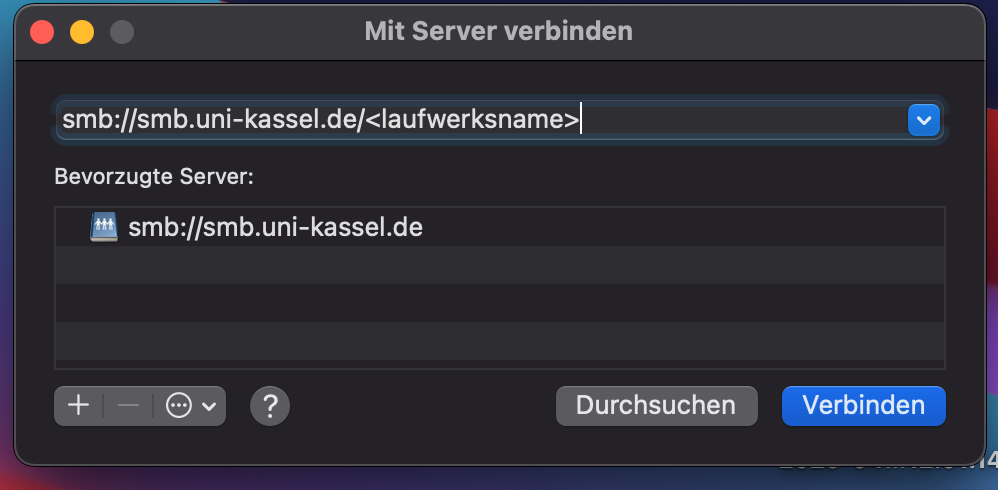
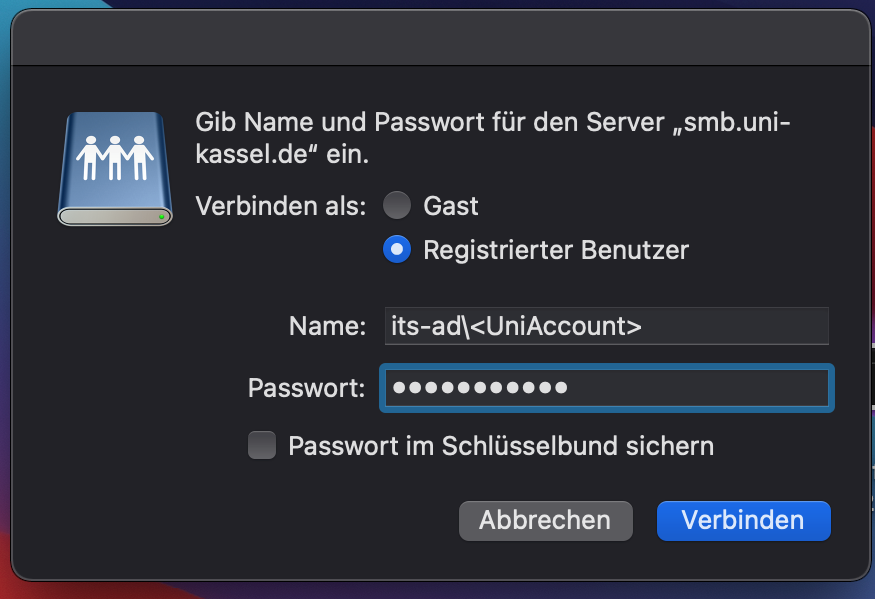
A login window will now appear.
In the "Username" field, enter < its-ad\ > followed by your UniAccount (e.g.: its-ad\uk012345). Then enter your password.
Then click on "Connect" again.
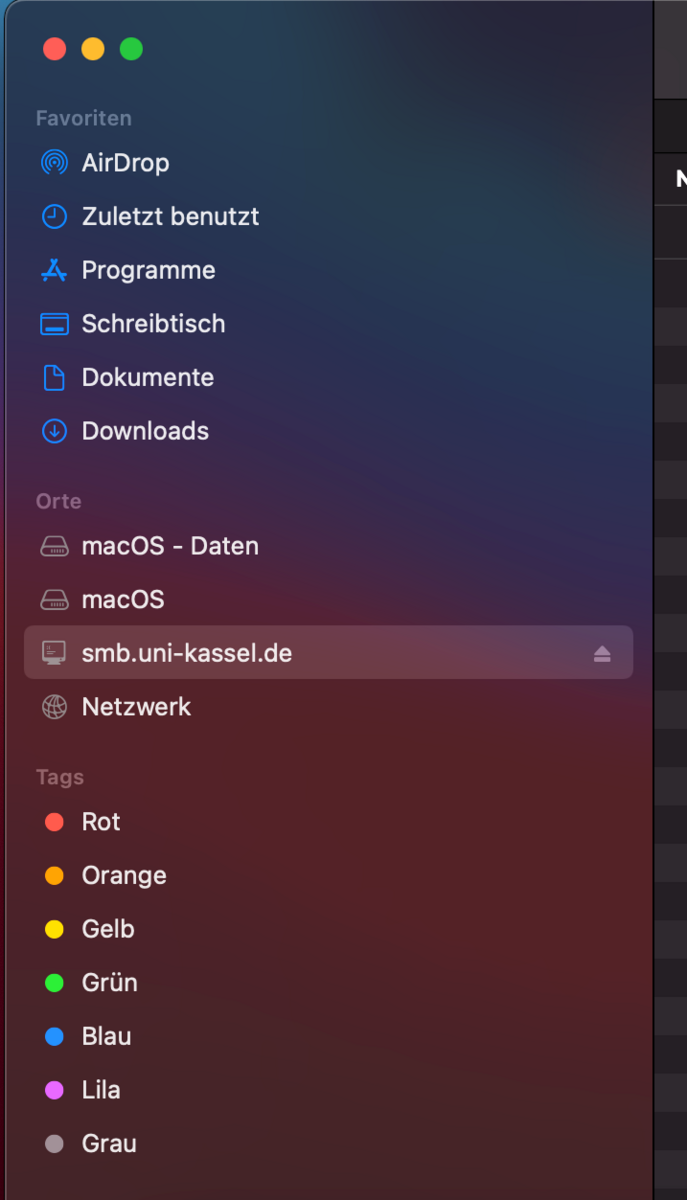
Your home directory now appears in the Finder under"Places".
integrate under Linux
First, please open Konqueror, the KDE file manager.
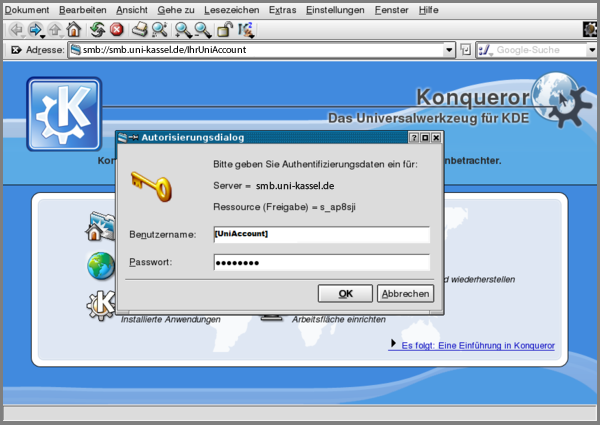
Enter the server address and the directory name followed by your UniAccount <ukxxxxxx> in the address bar as follows: <smb://smb.uni-kassel.de/IhrUniAccount>
You will then be asked for your user name and password; use your UniAccount for this. You may also need to enter the domain <its-ad\ukxxxxxxxx> and the corresponding password.
Go-Link of this page: https://www.uni-kassel.de/go/home-laufwerk