

Problems with drive connection after password change
It may happen that your network drives are marked with a red X in File Explorer. This often happens after you have changed your password. Windows then tries to reconnect to the network drives, but uses the old password and does not prompt you to enter the new one. The old password therefore remains stored in the system.

If you now click on the drive, the following error message often appears:
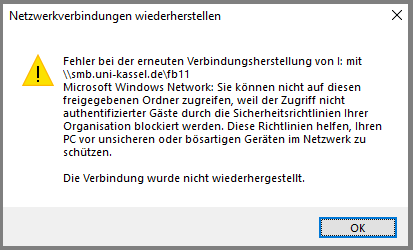
Important: In this case, do not attempt to disconnect or reconnect the drive! Windows often deletes the saved login information, which means that the connection can no longer be established automatically.
Procedure for troubleshooting:
First call up the logon information management. To do this, enter "Logon Information Management" in the search field in the taskbar or in the Windows settings search field.
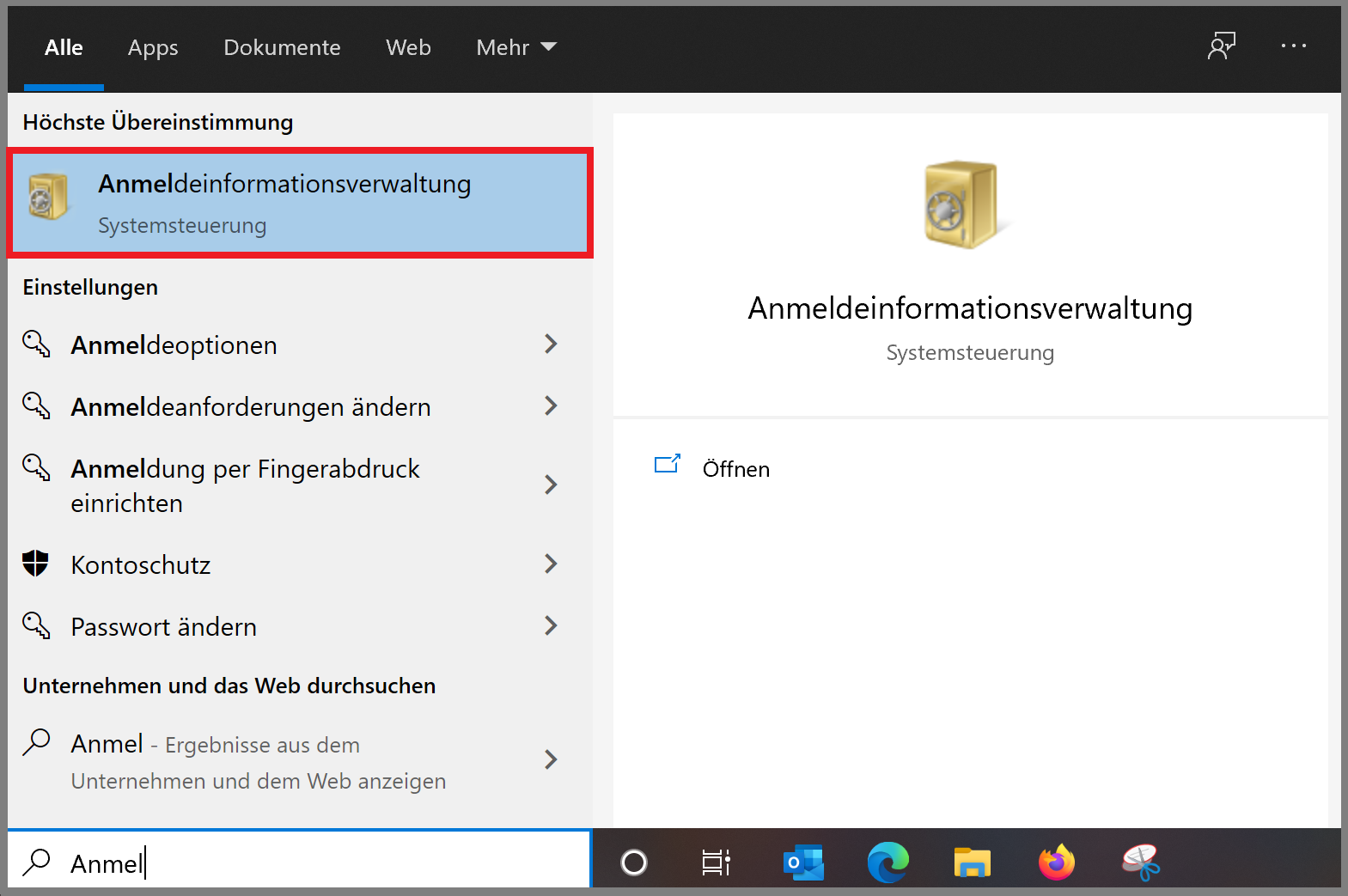
After starting the logon information management, the following window appears. Click here on "Windows logon information".

Check whether there is an entry for "smb.uni-kassel.de". The login information for the drive connection is stored in this entry. If there is no entry, you can add a new one so that the connection to the network drive works again.
Add new entry
To do this, click on "Add Windows credentials "
Enter the following data in the following window:
- Internet or network address: smb.uni-kassel.de
- User name: its-ad\uk[your UniAccount] (e.g. its-ad\uk012345)
- Password: Your current university account password
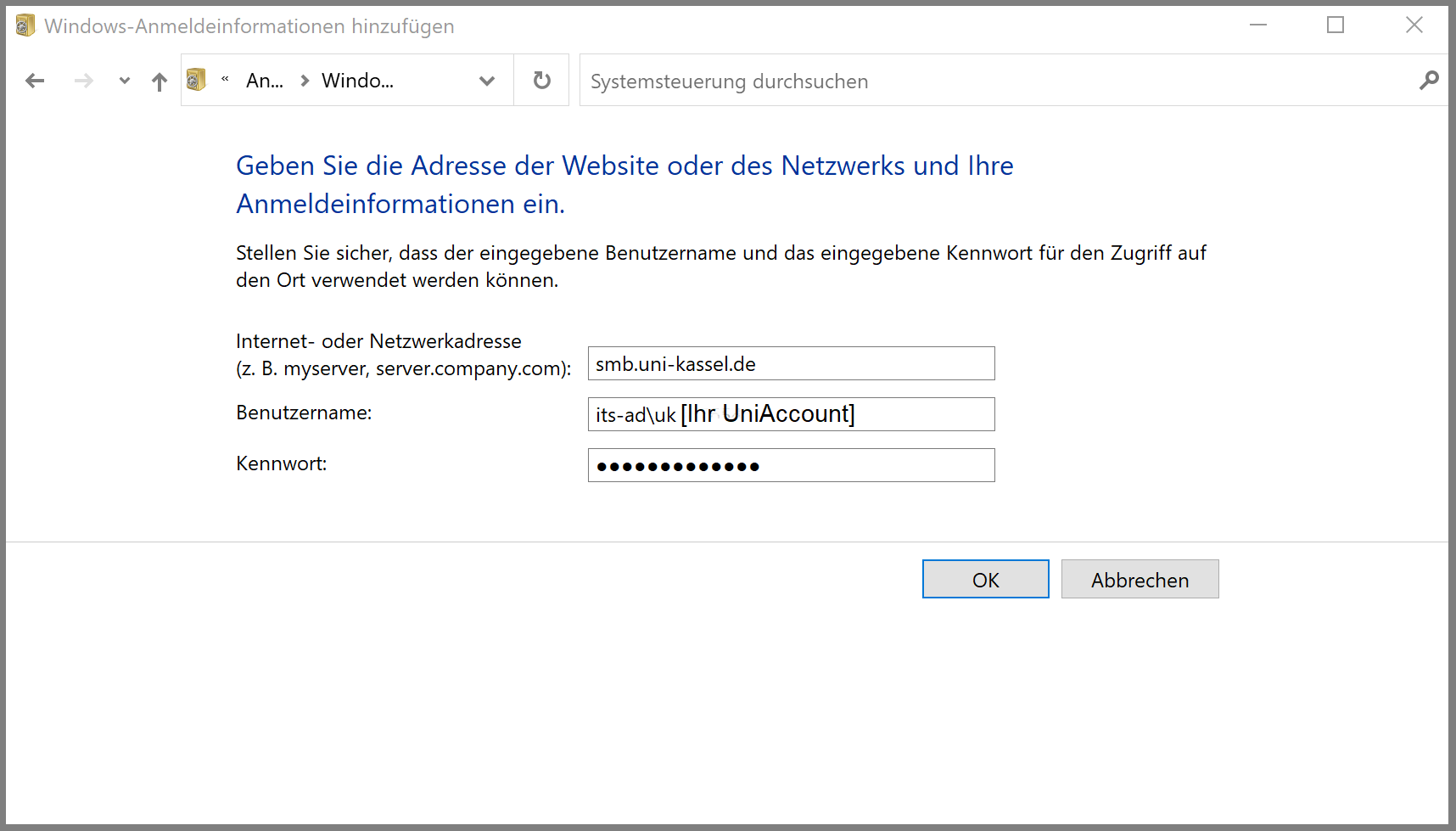
Then save the information with "OK"
After adding it, the connection to the drive should work correctly again in Windows Explorer when you click on it again.
If this is not the case immediately, please restart your computer and then try again.
Note:
To prevent problems after a password change, call up the login information management immediately after the change in IDM and update the smb.uni-kassel.de entry there by only changing the password. This ensures that your login information is always up to date.
Go-Link of this page: https://www.uni-kassel.de/go/probleme-laufwerksverbindung