

Data migration from Hessenbox to next.hessenbox
Contents
On 15.07.2025, the previous Hessenbox will be replaced by the next.hessenbox. From this date, the data stored in the Hessenbox will no longer be available.
We therefore recommend that you transfer your data to the new next.hessenbox in good time.
Please note that it is unfortunately not possible to automatically transfer files and folders with the corresponding sharing options from the Hessenbox to the next.hessenbox. However, there are various data migration options available to you.
Use of a script for data transmission
The easiest way to do this is to use a script to automatically transfer your files and folders from the old Hessenbox to the next.hessenbox.
Important notes:
- Sharing options: After the transfer, it is necessary to manually adjust the sharing options of your files and folders in the next.hessenbox. The permissions are not transferred automatically.
- Access lock: As soon as the process begins, you will no longer be able to access your data in the old Hessenbox.
- Only your own data: Only your own files are transferred. Folders that have been shared with you by other people are not transferred.
- No overwriting: Files that already exist in next.hessenbox remain untouched and are not overwritten.
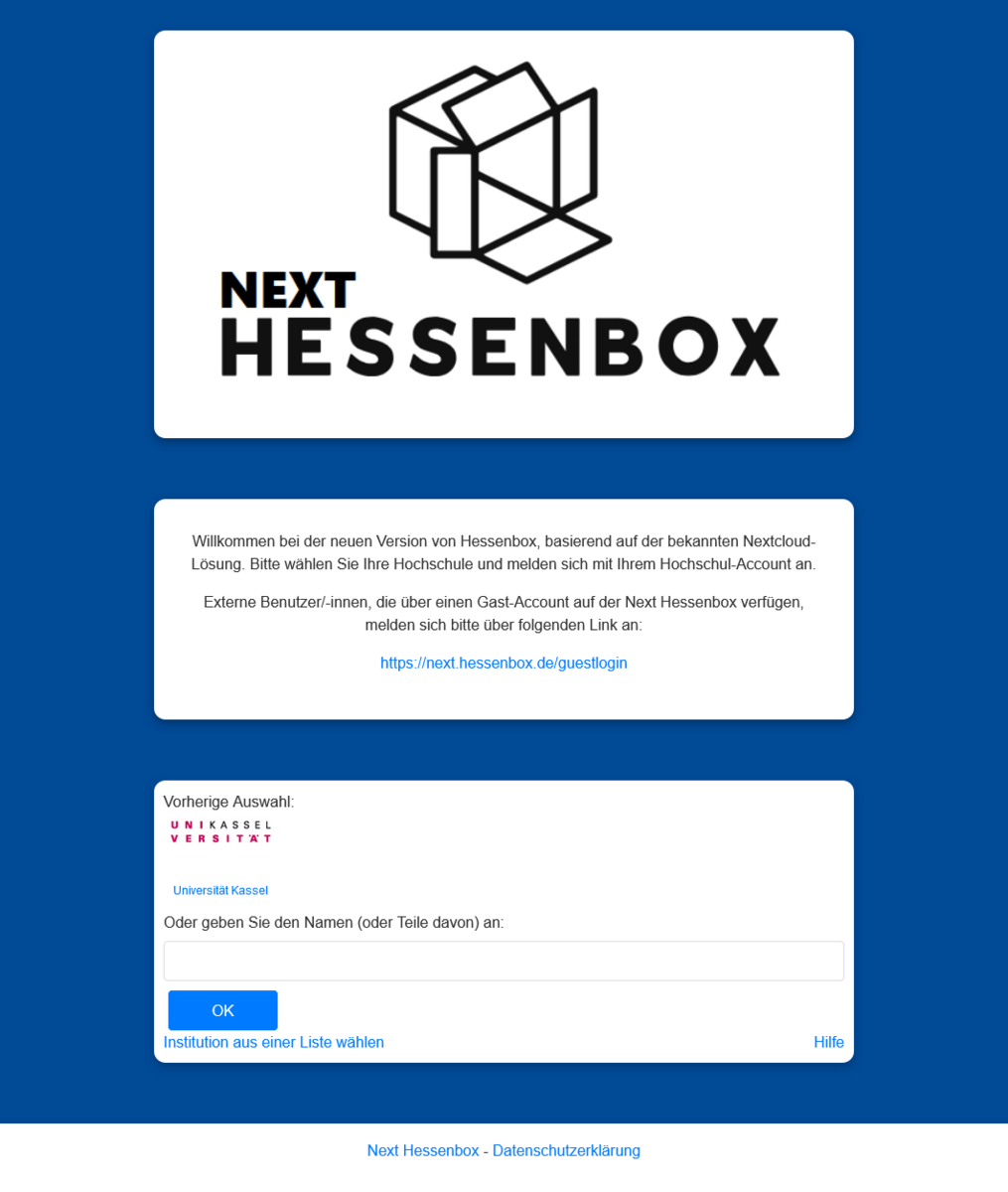
To transfer your folders and files, log in to next.hessenbox. You can find information on this under Access to next.hessenbox.
Create a new, empty text file in the main folder (under "All files") with the name MIGRATION_REQUESTED (all in capital letters, without an extension such as ".docx") by clicking on "+New" and then on "New text file".


You can then close the following window.

The data transfer may take a few days depending on the amount of data and workload. You will receive an e-mail when the process starts and is completed. You can also track the progress directly:
MIGRATION_STARTED: The process has begun.
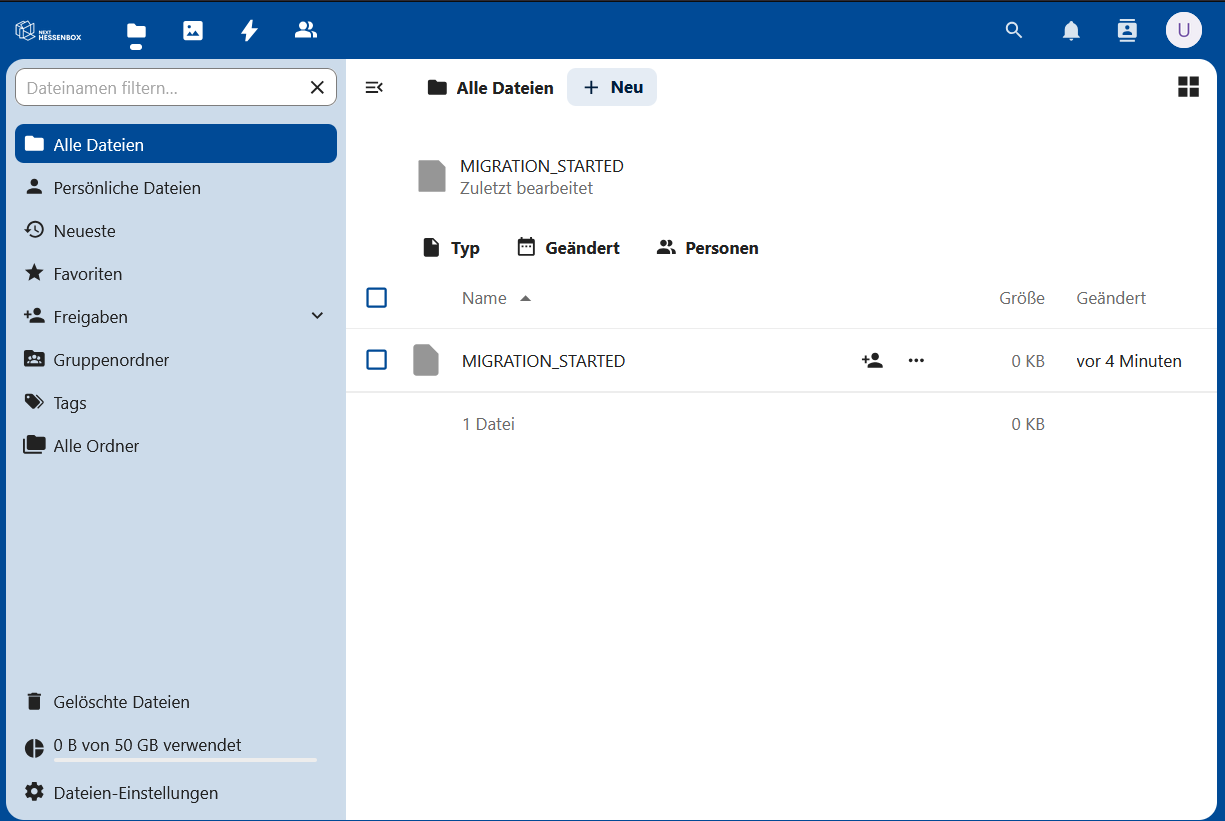
MIGRATION_COMPLETED: The process is complete

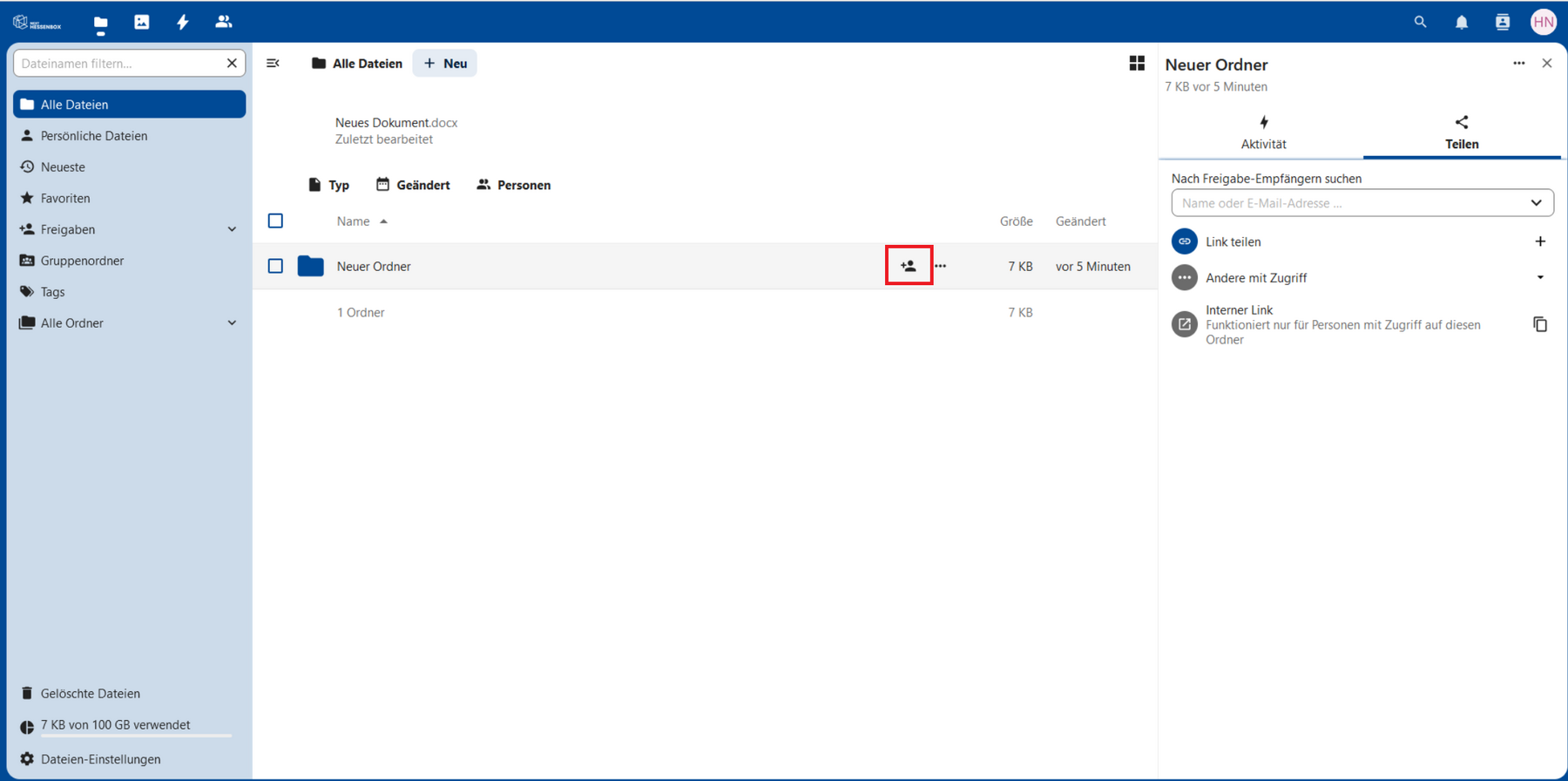
To subsequently assign the corresponding folder authorizations, you can set the authorization via the web version of next.hessenbox. You can find instructions on how to do this under Sharing folders with other people. Alternatively, open the next.hessenbox client. You can share the folder or files with other people using the 3-dots.
Using the clients for data transmission
You can also use the Hessenbox and next.hessenbox clients to transfer the data.
Important notes:
- Checking the data: You have the option of checking your folders and files before the transfer and only transferring the data you need.
- Restructure folders: Reorganize your folder structure as you wish to adapt it to your current needs.
- Sharing options: After the transfer, it is necessary to manually adjust the sharing options of your files and folders in next.hessenbox. The permissions are not transferred automatically.
- Local storage space required: As the files are downloaded, check that you have enough necessary storage available.
To transfer your folders and files, log in to the Hessenbox client. If the client is not yet installed on your device, you can download it from the Hessenbox website [Extern].
After logging in, your files are automatically synchronized with your computer. Depending on the amount of data, this process may take some time.
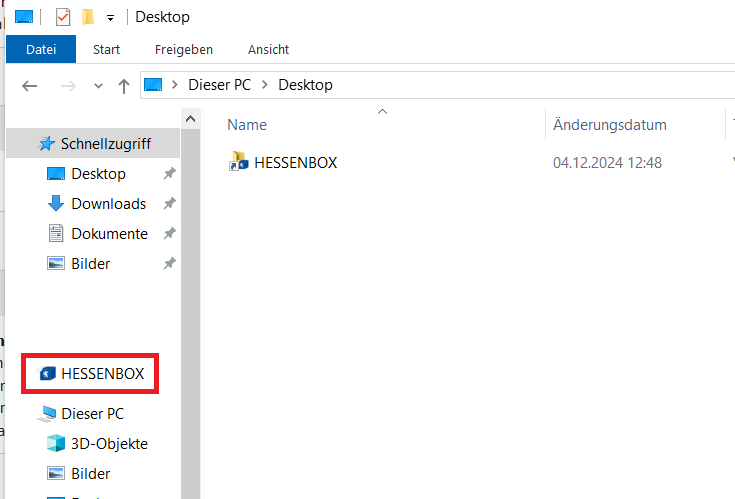
You can find your files in the file explorer, either under "Quick access > "HESSENBOX" or on the desktop in the "HESSENBOX" folder.
Then download the corresponding client at https://nextcloud.com/de/install/. Further information can be found under Access to next.hessenbox.
After installing the Nextcloud client, a folder is set up on your computer in the user directory into which the Nextcloud files are synchronized.
You can find the files in File Explorer in the directory tree as a link under "Desktop" > "Nextcloud"
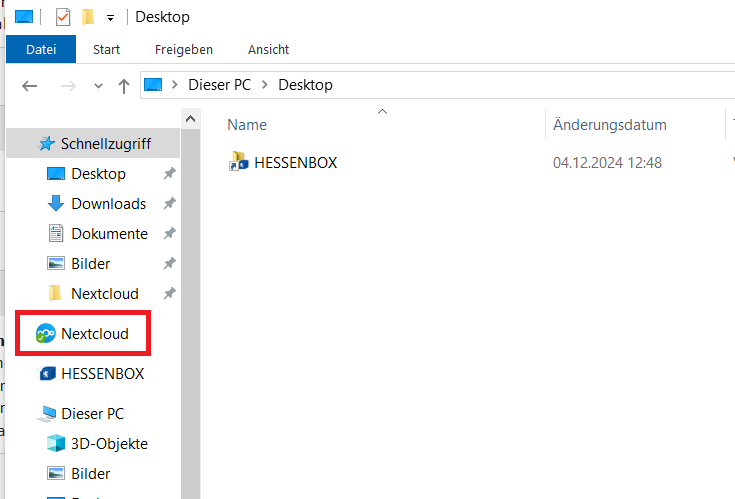
You can now copy the files and folders located under "Hessenbox" and paste them under "Nextcloud".
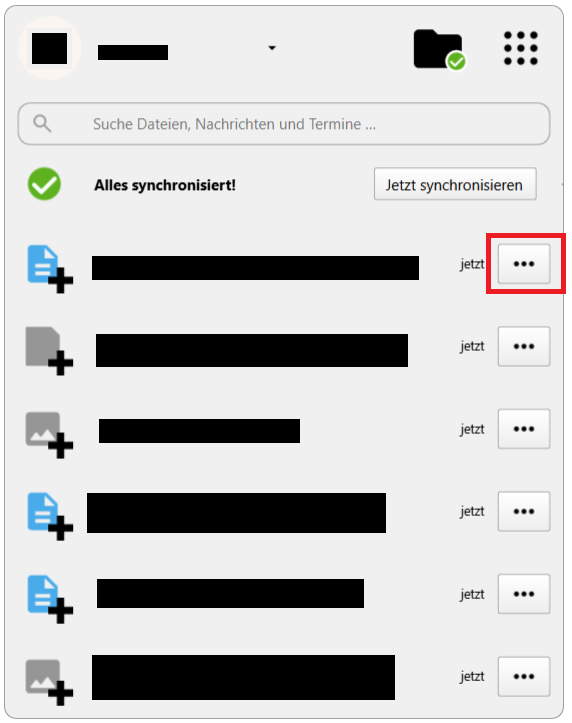
To then assign the corresponding folder permissions, open the next.hessenbox client. You can share the folder or files with other people using the 3-dots. Alternatively, you can set the authorization via the web version of next.hessenbox. You can find instructions on how to do this under Sharing folders with other people.
Download files and folders locally for data transfer
Important notes:
- Checking the data: You have the option of checking your folders and files before the transfer and only transferring the data you need.
- Restructure folders: Reorganize your folder structure as you wish to adapt it to your current needs.
- Sharing options: After the transfer, it is necessary to manually adjust the sharing options of your files and folders in next.hessenbox. The permissions are not transferred automatically.
- Local storage space required: As the files are downloaded, check that you have enough necessary storage available.
Register in the Hessenbox.

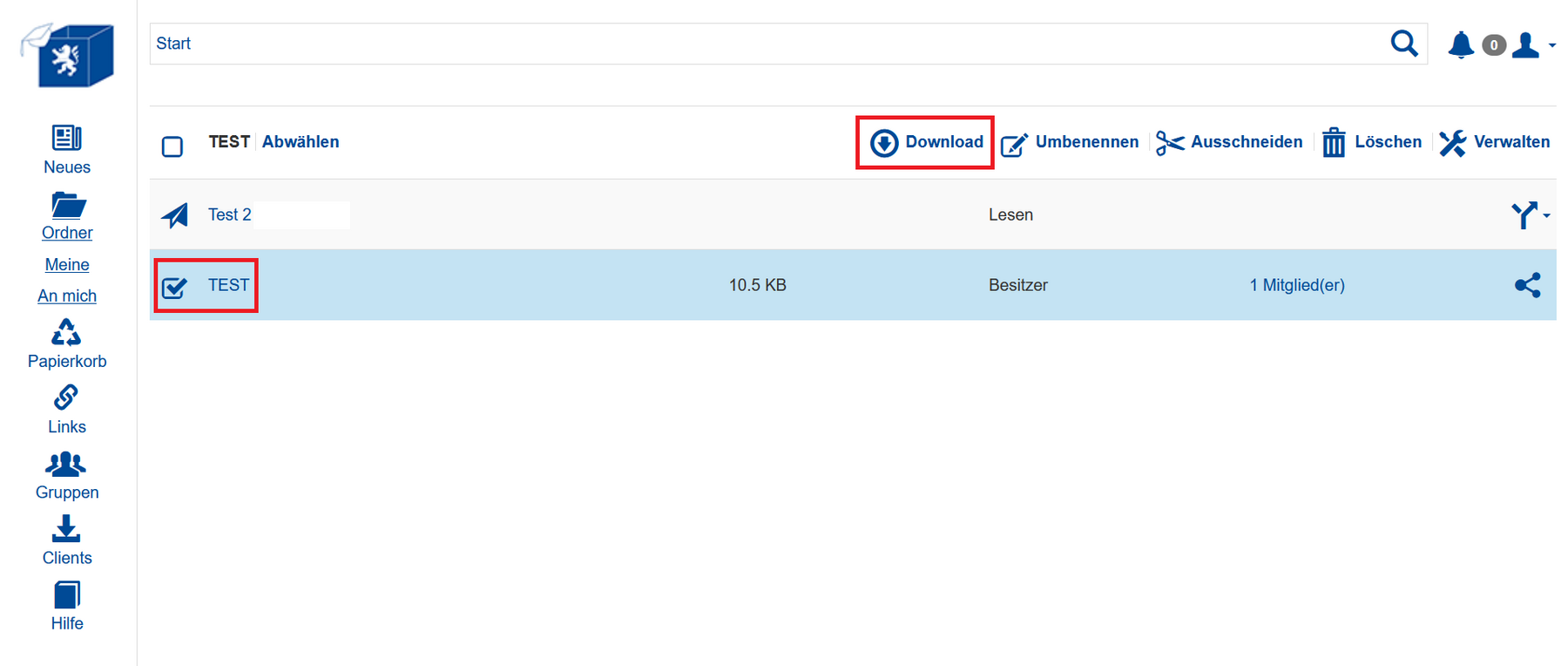
Now select the relevant files that you want to transfer to next.hessenbox and click on Download. Please note that a ZIP file will be downloaded. To be able to use the content, it is necessary to unzip it.
You can now upload the files to next.hessenbox as usual. You can find information on this under Operating instructions.

To subsequently assign the corresponding folder authorizations, you can set the authorization via the web version of next.hessenbox. You can find instructions on how to do this under Sharing folders with other people. Alternatively, open the next.hessenbox client. You can share the folder or files with other people using the 3-dots.