

Signing PDF documents
Please note that signing PDF files is only possible with the old (Sectigo) DFN certificates. HARICA certificates cannot be used for this purpose. To sign electronic documents, follow the instructions for signing documents electronically.
Please click on "Tools" in the opened PDF file.
 Image: University of Kassel
Please select "Certificates" and click on "Open".
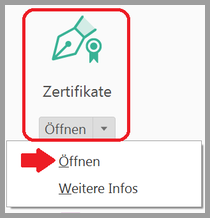 Image: University of Kassel
You will receive an additional menu bar Certificates. Please click on "Sign digitally".
 Image: University of Kassel
A window opens in which you are asked to draw a frame in the file with the mouse. The signature will be displayed in this frame. Please click on "OK".
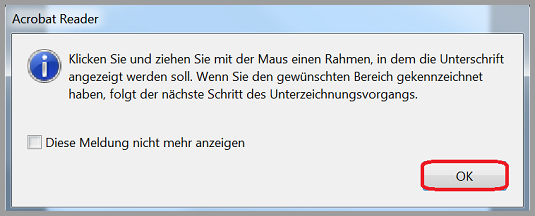 Image: University of Kassel
The frame could look like this.
 Image: University of Kassel
Carry out the following steps in the next window:
- Under "Sign as", click on the downward-pointing arrow and select the relevant certificate.
- Then click on "Sign" to confirm.
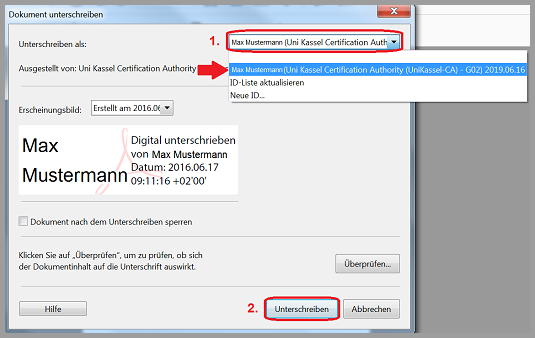 Image: University of Kassel
You will now be asked to rename the file with a "file name" of your choice. Then click on "Save".
 Image: University of Kassel
In the new window, you will be asked for permission to use a key:
- Under "Key name", select "Grant authorization".
- Confirm the selection with "OK".
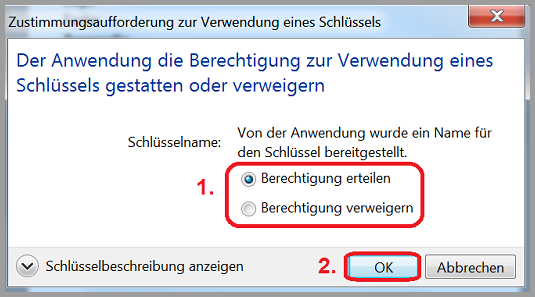 Image: University of Kassel
You will now see the signature you have created on the PDF file in the frame you inserted previously.
 Image: University of Kassel
Go-Link of this page: https://www.uni-kassel.de/go/pdf-signieren