Access to Rocket.Chat
Authorized users
Employees can log in directly with their UniAccount <ukxxxxxx>. Activation or similar is not necessary.
Students and external persons with a UniAccount can also be granted access, for example to work in project groups. To request access, please send an e-mail with a brief explanation to it-servicedesk@uni-kassel.de or use our online form.
Persons without a university account can apply for an external Rocket.chat account. Further information can be found under Access for external users (without UniAccount).
Possible uses
Rocket.chat can be used in two ways:
- Web access via a browser
- App access on PCs or mobile devices.
Web access via a browser
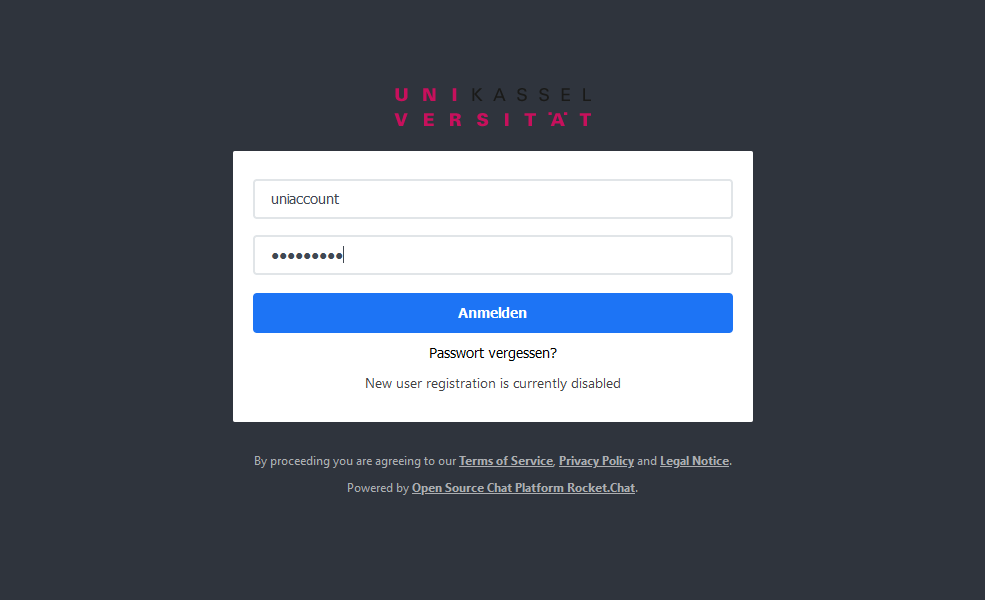
For web access, open the website https://rocketchat.uni-kassel.de. Now log in with your UniAccount <ukxxxxxxxx> and the corresponding password to access Rocket.Chat.
Access via a PC
Rocket.Chat is already pre-installed on UKCs (Windows computers managed by ITS). Manual installation is not possible.
First use via a PC
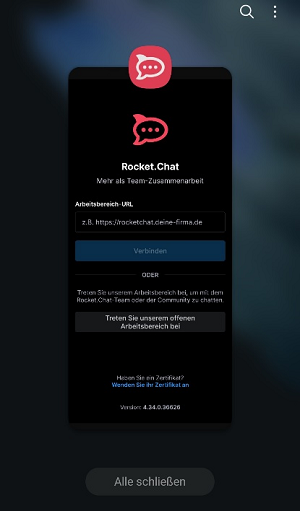
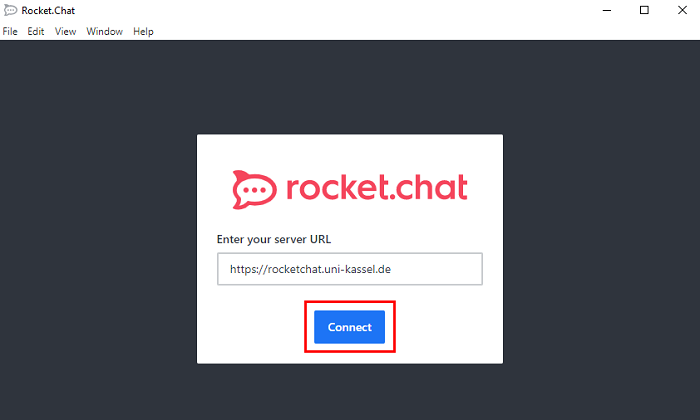
After the software has been successfully installed and you open the client for the first time, enter the following link of the Rocket.chat server<https://rocketchat.uni-kassel.de> and then click on "Connect".
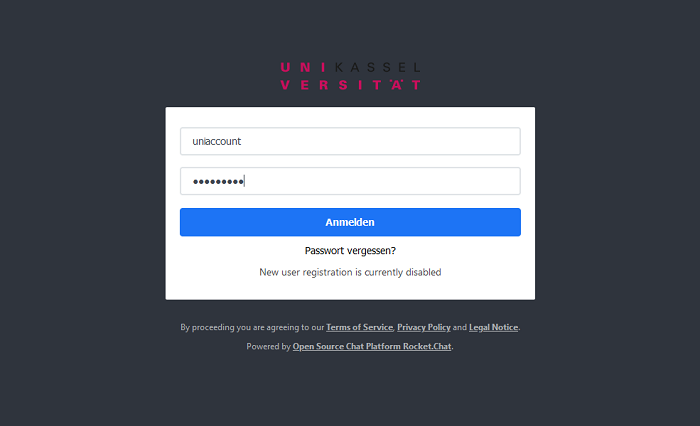
You can then log in with your UniAccount <ukxxxxxx> and the corresponding password and use Rocket.Chat.
Access via Apple devices
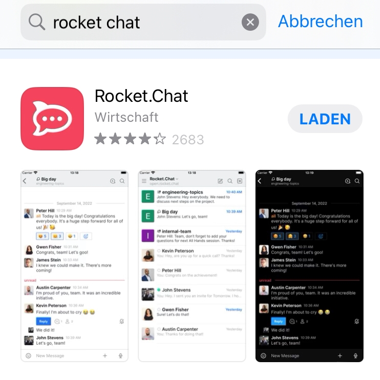
First download the Rocket.chat app from the App Store and then open it.
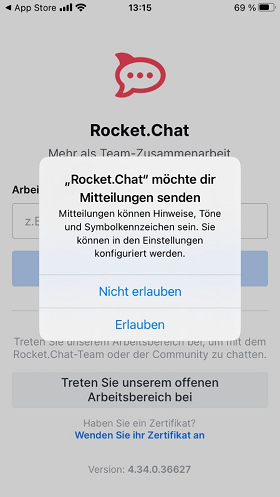
In the next step, you decide whether Rocket.Chat is allowed to send you messages.
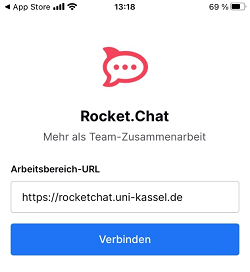
Then enter <https://rocketchat.uni-kassel.de> as the workspace URL and click on "Connect". Then select "Login" and log in with your UniAccount <ukxxxxxx> and the corresponding password.
Access via Android devices
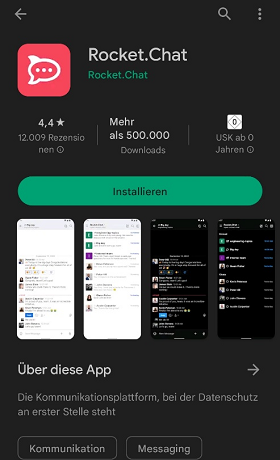
First download the Rocket.chat app from the Play Store and then open it.
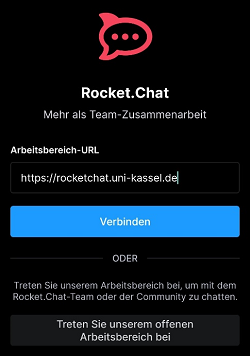
In the next step, enter<https://rocketchat.uni-kassel.de> as the workspace URL and click on "Connect". Then select "Login" and log in with your UniAccount <ukxxxxxx> and the corresponding password.
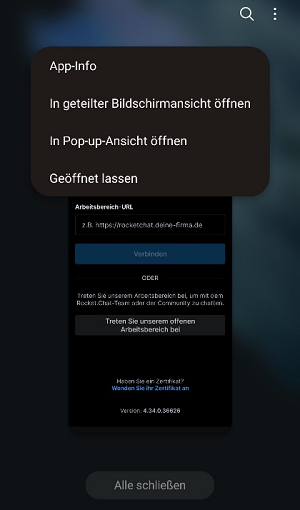
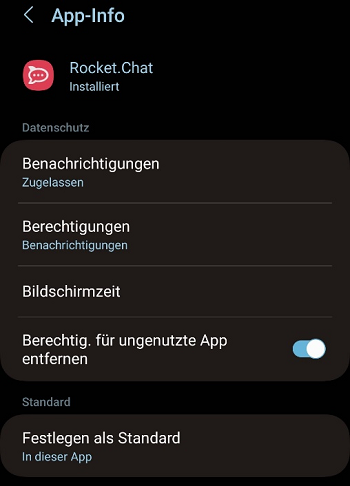
After installation, you should automatically be asked whether Rocket.Chat can send you push notifications. If you are not asked, you can adjust the setting via "App info" and then "Notifications".