Login and access to files
Registration
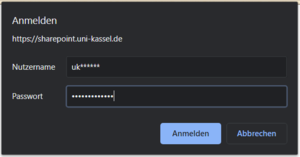
When you log in to the SharePoint site(https://sharepoint.uni-kassel.de), you will be asked for your user name and password. Please enter under
- Username: Your UniAccount (<ukxxxxxx>)
- Password: corresponding password
and then click on "Log in".
Once you have successfully logged in, you will see your SharePoint page.
If you now click on a Word file, for example, and want to edit it, you have two options:
- Edit in Word: You open the file in Word on your desktop.
- Edit in the browser: You edit the document in the web version of Word.
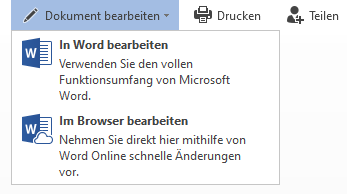
Open and edit file in Word
If you have clicked on "Edit in Word", a window will open in your browser. Please click on "Open link" here.
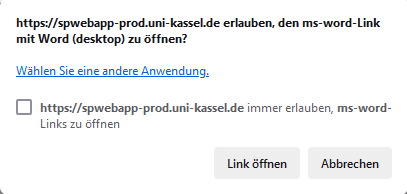
A new window will then open, displaying a warning message. You will be told which program is affected and from which address the file you want to open originates. Check the data provided and if everything is correct, click on "Yes".

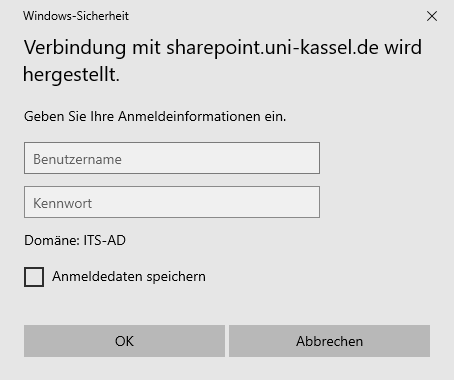
Word will now open and a login window will appear. Please enter your UniAccount <ukxxxxxx> under "User name" and the corresponding password under "Password".
Then click on "OK". You can now edit your Word document as usual.
If you are outside the university network and do not use a VPN, enter "its-ad\" (e.g. <its-ad\ukxxxxxxxx>) before your UniAccount.
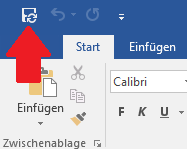
When you have finished editing the document, please click on the diskette symbol with the circle arrows at the top left as shown in the illustration on the right.
This will save the document and update it on the SharePoint site.
Integrate SharePoint site collection in Windows Explorer
1. copy SharePoint URL: Open the SharePoint site or document library in the browser and copy the complete URL from the address bar.
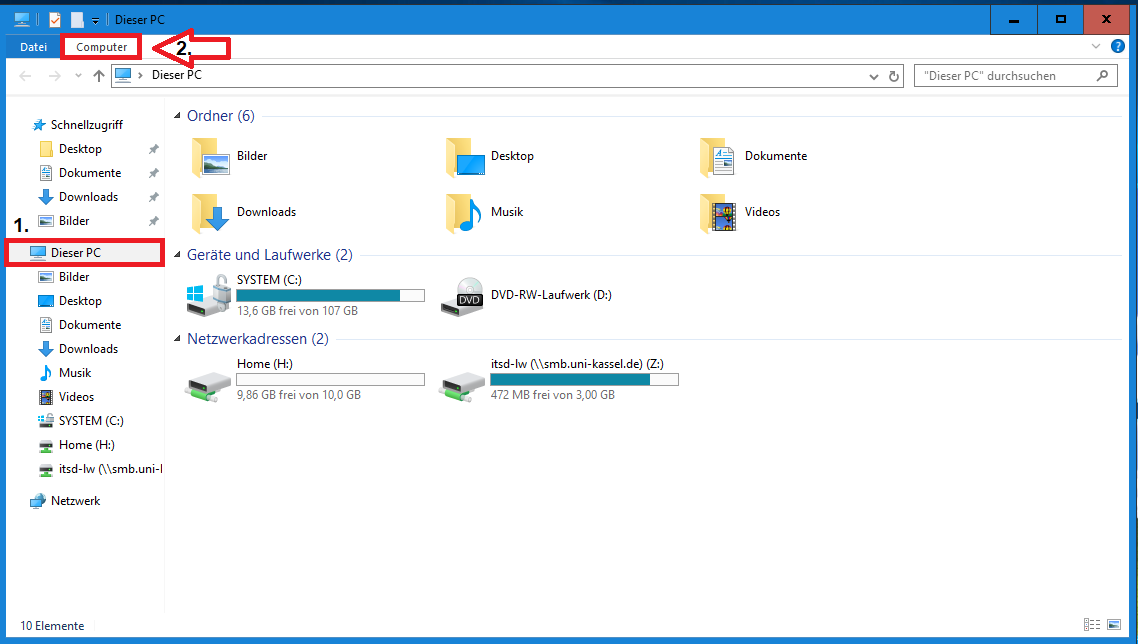
2. connect network drive: In Windows Explorer, right-click on"This PC" or "My Computer" and select"Connect network drive"
3. paste URL: Paste the copied SharePoint URL into the "Folder" field and click "Finish".