

Install Sophos Endpoint on macOS
Use this guide to install Sophos Endpoint on your Mac. Sophos Endpoint is a security program that protects your Mac from malicious files and other threats.
Follow the steps one by one. This guide will walk you through the installation process and show you which settings to configure.
Depending on the version of macOS, the labels or the layout of the settings may vary slightly. This guide was created using macOS Tahoe.
1. Click the " Download Sophos " link and download the SophosInstall file for macOS.
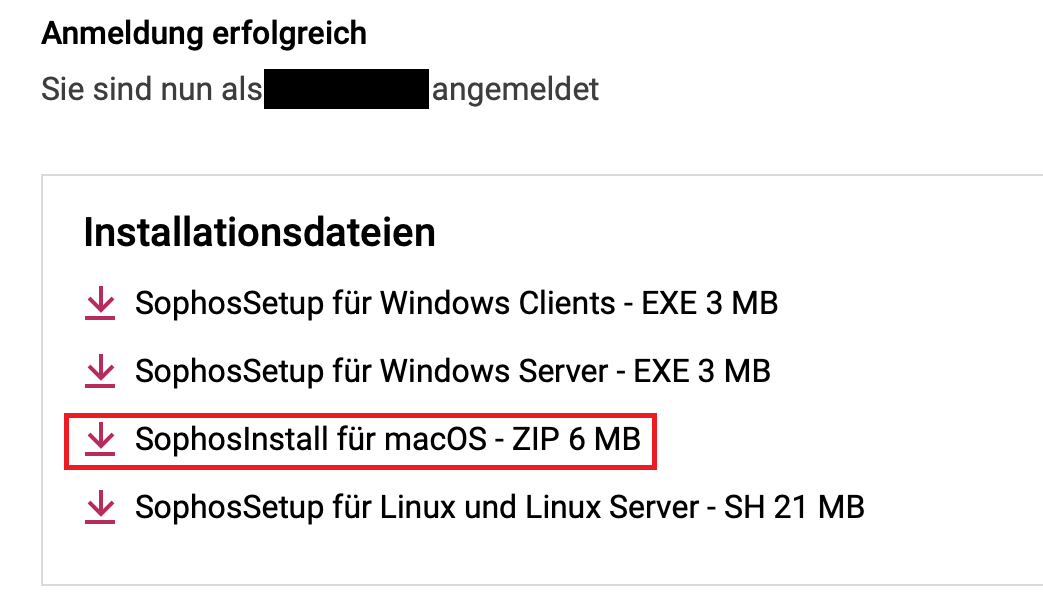
2. Open the downloaded folders and run the Sophos Installer.
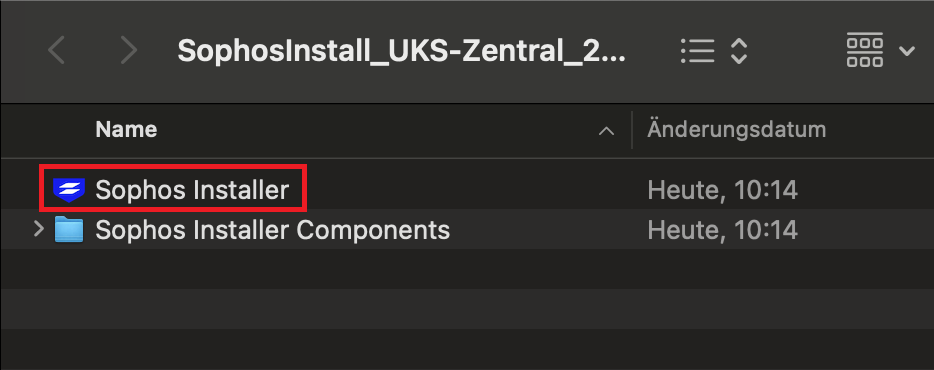
If your Mac asks if you want to open the file, click "Open."
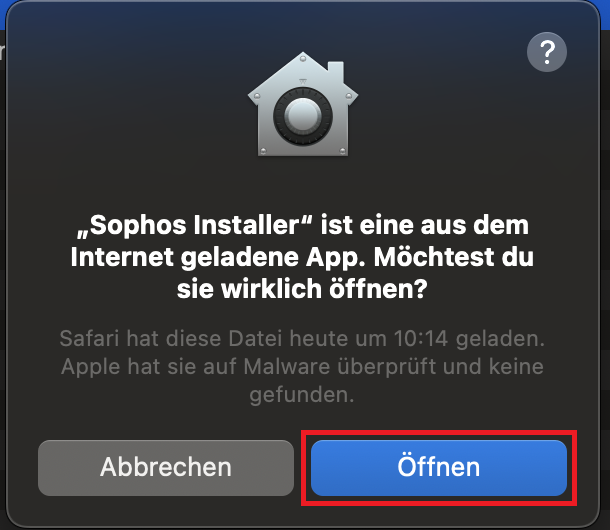
3. Allow the Sophos Installer to access the folder containing the installation file.
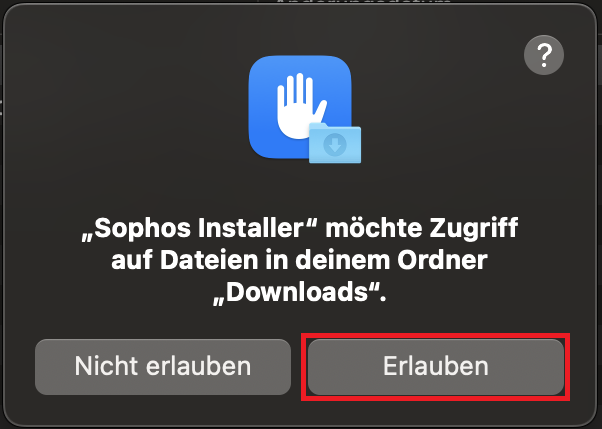
4. Click "Install" in the installation window.

5. Enter your password if your Mac prompts you to do so, and click "Install Utility." Wait for the installation to continue.
During installation, your Mac will display several messages. Please confirm the following prompts so that Sophos Endpoint can fully protect your Mac.
If the notifications appear too quickly one after another—for example, while you're still following the steps from the previous notification—you can also move the notification aside. To do this, click on the top edge of the notification and drag it to the side.
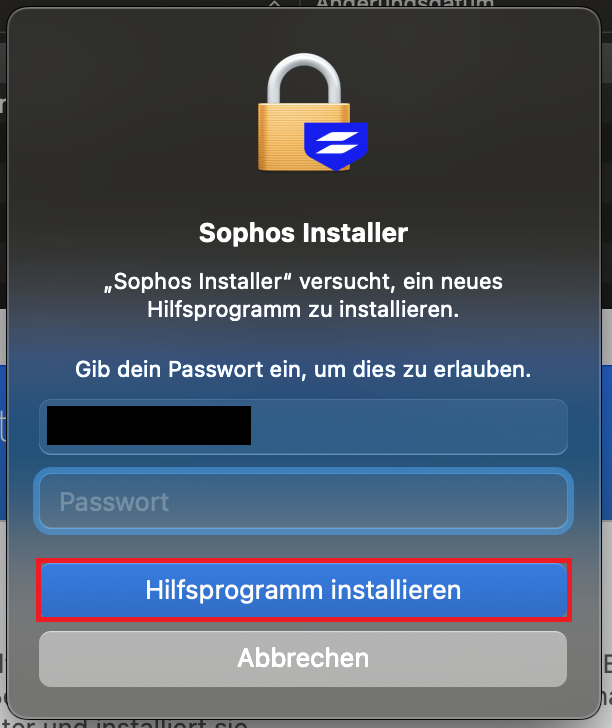
6. A message will appear stating that “Sophos Network Extension” wants to use a new network extension.
Click “Open System Preferences.”
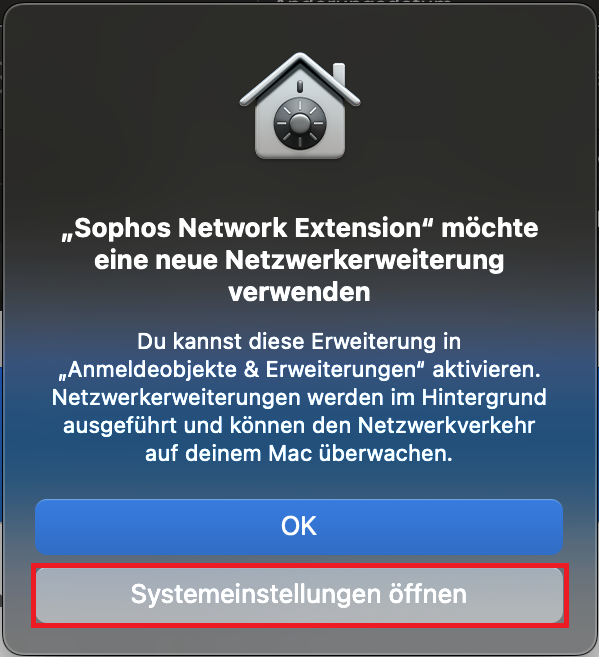
7. In System Preferences, turn on the switch next to “Sophos Network Extension.” Enter your password if your Mac prompts you to do so.
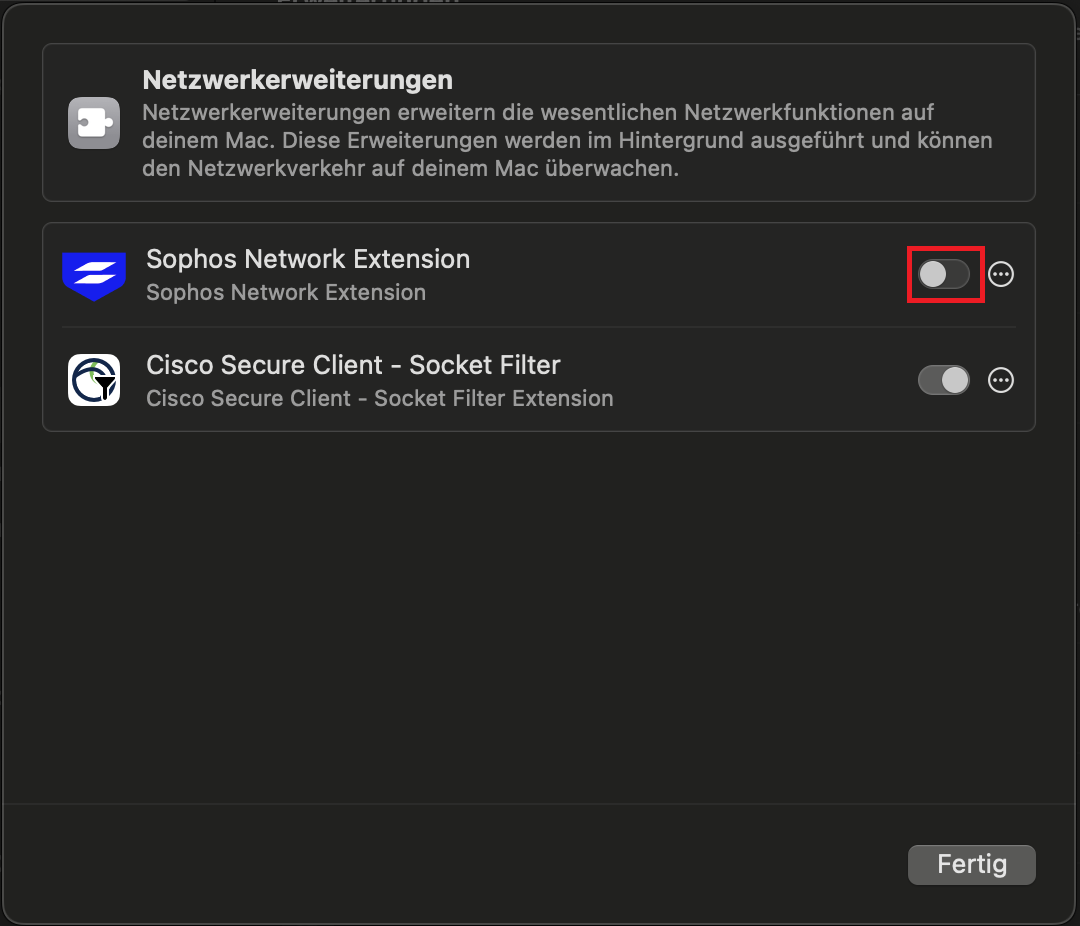
8. In System Preferences, turn on the switch next to “Sophos Network Extension.” Enter your password if your Mac prompts you to do so.
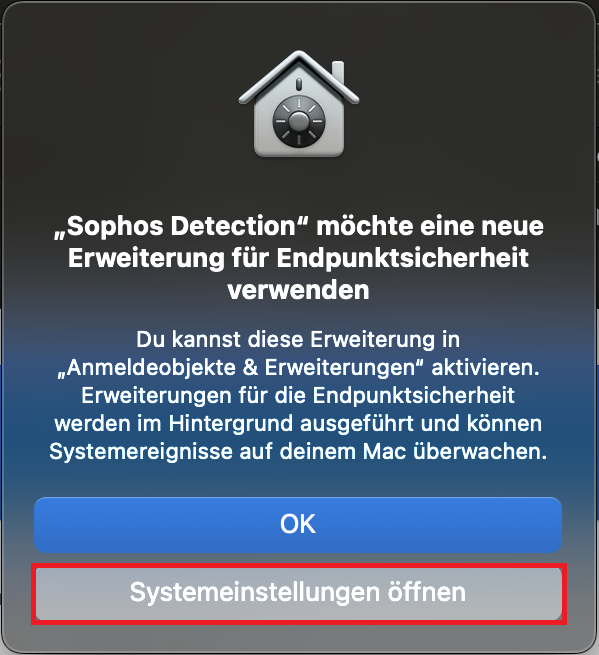
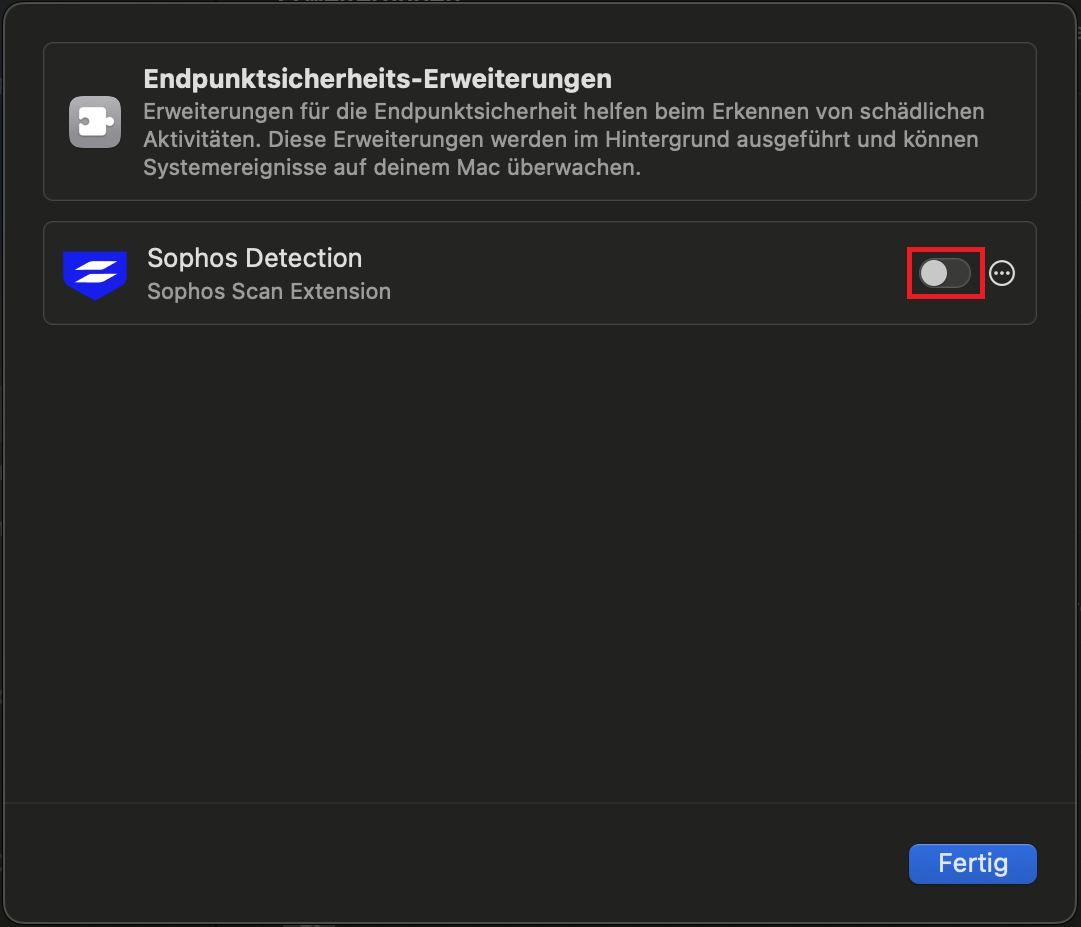
9. In System Preferences, turn on the switch next to “Sophos Detection.”
Enter your password if your Mac prompts you to do so.
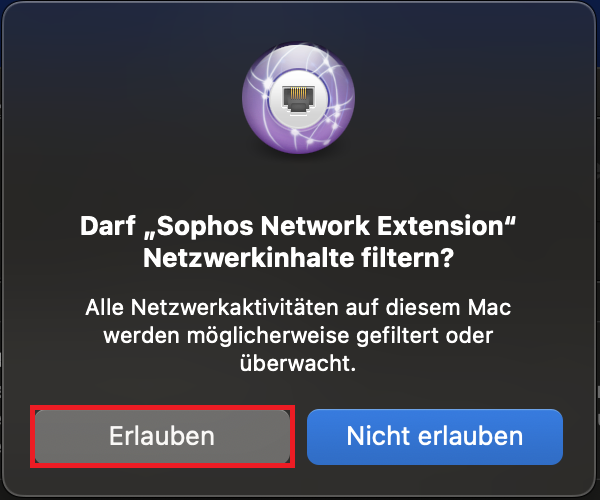
10. A message will appear asking whether "Sophos Network Extension" is allowed to scan and filter data on the network. Click "Allow." This allows Sophos to scan your Mac's network traffic for potential threats.
11. During installation, a message regarding full disk access will appear. To ensure that Sophos can reliably protect your Mac, the program needs access to the entire hard drive.

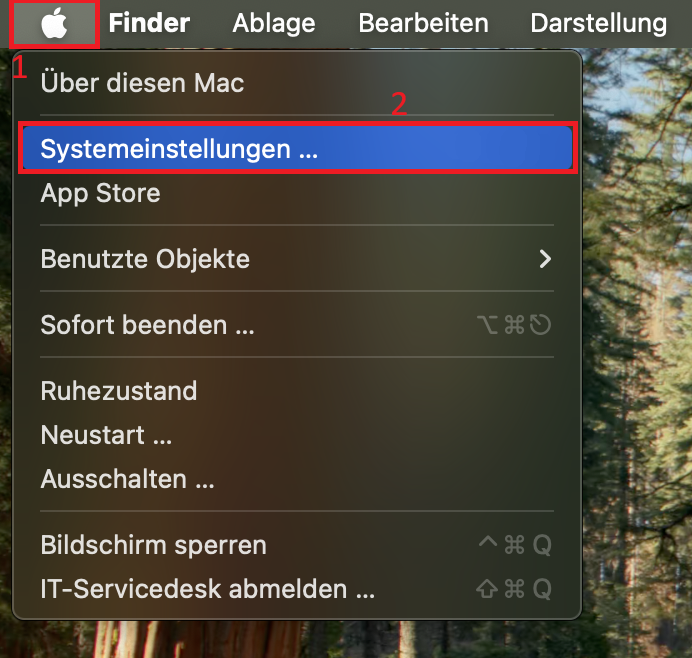
12. Open System Preferences. To do this, click the Apple logo in the upper-left corner of your screen and select System Preferences.
13. Click "Privacy & Security" and open the "Full Disk Access" section.
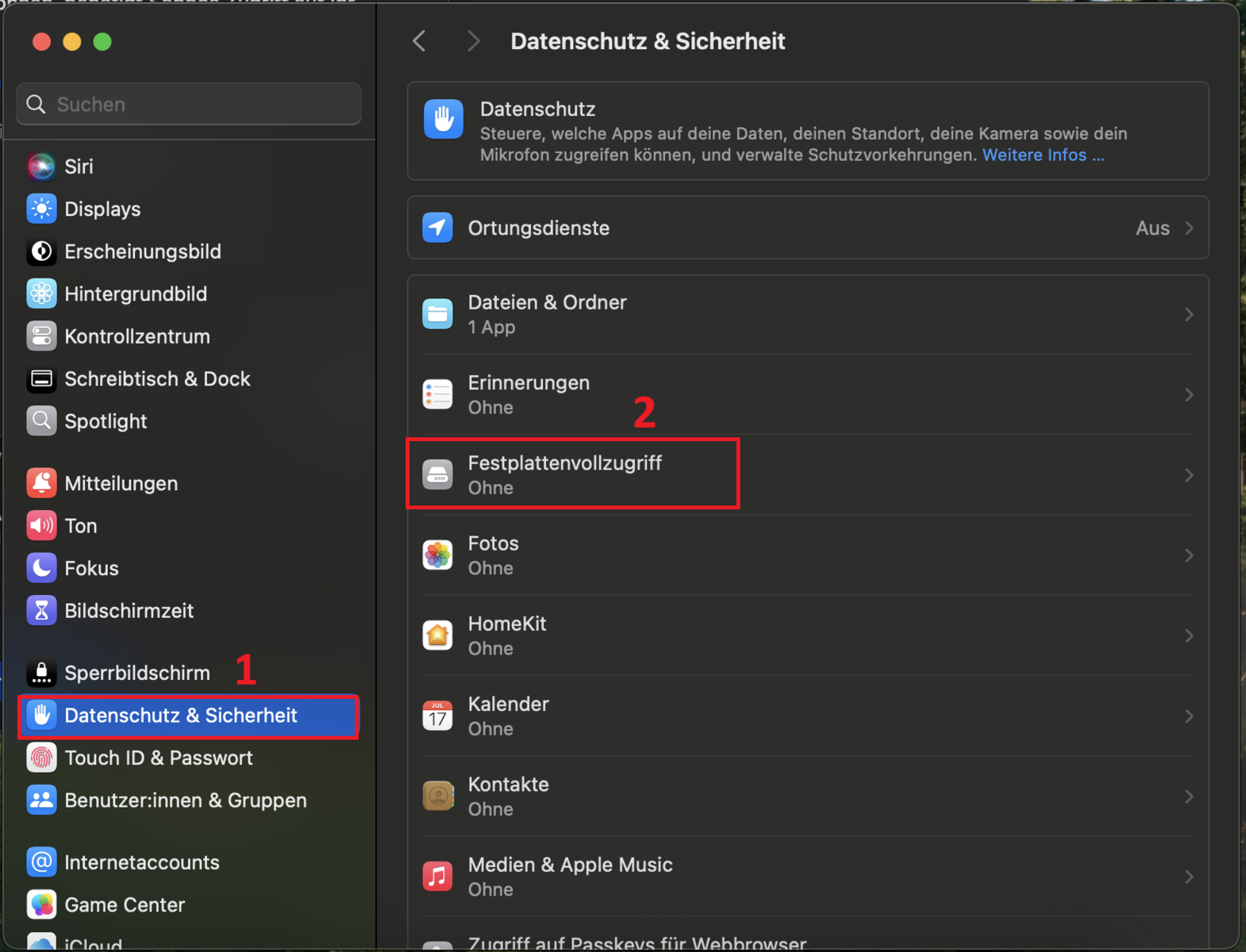
14. Drag the app icon from the message that appears to the list of system settings. Confirm the change if your Mac prompts you to do so.

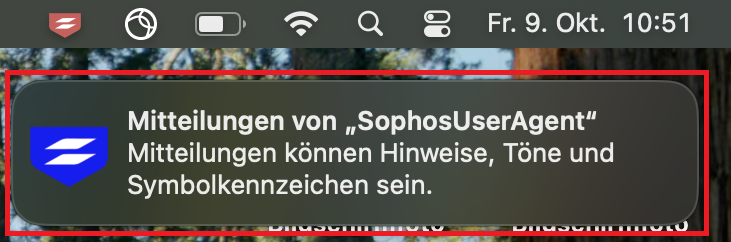
15. Click the message “Messages from ‘SophosUserAgent’.”
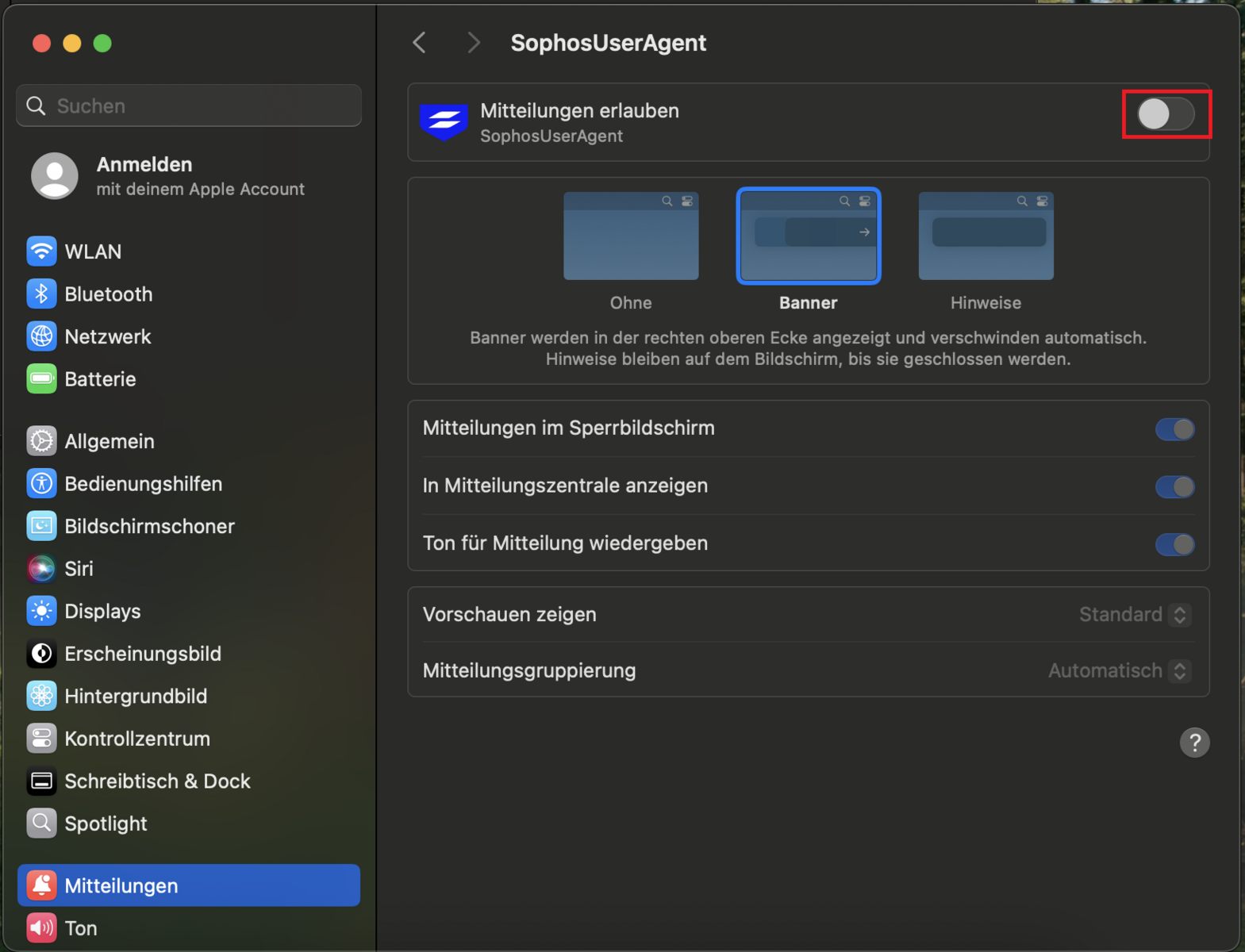
Alternatively, open your notification settings and select “SophosUserAgent.”
16. Select the “Allow Notifications” checkbox. This will allow you to receive important notifications from Sophos directly on your Mac.
17. You have successfully installed Sophos Endpoint and can now close the installer.
Restart your Mac to apply the changes.

18. You can recognize the program by the highlighted icon.
Go-Link for this page: https://www.uni-kassel.de/go/sophos-mac