

Cisco Jabber
The Cisco Jabber client allows you to use your work phone conveniently via your PC. This service is available to all employees of the University of Kassel free of charge.
To be able to use the service, you first need to activate your UniAccount. The activation itself is free of charge. If you would also like to make phone calls via your device, you will need a license for the softphone client, which costs € 119.99. Please send an informal e-mail from your university e-mail address to it-servicedesk[at]uni-kassel[dot]de, stating your account name, your extension (804-xxxx) and the cost center to be charged. Alternatively, you can use our online form.
After you have been activated for Cisco Jabber, download the corresponding software.
- MacOS X: CiscoJabberMac.zip
- Windows: CiscoJabberWindows.zip
- Cisco Jabber is already pre-installed on UKC computers (devices managed by ITS).
- Linux: Unfortunately, the software is not available for Linux.
After installation
After installation, open the corresponding software and log in with your UniAccount in the format Uniaccount@uni-kassel.de (Beispiel:uk000000@uni-kassel.de) and click on "Next". Then enter the password of the UniAccount and click on "Login". You can then use Cisco Jabber.
Please make sure that you are connected to the university network, either via LAN or VPN connection.

If a message appears stating that the certificate is invalid, please click on "Accept".

You are now successfully logged in to Cisco Jabber. If desired, you will receive a brief introduction. To do this, click on "Next".
You can also skip this if you wish. You can find further information on usingJabber under"Using Jabber".

Use of the Jabber
Import Outlook contacts
If you use Microsoft Exchange, you can import the contacts from this location via Cisco Jabber.
To do this, please click on the cogwheel in the Cisco Jabber menu and then on "Options".
Import Outlook contacts

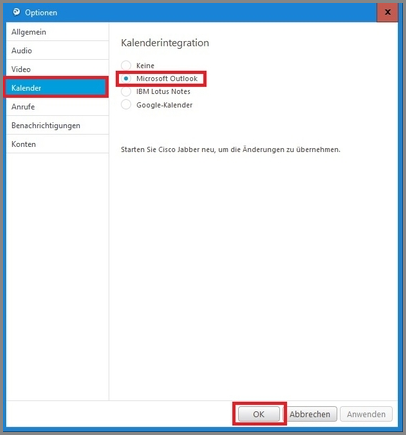
Now go to the "Calendar" menu item, select "Microsoft Outlook" and confirm the process with "Ok".
You must then exit Cisco Jabber once and restart it to apply the changes.
Go-Link of this page: https://www.uni-kassel.de/go/ciscojabber