

Phone web interface for telephone functions
Contents
- Log in to the web interface
- Phone settings
- 1. speed dial numbers
- 2. services
- 3. ring tone settings
- 4. voicemail notification settings
- 5. call log
- 6. telephone contacts
- Call forwarding
- 1. call forwarding of calls when the line is busy
- 2. call forwarding to voicemail after several rings
- Voicemail
- IM and availability
Log in to the web interface
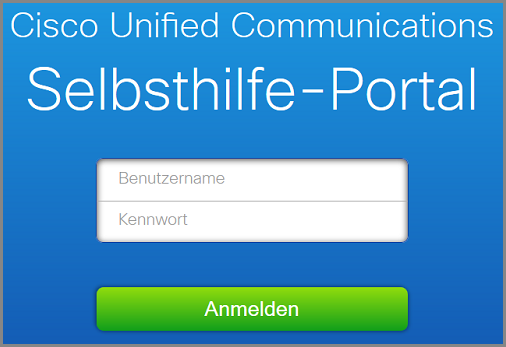
Please go to the page<https://phone.its.uni-kassel.de> to access Cisco Unified Communications. In the next step, log in with your UniAccount <ukxxxxxx> and the corresponding password.
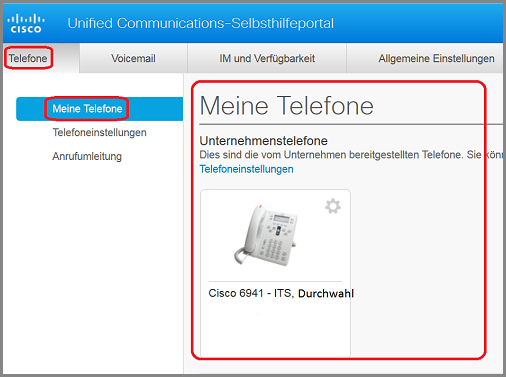
The following start page will appear after successful registration. The model of your telephone and your extension number are displayed on the right-hand side of the start page.
Phone settings
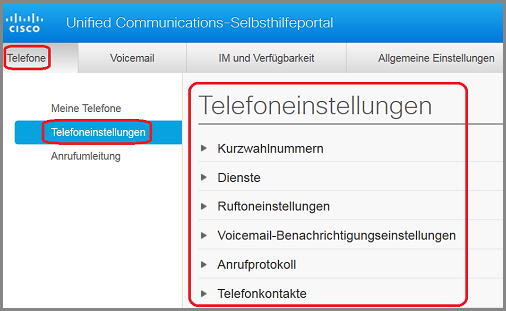
Click on "Phone settings" on the left. You will see an overview of the settings, which will now be explained individually.
1. speed dial numbers
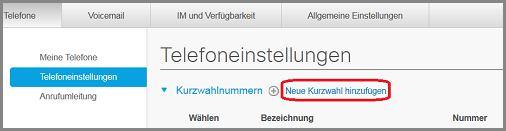
Click on "Speed dial numbers". All the contacts you have created are displayed on the right-hand side. In this case, there are none yet.
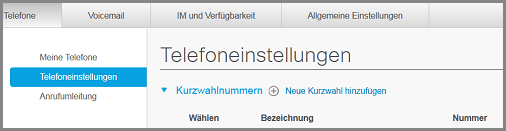
To create a new speed dial, please click on "Add new speed dial".
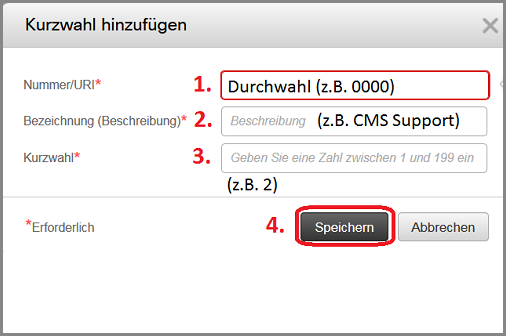
A new window will open. In which the following steps are necessary:
- Extension: First enter an extension , if internal. If you would like to use an external number, please enter the complete area code and extension.
- Short description: Then enter a short description.
- Speed dial: Use two and a consecutive number for the next number.
- Save: In the last step, click on "Save".
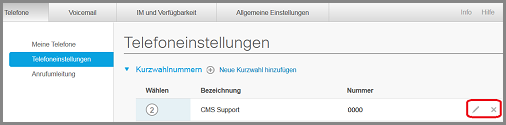
After saving, you will return to the starting position. The data you have entered is displayed. The display on your telephone lights up and performs an automatic update. If you would like to make further changes to the speed dial, click on the "pen". If you no longer wish to have the speed dial, click on the "X". You will be asked again if you are sure that you want to delete the speed dial, click yes and the speed dial is deleted.
2. services
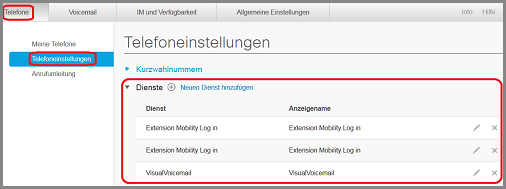
You should not make any changes to the services. If you wish to make changes, please contact the IT Service Center via the ticket system.
3. ring tone settings
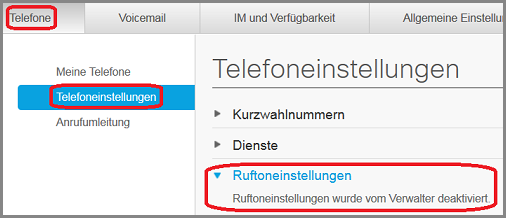
Click "Ringtone Settings." This feature has been disabled by the administrator. If you would like to use this feature, please contact the IT Service Center via the ticket system.
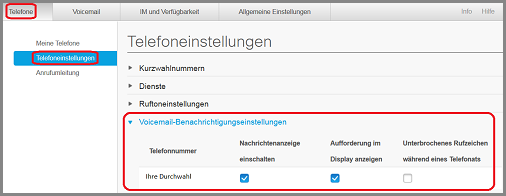
4. voicemail notification settings
In the "Voicemail notification settings" you will see your extension number and that the message display is switched on.
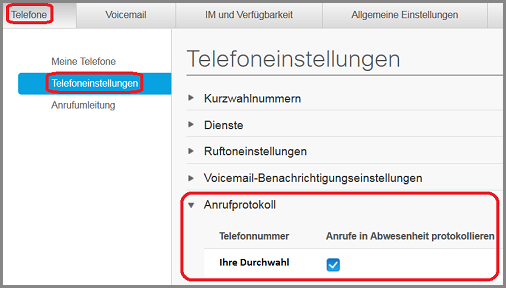
5. call log
Under "Call log" you can see that missed calls are logged if the check mark is set.
6. telephone contacts
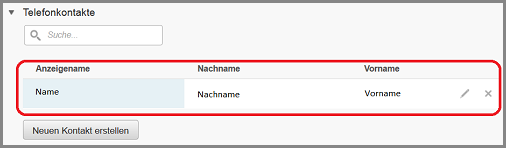
If you click on "Phone contacts", you will not see anything yet, as shown in the picture, because no contacts have been created yet.
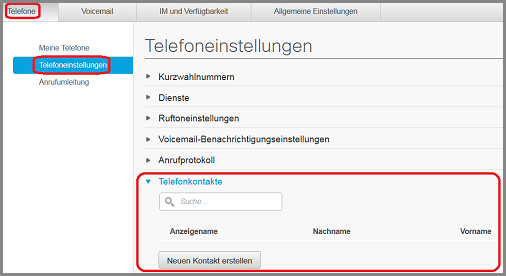
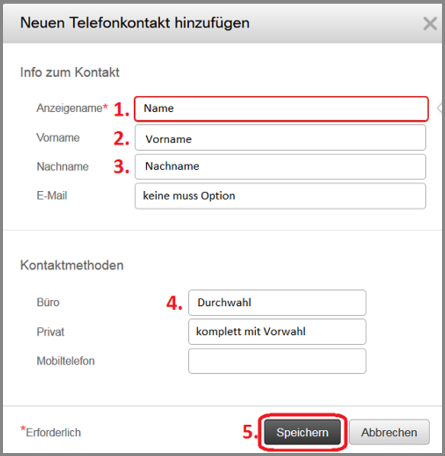
To create a new contact, please click on"Create new contact". A new window will open in which the following data must be filled in:
- Display name: e.g. surname or last name
- First name: First name
- Surname: Last name
- Office: the extension is sufficient, privateor cell phone please enter complete phone number (area code and extension)
- Save: click on Save
You can make further changes by clicking on the pencil.
Call forwarding
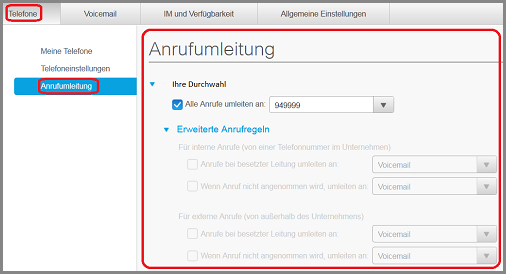
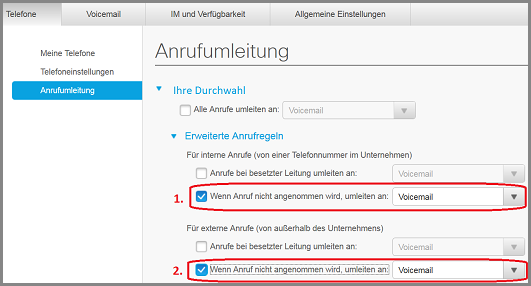
You can make the following settings under Telephones and "Call forwarding":
- Divert all calls to: 949999, i.e. all calls go to your voicemail or you enter a different telephone number.
- Advanced call rules: Here you can separate calls according to "internal" or "external". You can activate this function by clicking in the box. Here you also have the option of forwarding calls to voicemail or another telephone number.
If you want to make external calls or divert calls to external numbers, please prefix them with a "0".
1. call forwarding of calls when the line is busy
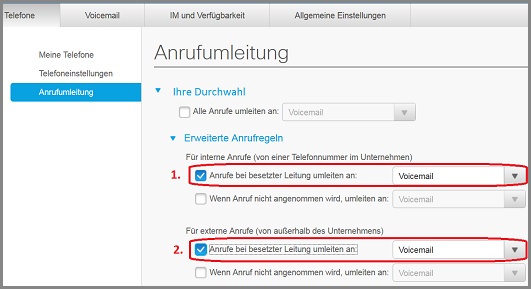
- For internal calls, check the "Calls when line is busy" box by clicking on the checkbox.
- For external calls, set a checkmark for "Calls when line is busy" by clicking on the box.
- Click on Save in the last step.
From now on, all calls (internal and/or external) will either go to voicemail or another telephone number if the line is busy.
2. call forwarding to voicemail after several rings
- For internal calls, click on "If call is not answered, forward to: Voicemail or other telephone number" by clicking in the box.
- For external calls, tick "If call is not answered, divert to: Voicemail or other phone number " by clicking in the box.
- Click on "Save" in the last step.
From now on, voicemail will automatically be answered after five rings for internal and/or external calls.
Voicemail
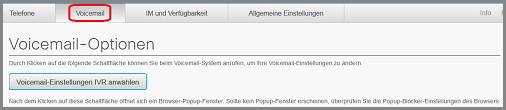
Click on "Voicemail" in the menu bar and you will be taken to this page. Here you have the option of changing your voicemail settings by clicking on "Select voicemail setting IVR".
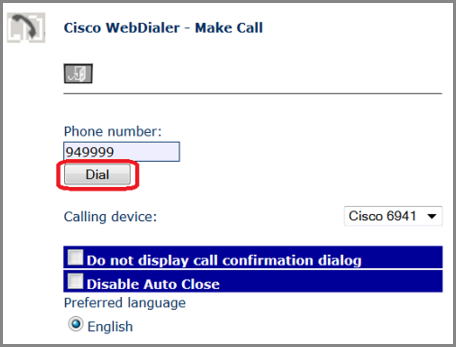
A new window opens. Click on "Dial" and your voicemail will be called automatically. Follow the instructions of the computer voice to set up your voicemail.
IM and availability
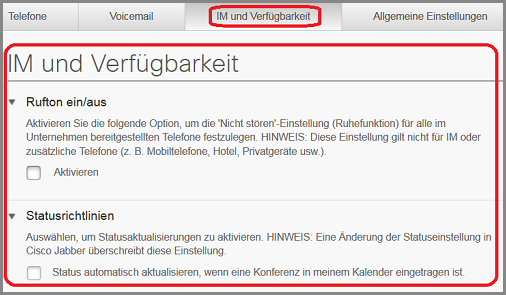
In the menu bar, click on "IM and availability". You will see the following overview. You canswitch the ringing tone of your telephone set on or off by clicking on"Activate".
In the next step, you can activate the status update. Changing the status setting in Cisco Jabber overwrites this setting.
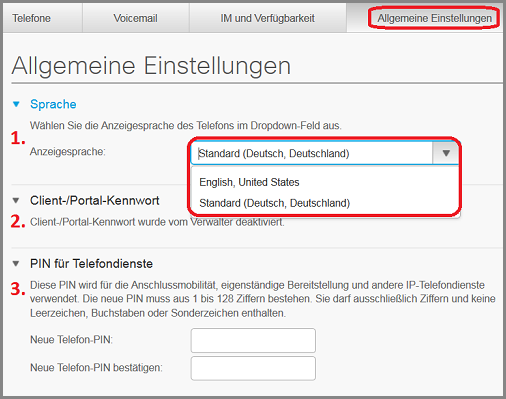
Click on"General settings" in the menu bar. You can make the following settings:
- Language: Display language of the phone in English or standard German by clicking on the appropriate language.
- Client/portal password: has been deactivated by the ITS.
PIN for telephone services: you can set a new PIN yourself
Please note that this PIN cannot be used for voicemail, but is used separately here for access to a separate telephone directory.
Go-Link of this page: https://www.uni-kassel.de/go/phone