

Accounts for external persons (without UniAccount)
First call up the Identity Management (IDM ).
Then log in with your UniAccount <ukxxxxxxxx> and the corresponding password and accept the IT user regulations by ticking the corresponding box.
After logging in, the IDM start page will be displayed in tile form. Click on "Request access".

Under the "Confluence" category, click on "Confluence for external persons".
This function appears when you scroll further down.

If nothing happens after this action, your web browser is probably blocking the pop-up window that was supposed to open. Please make sure that your web browser allows the opening of pop-up windows for userapp.uni-kassel.de.
In Mozilla Firefox, for example, you will see a message and an option to allow the pop-up window directly below the address bar.
Now enter the first name, surname, e-mail address and date of birth of the external person. This data is required for registration.
After entering the data, click on "Submit". The application will be checked and then approved by the ITS. You will receive an e-mail confirmation.
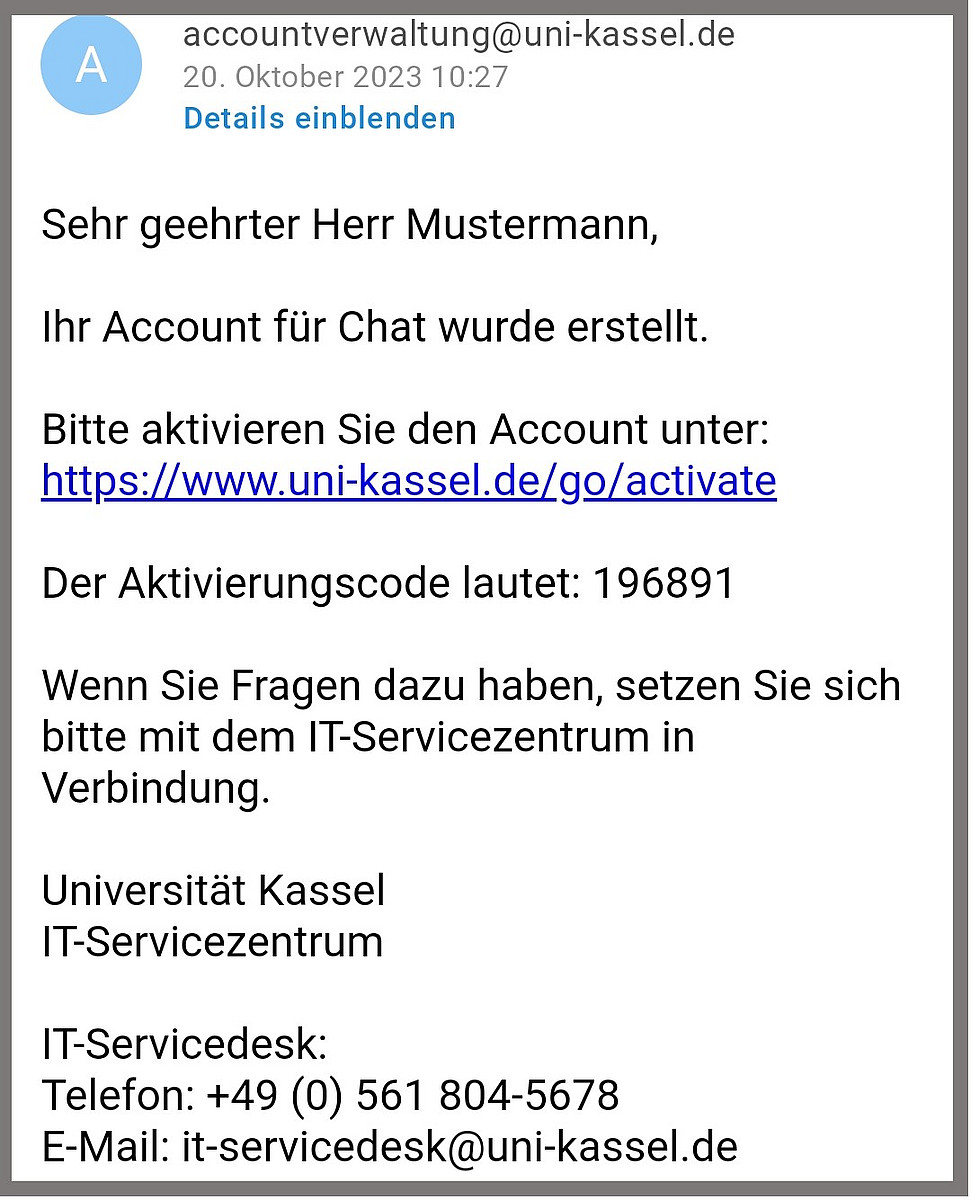
The external person is informed of the new account by e-mail and receives an activation code for activation. Using this code, the person can activate the UniAccount, receive a user ID and set a password.
After the new external Confluence account has been successfully activated, you will also be informed about the user ID of the account <e.g. cfxxxxxx>. You can now manage this account in Confluence like a normal UniAccount.

In addition, once the external account has been successfully activated, the "Manage Confluence accounts" button appears in your user app. You can use this to manage the accounts of external users, e.g. adjust the expiration date or make a note of an account deletion.

Go-Link of this page: https://www.uni-kassel.de/go/externer-confluenceaccount