

Study planner (new function)
You can find the study planner here: Menu > My studies > Study planner
If you are/were enrolled in several degree programs, you will be taken to a selection. Select the degree program for which you would like to call up the study planner by clicking on the respective name.
The study planner is displayed as a representation of your examination regulations in the form of a structure tree (hierarchical, branched structure of sub-items).
- The study planner contains courses, examinations and coursework that belong to your degree program.
- In the study planner, you can register for courses within the registration deadlines. You can see registration deadlines on the respective course details page (if these are stored).
In the study planner, you can register and deregister for examinations and register for coursework within the registration deadlines
Tip: We have compiled an overview of the meanings of the icons displayed in the study planner (see "Legend" at the top).
Overview
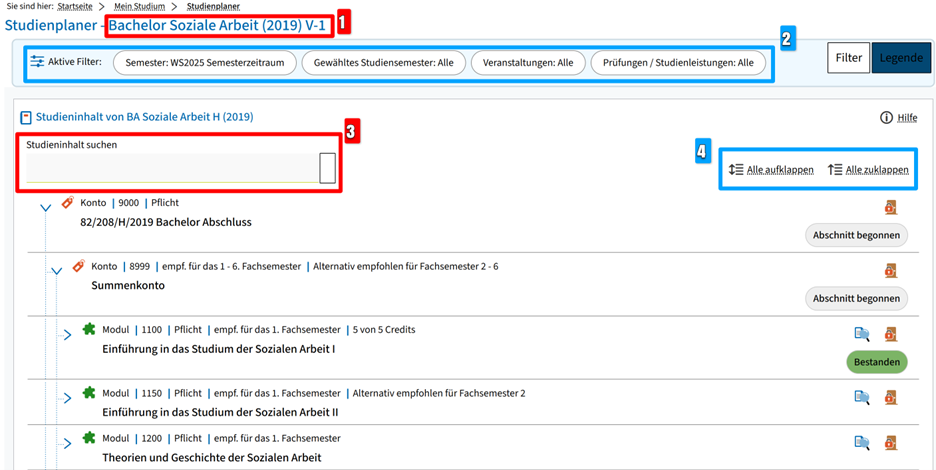
Here you can see:
(1) the name of the degree program plus the version of the examination regulations (year),
(2) a display of the various filters
- semester: The filter controls which course data (current or other semester) the display in the study planner refers to.
- Selected semesters: Here you can filter according to the respective subject semester and receive an overview of the modules recommended for this semester (if this data is stored for your degree program). To display all modules regardless of the semester, simply select "All".
- Courses: You can use this filter to show or hide certain courses in the study planner
- Examinations/study achievements: You can use this filter to show or hide examinations/study achievements in the study planner
(3) With the function Search course content you can search for specific courses or modules. The structure is expanded to modules in which elements are found.
(4) You can also completely expand/collapse the examination regulations structure with all accounts, modules, courses, etc.
Note: Expanding complex examination regulations may take longer (longer loading time).
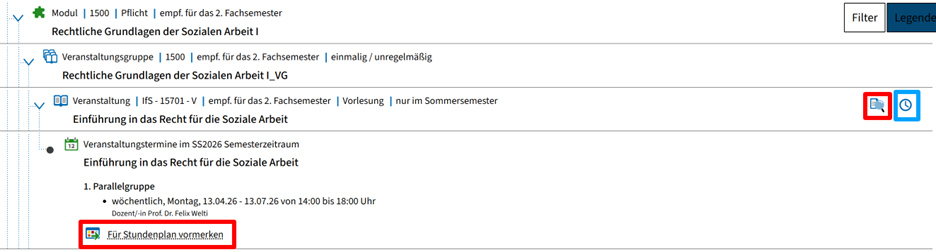
- By clicking on the magnifying glass symbol to the far right of a course/examination/study achievement, you will be taken to the respective detail page with information on content, lecturers, times, etc.
- A course/examination/study achievement planned for the semester contains one or more groups (so-called parallel groups), each of which may contain different dates, rooms and lecturers.
- A clock symbol can be seen on the far right of the screenshot above, which indicates that a booking is not yet possible (e.g. if the booking period has not yet started). In its place you will later see a door symbol (for the symbol overview), which leads to the booking of events, for example. This symbol indicates that you can register for these courses, examinations or academic achievements as soon as/as long as the registration/registration period is active.
- The status of your enrolments/registrations is also displayed in this column in the study planner.
'Section started' is displayed for the modules and accounts as soon as you have enrolled in a course. When all required credits/achievements have been achieved/passed, this display changes to "passed".
Register/deregister for exams/study achievements in the study planner
To register for an exam via the study planner, proceed as follows:
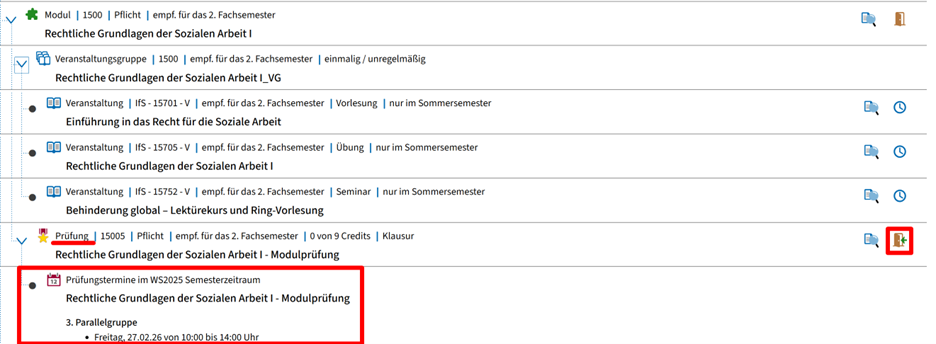
- Open the module and navigate to the exam or coursework(to the symbol overview)
- Open the exam/study achievement and get an overview of the exam dates or parallel groups.
- Click on the door symbol with the green arrow on the right-hand side next to the exam/study achievement (if you see another symbol here, e.g. a clock, registration is currently not possible because, for example, the registration period is not yet active or has already expired)
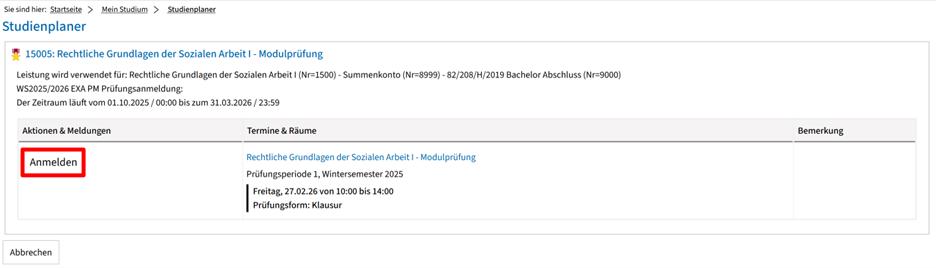
- A page will open where you can select your corresponding exam date or your parallel group (e.g. if there are different seminars in a module). Make sure you register for the correct exam/study achievement and, if in doubt, consult the teacher or your department. On this page, click on Register next to the correct date and confirm your registration.
- Deregistration follows the same principle as registration. However, you also have the option of re-registering between the dates. Simply pay attention to the information displayed during the deregistration process.
FAQ: Why are courses/exams/study achievements sometimes displayed with an arrow symbol and group(s) underneath and sometimes not?
- If a course/examination/study achievement is displayed as a simple line (without an arrow symbol), it is not (yet) planned for this semester.
- If you can expand a course/examination/study achievement with the arrow symbol, then it is planned for this semester and usually contains further information on dates, teachers, etc.

We have created a video guide to the study plann er here. Here you can see how to navigate to the study planner and what functions it has.
Go-Link
Go-Link of this page: https://www.uni-kassel.de/go/ecampus-studienplaner