

under Mac
The content on this page was translated automatically.
Contents
Setup via the Outlook program
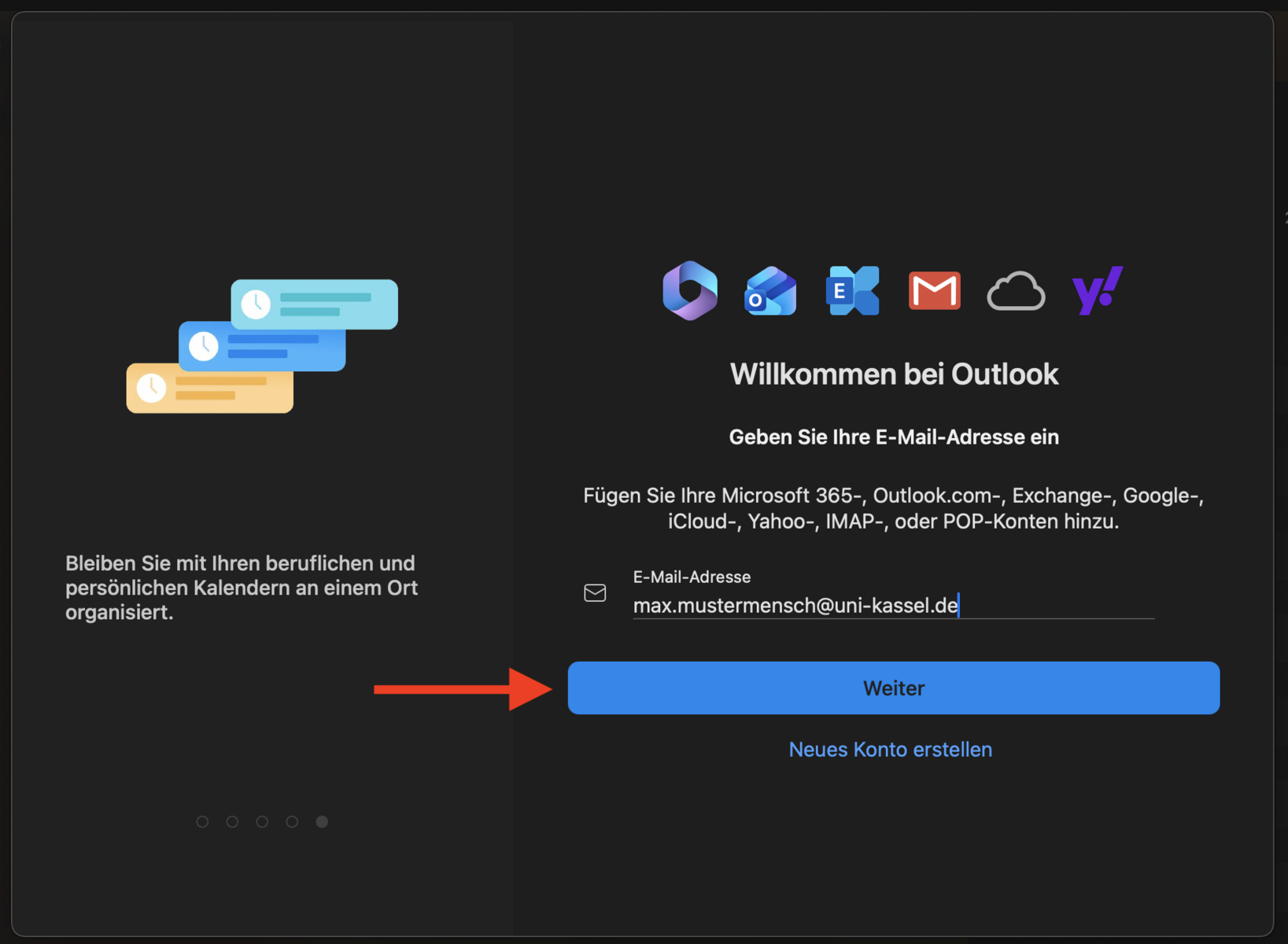
Open Outlook on your Mac by double-clicking it. In the window that appears, enter your email address and click "Next."
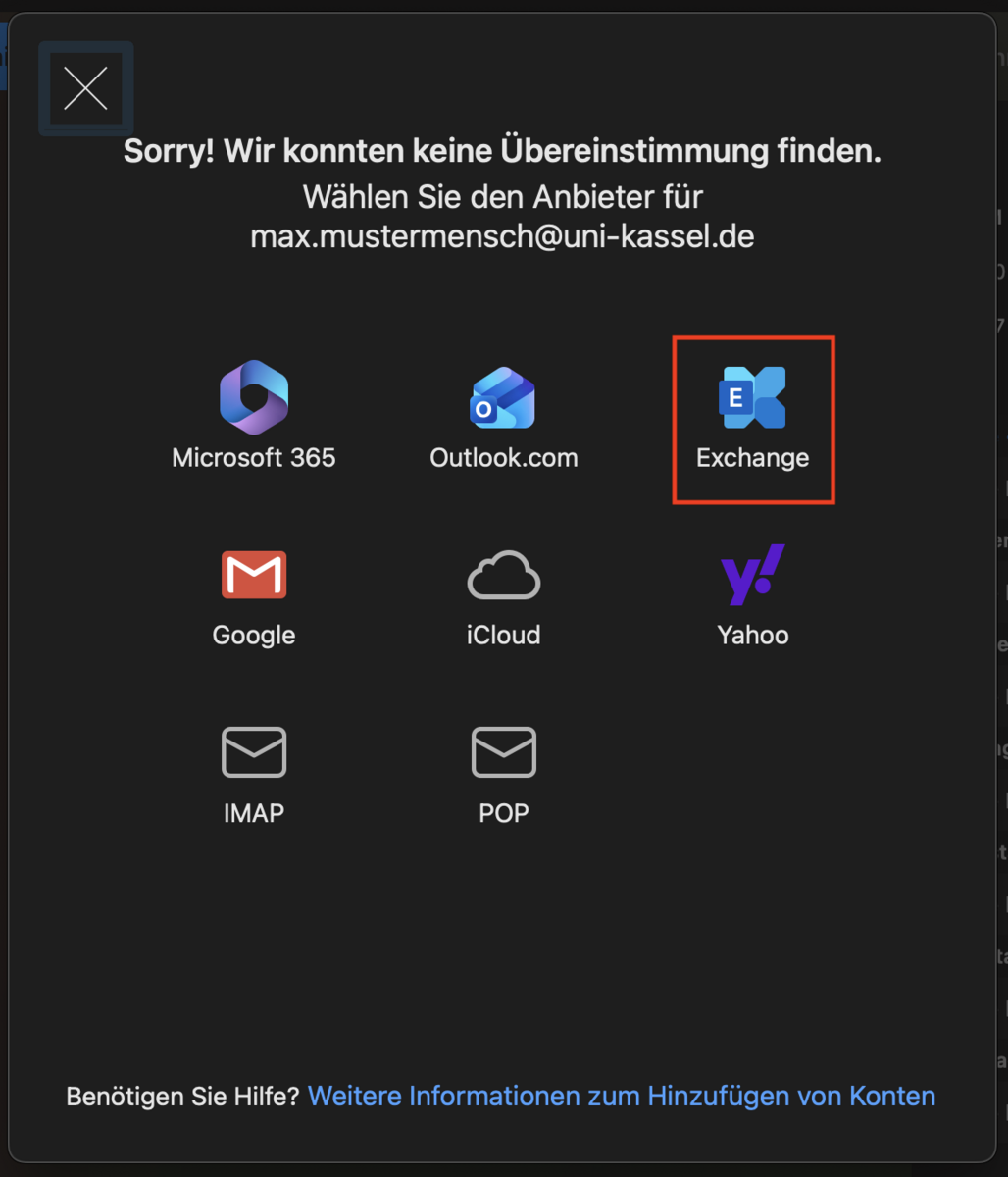
Please select the "Exchange" option in the following selection.
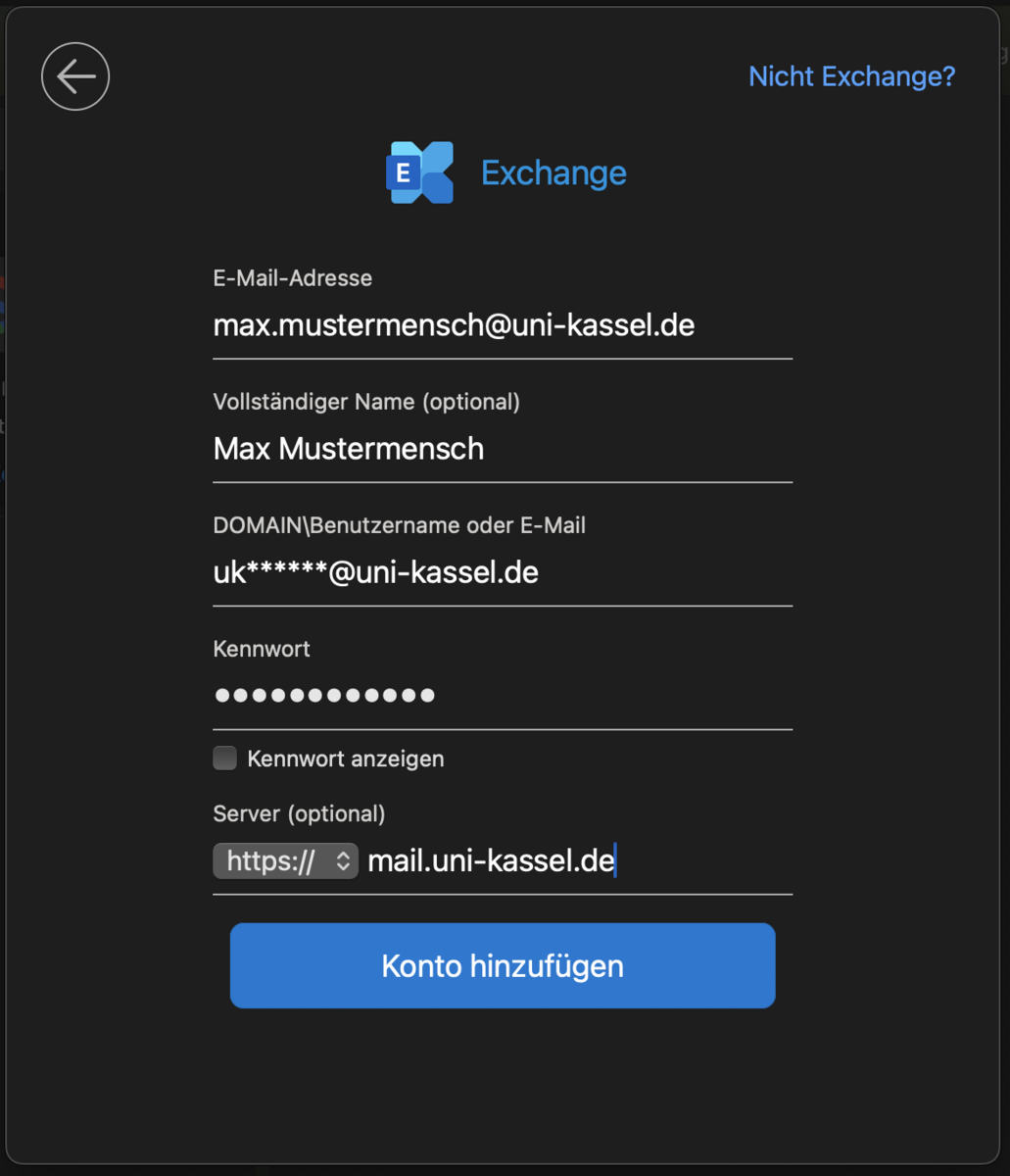
Under "Email Address," please enter the desired sender address. In the "Domain/Username or Email" field, enter your email address in the format
< Accountname[at]uni-kassel[dot]de >. Then confirm the process by clicking “Add Account.”
Enter your UniAccount password and “mail.uni-kassel.de” as the server (optional).
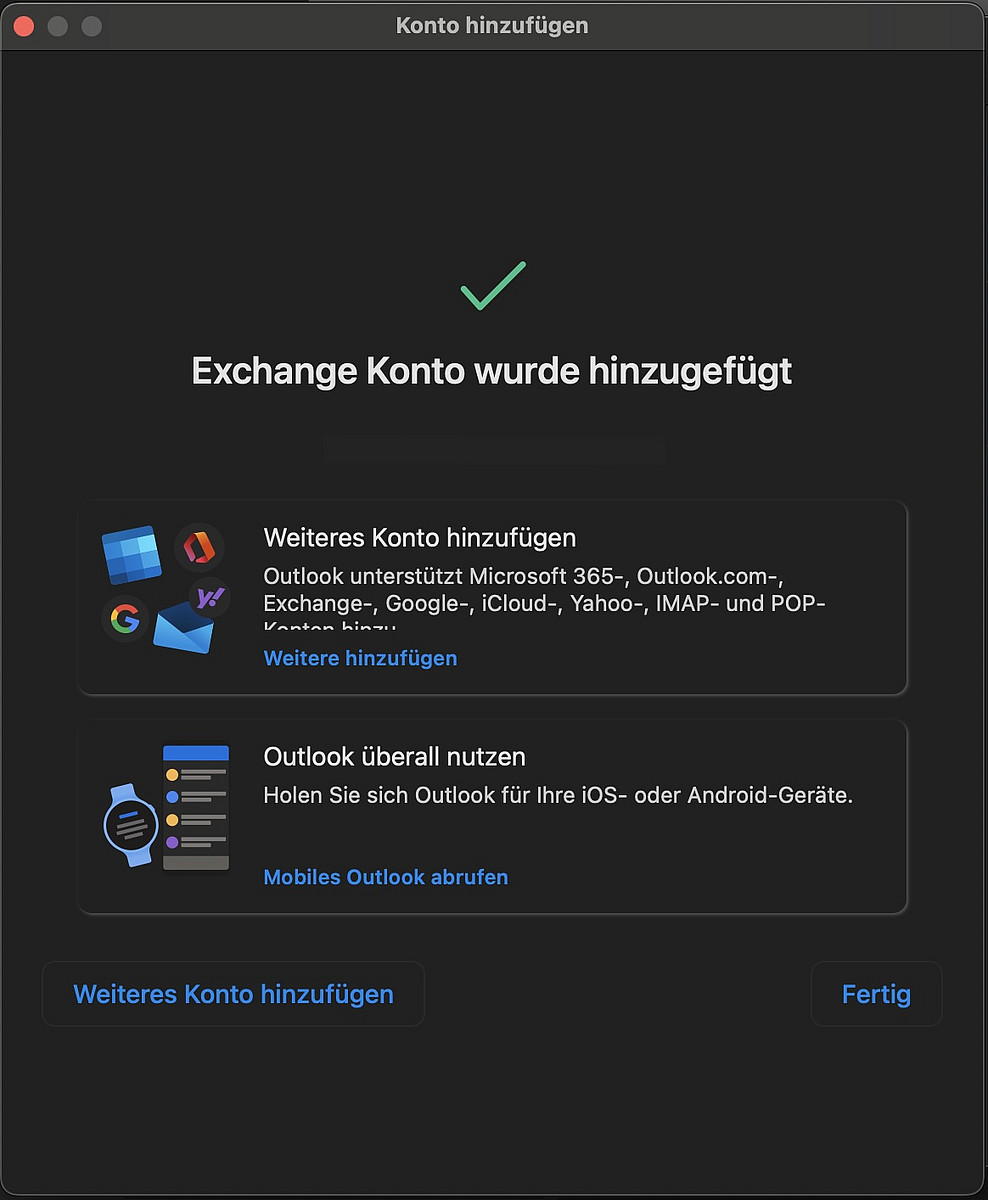
The process is complete as soon as this window appears. Finish the process by closing the window.
If needed, you can add another account right away.
Setup via Apple Mail
To use your Exchange account on macOS, proceed as follows:
Click the Apple logo in the menu bar, and then select "System Preferences."
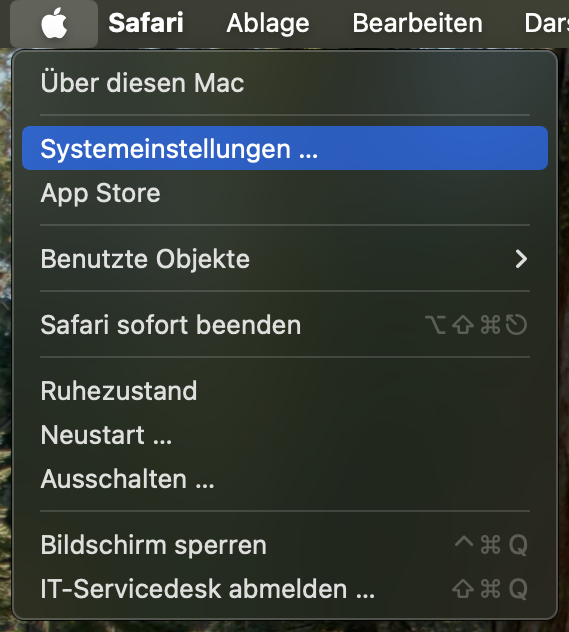
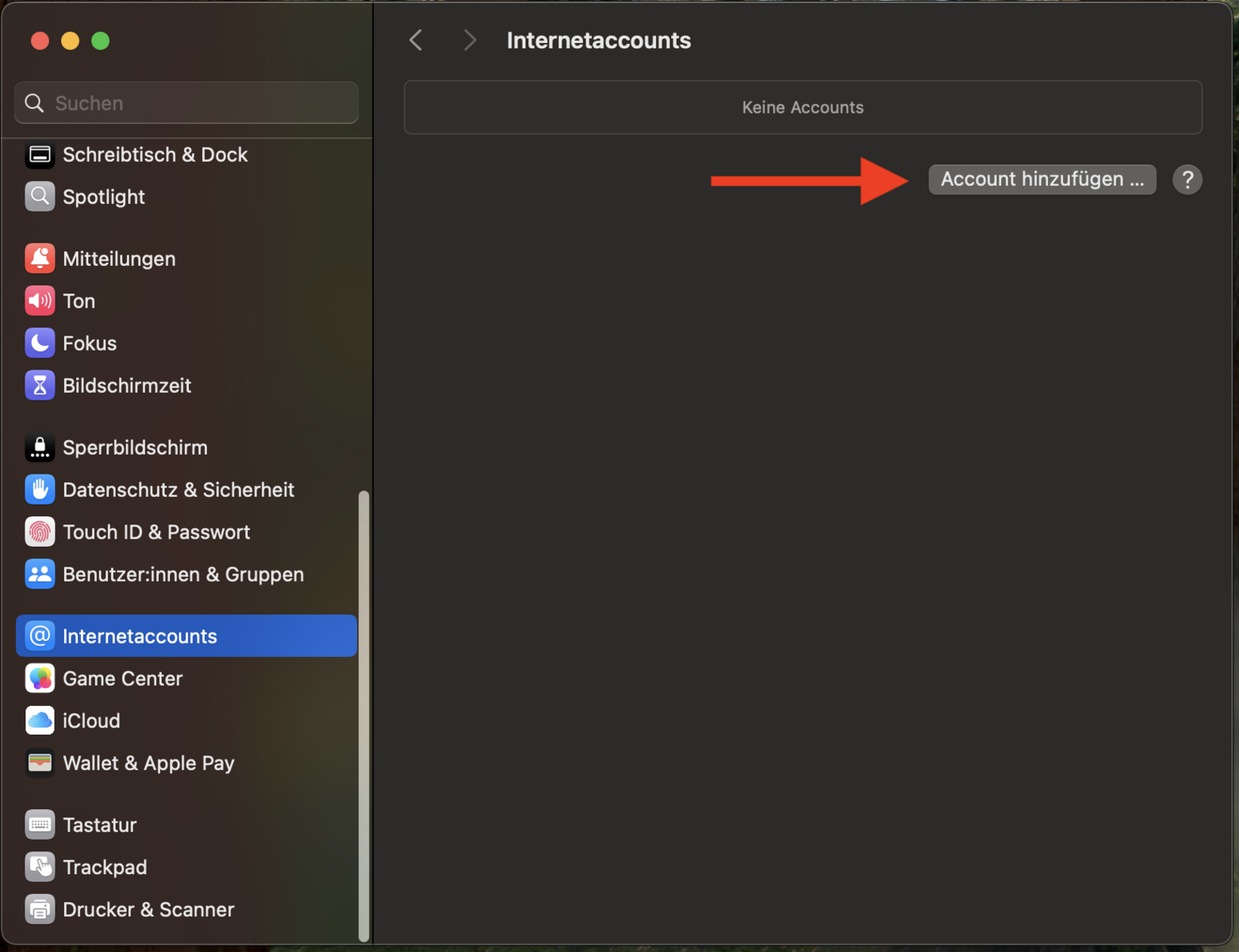
Now select the "Internet Accounts" menu item and click "Add Account…".
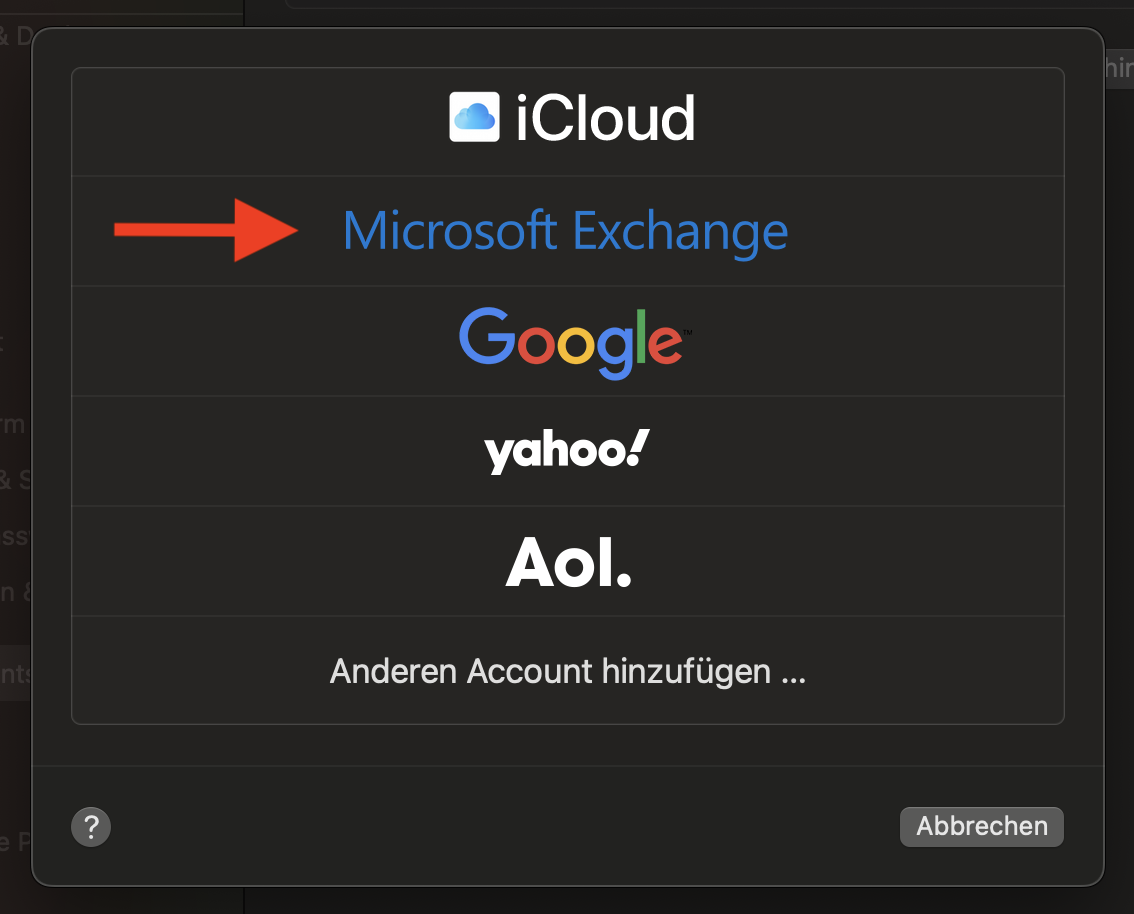
Click the "Microsoft Exchange" button.
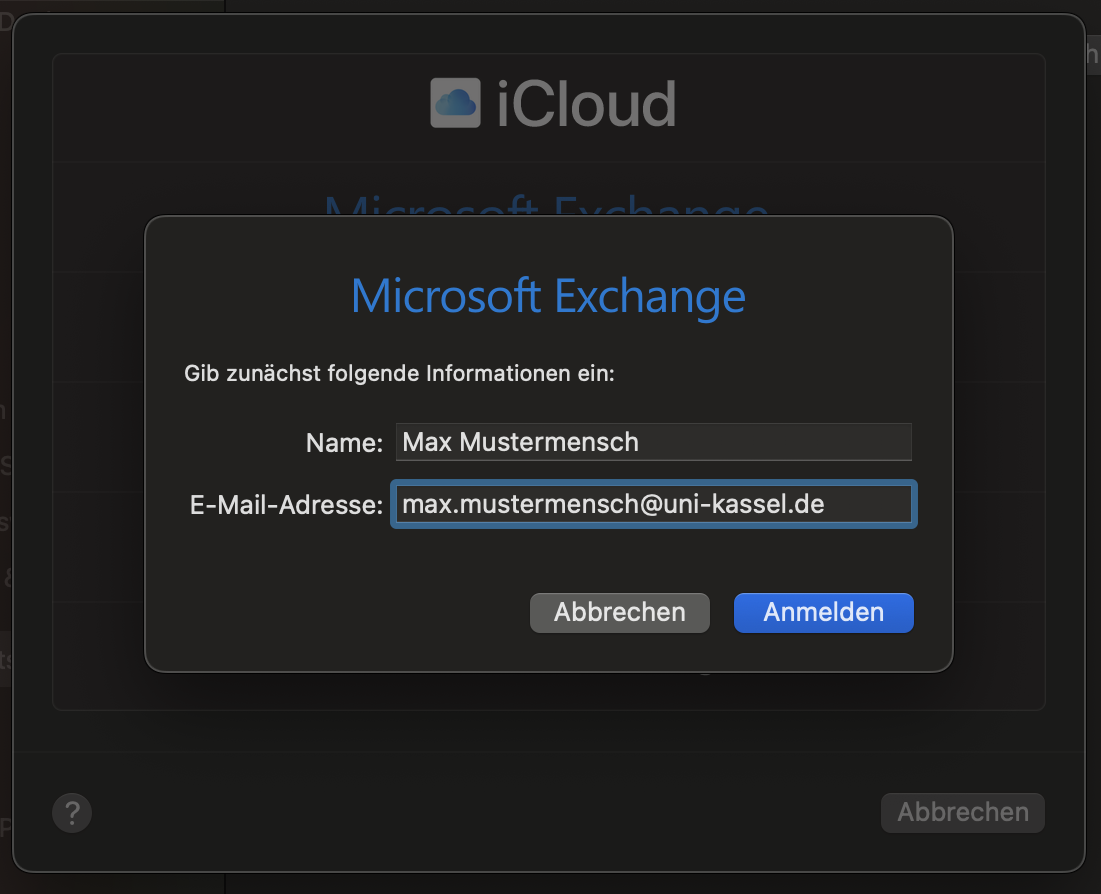
Enter your name and email address, then click "Sign In."
Click "Sign In" again.

Enter your password and click "Log In."
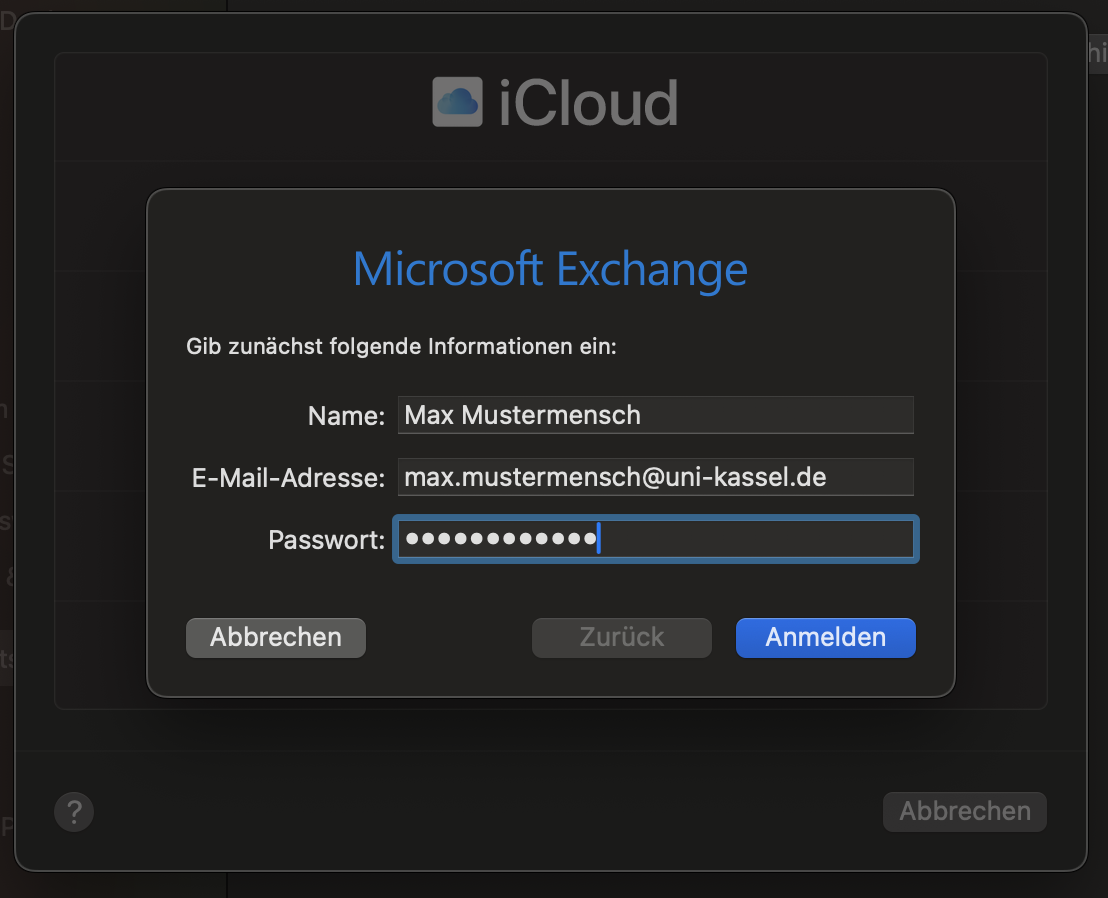
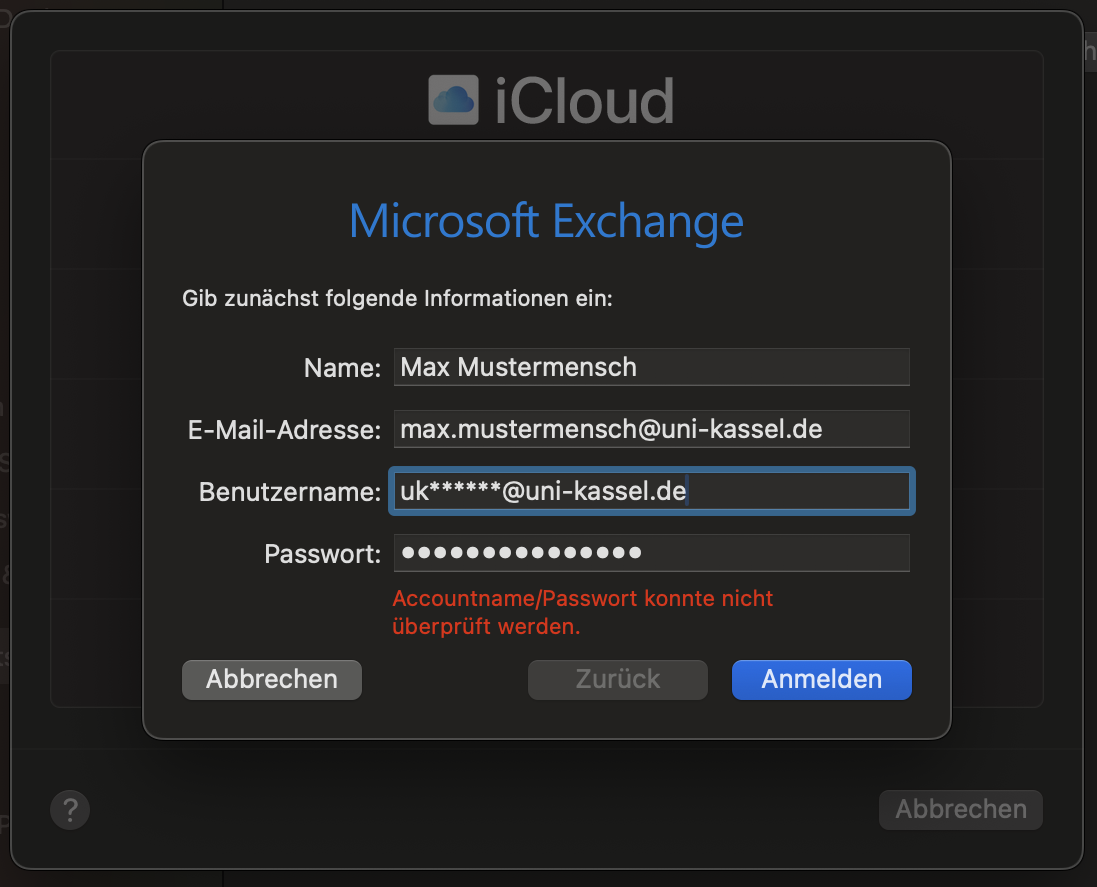
The following window will appear. Please enter your UniAccount in the format
< UniAccount@uni-kassel.de > as your username.
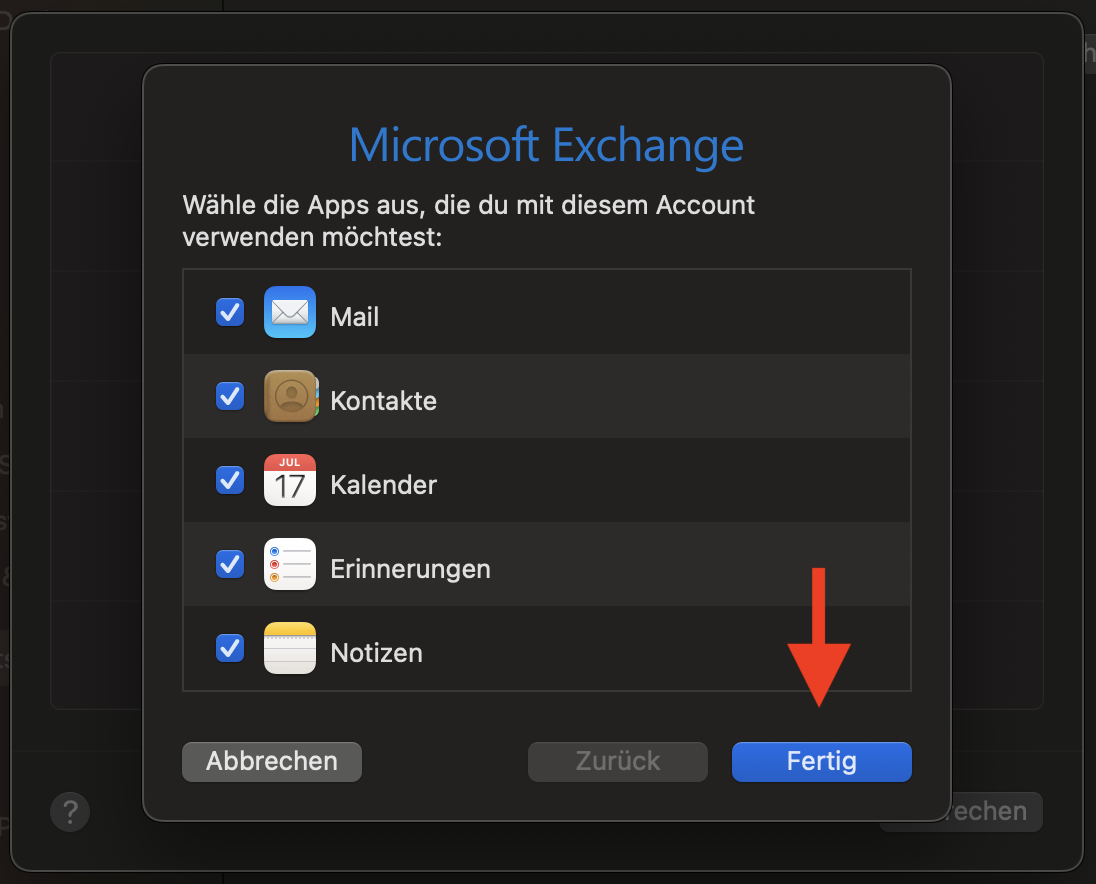
You can now specify which content you want to sync with your Exchange account. Complete the setup of your Exchange account by clicking the "Done" button.
Using Apple Mail
Open Apple Mail by clicking the envelope icon in the Dock. If Apple Mail isn't in your Dock, press the "cmd" + Spacebar key combination, type "Mail" in the search field, and then press the Enter key.

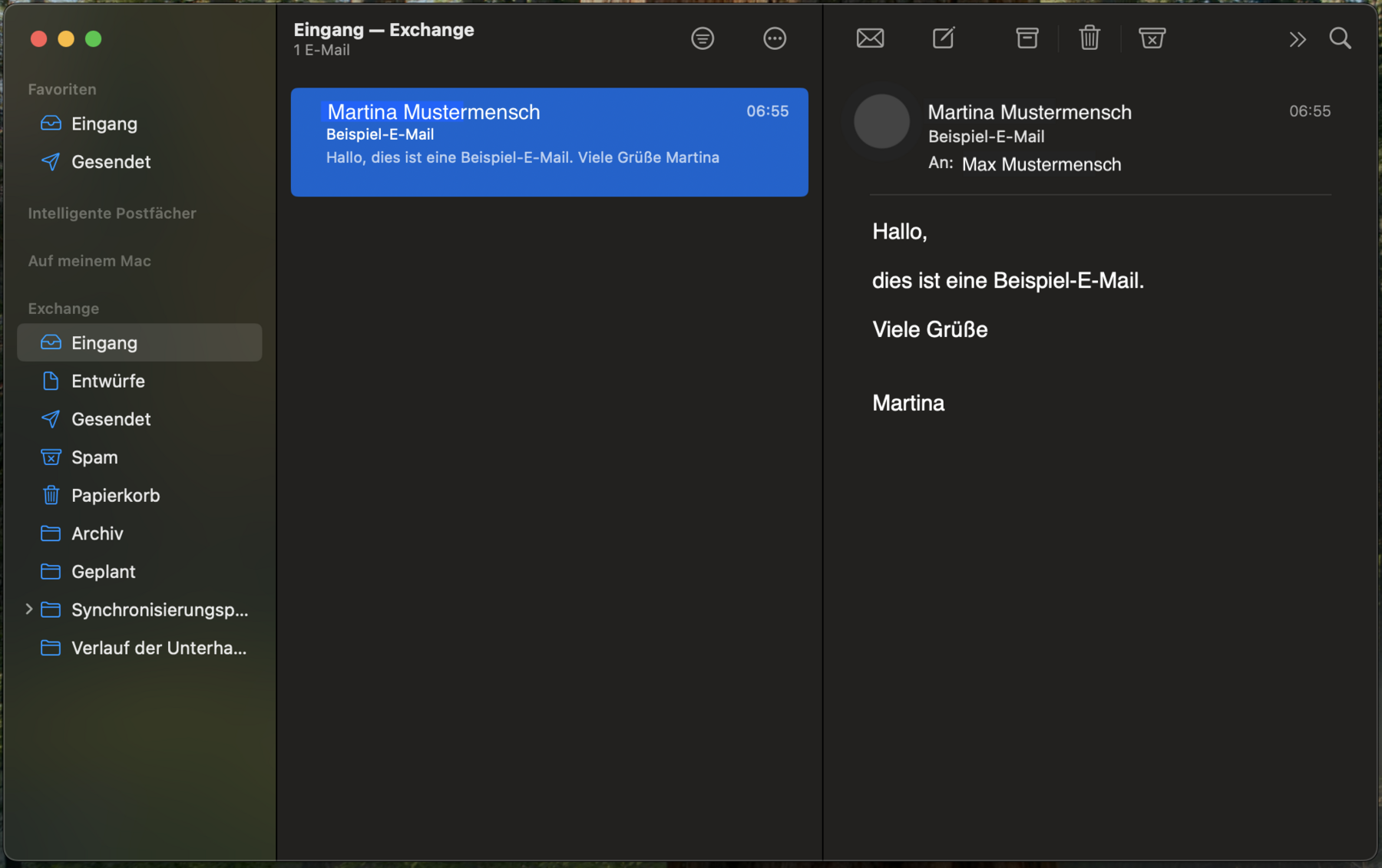
The Mail user interface is divided into 3 columns:
- Left column: Here you’ll find an overview of all email accounts and mailboxes that have been set up in Mail.
- Middle column: This column displays emails from the mailbox you previously selected in the left column.
- Right column: Emails that you have selected in the middle column are displayed here.
Compose e-mail
To compose an e-mail, click on the button with the pencil symbol in the top menu bar.
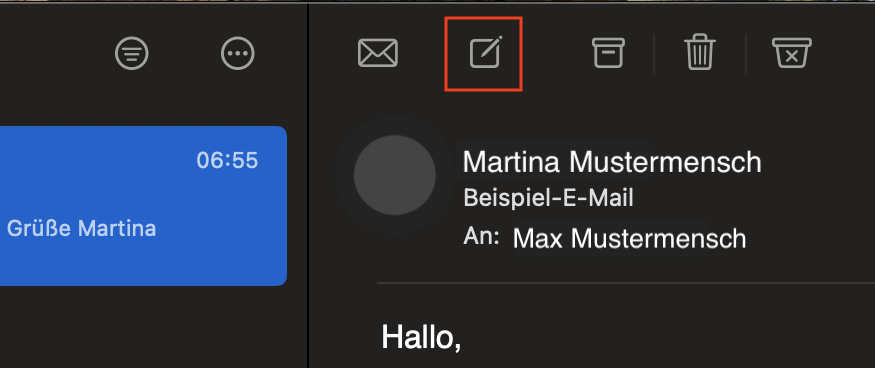
In the newly opened window, enter the recipient's e-mail address in the "To" text field. If your recipient is already in your contacts, it is sufficient to enter a few letters of their name. A contact suggestion should appear, which you can confirm with the Enter key. Once you have written a subject and the email text, you can attach files to your email. To do this, click on the paper clip symbol in the top menu bar of the email window. You can also integrate images directly into the email text by dragging and dropping the desired image to the appropriate place in the text.

E-mail administration
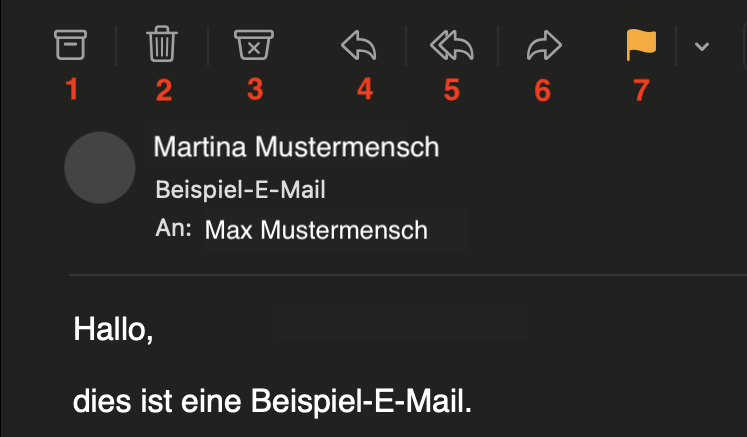
To organize your emails, you have several options available. These are located above your email list. Select one or more emails, and then click one of the following buttons:
- Archive: Moves the email to an archive folder.
- Delete: Moves the email to the Trash.
- Move to Spam: Moves the selected emails to the Spam folder.
- Reply: Opens a window to compose a reply to the selected email.
- Reply All: Send a reply to all recipients of the selected email.
- Forward: To send a copy of the selected email.
- Flag: To organize your emails.
Open the Calendar by clicking the Calendar icon in the Dock. If the Calendar isn't in your Dock, press the "cmd" + Spacebar key combination and type "Calendar" in the search field. Then click the Return key.

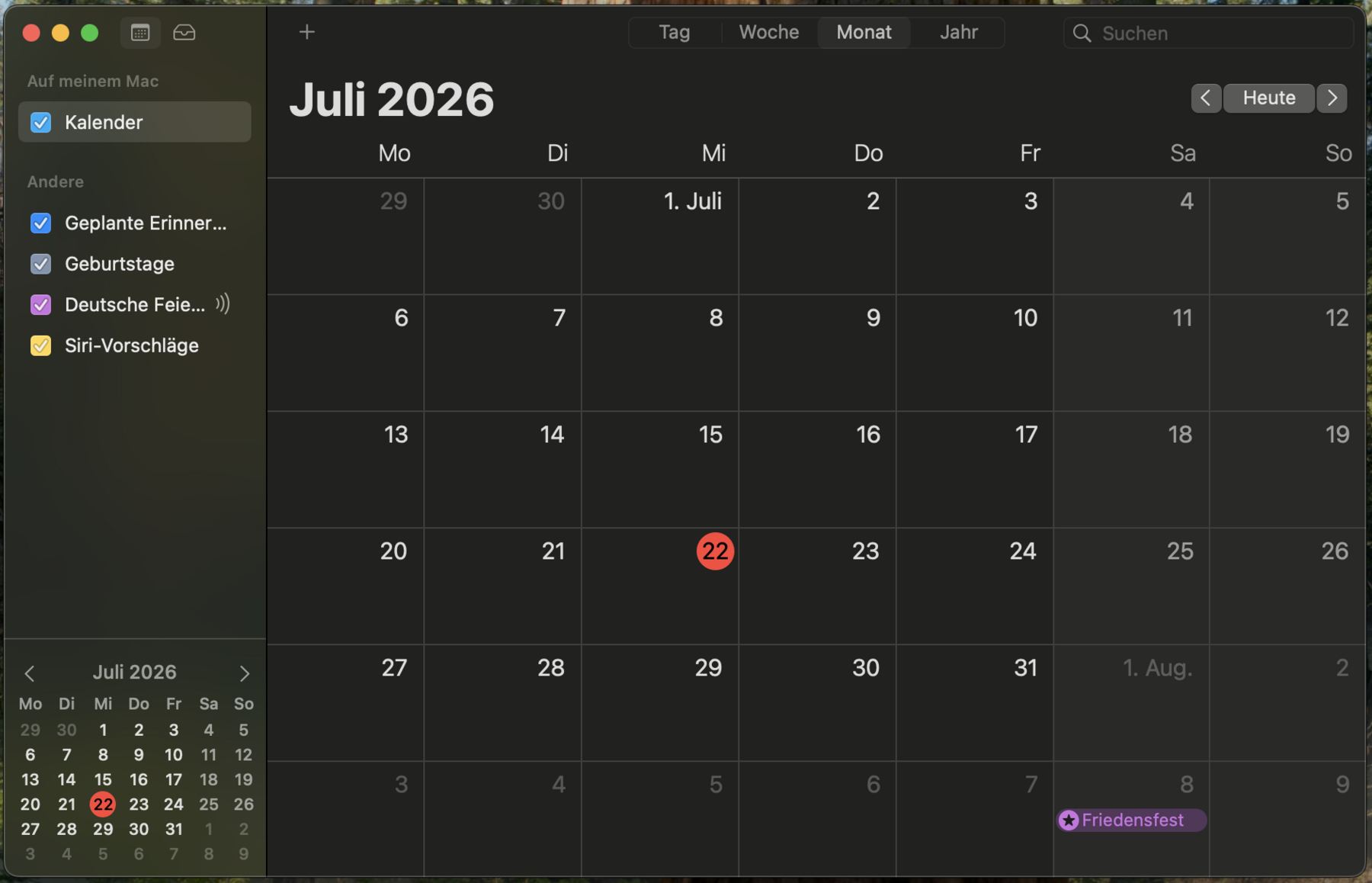
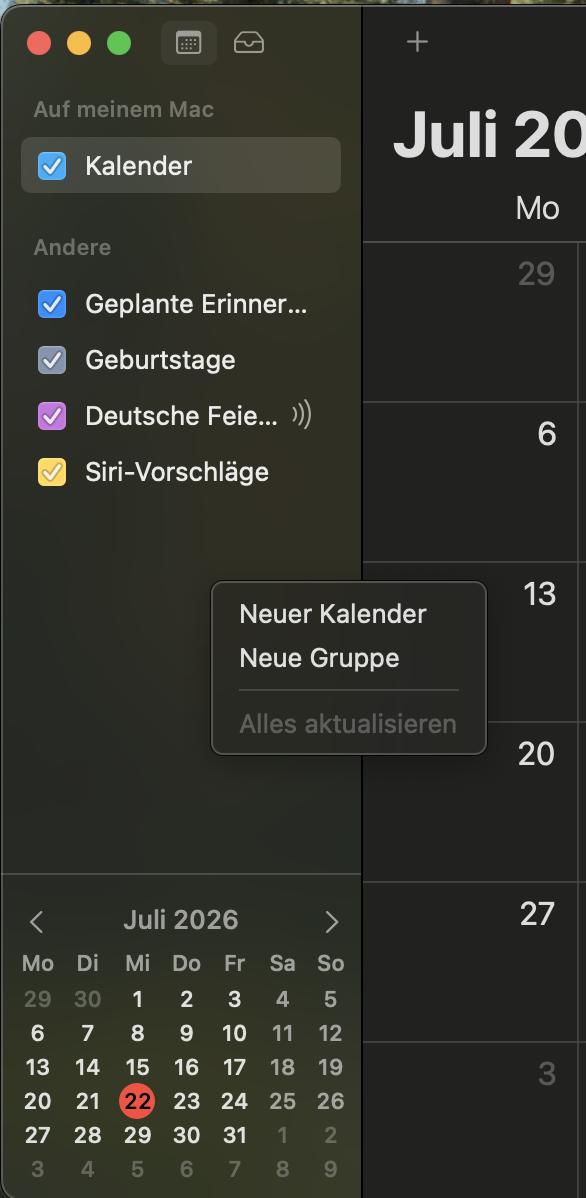
The Apple Calendar interface has two sections:
- Left column: Here you’ll find a list of all calendars.
- Right column: Here you can view the day, week, month, or year view.
Add appointment and calendar
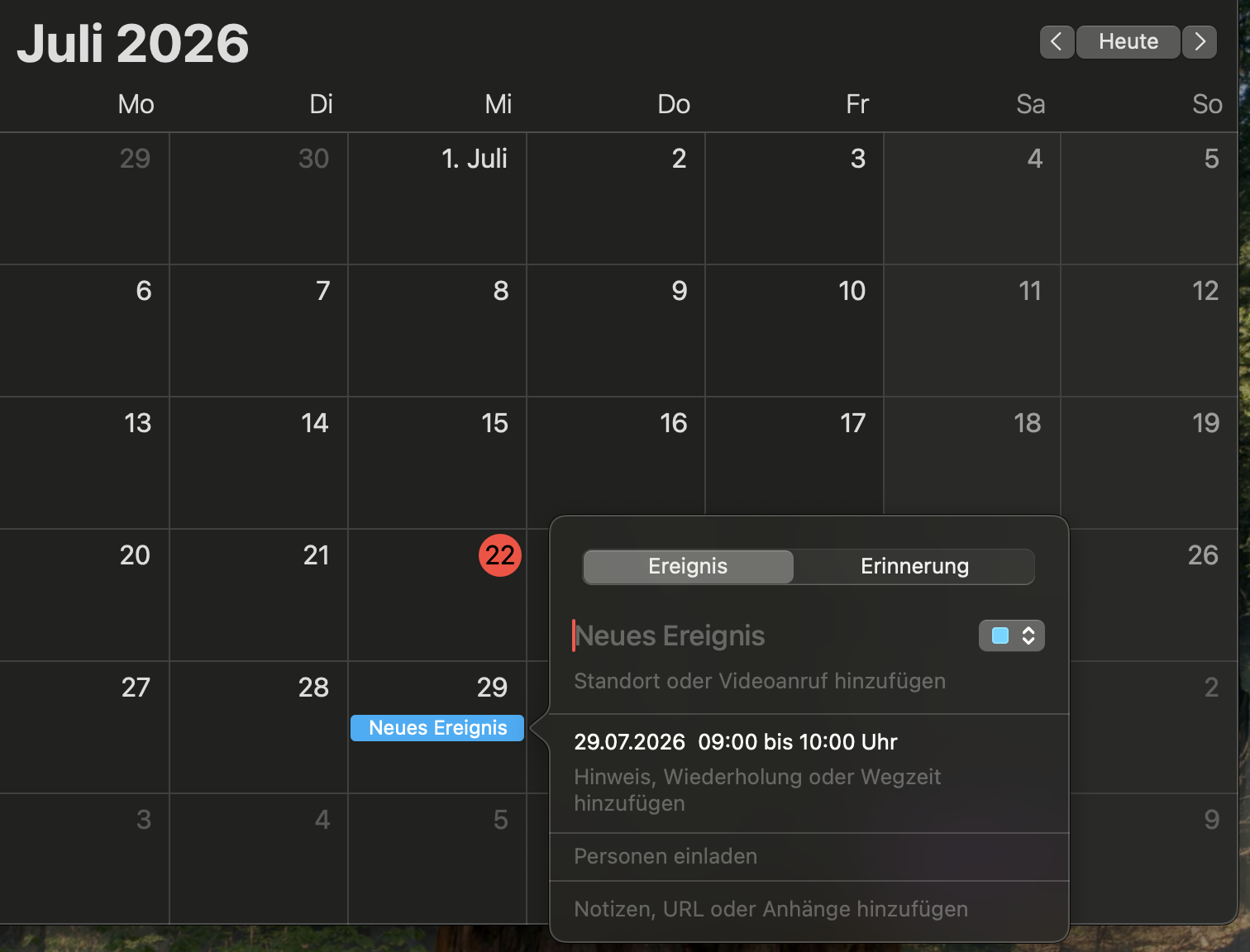
To add an appointment, double-click the desired location in the calendar view; a small window will open where you can enter your appointment details.
Manage view
If you want to organize your appointments in different calendars, create a new calendar by right-clicking in the left column and then selecting “New Calendar.”
Go-Link for this page: https://www.uni-kassel.de/go/outlook-unter-mac