

Include external folders in the mailbox
The content on this page was translated automatically.
The prerequisite for this is that all folders, including all parent folders, have been shared accordingly (see Sharing).
Outlook 2024
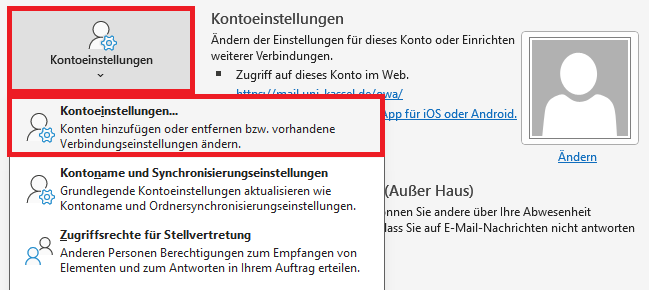
First click on "File" in the top left-hand corner. Then click on "Account settings" and then on "Account settings" in the menu that opens.
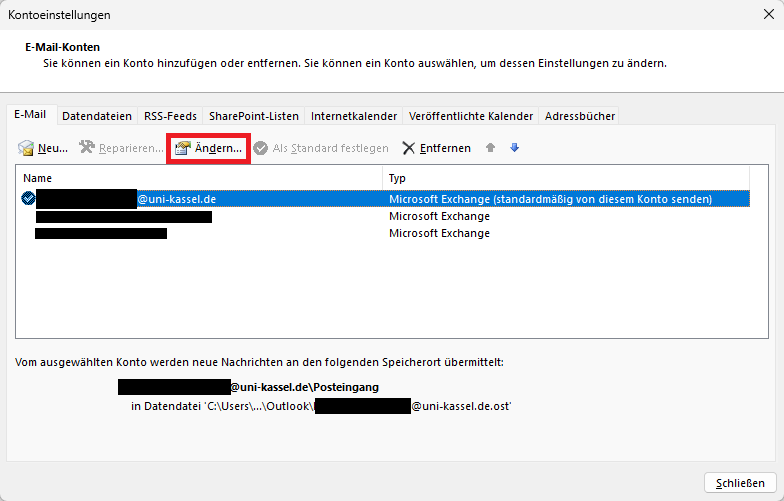
A new window opens. Select the account in which the folder/mailbox is to be added so that it is highlighted in blue. Then click on the "Change" button.
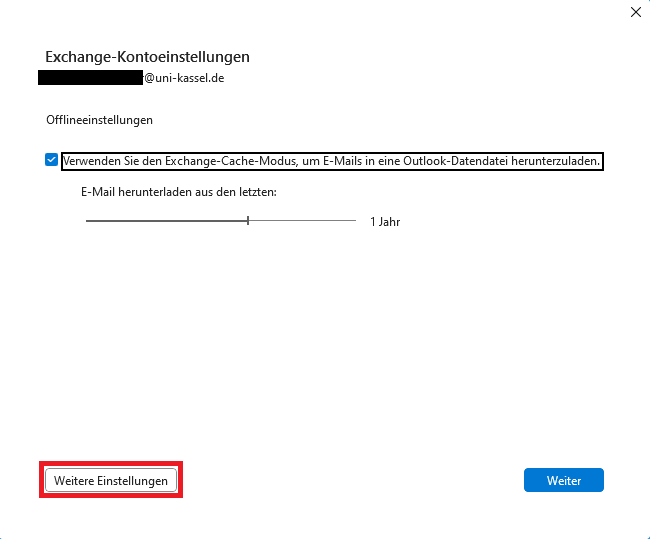
Another window will open. Please click on "Advanced settings" here.
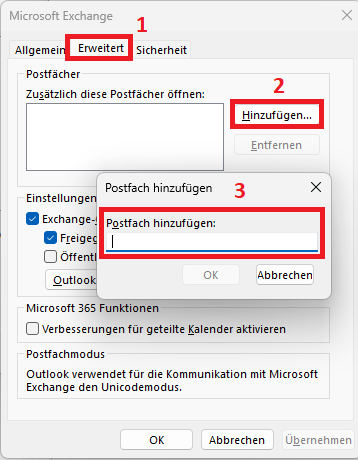
In the new window that opens, please click on the "Advanced" tab. Then click on "Add" and enter the name of the account whose mailbox/folder you want to integrate in the following window.
Confirm your entries with "OK" and then close all open windows and restart Outlook.
Outlook 2016
First go to "File", then to "Account settings" and select "Account settings" again from the following drop-down menu.
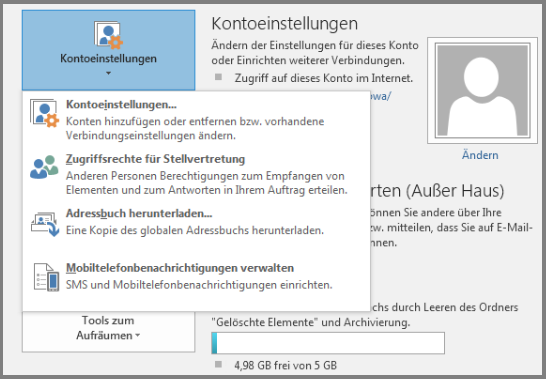
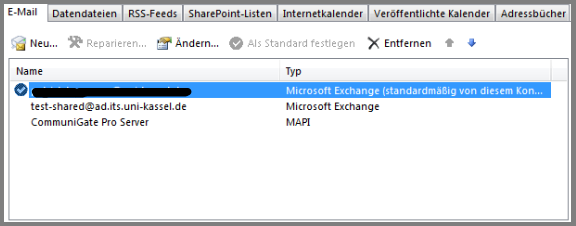
Your accounts are listed in the following window. Select the account in which the folder/mailbox is to be added so that it is highlighted in blue. Then click on the "Change" button.
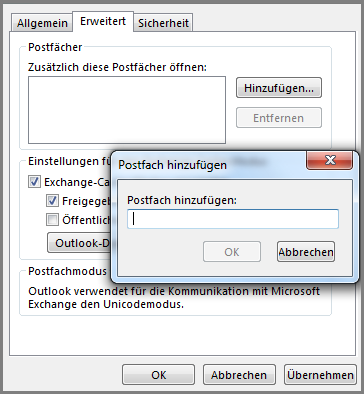
A window opens again. Select the "Advanced" tab there. Next, click on "Add". In the following window, enter the name of the account whose mailbox/folder you would like to integrate. Confirm your entries and close all windows. If necessary, restart Outlook.
Go-Link of this page: https://www.uni-kassel.de/go/fremde-ordner-einbinden