

Integration of a group mailbox
The content on this page was translated automatically.
Outlook 2024
Open Outlook. Click on "File" at the top left. Then click on the "Account settings" button and click on "Account settings" again in the menu that opens below.
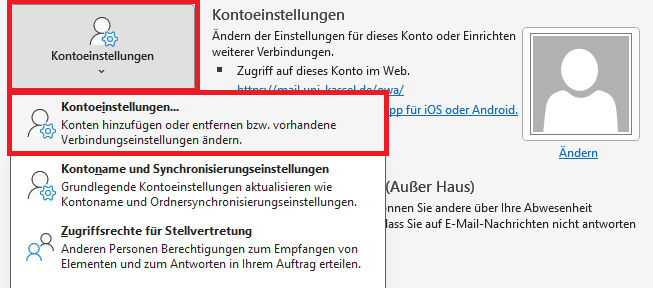
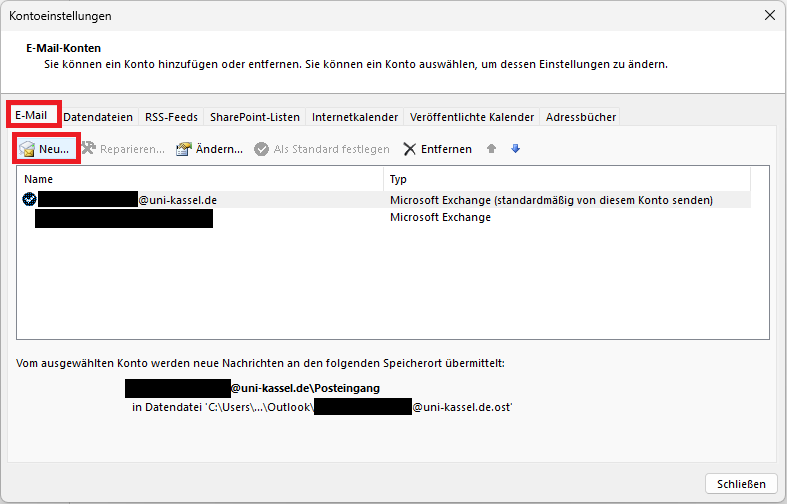
A new window with the title "Account settings" will open. Click on the "Email" tab and then on the "New" button so that you can add the new account.
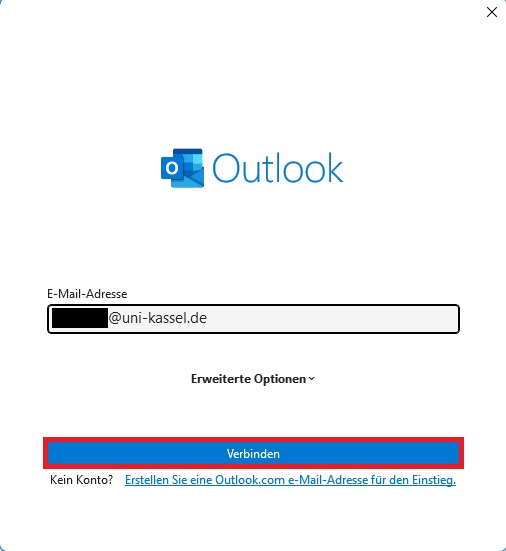
Another window opens. Please enter the e-mail address of the group mailbox here in the form <smx12345@uni-kassel.de>.
Then click on the "Connect" button.
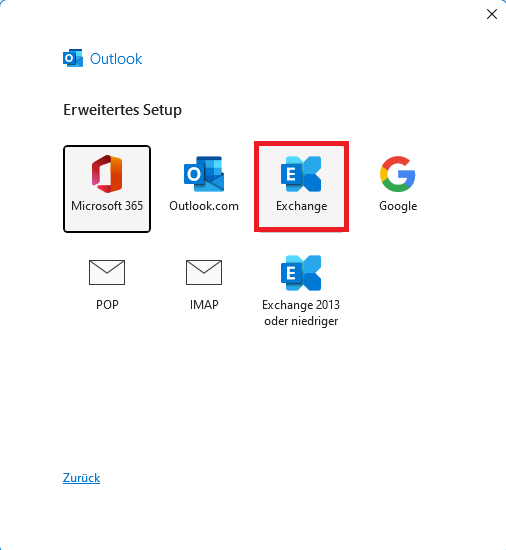
Another window with the title "Advanced setup" may open. Please click on "Exchange" here.
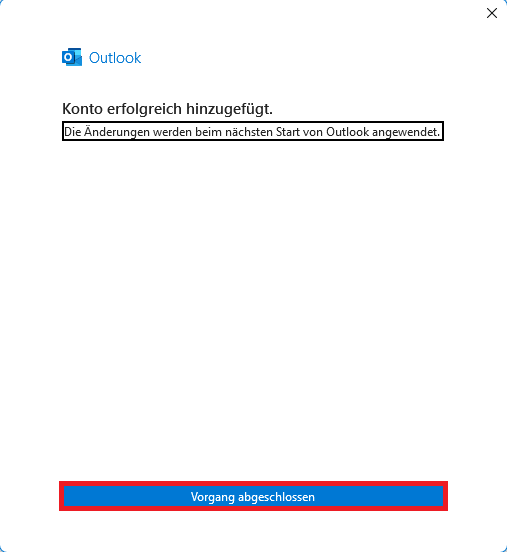
You will then receive a message that the account has been successfully added. Please click on the "Process completed" button and restart Outlook.
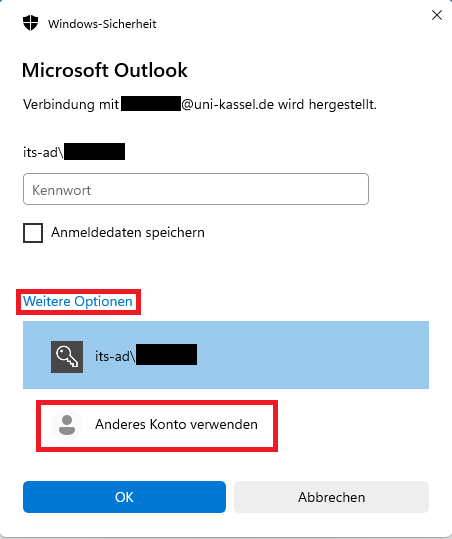
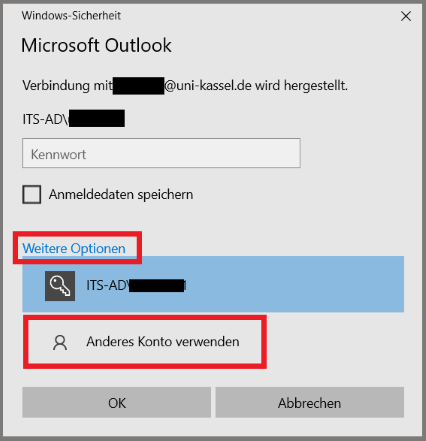
When Outlook is restarted, a login window appears. Please click on "More options" and then on "Use another account". Then enter <its-ad\yourUniAccount>. The password corresponds to the password of the account that has been activated for the group mailbox (usually your primary account).
Finally, click on the "OK" button.
The group mailbox should now be integrated in your Outlook.
Outlook 2016
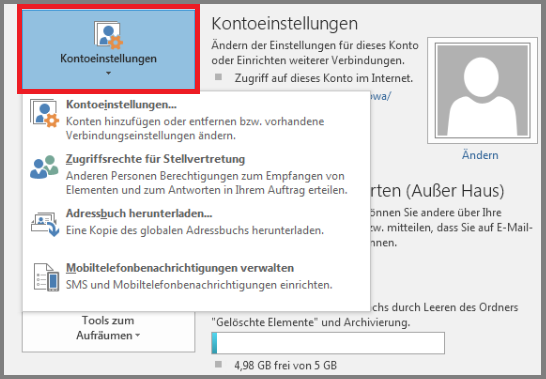
Click on "File" in your open Outlook. Under the "Information" category, you will find a drop-down menu called "Account settings". Select "Account settings" there again.
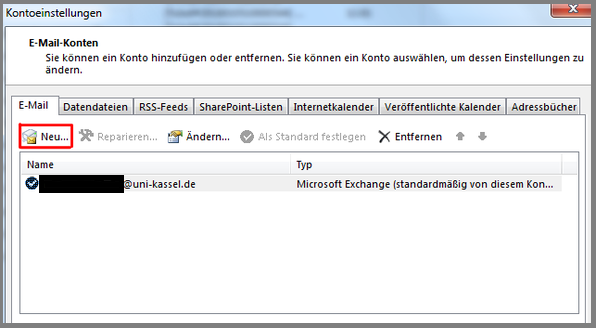
Once the new window entitled "Account settings" has opened, click on the "Email" tab and then on the "New..." button to add the new account.
In the "Select service" window, select "Email account" and click "Next". Please note that this step may be skipped in Outlook 2016/2019.
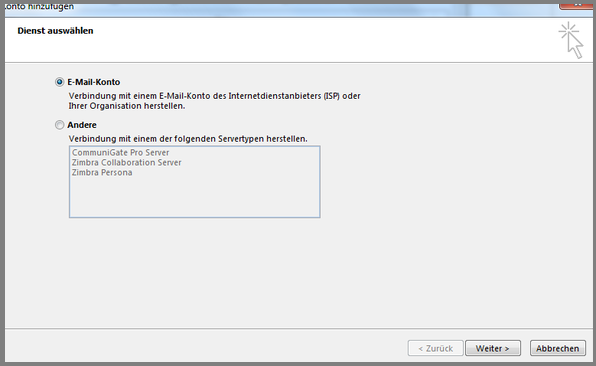
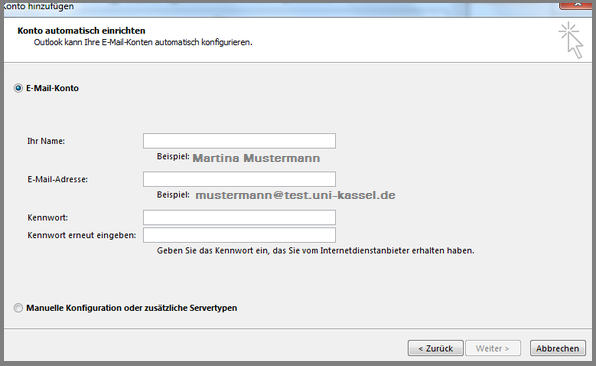
In the following form with four fields, enter the name and e-mail address of your new account. In Outlook 2019, only enter the email address here. Leave the fields "Password:" and "Re-enter password:" empty. Then confirm with "Next".
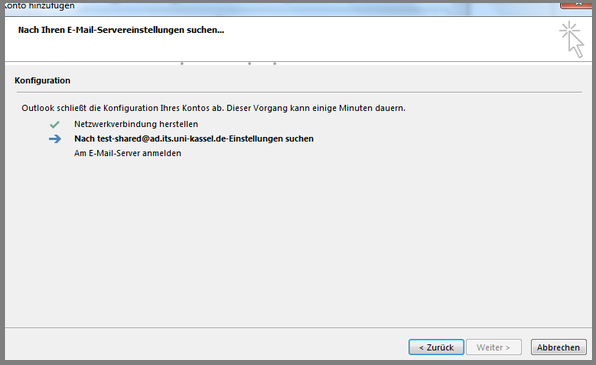
The next step is to configure your account. This process can take up to 20 minutes. Outlook must then be restarted to complete the integration of the new account.
After the restart, a login window will open for the newly integrated mailbox.
Watch out for a pop-up window that may open unnoticed in the background.
Select "Use another account" and enter "ITS-AD\IhrUniAccount" (e.g. ITS-AD\uk012345). The password corresponds to the password of the account that is activated for the group mailbox (typically your primary account).
Go-Link of this page: https://www.uni-kassel.de/go/gruppenpostfach-outlook