

E-mail address and PO box
Contents
Access to your e-mail account
When you activate your UniAccount, an e-mail address and an e-mail inbox are automatically created for you. The automatically created e-mail address has one of the following patterns, depending on your status.
| Student | <UniAccount>@student.uni-kassel.de |
| Employee | <UniAccount>@uni-kassel.de |
| Guest accounts | <UniAccount>@gast.uni-kassel.de |
You can access your Uni Kassel mailbox via a web browser or integrate it into Outlook/Thunderbird/AppleMail.
For access via web browser, please use this link:
To integrate the mailbox in a desktop app, please follow our instructions.
The login in the web browser is only possible with the user name (e.g. uk012345), not with the complete e-mail address!
Set up new e-mail aliases
You have the option of creating additional e-mail aliases. All these "alternative addresses" share the same mailbox. If you need another mailbox, please use a secondaryaccount/group mailbox.
Open a new browser window and go to the address https://www.uni-kassel.de/go/userapp.
Then log in with your UniAccount and the corresponding password and accept the IT user regulations by ticking the appropriate box.

After logging in, the IDM start page is displayed in tile form. Click on "Request access".

Click on "Add address" under the title "E-mail".
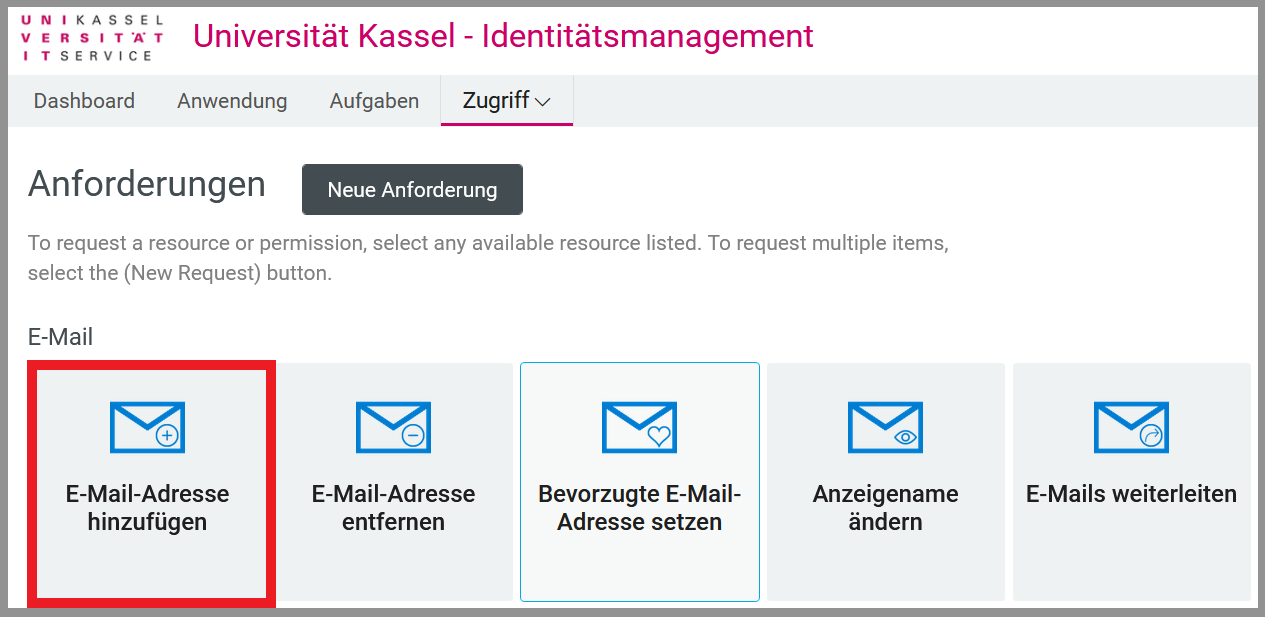
If nothing happens after this action, your web browser is probably blocking the pop-up window that was supposed to open. Please make sure that your web browser allows the opening of pop-up windows for userapp.uni-kassel.de.
In Mozilla Firefox, for example, you will see a message and an option to allow the pop-up window directly below the address bar.
In the new window, enter thereason for the request and the first part of the e-mail address.
Please select an ending of the e-mail address on the right by clicking on it, otherwise the process cannot be completed.
Click on "Send" in the last step.

Employees have the option of choosing between different endings for their e-mail address. For students, the ending is ...@student.uni-kassel.de. For guests, the ending is ...@gast.uni-kassel.de.
Set preferred e-mail address
The preferred e-mail address is displayed as the sender address by default. If a personnel number is assigned to your account, the preferred e-mail address is also your contact address in the Outlook address book and the person search.
To change your preferred e-mail address, log in to Identity Management as described above and click on "Request access".
Then click on "Set preferred e-mail address". A new tab will open in the web browser.
Select the desired address under "E-mail addresses to choose from". This will then be displayed under "Preferred e-mail address".
If no selection options are displayed here, please set up another e-mail address first. Click on "Send" to accept your selection.
You will then see a confirmation that your change has been successfully submitted.

Delete e-mail address
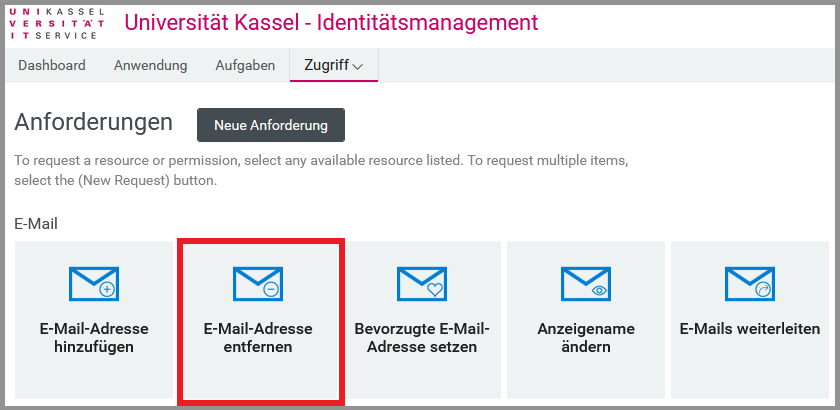
If you want to delete one of your e-mail addresses, log in to Identity Management as described above and click on "Request access".
Please note that you cannot delete the e-mail address set as preferred. In this case, please select a different preferred address first. The original e-mail address of the account (username@(student.)uni-kassel.de) cannot be deleted either.
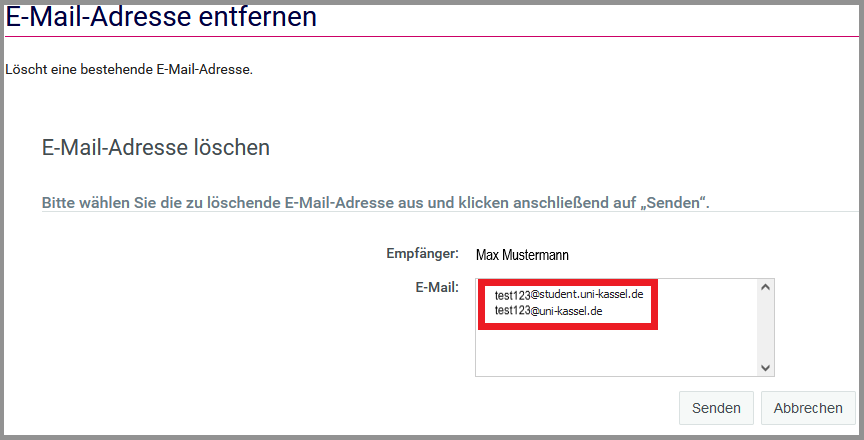
Then click on "Remove e-mail address". A new tab will open in the web browser.
Select the desired address under "E-Mail". Then click on "Send".
You will then see a confirmation that your change has been successfully transmitted.
By removing an alias e-mail address, no messages received/sent via this address will be lost.
Use of mail functions
Once you have configured your e-mail in IDM, you can make various settings to optimize the use of mail and groupware services.
Go-Links on this page: https://www.uni-kassel.de/go/e-mailadresse