

eduroam under iOS
This page contains automatically translated content.
On this page you can find out how to integrate the eduroam WLAN manually under iOS.
Prerequisites
- An activated UniAccount
- A smartphone with an iOS version of at least 2.0
Login to the eduroam WLAN
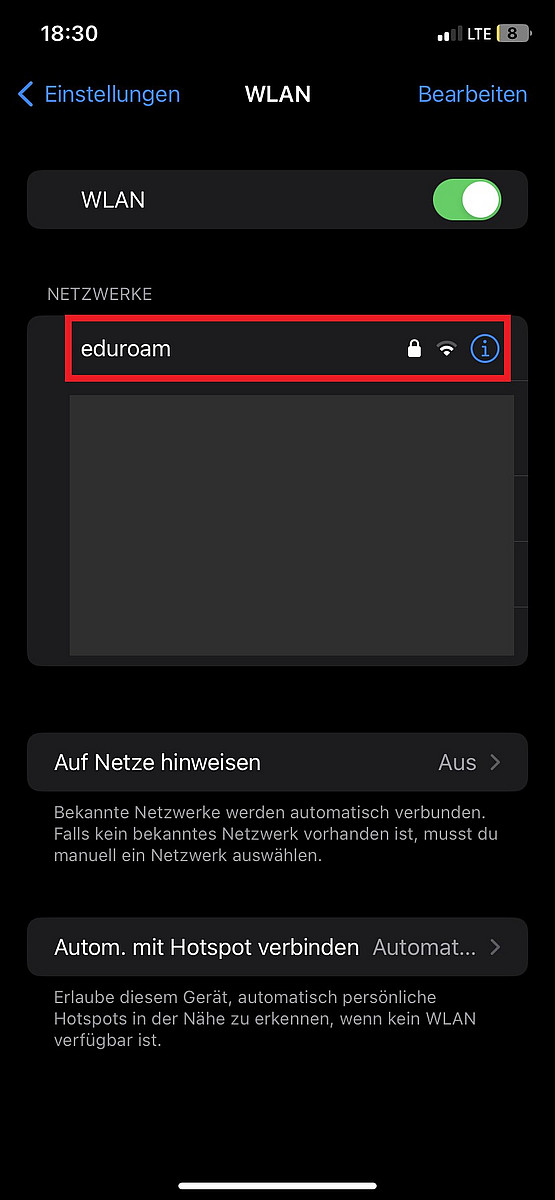
Navigate to "Settings" -> "WLAN" and select the WLAN "eduroam".
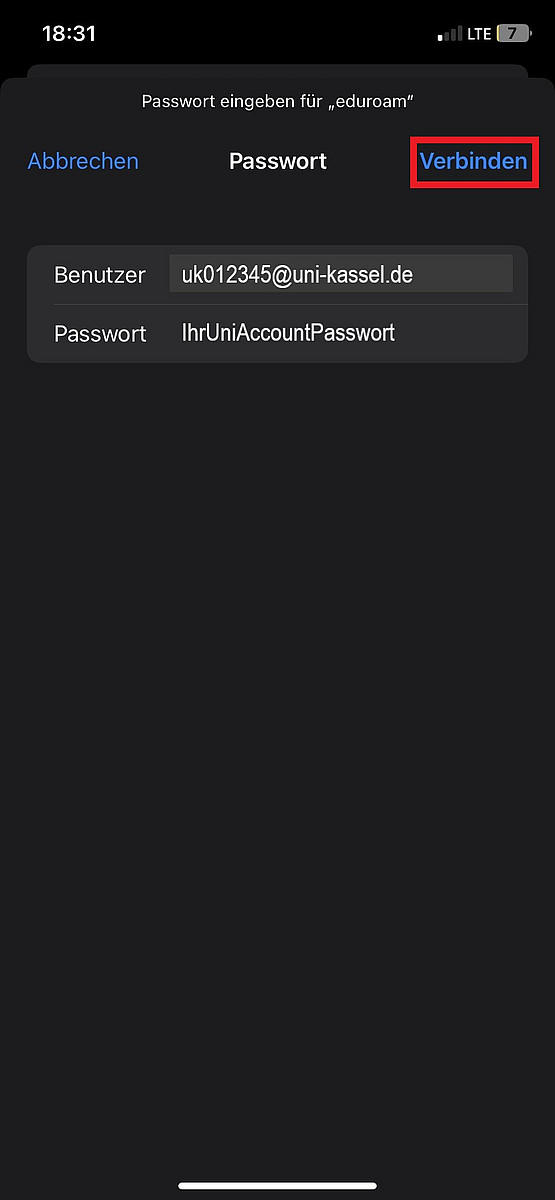
Log in with "IhrBenutzername@uni-kassel.de" (e.g. uk012345@uni-kassel.de) and your UniAccount password and click on "Connect".
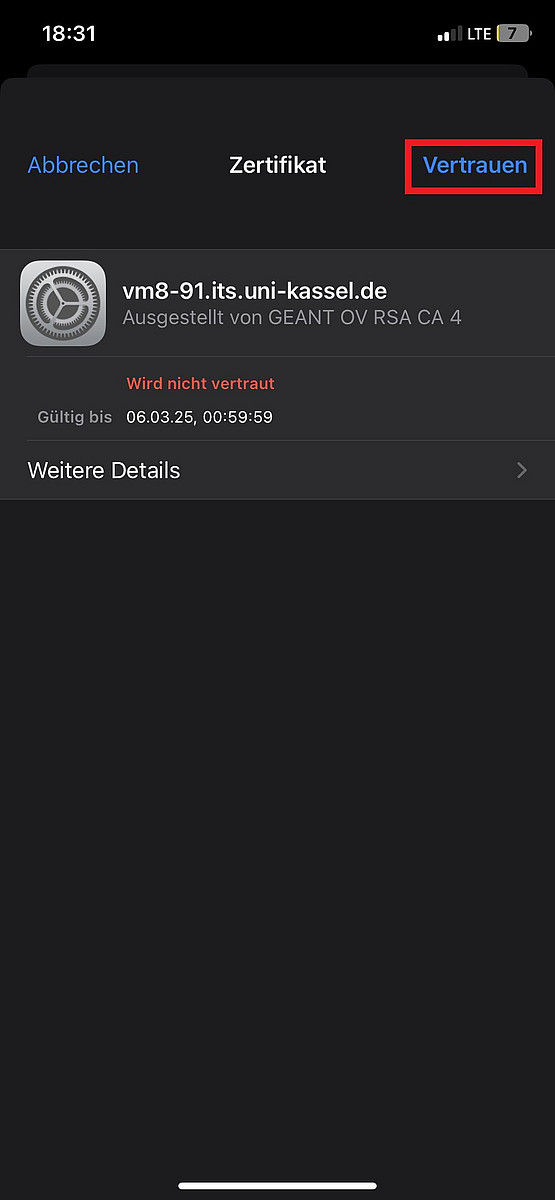
If a certificate is displayed, install it by clicking on "Trust".
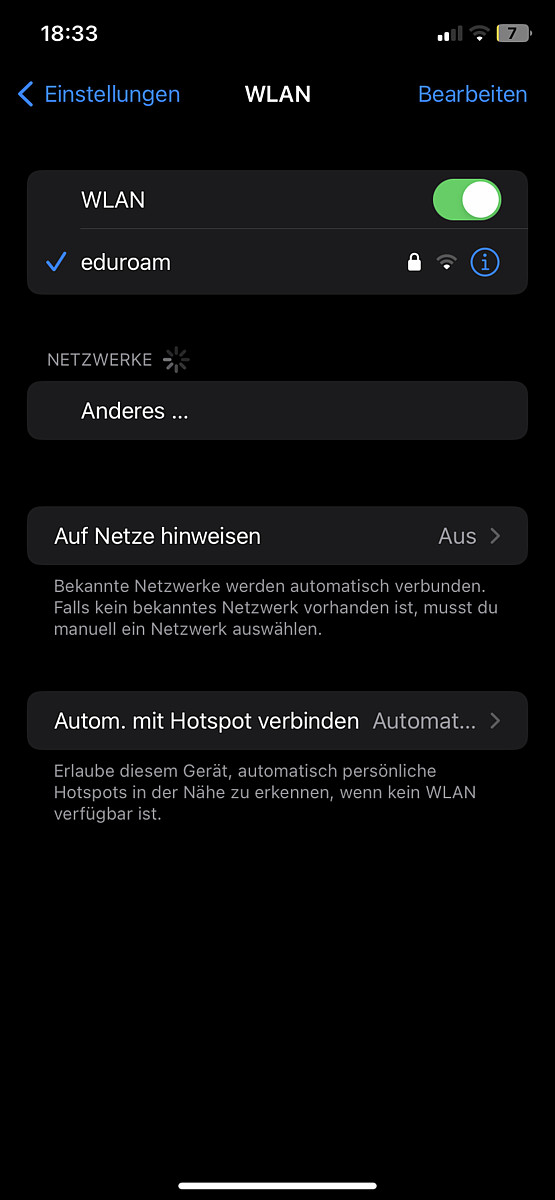
You are now permanently logged into the University of Kassel WLAN.
However, please remember that you must change your UniAccount password every 180 days. This also includes logging into the WLAN.
If the connection is no longer possible after changing the password, delete eduroam from the WLAN settings and carry out all the steps described again.
Go-Link of this page: https://www.uni-kassel.de/go/eduroam-ios