eduroam under Windows
This page contains automatically translated content.
On this page you will learn how to integrate the eduroam WLAN manually under Windows.
Prerequisites
- Valid UniAccount of the University of Kassel.
- Functioning WLAN card or WLAN stick with WPA/WPA2 support.
- Automatic IP address assignment (DHCP) must be activated. This is the case by default.
- One-time installation of three certificates for the use of the WLAN.
Step-by-step installation of the certificates for "eduroam"
Please install the required certificates. Download the three .crt files for Windows.
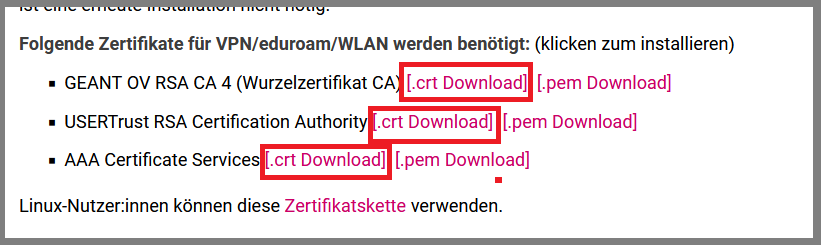
When clicking on the root certificate, a message may appear stating that the certificate is already installed. This message is incorrect. In this case, please right-click on the relevant certificate to download and "reinstall" it.
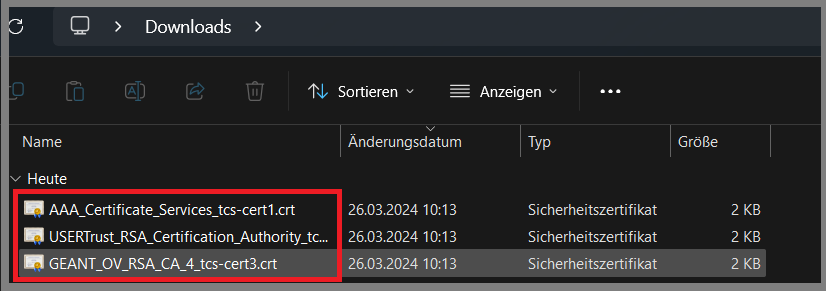
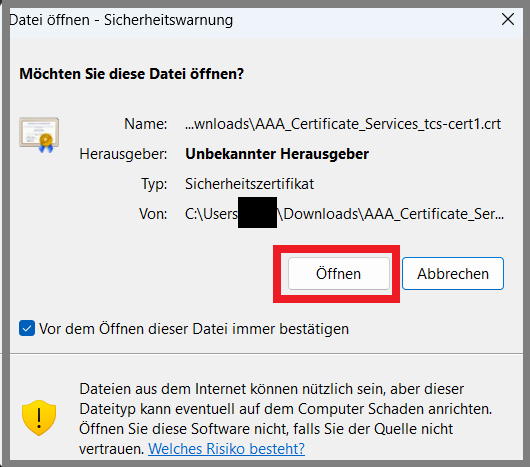
Open your download folder and select one of the files by double-clicking on it. Select "Open" in the new window.
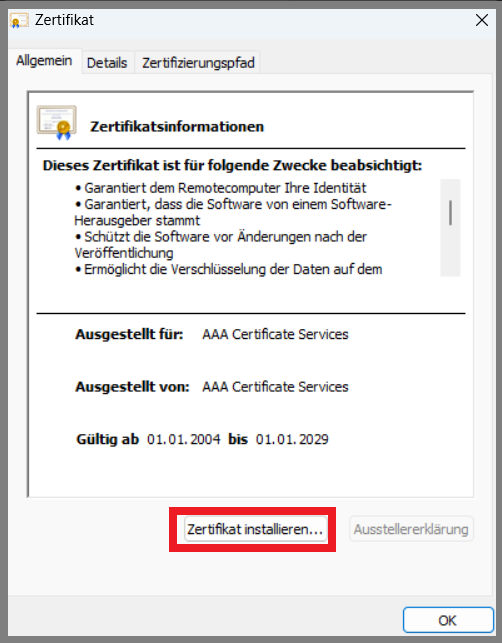
Now select "Install certificate".
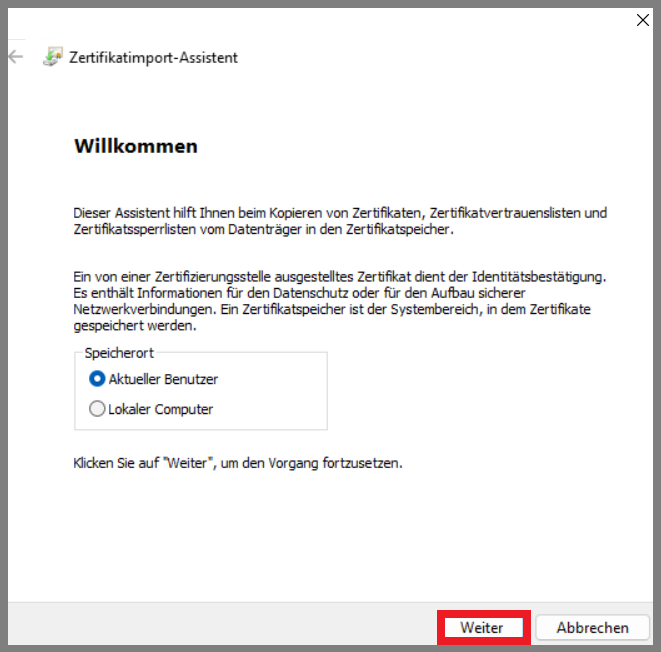
In the next step, select "Current user" and confirm with "Next".
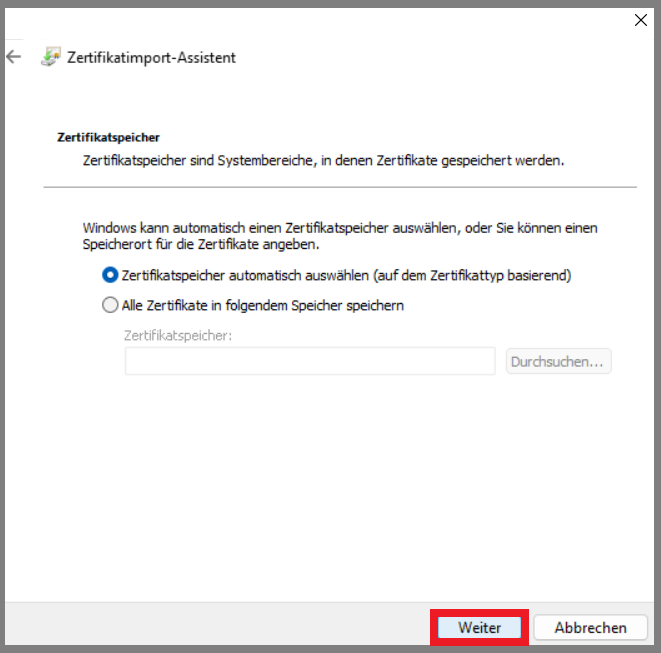
Then select "Automatically select certificate store" and click "Next".
Click on "Finish" and then confirm the message with "OK".
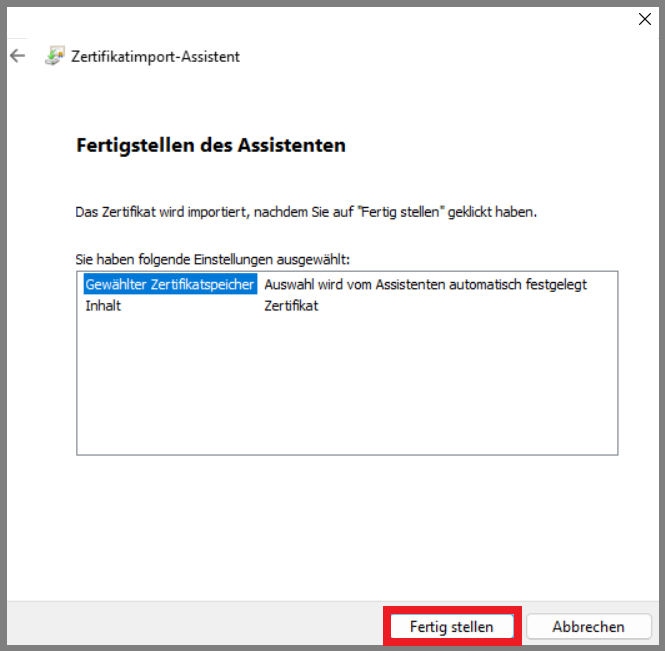
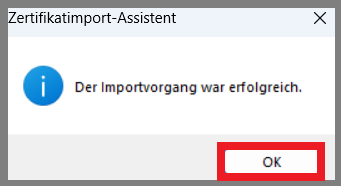
The certificate is now installed. Now repeat these steps for the other two certificates.
Login under Windows
Once you have installed the relevant certificates, you can connect to eduroam.
To do this, select eduroam from the available networks in the taskbar. Check the "Connect automatically" box. Now click on "Connect".
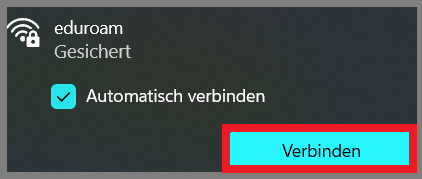
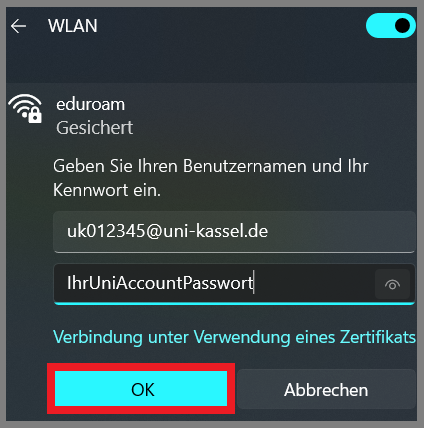
In the next step, log in with your UniAccount, e.g. uk012345@uni-kassel.de(not...@student.uni-kassel.de) and your UniAccount password.
Then click on "OK" to establish a connection with the eduroam WLAN.