

Access via smartphone (Android / iOS)
The content on this page was translated automatically.
Contents
Setup for Android smartphones
Navigate to the settings menu of your smartphone. Then tap on "Accounts and backup" and then select "Manage accounts" and "Add account". Click on "Exchange" to continue.

Enter your e-mail address <ukxxxxxx@student.uni-kassel.de/uni-kassel.de> in the corresponding text field and then select the "Set up manually" option by clicking on it.

Enter the following address in the Server field <mail.uni-kassel.de>. In the Domain/username field, please enter the domain and your UniAccount user name in the format <its-ad\ukxxxxxxxx>. Then enter your password and confirm your entry with "Next".
You can then specify which information should be synchronized with your Exchange account. Confirm your selection by clicking on "Next".
You may be asked again to give the Exchange server permissions to control security-related functions on your device. Confirm this by clicking on "Activate".
Finally, you can give your account a name. Complete the setup by clicking on "Next".

Setup for Apple iOS smartphones
First open the "Settings app" on your smartphone and select "Mail". Next, tap on "Accounts" and then on "Add account".

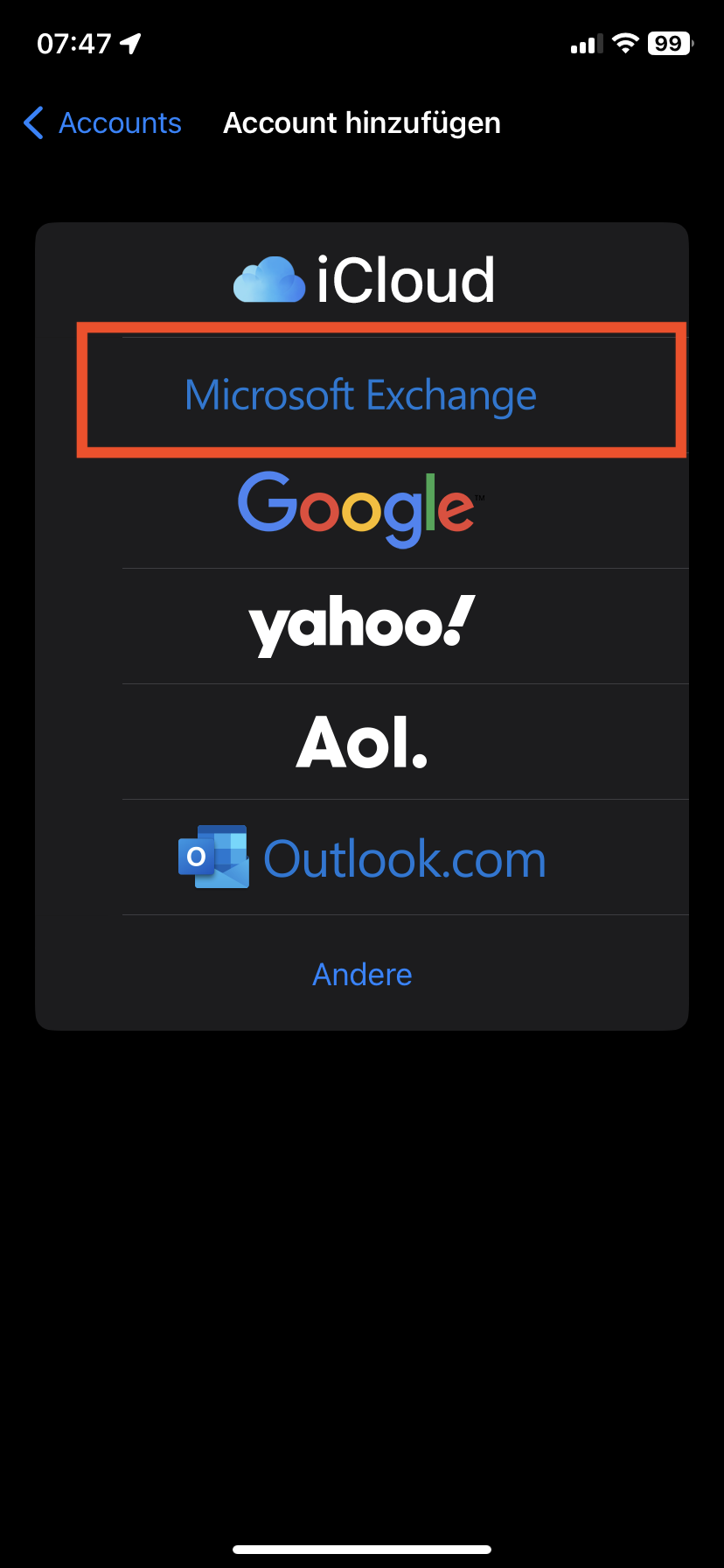
Select the "Exchange" menu item.
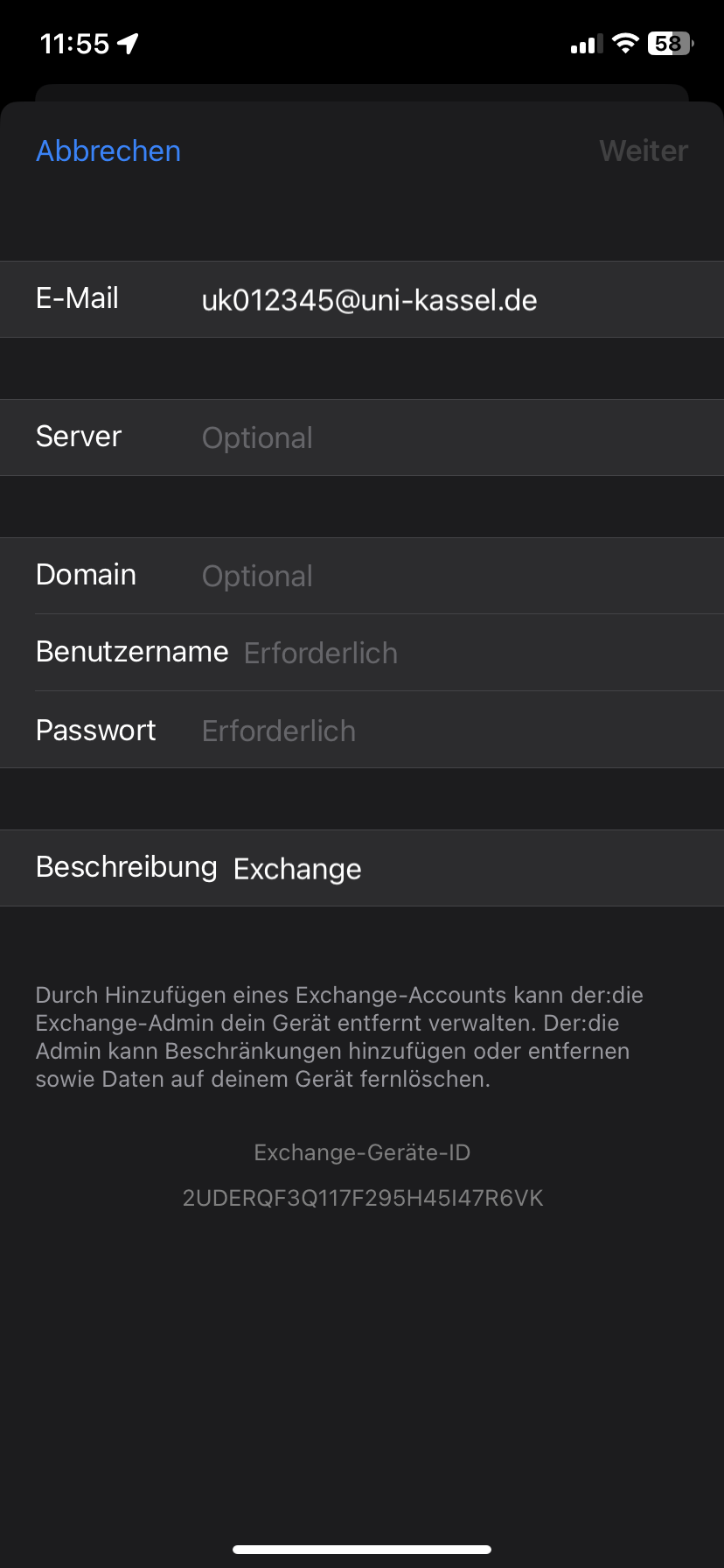
Enter your e-mail address <ukxxxxxx@student.uni-kassel.de/uni-kassel.de> in the text field above and enter a description for your account. Confirm your entry by clicking on "Next". Then enter your password and confirm again by clicking on "Next".

Enter <mail.uni-kassel.de> in the server text field. For domain and user name, use <its-ad> and your user name <ukxxxxxx>. Click on "Next" to confirm your entry.
In the next step, select which data you would like to synchronize from your Exchange account. Finally, complete the setup by clicking "Save".
Go-Link of this page: https://www.uni-kassel.de/go/zugriff-smartphone