

Substitute / Assign access
The content on this page was translated automatically.
Outlook offers you the option of setting up deputies for you. This allows you to share your calendar, emails or tasks with a deputy.
Contents
Outlook 2016
Assigning a deputy
Please go to File in the menu bar and then to "Account settings" and "Access rights for substitutes".
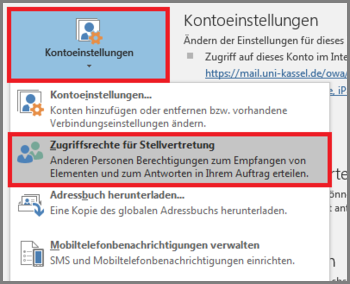
A new window will open. Now click on "Add".
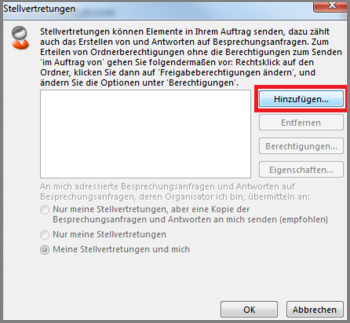
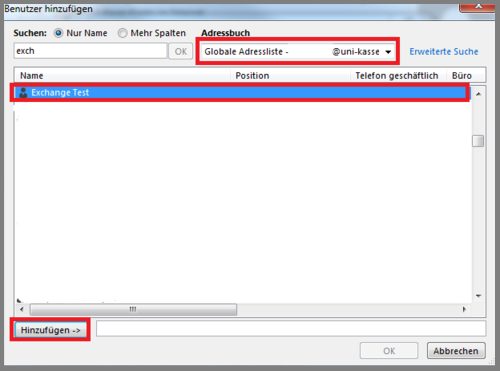
Under Address book, select "Global address list" and search for the desired name (surname first)
Select this and click on "Add" and then on "OK".
You also have the option of adding groups using the same process.
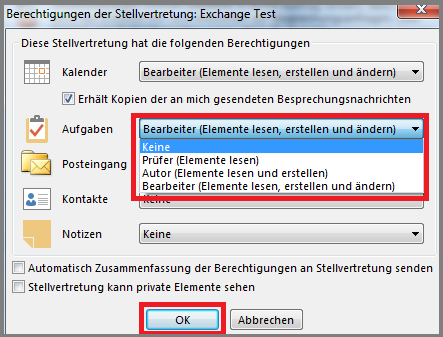
Here you can now set the permissions for the "Calendar", "Tasks" , "Inbox", "Calendar" and "Notes" components.
If you have assigned "Editor" rights to the calendar, you can also check the "Receives copies of meeting messages sent to me" box.
The person to whom you have granted this authorization will receive the meeting invitations that are intended for you. This option is usually only necessary for the "Secretary and manager" function.
At the bottom you can also choose whether the deputy can see the private appointments, tasks, etc. When the mails are released, only the inbox is released via this view.
Sharing access to folders
To share a folder (the same applies to inboxes etc.), all top-level folders must first be shared. To do this, right-click on the top-level folder (see example xxx@uni-kassel.de), select the desired folder permissions and add the name of the person you want to share the folder with in the following window.
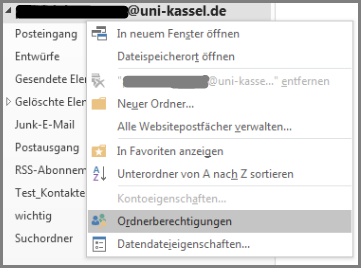
Sharing to subfolders in the email inbox must be set for each folder in the mail view by right-clicking.
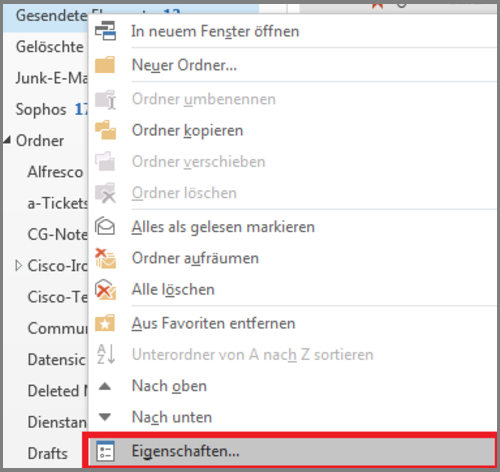
To do this, right-click on the desired folder and then click on "Properties" in the context menu.
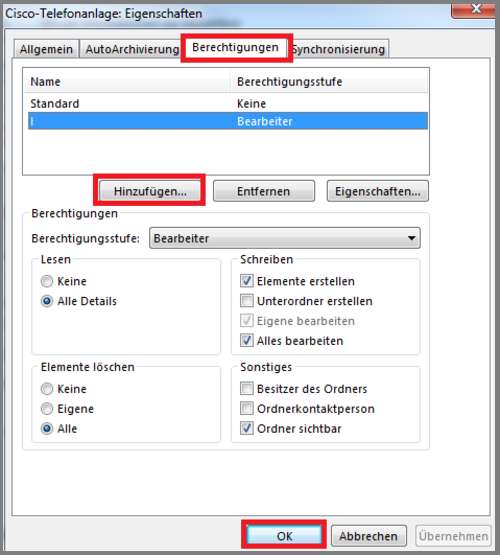
In the window that opens, click on the "Authorizations" tab. Then click on "Add" and add the desired person. Confirm your changes with "OK".
To integrate the shared folders/the shared mailbox in Outlook 2016, please follow the corresponding instructions under Integrate external folders in the mailbox.
Outlook 2024
First click on "File" at the top left. Then click on "Account settings" and then on "Access rights for substitutes".
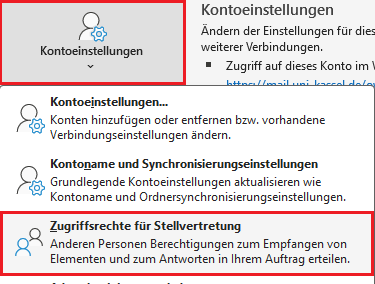
A new window will open. Click on "Add" here. Your Outlook address book opens in a new window. Select the person who will act as your deputy. Then click on "Add" at the bottom of the window and then on "OK".
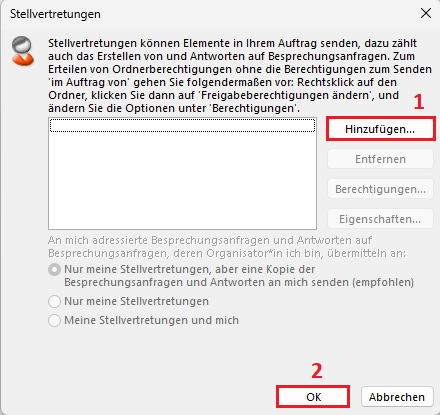
A new window opens. You can now set the permissions for the deputy. You can select which permissions your deputy may have for your calendar, tasks, inbox and notes.
Further down, you also have the option of selecting whether your deputy can also see private elements (appointments, tasks, etc.). When sharing emails, only the inbox is shared in this way.
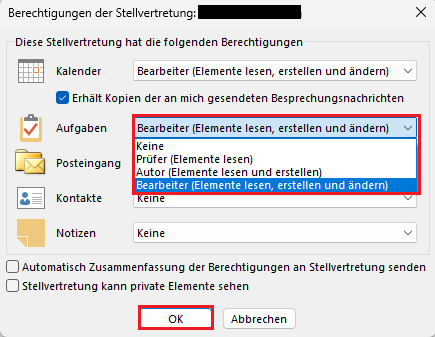
If your deputy has "editor rights" on your calendar, you can also check the box "Receives copies of meeting messages sent to me". However, this is only necessary for the "Secretary and boss" function.
Sharing access to folders
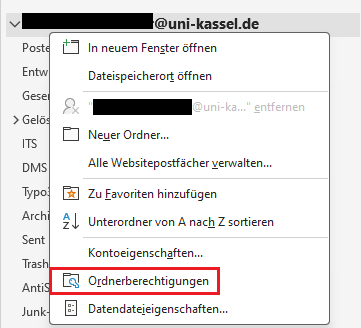
To be able to share folders, it is necessary to share the top-level folder first. To do this, right-click on the top-level folder (e.g. <account@uni-kassel.de>. Then select "Folder permissions" in the context menu that opens.
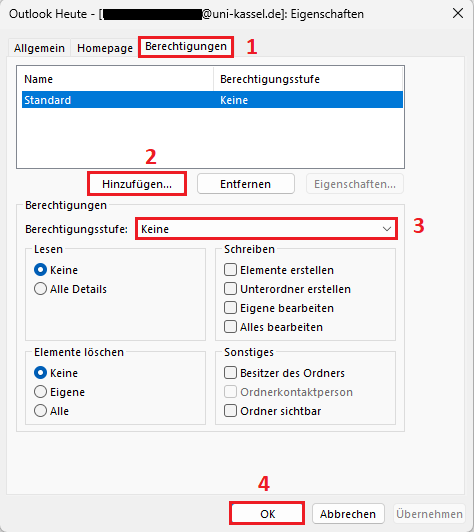
In the new window that opens, select the "Permissions" tab and then click on "Add". Your Outlook address book will open and you can select the desired person. You can then set up which rights the respective person has and confirm your entries by clicking on "OK".
The top folder is now shared. The subfolders are then shared.
To do this, right-click on the desired subfolder that you want to share. Click on "Properties" in the context menu that opens. A new window will open.
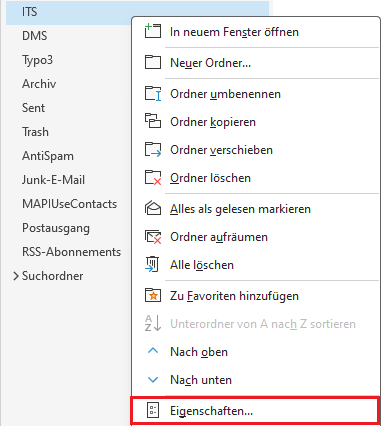
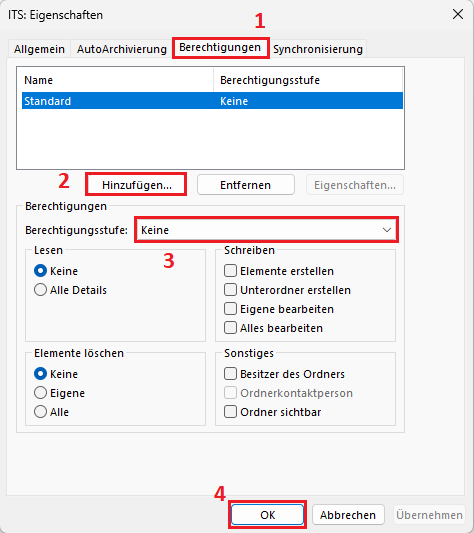
In this window, also select the "Permissions" tab. Click on "Add" here. Your Outlook address book will open and you can select the person to whom you would like to grant permissions. You can then assign the individual rights to the person and confirm your selection by clicking on "OK".
To include the shared folders/the shared mailbox in Outlook 2024, please follow the corresponding instructions under Include external folders in the mailbox.
Mac
Assigning a deputy
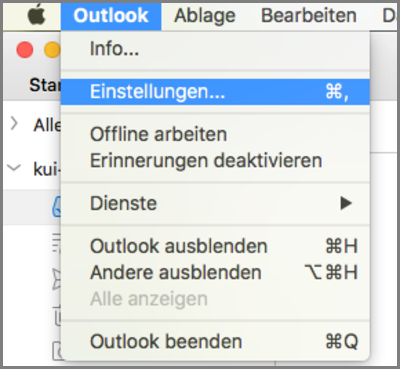
To share calendars, mail, contacts or tasks with a deputy in Outlook for Mac, go to "Outlook" and "Settings" in the menu bar.
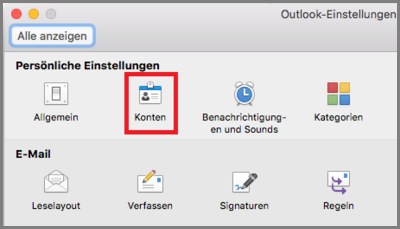
Then click on "Accounts".
In the next step, please click on "Advanced".
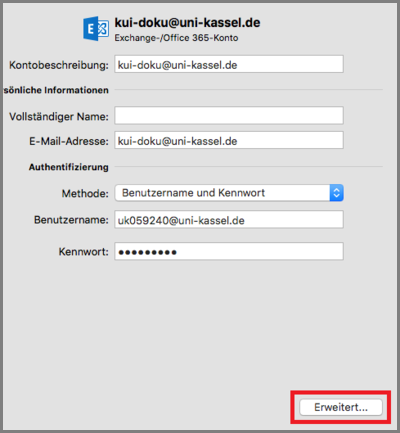
Select "Deputies" in the new window that opens. Then click on the "+" under "Deputies who may act on my behalf".
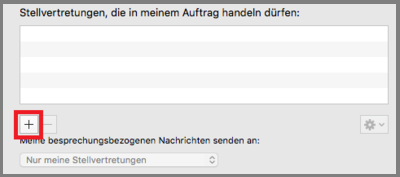
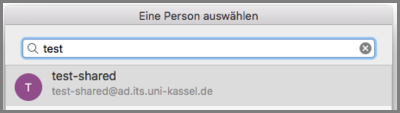
Then select the desired deputy and click on "Add".
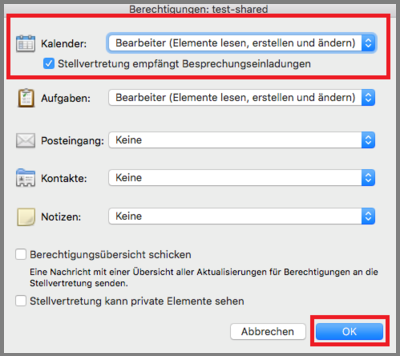
Another window opens. Here you can select which authorizations your deputy receives for various areas (calendar, tasks, inbox, contacts and notes).
Pay attention to the tick "Substitute receives meeting invitations". If this box is checked (default), the deputy will receive "my" meeting invitations. This is rarely desired.
Finally, confirm your selection by clicking on "OK" and confirm all open windows.
Access to folders
To access the shares of other people or group mailboxes, click on "+" in the "People I am a proxy for" section.
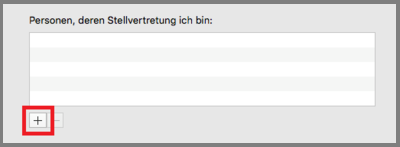
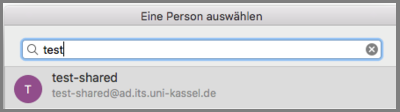
In the next step, select the desired person and confirm your selection with "OK".
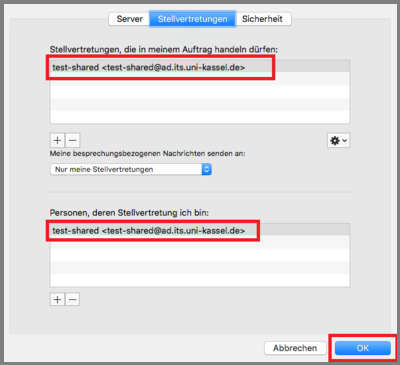
The approved persons are now displayed.
Go-Link for this page: https://www.uni-kassel.de/go/outlook-stellvertretung-einrichten