

Create timetable
The content on this page was translated automatically.
Contents
ATTENTION: Saving in the timetable is not a booking of a course!
See also Booking courses or Booking courses directly from the timetable.
The "Events" tab offers various options for finding the desired events.
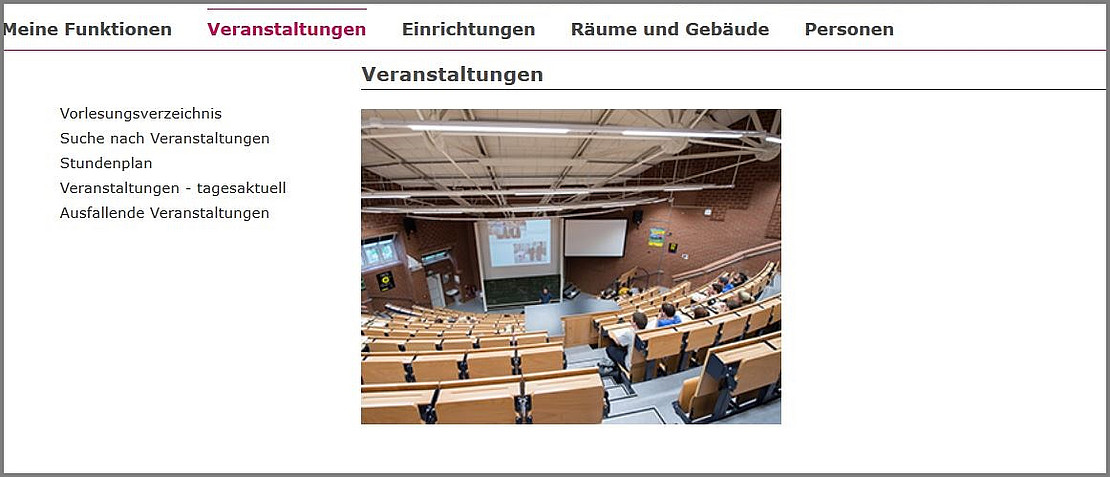
Search for events
Click on Search for events.
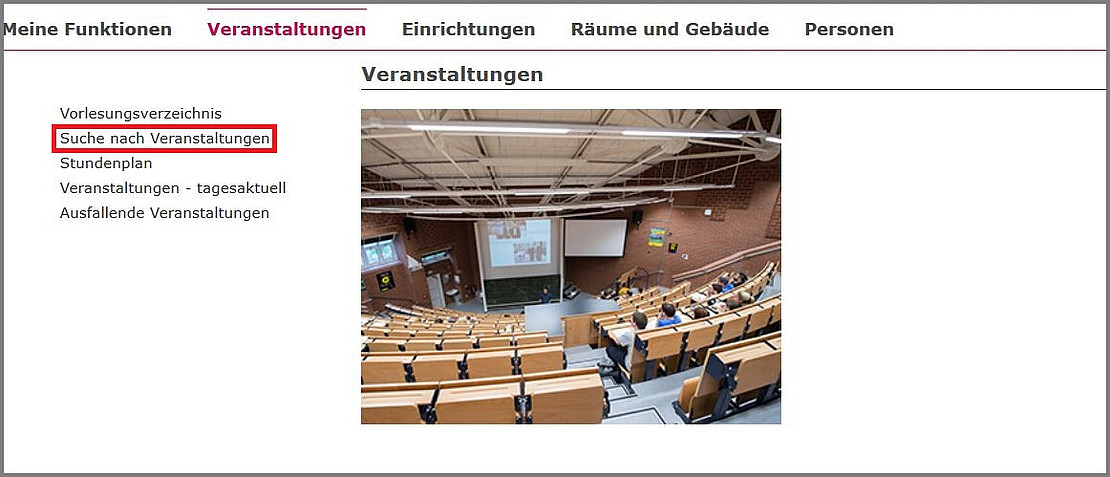
By entering various criteria in the search mask, you can search for a specific event. In our example, we are looking for all events that contain the text Introduction in the title.

The search result displayed will look like this:

Search in the heading tree of the course catalog
In the course catalog, you can click on the individual headings in the tree to find the courses for a specific degree program.

Create timetable
Click on View long or on the title of the event.

Click in the checkbox for Prebook. Click on Prebook marked dates. The timetable view semester view is displayed:

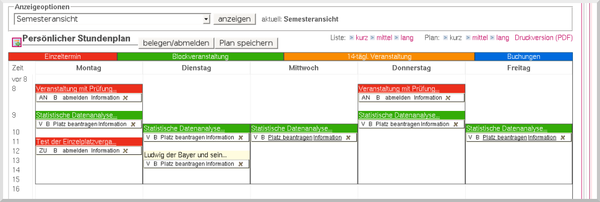
Block dates in the timetable are as follows:

Views of the timetable
- The current view is the semester view (01.04.2011 to 31.09.2011).
- Click on the arrow behind semester view: here you can change the global view, e.g. lecture period view (11.04.2011 to 15.07.2011) or select individual weeks. After selecting, please click on show
- List short/medium/long lists the timetable in compact form
- Plan short/medium/long shows the timetable graphically
- medium expands the view to include dates and rooms
- long expands the view to include lecturers and department
- Print version You receive a view of the timetable prepared for printing
- register/deregister Enter your UniAccount and the corresponding password in the login mask. All courses are listed for registration/deregistration. See also Registering directly from the timetable
- Save timetable Enter your UniAccount and the corresponding password in the login screen. Your timetable will be saved.


- V Course is only marked in the timetable. If you have already registered for a course, it will say "AN" or "ZU", for example
- B This course is subject to compulsory attendance. See also Booking courses or Booking courses directly from the timetable
- X Remove course from the timetable view

Retrieve saved timetable
After logging in, click on Timetable under My functions.
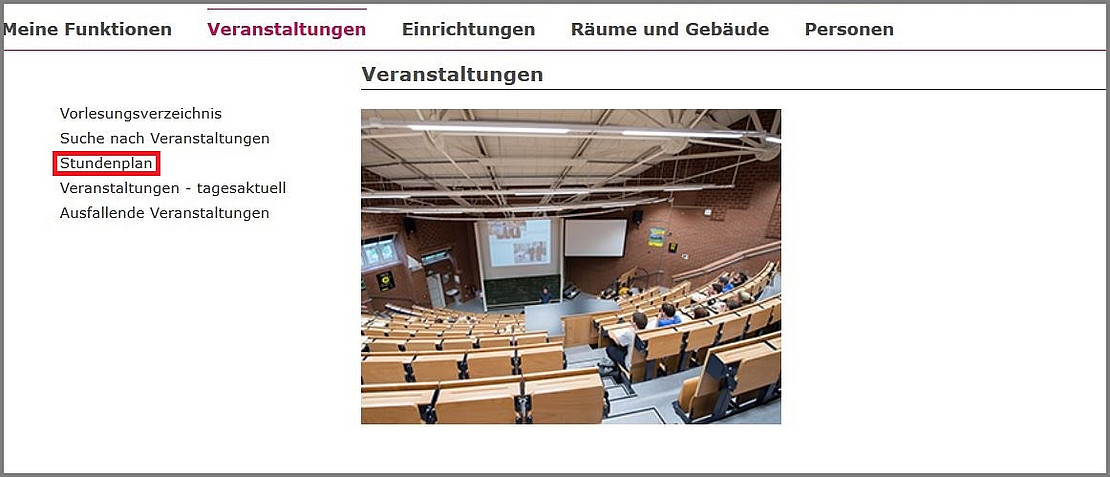
The complete timetable appears, including courses that have been booked:
ATTENTION: Saving in the timetable is not a booking of a course!!! See also Registering courses or Registering courses directly from the timetable.